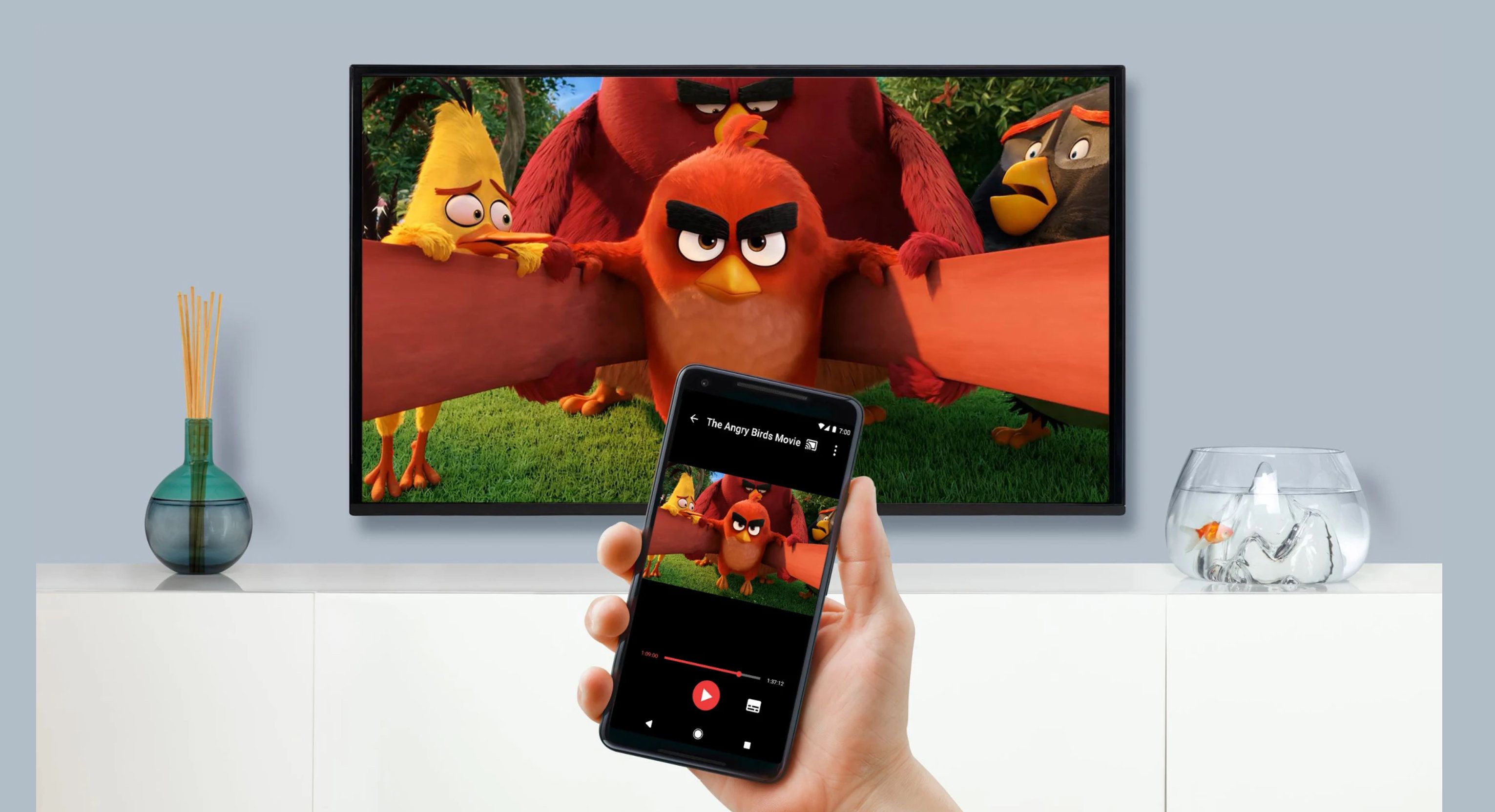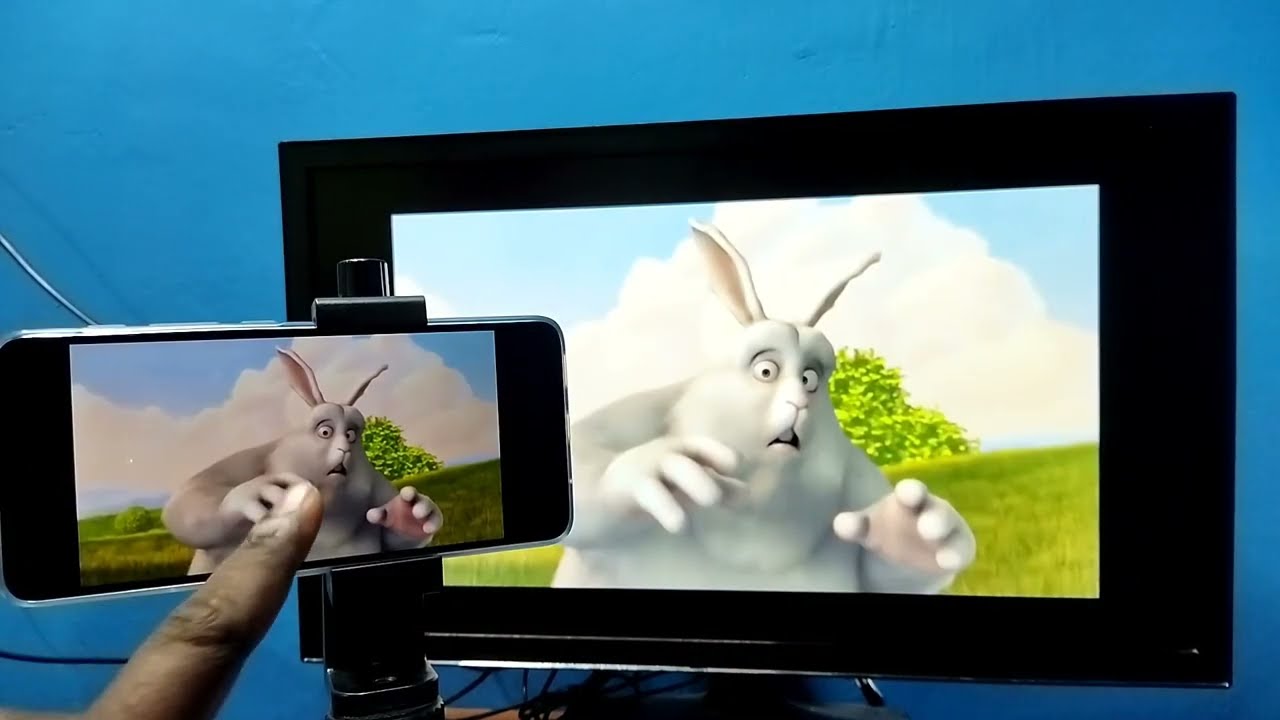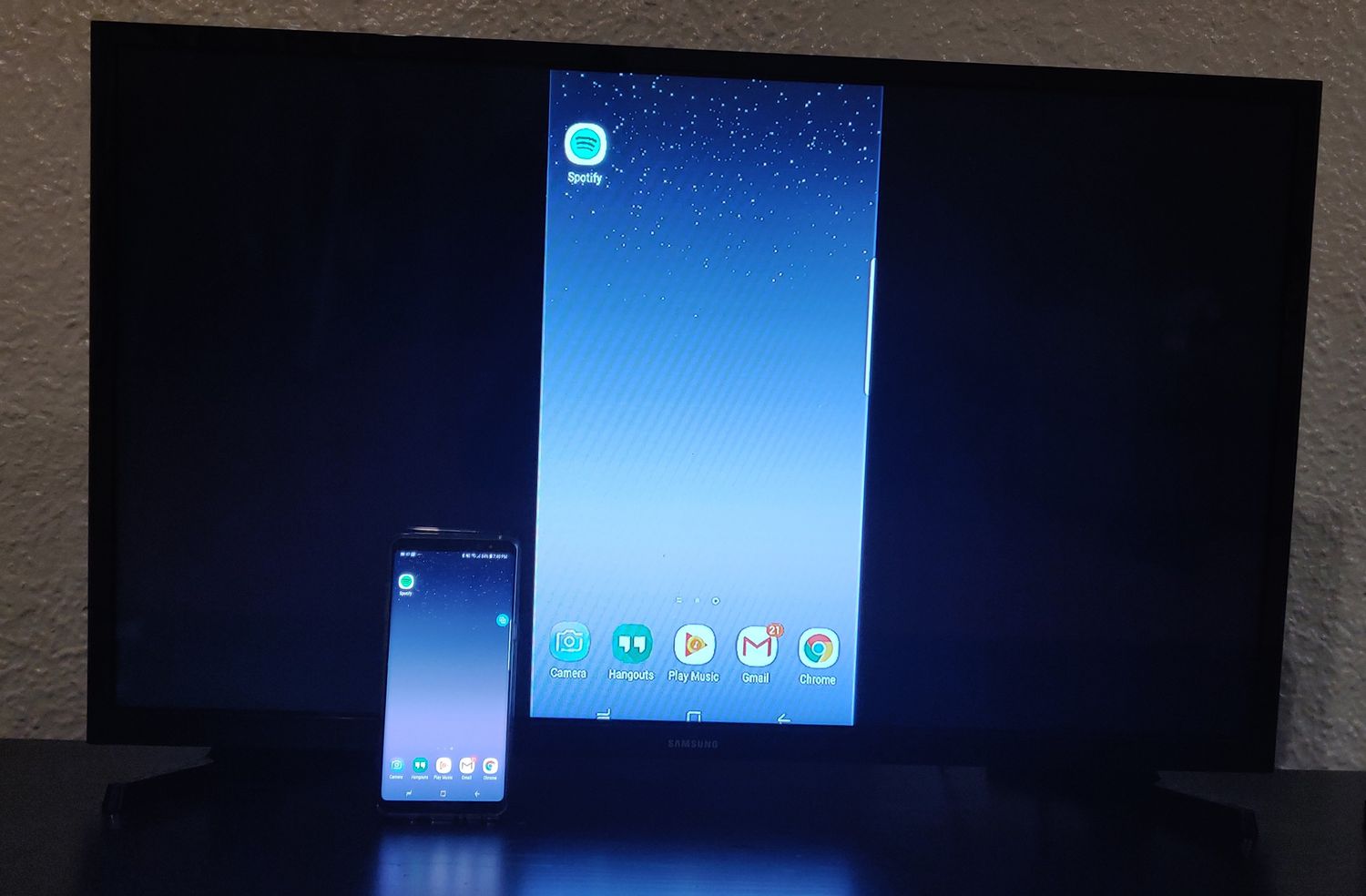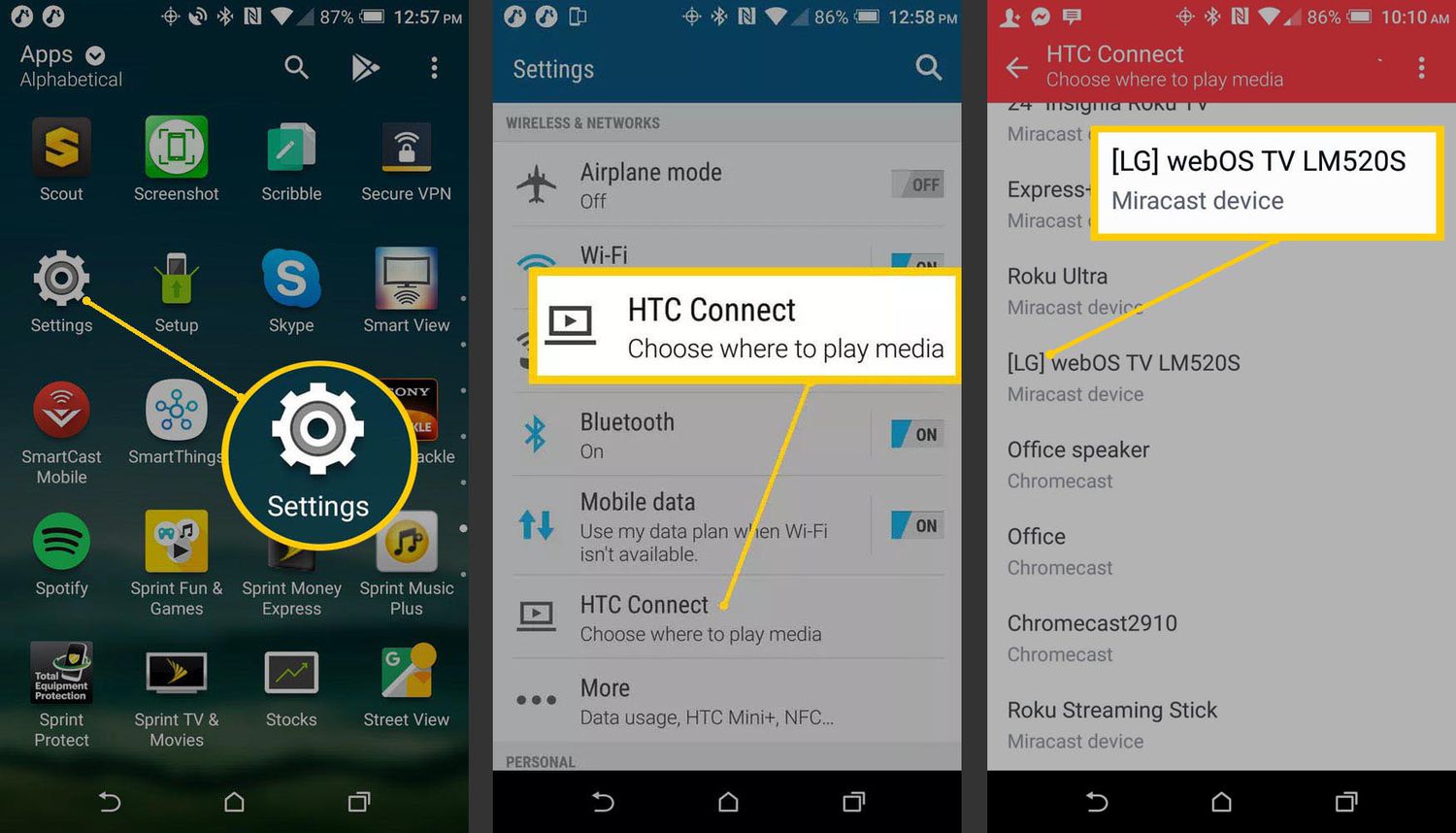
To cast from an LG phone to a TV, both devices must be connected to the same Wi-Fi network, then use the built-in Screen Share feature. Swipe down from the top of your phone’s screen to open the Quick Settings panel and tap the Screen Share icon to begin mirroring your display to the TV.
How to cast from an LG phone to a TV
The quickest way to cast from an LG phone to a TV uses the Screen Share option in your phone’s Quick Settings. Follow these steps to connect wirelessly:
- Enable casting/screen mirroring on the LG TV itself via its settings menu before attempting to connect.
- Make sure your LG phone and your TV are connected to the same Wi-Fi network.
- On your LG phone, swipe down from the top of the screen to open the Quick Settings panel.
- Tap the “Screen Share” icon. Depending on your phone model, this icon may appear as “Cast,” “Smart View,” or “Wireless Projection.”
- Select your LG TV from the list of available devices that appears on your phone.
Once connected, your phone’s screen will appear on the TV. You can then open any app or media to view it on the larger display. For smoother playback, ensure there are no obstacles between your phone and the TV, and stay close to your Wi-Fi router. Older LG TV models may need an external device like a Chromecast or Roku.
Cast using the LG ThinQ app
The LG ThinQ app offers an alternative method for screen sharing and controlling your LG Smart TV. Both devices need to be on the same Wi-Fi network. After downloading the app, sign in to your LG account and follow the on-screen prompts to connect to your TV. The app provides additional controls, such as adjusting volume or switching inputs, directly from your phone while you cast.
How to cast from an iPhone to an LG TV
If you use an iPhone and want to cast to an LG TV, ensure both devices are on the same Wi-Fi network. Open the Control Center on your iPhone, tap “Screen Mirroring” (the AirPlay icon), and select your LG TV from the list. Your iPhone screen will then appear on the TV, allowing you to share photos, videos, or streaming apps.
Troubleshooting tips for screen sharing
If you experience connection issues, check these common solutions:
- Verify that your Wi-Fi connection is stable and both devices are on the same network.
- Restart both your LG phone and your TV, then try the connection again.
- Clear app cache and data for a specific casting app if experiencing app-specific glitches.
- Check HDMI connections if casting via cable, ensuring the cable is securely plugged in and not damaged.
- Reset network settings on the LG phone as a troubleshooting step (erases saved Wi-Fi networks and passwords).
For specific problems like buffering or dropped connections, moving closer to the router often resolves interference. If the TV does not appear in the device list, confirm that your TV’s screen mirroring feature is enabled in its settings menu.
Frequently Asked Questions
Can I cast from an LG phone to a non-LG TV?
Yes, as long as the TV supports screen mirroring (Miracast or similar) or is connected to a casting device like a Chromecast or Roku. The same Wi-Fi network requirement applies, and the process for casting apps to a TV remains the same as with an LG TV.
What content can I cast from my LG phone?
You can cast photos, videos, music, and many streaming apps. For example, you can stream Roku from a phone to TV if the Roku device is on the same network, or cast a phone to an Amazon Fire Stick TV using the Fire Stick’s built-in screen mirroring feature. Some apps, like Netflix or YouTube, also have their own cast button inside the app.
Can I control playback on the TV from my phone?
Yes, after casting, your LG phone acts as a remote control. You can pause, play, adjust volume, and navigate through content directly from your phone without interrupting the casting session.
Do I need any extra equipment to cast?
For most modern LG Smart TVs, no extra equipment is needed. If your TV does not support built-in screen mirroring, you can use a streaming device such as a Chromecast or Roku. Older TVs may require an HDMI cable or a casting device like Chromecast. For example, to stream Crunchyroll from a phone to TV, you can use the app’s cast button if both devices are on the same network.
Why won’t my LG phone connect to the TV?
Common causes include being on different Wi-Fi networks, a weak Wi-Fi signal, or the TV’s screen mirroring feature being turned off. Restarting both devices and ensuring they are close to the router usually resolves the issue.