To set up a Gabb Phone for your child, you must start at Gabb's official activation portal on your computer or phone browser, not by tapping through the phone's built-in setup menus. The entire process is controlled from the parent's MyGabb app after you create your child's Gabb ID on the phone itself.
Before you touch the phone: Start at the activation portal
Begin on Gabb's website activation portal before you even open the box. This is where you initiate the service for your new Gabb Phone. For Gabb Phone 4 and 4 Pro, activate the device first, then use the parent's phone in the MyGabb app. Complete the prompts on the portal for your specific phone model, then move to the hardware setup. Do not skip this step, the phone will not activate if you try to set it up through the normal Android or iPhone system setup pages.
Unboxing and hardware setup for your Gabb Phone
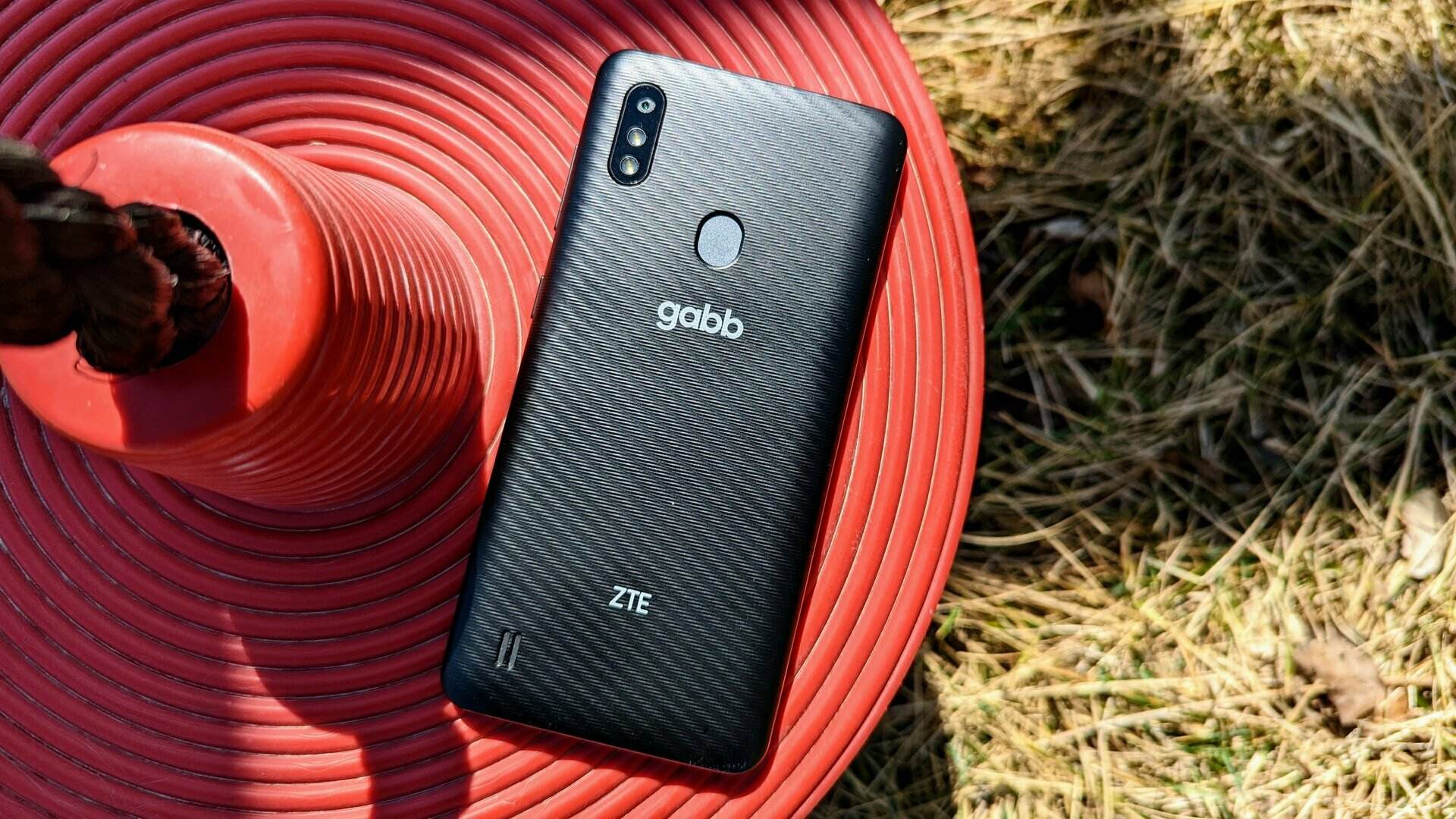
Remove the back cover of the Gabb Phone. For Gabb Phone 4, insert battery with barcode side down and gold contacts in upper-right corner. Insert the battery with the barcode side down and the gold contacts in the upper-right corner. Replace the back cover securely. This is the only hardware assembly required, there is no SIM card to insert, as Gabb Phones operate on their own network.
Power on the device and start the phone setup
Press and hold the power key to power on, restart, or power off. Press and hold the power button for 5 seconds until the Gabb logo appears. When the first prompt appears on the screen, choose For My Child. This tells the phone you are setting it up for a child, not managing it as a personal device.
Connect to Wi-Fi and create your child's Gabb ID
Connect the Gabb Phone to a Wi-Fi network. For Gabb Phone 4 Pro setup, verify the phone is connected to WiFi before using the MyGabb app flow. You must have an active internet connection for the next steps. Open the Gabb ID app on the phone, tap I'm a Kid, then tap Create a Gabb ID. Follow the on-screen prompts to enter the required information. Complete the email verification step, the Gabb ID will not be active until you verify it through the email sent to the address you provided.
Complete setup with the MyGabb app on your phone
On your own smartphone, download the MyGabb app from the Apple App Store or Google Play Store. Sign in with your own Gabb credentials, do not use your child's login. Make sure Bluetooth is enabled on your phone and that the Gabb Phone is nearby. When the MyGabb app detects the new phone, tap Set up now in the pop-up and follow the guided setup. For Gabb Phone 4 Pro, parent can tap Assign next to the phone, then Assign to Phone or Re-Assign to Phone under the Gabb ID they want to use.
What to do after setup: Calls, messages, and camera
Once setup is complete, your child can make calls by opening the Phone app and dialing a number or selecting a contact. Text messages work through the Messages app. The built-in camera captures photos and videos that save to the Gallery app. Gabb Phones can be set to only contact approved contacts set by the parent, or the child can manage their own contacts. The phone is designed for basic communication, it does not support downloading additional apps or browsing the internet.
Troubleshooting common Gabb Phone setup problems
If the phone cannot connect to Wi-Fi, verify the network name and password are correct and that you are within range of the router. If the MyGabb app does not detect the phone, confirm Bluetooth is enabled on your phone and the Gabb Phone is within a few feet. Restart both devices if the issue persists. If you are having trouble with the Gabb ID email verification, check your spam folder and ensure you entered the correct email address. For issues like a frozen screen, press and hold the power button for about 10 seconds to perform a soft reset.
Getting more help from Gabb support
If you cannot resolve the issue, contact Gabb customer support through their website's support page, by email, or by phone. The support team can assist with activation problems, account issues, and device troubleshooting. For those who are using basic flip phones and want to understand the differences, Gabb Phones offer a similar simplicity but with built-in parental controls. If you need to turn on a TCL flip phone, the process is different, Gabb Phones have their own power-on sequence. Understanding phone charger types and cables can help you keep any device charged, but Gabb Phones come with their own charger in the box.
Frequently Asked Questions
Can I use a Gabb Phone outside of the United States?
No, it only works within the United States and its territories.
Can I use my Gabb Phone with my existing carrier?
No. Gabb Phones are designed to work exclusively on the Gabb network and are not compatible with other carriers.
Do I need a data plan for my child's Gabb Phone?
No. Gabb Phones do not require a data plan. They operate on a 4G LTE network for calls and texts only, with no internet browsing or app downloads available.
How do I add contacts after setup is complete?
You can add contacts through the MyGabb app on your phone, where you can choose to restrict your child to only approved contacts or allow them to manage their own contact list.
Can I track my child's location with a Gabb Phone?
Yes. Gabb Phones include built-in GPS tracking that you can monitor through the MyGabb app on your phone.
What if I lose the email verification for my child's Gabb ID?
You can request a new verification email from the Gabb ID app on the phone, or contact Gabb support to resend it.