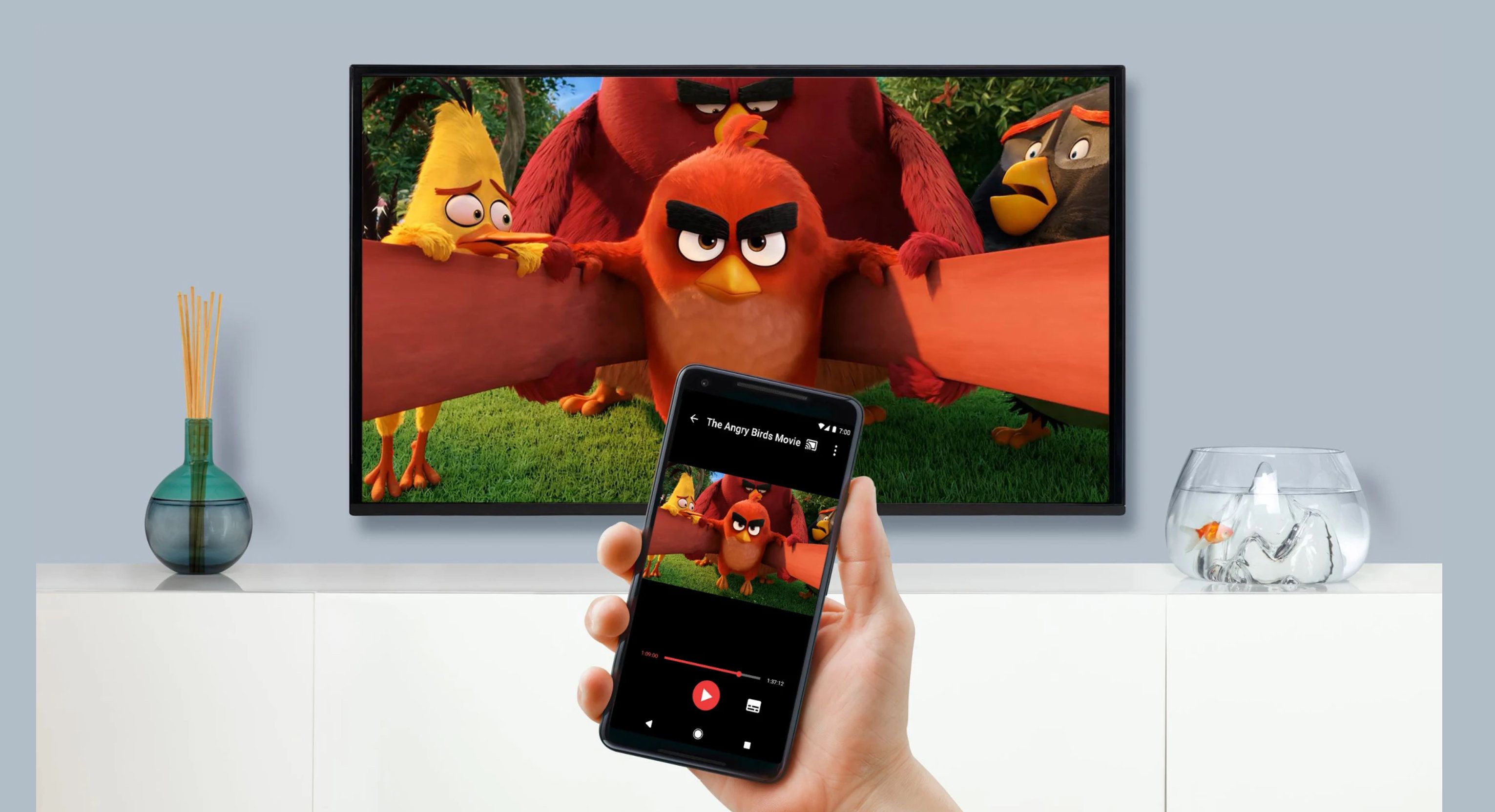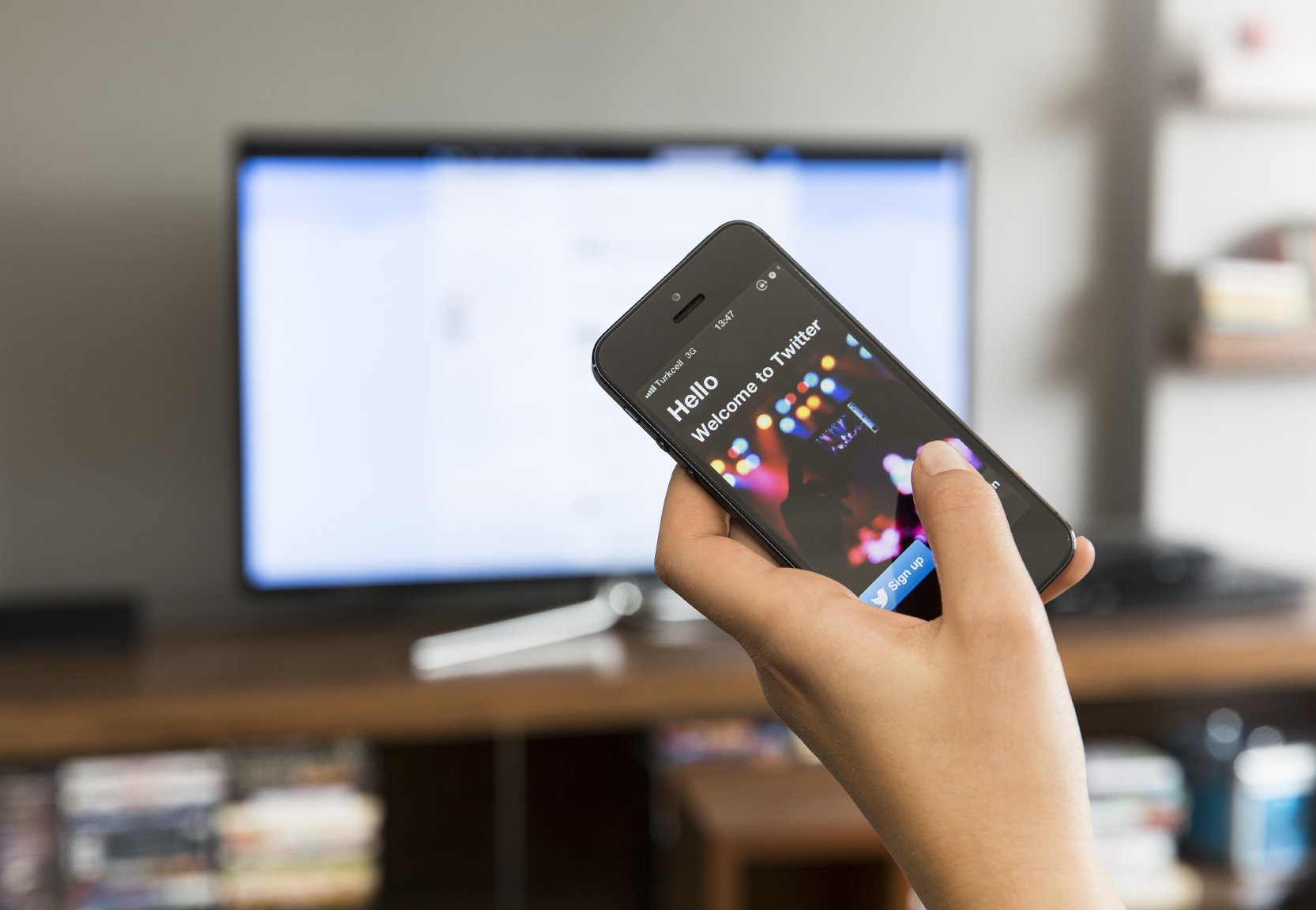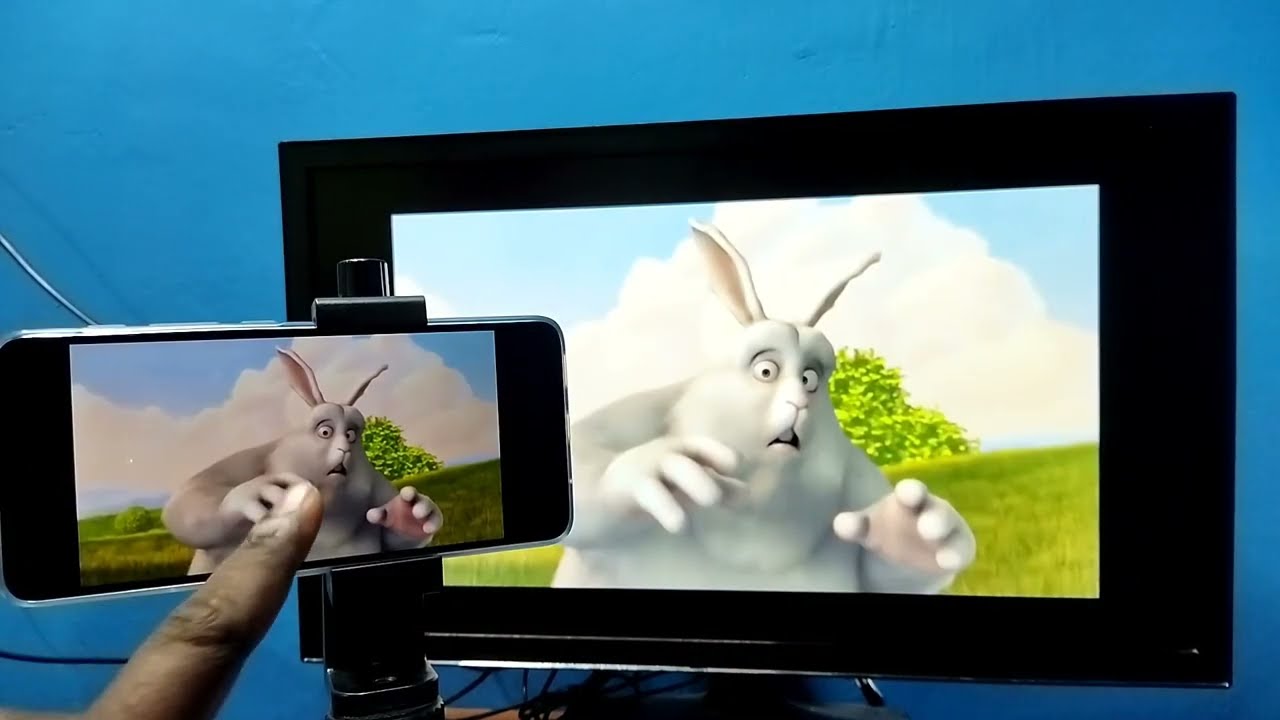
To cast from a Motorola phone to a TV, use the built-in Android Cast feature, which utilizes Chromecast technology, to mirror your screen or send content wirelessly. For most modern Motorola phones, this is the primary method for casting apps to a TV, requiring only that both devices are on the same Wi-Fi network.
How to cast from a Motorola phone to TV using Quick Settings
This is the fastest method for screen mirroring. Swipe down from the top of your phone screen to open the Quick Settings panel, then tap the Cast icon. Your phone will search for available devices. Select the name of your Chromecast or TV from the list to begin mirroring your entire screen.
Cast through the Settings menu
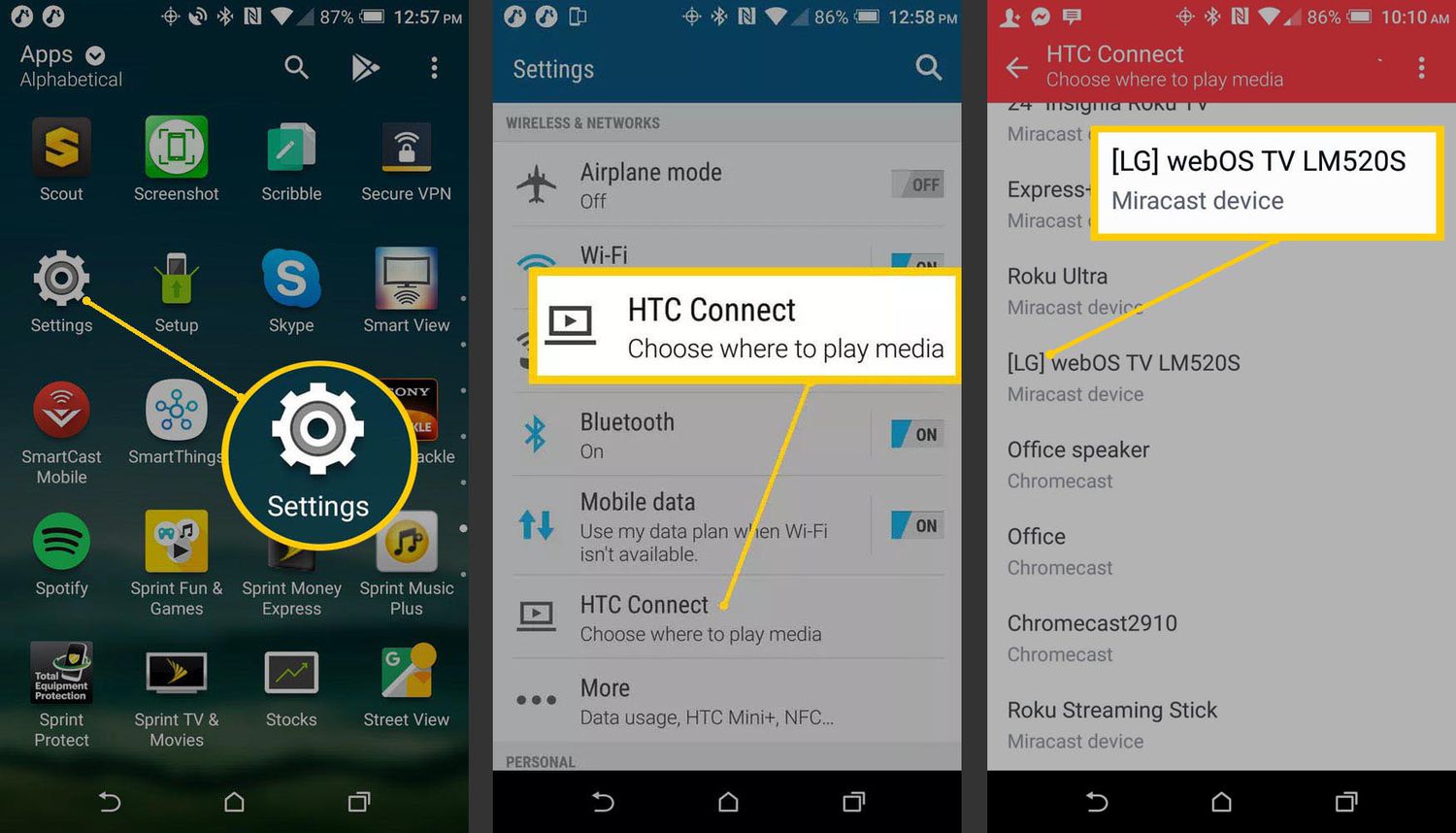
If the Cast icon is not in your Quick Settings, you can access the same feature through the system settings. Navigate to Settings > Connected devices > Connection preferences > Cast. Once there, select your TV from the list of available devices to start casting your phone’s screen.
Use Motorola Smart Connect for a desktop experience
Motorola’s Smart Connect app (formerly known as Ready For) offers additional functionality beyond basic screen mirroring. It can cast your screen to a Miracast-compatible TV and provides a mobile desktop experience, allowing you to use your phone like a computer on the big screen. For Miracast screen mirroring, the specific path is Settings > Display > Wireless Display and sliding the toggle to ON (this is a distinct Miracast path, separate from the Chromecast Cast path).
Cast from specific apps like YouTube or Netflix
When you want to send content directly to the TV without mirroring your entire phone screen, use the in-app cast feature. Open a streaming app like YouTube or Netflix on your Motorola phone, then tap the cast icon (usually a rectangle with a Wi-Fi signal) within the app. Select your TV from the list, and the video or show will play directly on the TV while you continue using your phone for other tasks. Some Motorola phones also support DLNA as an additional casting method.
Connect with a USB-C to HDMI adapter
If wireless casting is unstable or unavailable, a wired connection provides a reliable fallback. Use a USB-C to HDMI adapter and an HDMI cable to connect your Motorola phone directly to the TV. This method does not require Wi-Fi and ensures a stable, low-latency connection for screen mirroring.
Troubleshooting casting problems
If you encounter issues while trying to cast, start by verifying that both your Motorola phone and the TV are connected to the same Wi-Fi network. Reboot your Wi-Fi router, then restart both your phone and the TV. Check for firmware updates on your TV and ensure your phone’s apps are up to date. Clear cache and data of the casting app on your phone to resolve issues. Disable battery optimization for the casting app to prevent background interruptions. Try a different casting method (e.g., switch from Wi-Fi casting to Bluetooth or HDMI) if one method fails. Reset the TV to factory settings as a last resort. To disconnect a cast properly, tap the Cast icon in Quick Settings or the casting notification, then select “Disconnect.”
Frequently Asked Questions
Can I cast from any Motorola phone to a TV?
Most modern Motorola phones support casting through built-in Android features, the Google Home app, or Motorola's Smart Connect app. Compatibility depends on the phone model and the TV’s support for Chromecast or Miracast.
Can I cast any app from my Motorola phone to a TV?
While many apps have a built-in cast icon for direct streaming, some apps may restrict casting due to copyright or technical limitations. For apps without a cast icon, you can still mirror your entire phone screen using the Quick Settings Cast feature, which will display the app on the TV.
How do I stop casting from my Motorola phone?
To stop casting, tap the Cast icon in Quick Settings or tap the casting notification that appears on your phone. Then select “Disconnect” from the menu that appears.
What if my TV does not support Chromecast or Miracast?
If your TV lacks built-in wireless casting support, you can use a USB-C to HDMI adapter for a wired connection, or plug a Chromecast device or Miracast wireless display adapter into the TV’s HDMI port to enable wireless casting.
Can I cast content from apps that don’t have a cast icon?
Related reading: How To Cast Videos From A Phone To TV and How To Cast My Phone To My Vizio TV.