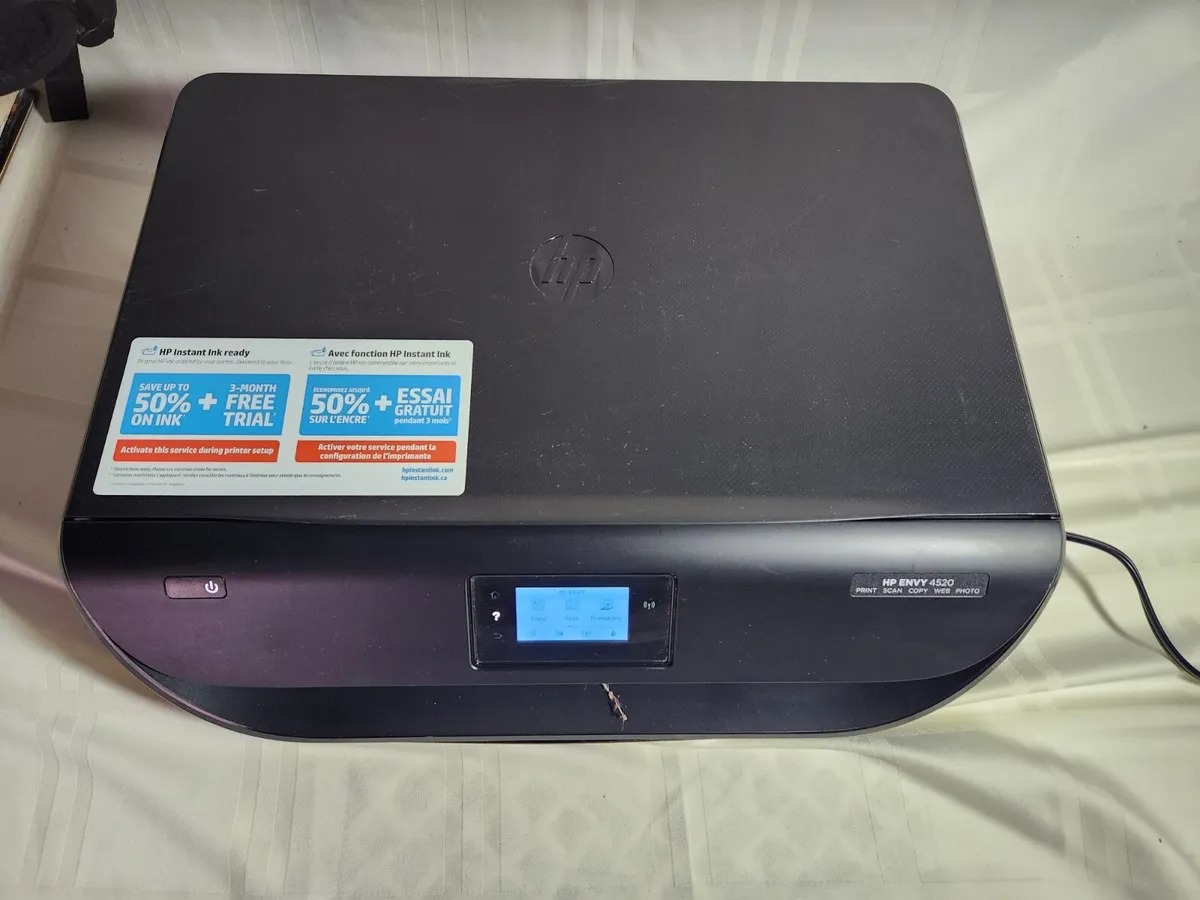
To connect your HP Envy 4520 to your phone, you have two supported options: use Wi-Fi Direct for a direct connection without a network, or connect both devices to the same Wi-Fi network. This model does not support Bluetooth printing, so you will use one of these two wireless methods to print from your phone.
Connect HP Envy 4520 to phone with Wi-Fi Direct
Wi-Fi Direct lets your phone connect directly to the printer without needing a home or office Wi-Fi network. This is useful when you are away from your usual network or if your network is unavailable.
- To enable Wi-Fi Direct, press the Wireless button on the printer control panel, then go to the settings menu and select Wireless Direct.
- On the printer's home screen, touch Wi-Fi Direct.
- If the status shows Off, touch Wi-Fi Direct Settings and turn Wi-Fi Direct on. If you are using Wi-Fi Direct, you may need to set a network name and password on the printer during setup.
- On your phone, open a print-enabled app and choose the document or photo you want to print.
- In the list of available printers, select the Wi-Fi Direct name shown as DIRECT-**-HP ENVY-4520.
- Follow the on-screen instructions on both the printer and your phone to complete the connection.
Mobile devices that support Wi-Fi Direct can print this way. The printer's Wi-Fi Direct network name format includes a unique alphanumeric code, shown as DIRECT--HP ENVY-4520, where is replaced by a specific code for your printer.
Connect using the same Wi-Fi network
If you have a home or office Wi-Fi network, you can connect both your phone and your HP Envy 4520 to that same network. The printer has built-in 802.11b/g/n Wi-Fi, which allows it to join your wireless network. When connecting via Wi-Fi, the printer's network name is usually displayed as DIRECT-XX-HP Envy 4520, with XX being a unique alphanumeric code.
- On the printer, go to the network or wireless settings menu and select your Wi-Fi network. Enter your network password when prompted.
- On your phone, connect to the same Wi-Fi network.
- Open the HP Smart app on your phone. The app will automatically detect the printer on the network.
- Follow the on-screen prompts in the app to add the printer to your account.
Once both devices are on the same network, you can print from any app that supports printing without needing to switch networks.
Install and use the HP Smart app
Download the HP Smart app from your phone's app store. This app is the central tool for managing your printer from your phone.
- Open the app store on your phone and search for HP Smart.
- Download and install the official HP Smart app.
- Open the app and follow the setup instructions to add your HP Envy 4520. In the HP Smart app, tap the Plus icon to add a new printer, then select the printer model (HP Envy 4520) from the list of available printers.
- Once the printer is added, you can print documents and photos directly from the app. The app also allows you to scan documents from the printer to your phone.
Using the HP Smart app streamlines your wireless printer setup and mobile printing experience, giving you control over print jobs and scanner functions from your phone.
Troubleshooting connection problems
If you have trouble connecting your phone to the printer, check these common issues first.
- If you are using Wi-Fi Direct, make sure the feature is turned on in the printer's Wi-Fi Direct settings. If it is off, your phone will not see the printer's network.
- Verify that the printer name your phone shows matches the format DIRECT-**-HP ENVY-4520. If the name looks different, the printer may not be in Wi-Fi Direct mode.
- For the Wi-Fi network method, confirm that both your phone and the printer are connected to the exact same Wi-Fi network. A mismatch in network names or passwords will prevent the HP Smart app from finding the printer.
- If connection issues persist, clear the cache of the HP Smart app on your phone via the app settings.
- Ensure your HP Envy 4520 has the latest firmware installed by checking the HP support website, as outdated firmware can cause compatibility issues.
- As a last resort, reset the network settings on the printer from the Network or Wireless settings menu, which will remove all saved Wi-Fi networks.
If you are setting up a HP wireless printer for the first time, these checks will resolve most connection issues quickly.
Frequently Asked Questions
Can I print from an iPhone using the HP Envy 4520?
Yes. iPhones can print using AirPrint, which works over the same Wi-Fi network. Open the document or photo, tap the share button, select Print, and choose your HP Envy 4520 from the printer list.
Can I print from an Android phone using the HP Envy 4520?
Yes. Android phones can print using the HP Smart app or through the built-in print menu if the printer is on the same Wi-Fi network. Install the HP Smart app, add your printer, and select Print from any app.
Can I scan documents from my phone using the HP Envy 4520?
Yes. Open the HP Smart app on your phone, select the Scan option, place your document on the scanner glass, and tap Scan. The scanned file will be saved to your phone.
What if I do not have a Wi-Fi network?
Use Wi-Fi Direct. This creates a direct wireless connection between your phone and the printer without needing a router or internet. Enable Wi-Fi Direct on the printer and connect your phone to the DIRECT-**-HP ENVY-4520 network.
How do I know if my HP Envy 4520 is connected to my Wi-Fi network?
Check the printer's control panel. The wireless icon should show a solid blue light when connected. You can also print a network configuration page from the printer's settings menu to confirm the network name and signal strength.
Can I connect my HP Envy 4520 to my phone using a USB cable if I don't have Wi-Fi?
Related reading: How to Print From Your Phone to Any Printer, How To Connect Printer To Mobile Hotspot, and How To Connect Wireless Printer HP Deskjet 2540.