To connect your phone to your monitor, you will use a cable and adapter for the most reliable connection, or a wireless method for convenience. The exact steps depend on whether you have an iPhone or a Samsung Galaxy phone, as these are the two primary paths documented by the manufacturers.
How to connect my phone to my monitor with a cable
There are two main wired paths to connect your phone to a monitor. For an iPhone, you use one of Apple’s documented adapters. For a Samsung Galaxy, you use a DeX cable or a USB-C to HDMI cable. Both methods require you to plug the correct adapter or cable into your phone’s charging port, connect an HDMI or VGA cable (if not built into the adapter), and then plug the other end into the monitor. Finally, you may need to switch the monitor to the correct video source using its on-screen menu.
Connect an iPhone to a monitor
Apple provides specific adapters to connect an iPhone to a monitor. Follow these steps for a wired connection.
- Plug the correct Apple adapter into your iPhone’s charging port. The available adapters are the Lightning Digital AV Adapter, Lightning to VGA Adapter, USB-C Display AV Adapter, and USB-C VGA Multi-port Adapter.
- Connect an HDMI or VGA cable from the adapter to the monitor.
- Connect the other end of the cable to your monitor.
- If the monitor does not automatically show your iPhone’s screen, use the monitor’s controls to switch the monitor to the correct video source (e.g., HDMI 1, HDMI 2, or VGA).
For iPhone models with a USB-C port, you can also use a USB-C to HDMI adapter or cable directly. If the adapter and cable support HDMI 2.0, the output can reach 4K resolution at 60 Hz.
Connect a Samsung Galaxy to a monitor with DeX
Samsung Galaxy phones support a desktop-like experience called DeX when connected to a monitor. Here is the wired connection process.
- Connect the USB-C end of a Samsung DeX cable or a standard USB-C to HDMI cable to your Galaxy phone or tablet.
- Connect the other end of the cable to the monitor’s HDMI port.
- The phone should automatically launch DeX mode, or you may be prompted to enable it. The monitor will display the DeX interface.
Samsung DeX works on monitors that support at least HD+ resolution. The supported resolutions are HD+ (1600 x 900), FHD (1920 x 1080), and WQHD (2560 x 1440).
How to connect your phone to a monitor wirelessly
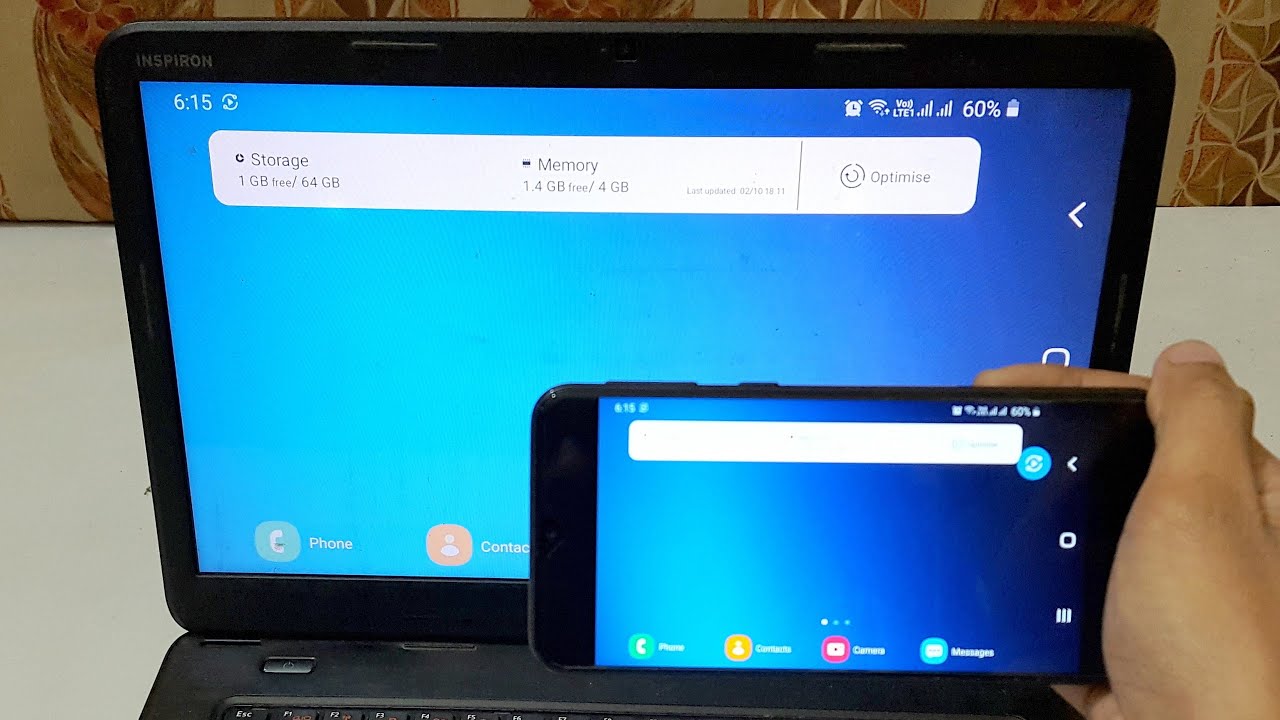
For a cable-free connection, Samsung Galaxy phones can use Wireless DeX. This method mirrors your phone’s screen or launches the DeX interface on a compatible display.
- On your Samsung Galaxy phone, open the Quick Panel by swiping down from the top of the screen and tap Wireless DeX. Alternatively, go to Settings, then Device Connections, then Samsung DeX, and select Connect wirelessly.
- Your phone will scan for available displays. Select your target device from the list.
Wireless DeX is compatible with Samsung TVs from 2018 or newer, Samsung Smart Monitors, and other devices that support Miracast screen mirroring.
Frequently Asked Questions
Can I use my phone as a second screen for my computer?
While this is possible using third-party apps, the manufacturer-documented methods for iPhone and Samsung Galaxy phones focus on mirroring or extending the phone’s own display to a monitor, not acting as a second screen for a computer. For that purpose, you would need dedicated software that runs on both your phone and computer.
How to screen mirror Android?
If you want to screen mirror Android, the most reliable documented method is for Samsung Galaxy phones using Wireless DeX or a wired DeX connection.
Does connecting my phone to a monitor charge it?
Some adapters, such as Apple’s Lightning Digital AV Adapter and USB-C adapters, include a pass-through charging port. This allows you to plug a power cable into the adapter while it is connected to the monitor, keeping your phone charged. Not all adapters offer this feature, so check the specifications of your specific adapter.
Will any USB-C cable work to connect my phone to a monitor?
No. For a wired connection, you need a cable that supports video output. A standard USB-C charging cable will not work. You must use a USB-C to HDMI cable, a Samsung DeX cable, or a USB-C to HDMI adapter. For iPhone models with USB-C, Apple states that HDMI 2.0-capable adapters and cables can output 4K at 60 Hz.
Can I connect my phone to a monitor without an adapter?
In that case, you can use a single USB-C to USB-C cable. Otherwise, you will need an adapter or a specialized cable like a USB-C to HDMI cable.
Related reading: How To Cast A Phone To TV Without WiFi and How To Connect A Phone To An Auking Projector.