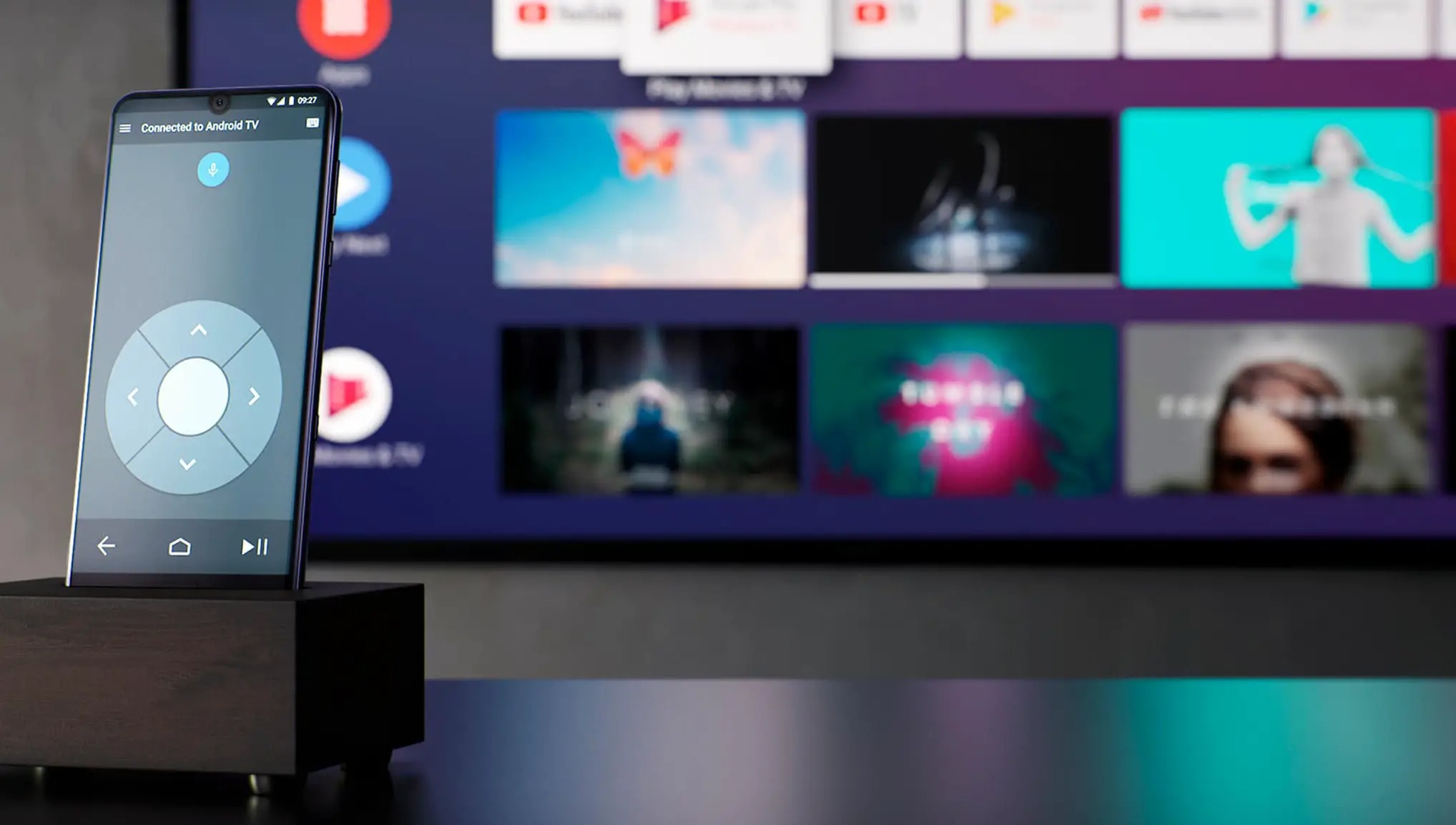
To connect your phone to a Sharp TV, the method you use depends entirely on whether your TV is a Roku model, an Android TV/Google TV model, or a non-smart display. Identify your TV's operating system first, then follow the specific steps for wireless casting or wired HDMI connection to get your phone's content on the big screen.
Before you connect your phone to a Sharp TV: identify your model
Knowing which Sharp TV you own is essential because the connection process differs significantly between models. If your TV's home screen shows a Roku interface with channels like Netflix and Hulu in a grid, you have a Sharp Roku TV. If the home screen features Google Play, the Google Assistant, and a row of apps recommended by Google, you have a Sharp Android TV or Google TV. If your TV does not have a smart platform or apps at all, it is a non-smart Sharp TV, and your only reliable option is a wired connection.
Connect wirelessly with Chromecast built-in (Sharp Android TV/Google TV)
Many Sharp Smart TVs running Android TV or Google TV have Chromecast built-in, which is the easiest way to get content from your phone to the TV without cables. This feature allows you to cast video and audio from thousands of compatible apps on both Android and iOS devices.
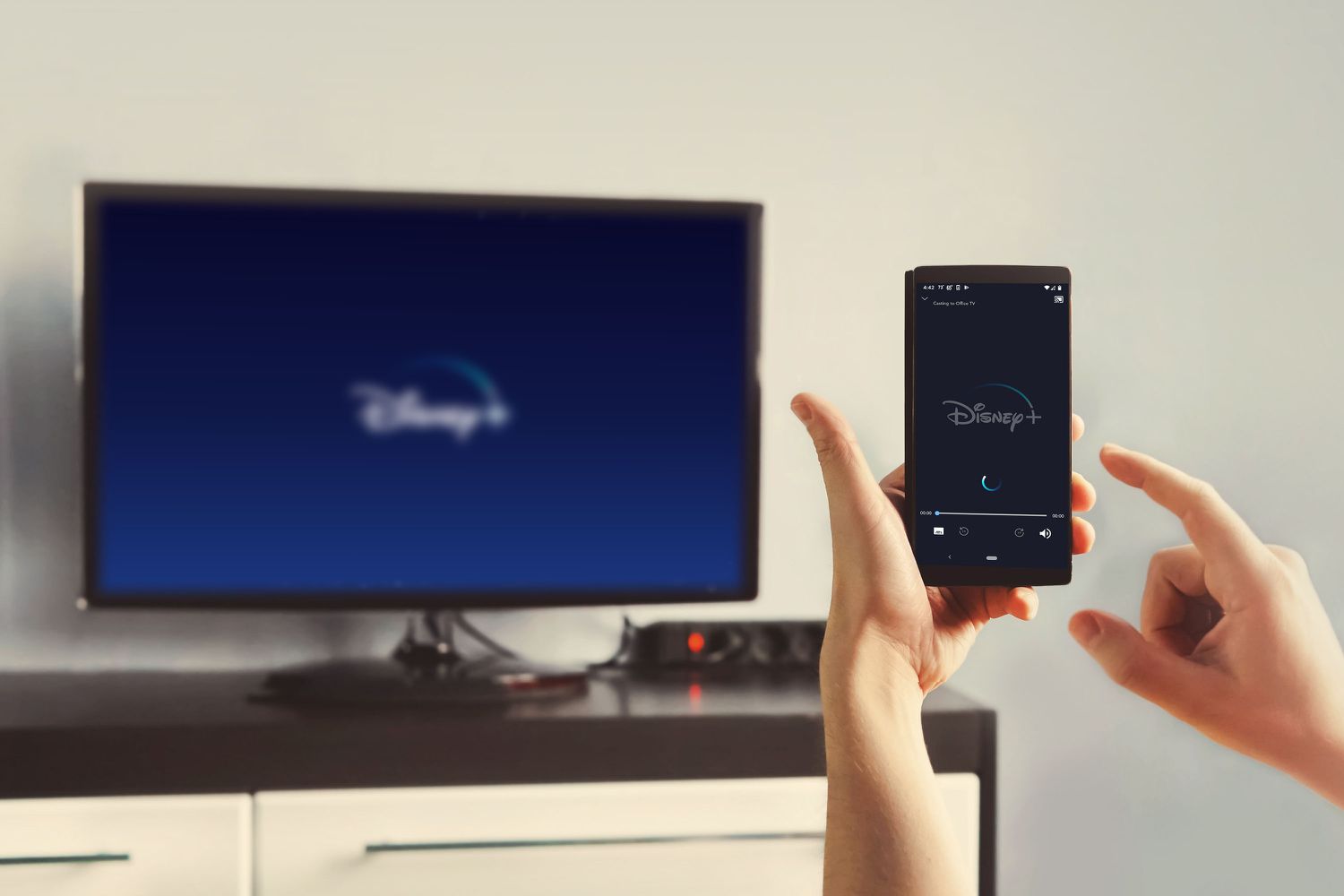
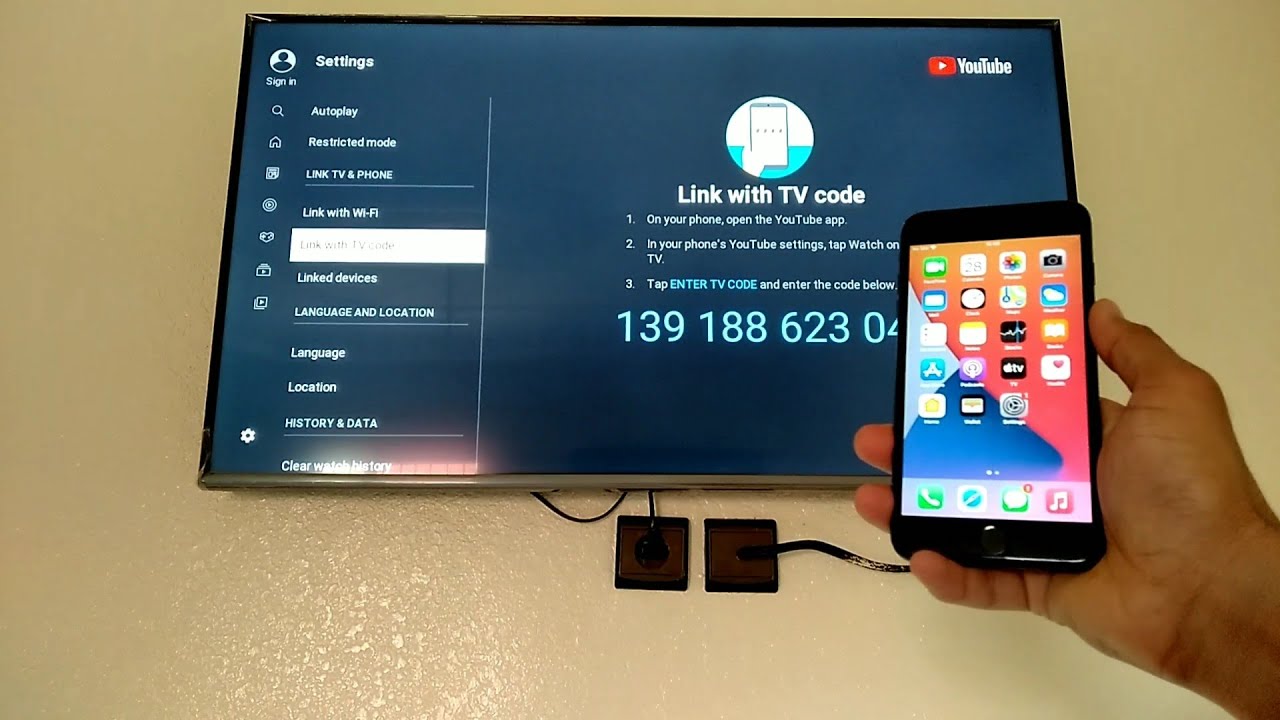
For casting from an app, open a supported app like YouTube or Netflix on your phone, tap the Cast icon (a rectangle with a Wi-Fi signal in the corner), and select your Sharp TV from the list. The content will begin playing on the TV while your phone acts as a remote.
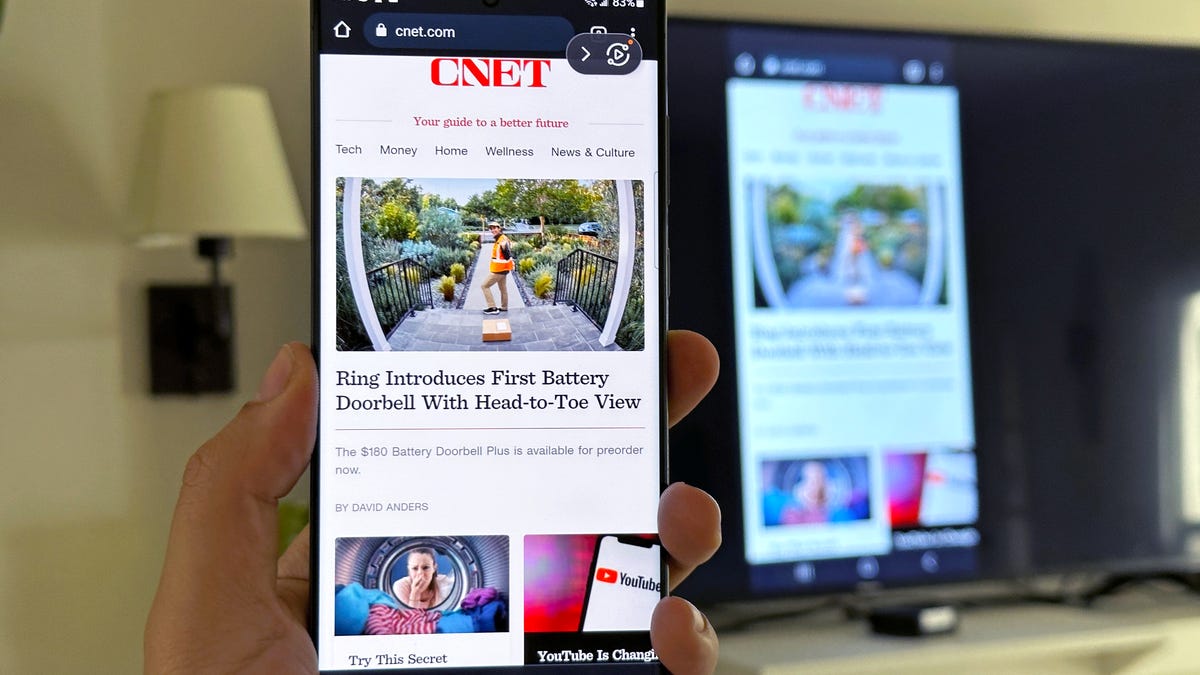
To mirror your entire phone screen, use the Google Home app. Your phone's display will then appear on the TV, showing everything including photos, games, and non-casting apps. During initial setup of an Android TV, you may be prompted to allow an Android phone to set up the TV and sign in to a Google account. You can sign in to a Google account during the setup process.
Connect wirelessly via screen mirroring on a Sharp Roku TV
Sharp Roku TVs support screen mirroring from Android phones and Windows computers, allowing you to display your phone's screen wirelessly. This is different from casting, as it mirrors everything on your phone rather than streaming content from an app. Wi-Fi Direct provides a seamless and wireless connection between your phone and Sharp TV, eliminating the need for additional cables or accessories. Miracast is a wireless display standard that allows you to mirror the screen of your phone onto your TV without the need for any cables. Miracast requires both your phone and TV to be connected to the same Wi-Fi network.
- On your Sharp TV, go to the input/source selection menu and select the Miracast option.
- On your phone, go to the settings menu and select the screen mirroring or wireless display option; enable screen mirroring or wireless display on your phone.
- Your phone will start searching for available devices; select your Sharp TV from the list of available devices.
- Follow any instructions on your Roku device to allow screen mirroring. The TV will display a prompt asking you to allow the connection; confirm it to begin mirroring.
Once connected, your phone's screen will appear on the TV, letting you share photos, videos, and apps with everyone in the room.
Connect with an HDMI cable (all Sharp TVs)
An HDMI cable connection works with every Sharp TV, regardless of whether it is a smart model or not. This method is the best choice when your TV lacks wireless capabilities, when your phone is not compatible with the TV's mirroring standard, or when you need the lowest possible latency for gaming or presentations. HDMI cables come in different versions, such as HDMI 1.4 and HDMI 2.0; it's recommended to use the latest version available to ensure the best performance.
- Obtain an HDMI cable and an adapter that matches your phone's port (USB-C or Lightning). If your phone has an HDMI output port, connect one end of the HDMI cable to the port on your phone (some phones have a built-in HDMI output port).
- Connect the adapter to your phone, then plug the HDMI cable into the adapter.
- Connect the other end of the HDMI cable to any available HDMI input port on your Sharp TV.
- Using your TV remote, press the Input or Source button and select the HDMI port you used.
- Your phone's screen should now appear on the TV. Some Android devices require you to enable screen mirroring or HDMI output in the device settings before the connection works.
This wired method delivers a stable, high-quality picture without relying on Wi-Fi, making it ideal for watching downloaded movies or playing mobile games on a larger display.
Troubleshooting phone-to-Sharp-TV connection problems
If you are having trouble casting your phone to a TV, start by checking that both your phone and your Sharp TV are connected to the same Wi-Fi network. Wireless casting and mirroring require both devices to be on the same network to communicate. This clears temporary glitches that often block connections. For persistent issues, check if your Sharp TV has a firmware update available in its settings menu, as outdated software can cause compatibility problems with newer phone operating systems.
Frequently Asked Questions
Can I connect my iPhone to a Sharp TV wirelessly?
Yes, if your Sharp TV supports AirPlay (found on some newer models) or if it has Chromecast built-in. For Chromecast, use the same Cast icon method from apps. For AirPlay, swipe down to open Control Center on your iPhone, tap Screen Mirroring, and select your Sharp TV from the list. If your Sharp TV supports wireless screen mirroring, you can easily mirror your iPhone's screen to the TV using AirPlay.
Why won't my phone find my Sharp TV for screen mirroring?
This usually happens when the phone and TV are on different Wi-Fi networks, or when the TV's screen mirroring setting is turned off. On a Roku TV, ensure Screen Mirroring is set to "Prompt" or "Always Allow" in the System settings. On an Android TV, make sure Chromecast is enabled in the device settings.
Does screen mirroring work on a non-smart Sharp TV?
No, screen mirroring requires a smart TV platform. For a non-smart Sharp TV, you must use an HDMI cable with the appropriate adapter for your phone, or add a streaming device like a Chromecast or Roku stick to enable wireless casting. If your Sharp TV doesn't have built-in wireless connectivity, you can still connect your phone using an HDMI cable; most newer smartphones have a USB-C or Lightning port, so you'll need an adapter to connect the HDMI cable to your phone.
Can I use the Roku app to connect my phone to a Sharp Roku TV?
It is a useful alternative when screen mirroring is not working.
What is the difference between casting and screen mirroring?
Casting sends a web video or audio stream from your phone to the TV, allowing you to use your phone for other tasks while the content plays. Screen mirroring duplicates your entire phone display on the TV, showing everything including notifications, and keeps your phone screen active throughout the session.
Related reading: How to Connect Your Phone to a TV: An Expert Guide and How To Play Disney Plus From A Phone On TV.