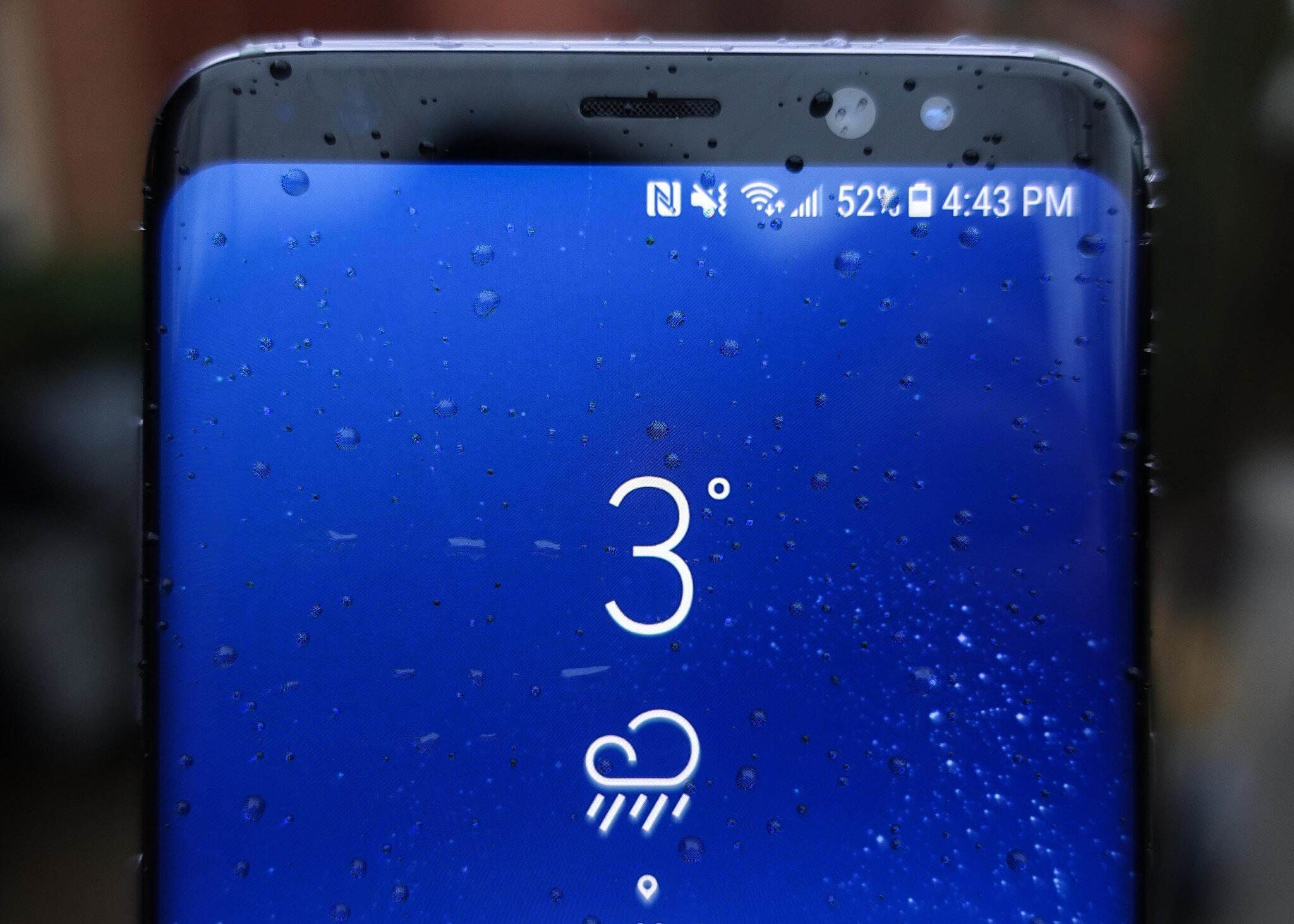
To factory reset a Samsung Galaxy S8 or S8 Plus, you can use the Settings menu or Recovery Mode, both of which restore the device to its original state. A factory reset is typically done to fix performance issues or erase all personal data before selling or giving away the phone, but it permanently removes all apps, photos, contacts, and other data.
Before you reset: back up your data
A factory reset erases all personal data and apps on your device, so backing up is essential. Use Samsung Smart Switch, Google Backup, or another backup method to save contacts, photos, messages, and files. Remove your SD card and SIM card before starting, and ensure your phone has sufficient battery charge or is connected to a power source during the process. Sign out of accounts and disable security measures like fingerprint or facial recognition if desired.
Option 1: Factory reset using the Settings menu
This is the standard method documented by Samsung for Galaxy phones and tablets, including the Galaxy S8 and S8 Plus. The exact menu labels may vary slightly by region. AT&T's help page gives the path as Notification panel > Settings > General management > Reset > Factory data reset for the Galaxy S8+.
- Open Settings.
- Tap General management.
- Tap Reset.
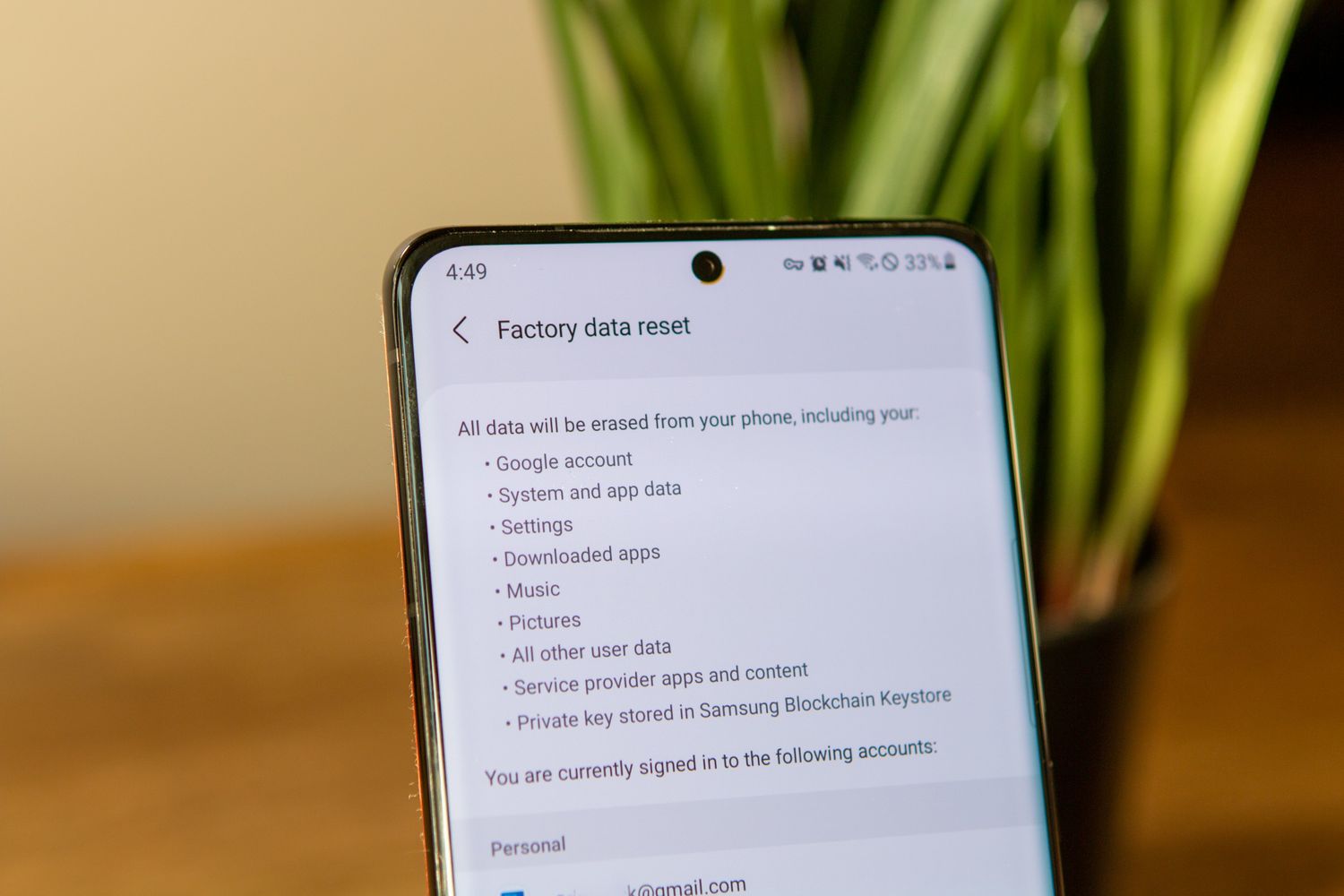
- Tap Factory data reset.
- Enter your PIN, pattern, or password if prompted.
- Review the information displayed, then tap Reset.
- Tap Delete all to confirm.
Some regional Samsung support pages require you to enter your Samsung account password to complete the reset. If prompted, enter it and proceed.
Option 2: Factory reset using Recovery Mode
Samsung’s UK support page confirms that a factory reset can also be done using the buttons on your device. However, the exact button sequence for the Galaxy S8 and S8 Plus is not provided in official Samsung documentation retrieved here. The following steps come from non-official sources and should be treated as model-specific guidance, not Samsung’s published wording. The Recovery Mode button combination is Volume Up + Bixby + Power.
- Power off your Samsung Galaxy S8 or S8 Plus completely.
- Press and hold Volume Up, Bixby, and Power buttons simultaneously.
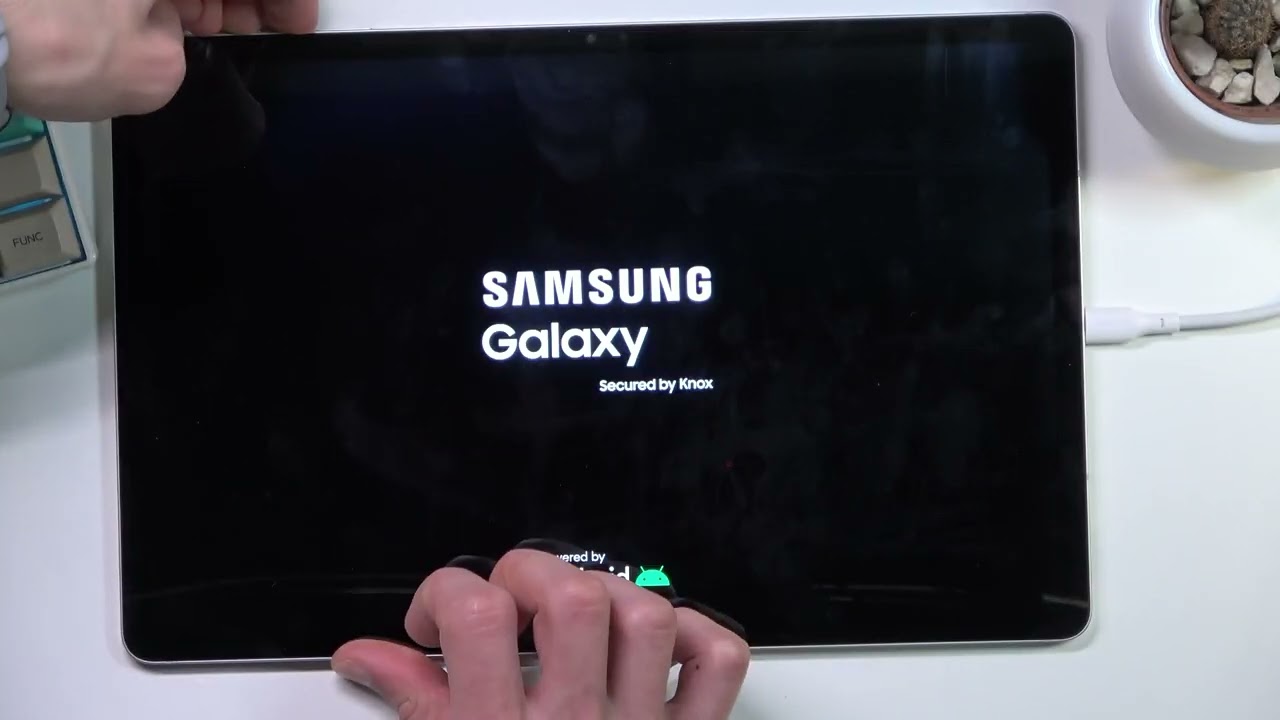
- Release all buttons when the Samsung logo appears.
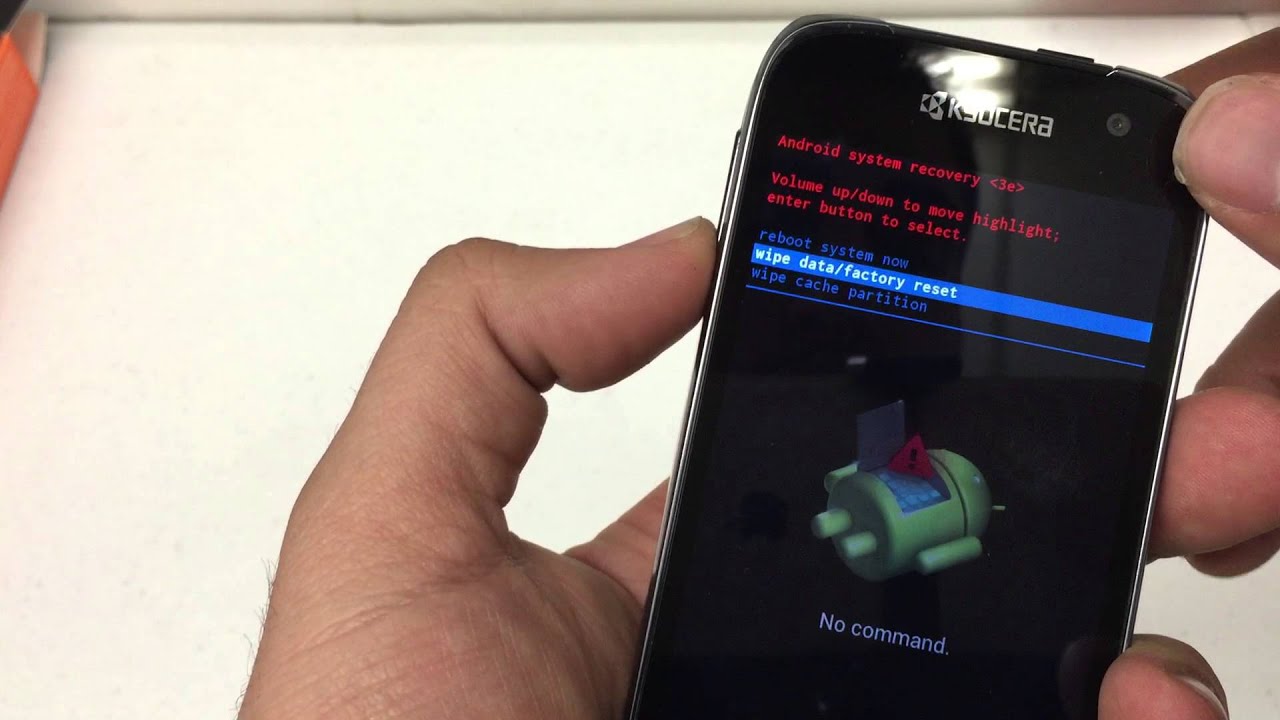
- Use the Volume Down button to navigate to wipe data/factory reset.
- Press the Power button to select it.
- Use Volume Down to highlight Yes or Yes, delete all user data, then press Power to confirm.
- After the reset completes, select reboot system now with the Power button.
What to expect after the reset
The reset process will erase all data and restore the device to factory settings. A factory reset cannot be undone once performed. The factory reset process takes about 15 to 30 minutes on average. Once completed, data cannot be recovered through any built-in method documented by Samsung.
Frequently Asked Questions
Can I recover my data after performing a factory reset?
Once the reset is complete, the data is permanently erased.
Will a factory reset remove software issues?
The retrieved official Samsung pages do not claim that a factory reset will fix software problems. While it can resolve some glitches, hardware-related issues may persist.
How long does the factory reset process take?
The official Samsung pages retrieved here do not give a time estimate. The duration can vary based on the device and amount of data, but the process typically completes without a fixed timeframe.
Is it recommended to factory reset my device regularly?
It is generally used only when troubleshooting persistent problems or preparing the device for a new owner.
What is the main difference between factory resetting phones using Settings versus Recovery Mode?
Using the Settings menu is the standard, Samsung-documented method and is accessible when the phone is fully functional. Recovery Mode is an alternative for when the device cannot boot to the home screen or access Settings, relying on a button combination to perform the reset.
Related reading: How To Factory Reset My Galaxy S21 and How To Factory Reset Galaxy S21 Ultra.