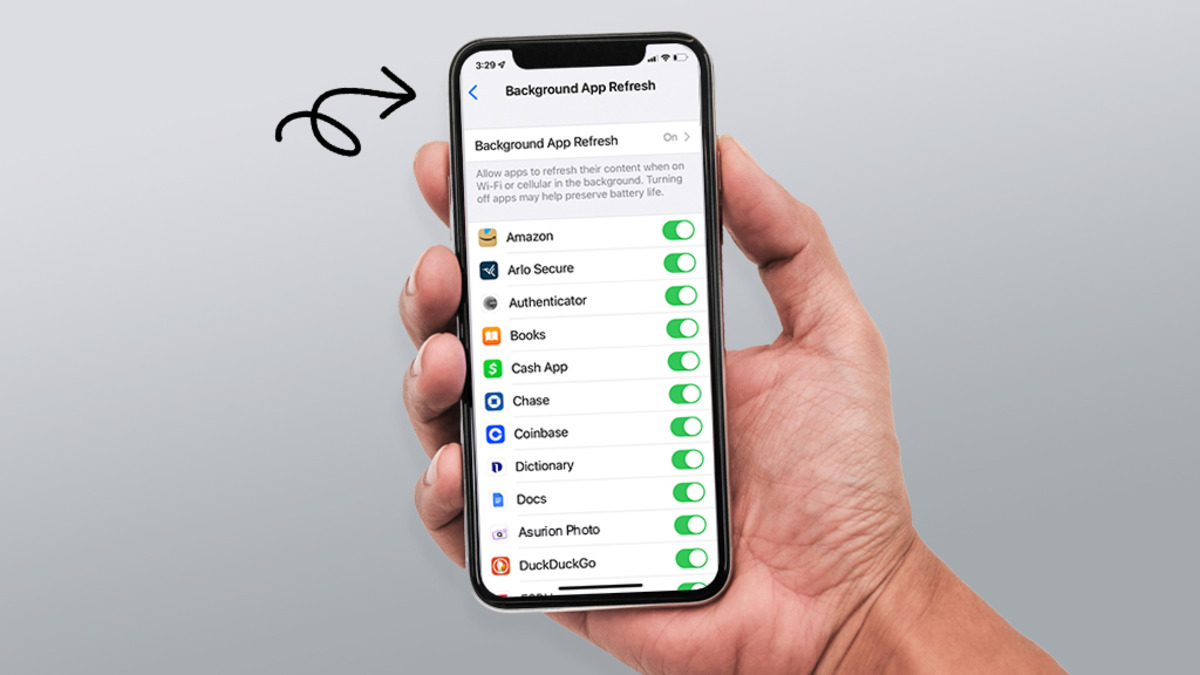
Refreshing your iPhone means clearing the clutter and resetting settings to fix slowdowns and glitches without deleting your personal data, not hunting for a hidden RAM-clearing button that doesn't exist. To refresh your iPhone, you'll combine a restart, a settings reset, and a storage cleanup, all of which are non-destructive and documented by Apple.
How to refresh your iPhone by restarting it
Apple does not provide a "clear RAM" setting on iPhone. The supported way to clear active memory is to power the device off and on again. This stops background processes and gives the system a fresh start, which can resolve temporary slowdowns or unresponsiveness.
- Press and hold the side button and either volume button until the power off slider appears.
- Drag the slider to turn off your iPhone.
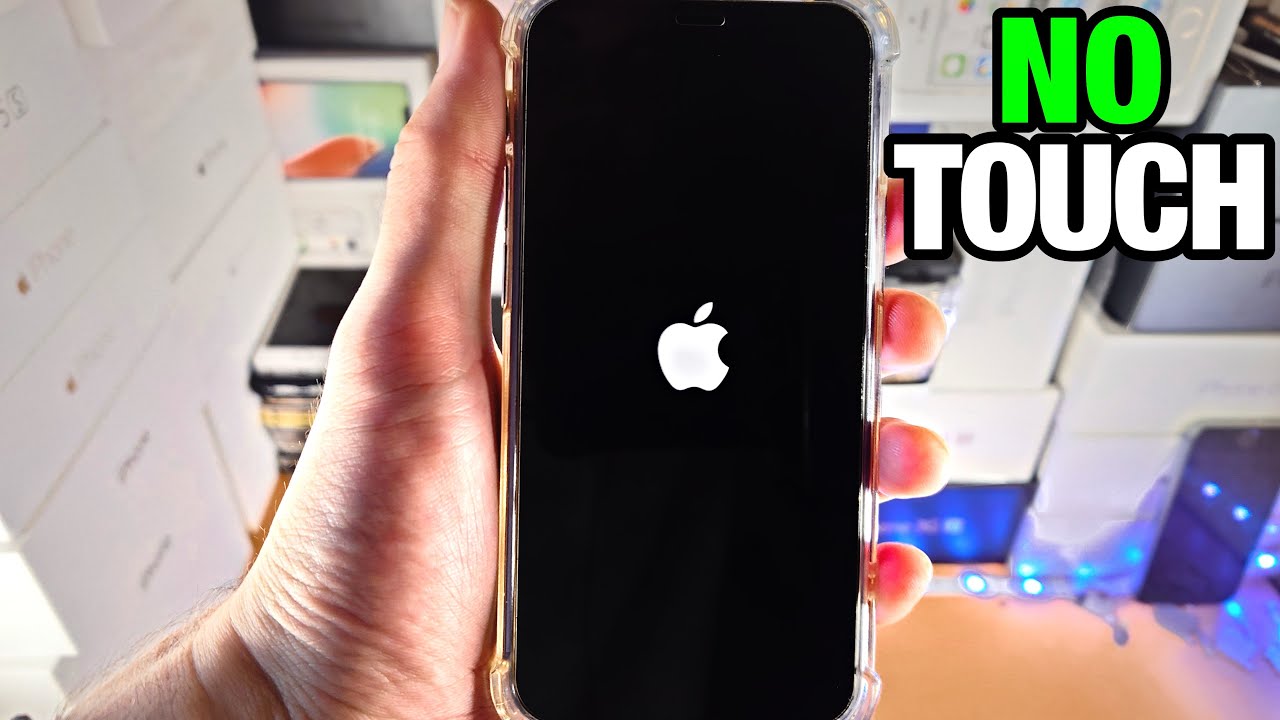
- Wait a few seconds, then press and hold the side button until the Apple logo appears.
This restart is the documented alternative to clearing RAM, and it does not delete any of your data or settings.
On older iPhones with a Home button, you can also clear RAM without a full restart: press and hold the power button until the 'Slide to power off' option appears, then release and press and hold the home button until the screen flashes and returns to the home screen.
Force restart steps vary by model. For iPhone 7/7 Plus: press and hold both the side button and volume down button until the Apple logo appears. For iPhone 6s and earlier: press and hold both the home button and the top or side button until the Apple logo appears.
Close unresponsive background apps on iPhone
If a specific app is frozen or unresponsive, you can force quit it using the app switcher. This is not a general performance tool, Apple does not recommend closing all background apps to speed up your iPhone, but it helps when an individual app is stuck.
- Swipe up from the bottom of the screen and pause in the middle to open the app switcher. On iPhones with a Home button, double-click the home button to access the app switcher.
- Swipe left or right to find the app you want to close.
- Swipe the app's preview up and off the top of the screen.
Do this only for apps that are actually frozen. Closing every app manually can make your iPhone feel slower because reopening them takes more resources.
Reset iPhone settings to default
If your iPhone is glitchy due to misconfigured settings, resetting specific settings can help without touching your photos, messages, or apps. The exact path is the same for all reset options.
- Open Settings.
- Tap General.
- Tap Transfer or Reset iPhone.
- Tap Reset.
From this screen, you have three useful options. Reset All Settings removes or resets preferences like network settings, keyboard dictionary, location settings, privacy settings, and Apple Pay cards, but it does not delete any data or media. This is the most thorough settings refresh and often fixes odd behavior like Wi-Fi drops or location errors.
Reset Network Settings removes all saved Wi-Fi networks, Bluetooth pairings, VPN settings, and cellular settings. You will need to re-enter Wi-Fi passwords afterward, but no personal files are affected. This is the right choice if you're having connectivity issues.
Reset Keyboard Dictionary clears all learned words and custom dictionary entries. This fixes autocorrect problems without affecting your text replacement shortcuts. If you want to know how to reset network settings on Android, iPhone, and iPad, note that the iPhone and iPad paths are identical, while Android devices vary by manufacturer.
Clear Safari cache and website data
The only documented system cache clearing method is for Safari, which removes browsing history and website data. This can free up storage and fix websites that load incorrectly.
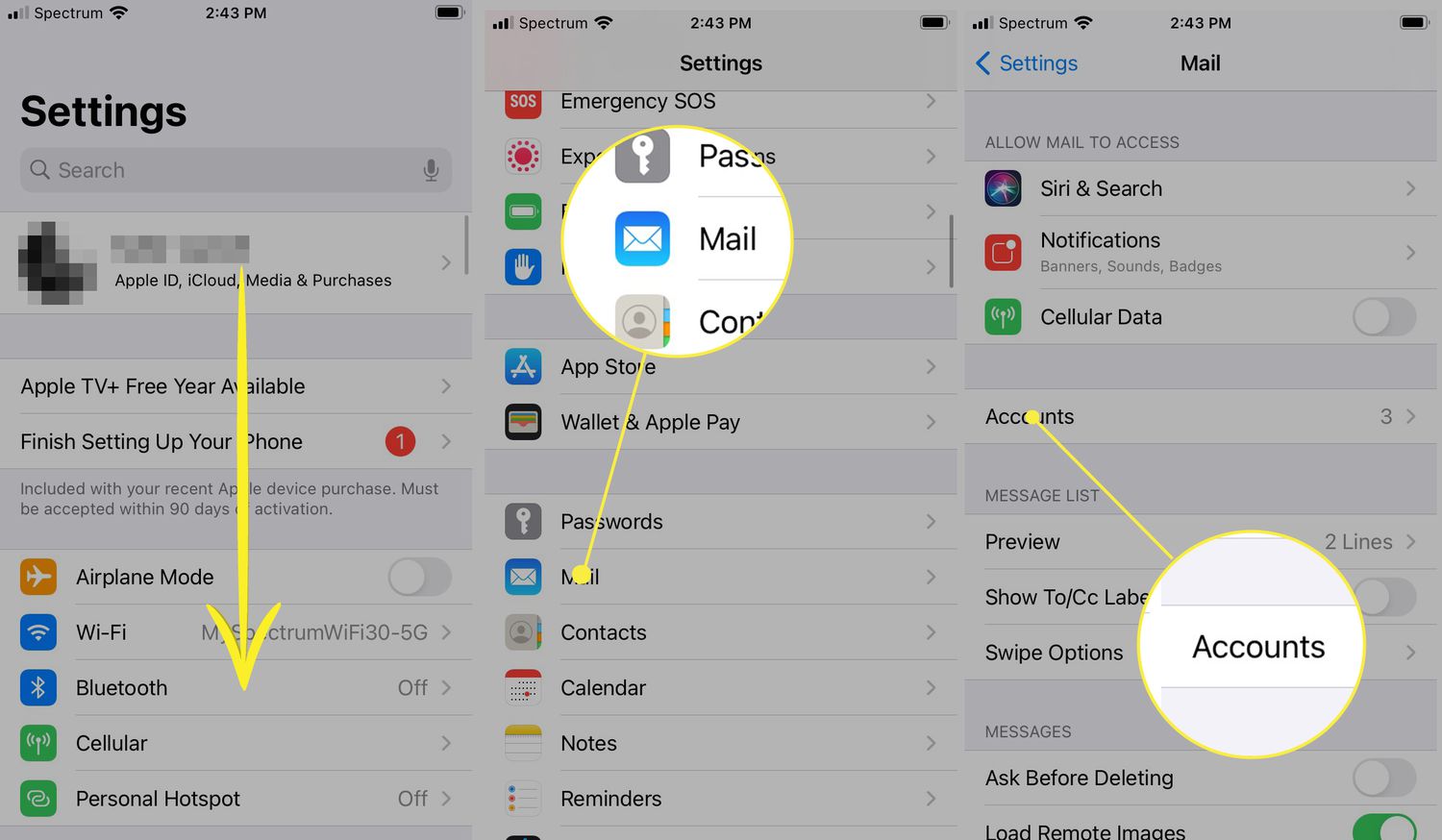
- Open Settings.
- Tap Safari.
- Tap Clear History and Website Data.
- Choose how much history to clear if prompted.
This action removes cookies, cache files, and browsing history from Safari. It does not affect your bookmarks or saved passwords unless you choose to delete them separately.
Delete unnecessary data and offload apps
Storage clutter is a common cause of iPhone slowdowns. Apple's iPhone Storage screen gives you a clear view of what is taking up space and lets you act on it directly.
- Open Settings.
- Tap General.
- Tap iPhone Storage.
On this screen, review the list of apps and delete any you no longer use. For apps you want to keep but rarely use, enable Offload Unused Apps by going to Settings > App Store and turning it on. Offloading removes the app itself but keeps its documents and data, so you can reinstall it later without losing anything.
You can also delete old Messages conversations and their attachments, remove photos and videos you no longer need, delete downloaded videos from streaming apps like TV, and clear files in the Files app. These actions free up storage and can improve overall responsiveness.
Update iOS and apps for the latest fixes
Software updates often include bug fixes that resolve performance issues, so updating iOS and operating systems is a key part of refreshing your iPhone. Apple documents that you should check for updates regularly to get the latest improvements.
- Open Settings.
- Tap General.
- Tap Software Update.
- If an update is available, tap Download and Install.
App updates are just as important. Open the App Store, tap your profile icon, and update available apps from the list. If automatic updates are enabled, your apps will update on their own, but checking manually ensures nothing is missed.
Updating iOS and operating systems resolves known bugs that can cause freezing, battery drain, or connectivity problems. It is the most reliable way to get documented fixes from Apple.
Frequently Asked Questions
Will I lose my photos if I reset all settings?
No. Reset All Settings does not delete any data or media, including photos, videos, messages, or apps. It only resets preferences like network settings, keyboard dictionary, and privacy settings to their defaults.
Does refreshing my iPhone delete my data?
No. Refreshing your iPhone won't delete your data; it is different from a factory reset. The steps described here, restarting, resetting settings, clearing caches, and offloading apps, are non-destructive and keep your personal files, photos, and messages intact.
What are the benefits of refreshing my iPhone?
Benefits of refreshing include resolving freezing or sluggishness, fixing connectivity glitches, freeing up storage space, and clearing temporary software hiccups without losing your personal data.
How often should I refresh my iPhone?
There is no set schedule. Refresh your iPhone only when you notice slowdowns, glitches, or storage issues. A simple restart can be done occasionally, but a full settings reset or storage cleanup is only needed when problems appear.
Does closing background apps save battery?
Not usually. Force quitting apps is only recommended for apps that are frozen or unresponsive, because reopening them can use more power than leaving them in the background.
What is the difference between offloading and deleting an app?
Deleting an app removes both the app and all its data permanently. Offloading is better for apps you rarely use but want to keep.
Can I clear cache for all apps at once?
No. The only documented cache clearing method is for Safari. Other apps manage their own cache, and you can delete and reinstall an app to clear its cache if needed.
Related reading: How To Restart iPhone Without Touchscreen.