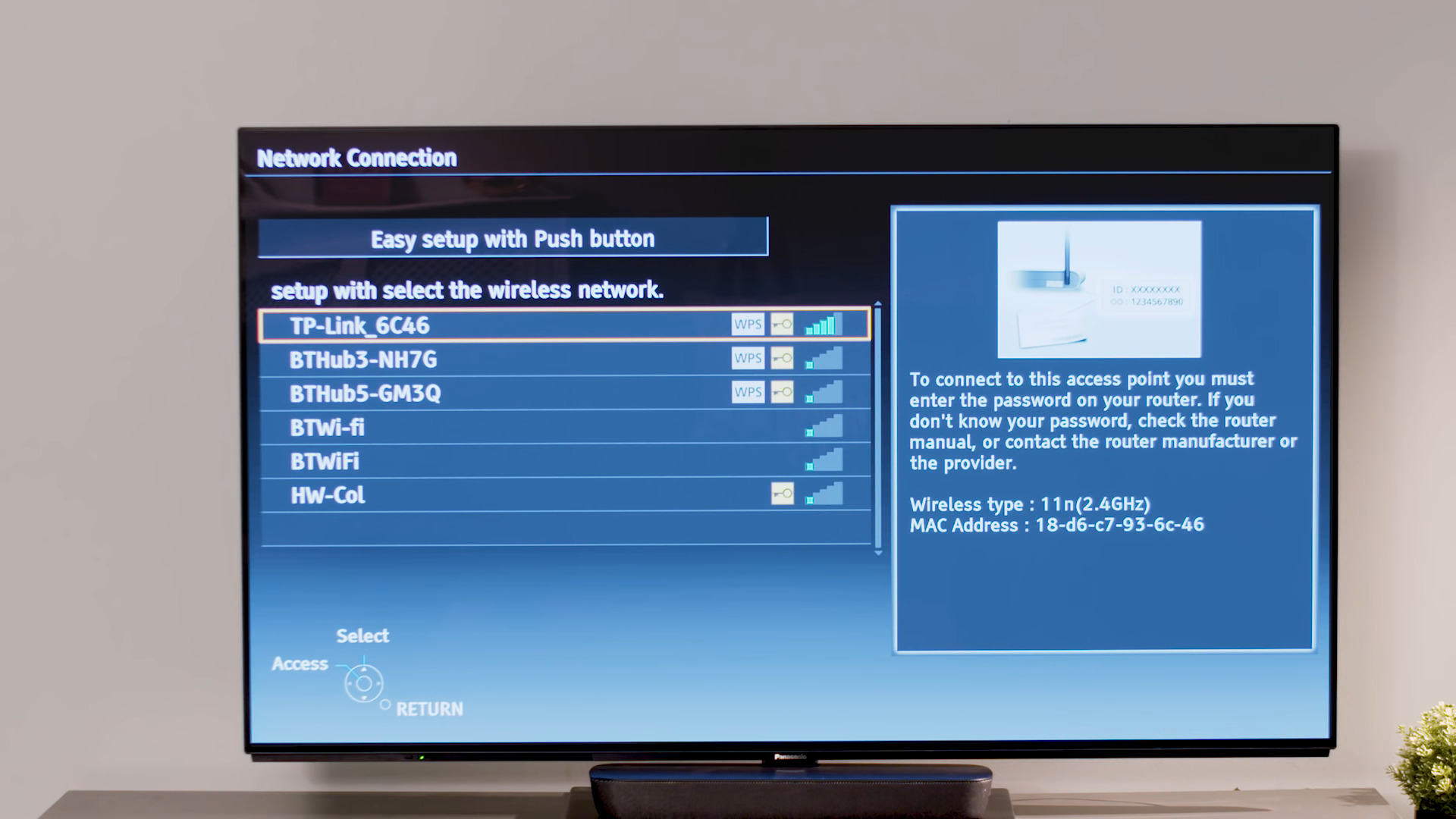
To connect a Panasonic Viera TV to wireless internet, use the TV's on-screen network settings to either run an automatic setup wizard or manually select your home Wi-Fi network. The exact menu path depends on your Viera model, but the process always starts from the Network settings and lets you choose between a quick setup flow or a manual connection.
How to connect your Panasonic Viera TV to wireless internet: Overview of the two setup paths
Panasonic documents two primary setup paths for connecting a Viera TV to a wireless network: the Quick setup wizard and the Wi‑Fi easy setup. Which one you see depends on your specific model. Both methods require a broadband internet connection; some Panasonic model pages state a minimum of 1.5 Mbps, and for HD picture quality at least 6 Mbps is needed. Built-in wireless LAN is documented on several Viera series, including the ST50, VT50, AS640, AS660, ASU534, and AS530 models. If your TV does not have built-in wireless, it may connect via a Panasonic Wireless LAN adapter or an Ethernet cable.
Using the Wi‑Fi easy setup or Quick setup wizard
The automatic setup flow guides you through connecting to your network with minimal manual entry. Depending on your model, the TV may launch a Quick setup wizard that starts the Network connection setup wizard, or you may navigate to Settings icon > Wireless and network > Wi‑Fi > On > Wi‑Fi easy setup.
When the setup screen appears, you will be asked to choose an access point method. The available options include:
- WPS: Push-button method
- WPS: PIN code method
- AOSS on supported access points
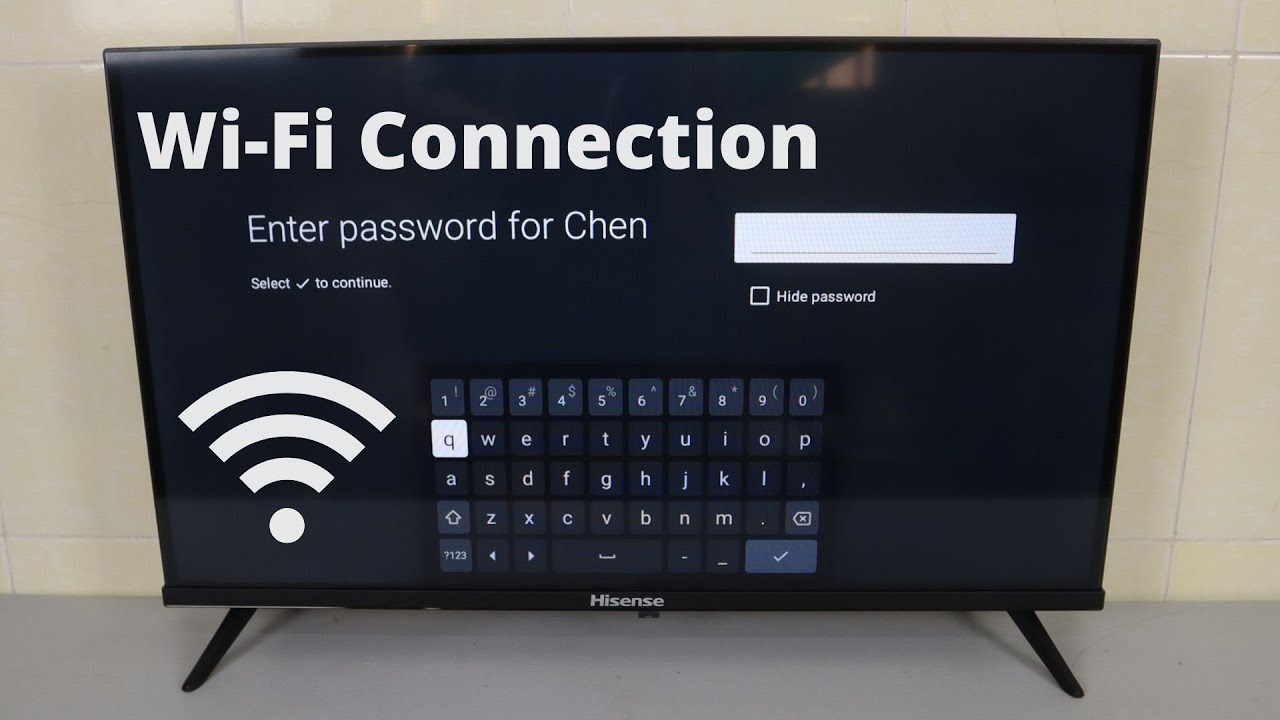
For the WPS push-button method, press the WPS button on your router or access point until its lamp blinks, then select Connect on the TV screen. For the PIN code method, set the PIN shown on the TV on your access point, then select Connect. Alternatively, the TV will detect and list available wireless networks; select your network from the list and tap Connect. If your network is password-protected, enter the Wi‑Fi password using the on-screen keyboard.
Connecting manually to a Wi‑Fi network
If your network does not appear in the automatic list or you prefer to enter details yourself, use the manual connection flow:
- Turn Wi‑Fi On in the TV's settings.
- Select Wi‑Fi settings.
- Select Add Wi‑Fi network.
- Enter the network SSID (the name of your wireless network).
- Choose the Security type that matches your router's settings.
- Set any additional security items required.
- Select Save.
After saving, the TV will attempt to connect to the network you entered.
Running the connection test
Once the TV is connected, run the connection test from the Network menu to confirm everything is working. On some VIERA models, the connection test is run from the Network menu after setup. If the test fails, Panasonic advises checking for firewall, content filter, or proxy settings on your ISP, router, or modem side. Panasonic says connection failures may be caused by firewall, content filter, or proxy settings on the ISP/router/modem side. If the issue persists, contact your router or modem manufacturer or your internet service provider. Panasonic says to check the router/modem manufacturer or ISP if Connection test fails.
Troubleshooting wireless connection issues
If your Viera TV cannot connect or stays connected but performs poorly, check these common causes:
- Weak signal: Move the router closer to the TV or reduce obstructions like walls and furniture.
- Incorrect password: Ensure the Wi‑Fi password is entered exactly, including uppercase and lowercase letters.
- IP address conflicts: Access your router's settings to adjust the DHCP range or enable DHCP reservation for the TV's MAC address.
- Firmware updates: Check for firmware updates for your Viera TV and install them if available.
- External interference: Place the TV away from cordless phones, microwave ovens, and other electronics that can disrupt wireless signals.
- Router or ISP issues: If the connection test fails repeatedly, contact your ISP or router manufacturer for support.
If you are also setting up wireless audio for your TV, ensure the audio device is on the same home network as the Viera TV for reliable streaming.
Using the Panasonic TV Remote 2 app
Once your Viera TV is connected to your home Wi‑Fi network, you can control it with the Panasonic TV Remote 2 app on an iPhone, iPod touch, or iPad. Panasonic's TV Remote 2 iOS page does not list a specific iOS version in the snippet available here. The app requires that the mobile device be joined to the same wireless LAN router (SSID) as the TV. Turn Wi‑Fi On on your iOS device, select the same network, and then open the app to connect.
Frequently Asked Questions
What if my Panasonic Viera TV does not detect any wireless networks?
First, ensure your Wi‑Fi router is powered on and functioning. Check that the TV is within range of the signal and that no large obstructions are between them. Restart both the TV and the router, then reset the network settings on the TV and try again.
Can I connect my Panasonic Viera TV to the internet using an Ethernet cable instead?
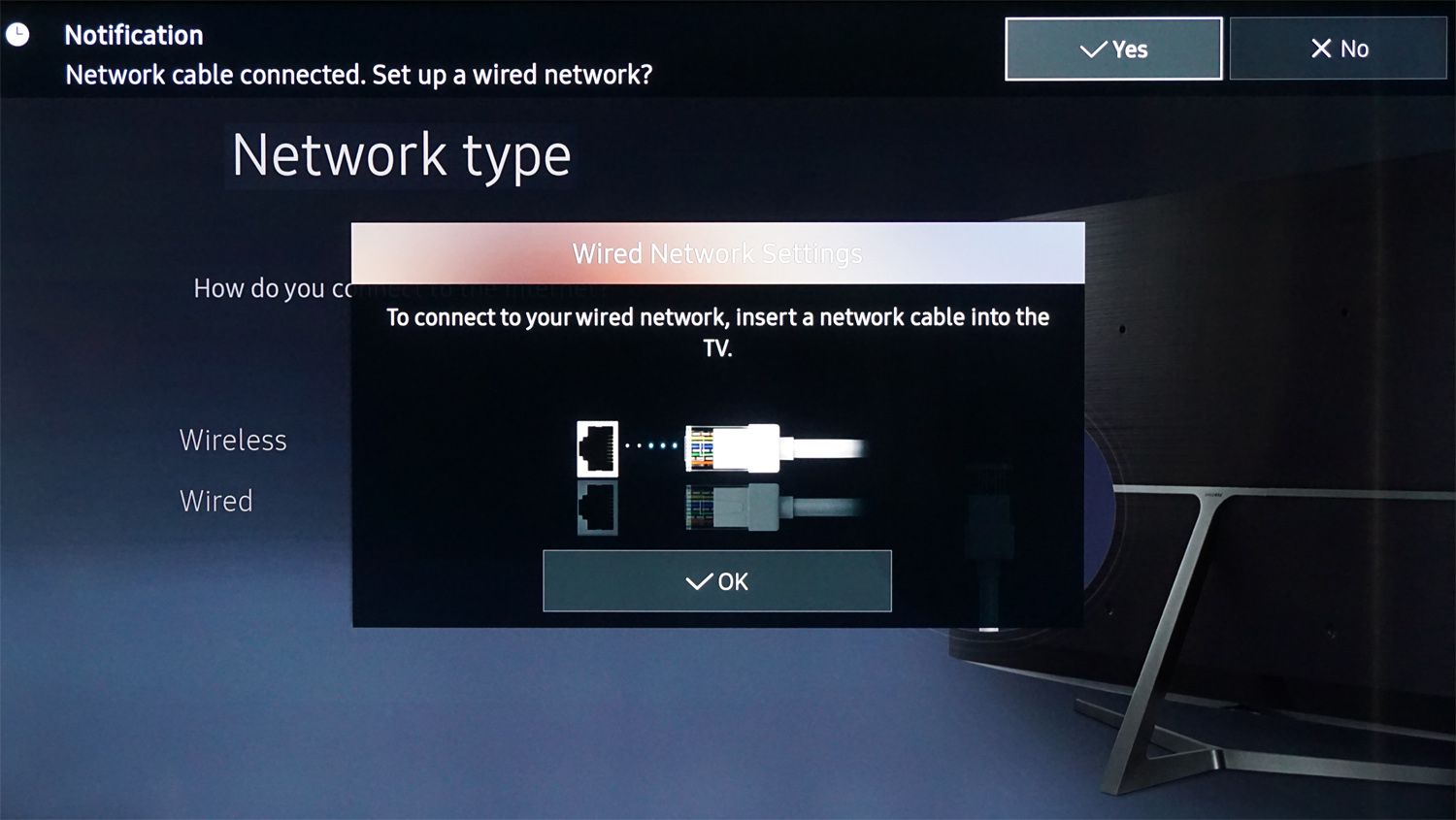
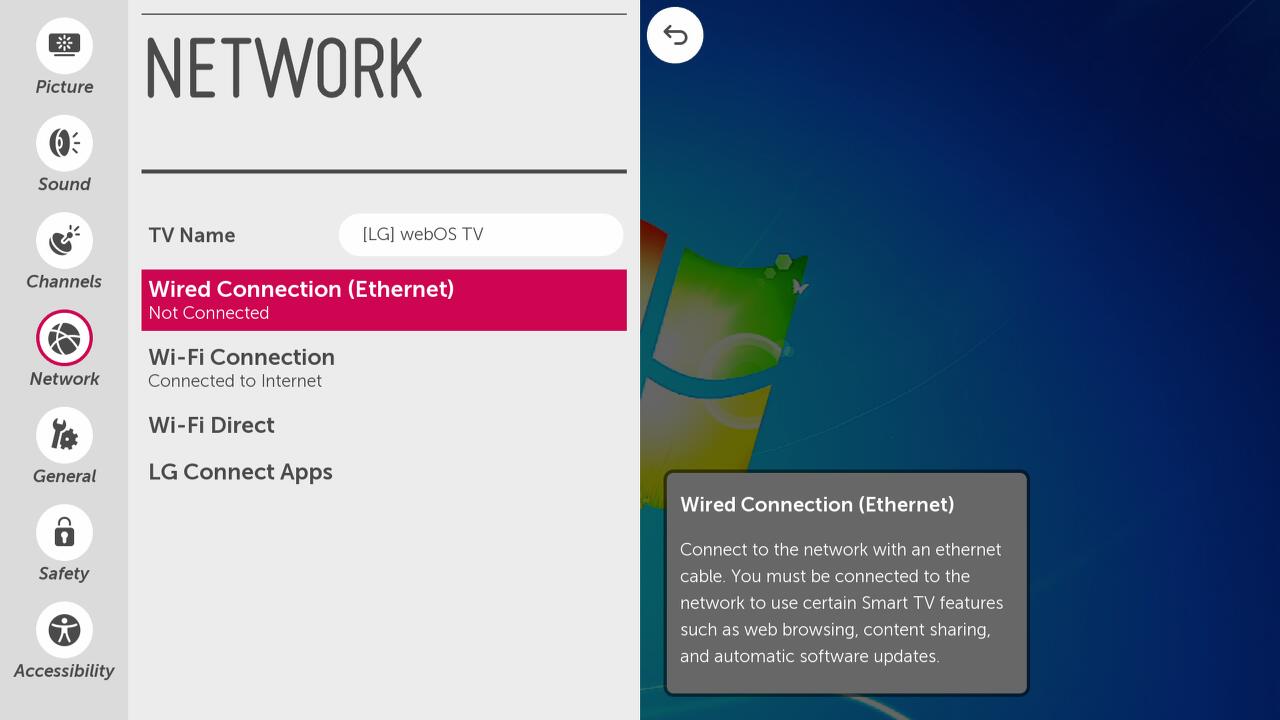
Yes. If your TV is near your router, plug one end of an Ethernet cable into the LAN port on the TV and the other end into an available LAN port on the router. This provides a wired connection that is often more stable than Wi‑Fi.
What should I do if I forget my Wi‑Fi password?
Retrieve the password by logging into your router's settings from a device already connected to the network. Open a web browser, enter your router's IP address, log in with the admin credentials, and look for the Wi‑Fi password in the wireless settings section.
Can I use a wireless adapter to connect my Panasonic Viera TV if it does not have built-in Wi‑Fi?
Yes. If your Viera model lacks built-in wireless LAN, you can use a Panasonic Wireless LAN adapter that plugs into the TV's USB port. Choose an adapter compatible with your specific TV model and follow the manufacturer's installation steps.
How do I know which setup method my Viera model supports?
Check your TV's on-screen menu. If you see a Quick setup wizard when you first power on, use that flow. Otherwise, look for the Wi‑Fi easy setup option under Settings icon > Wireless and network > Wi‑Fi. Your model's user manual will also specify the exact menu path.
For the wider topic, see wireless audio for your TV.
Related reading: How To Connect Samsung TV To Wireless Internet and How To Connect Hisense TV To Wi-Fi Hotspot.