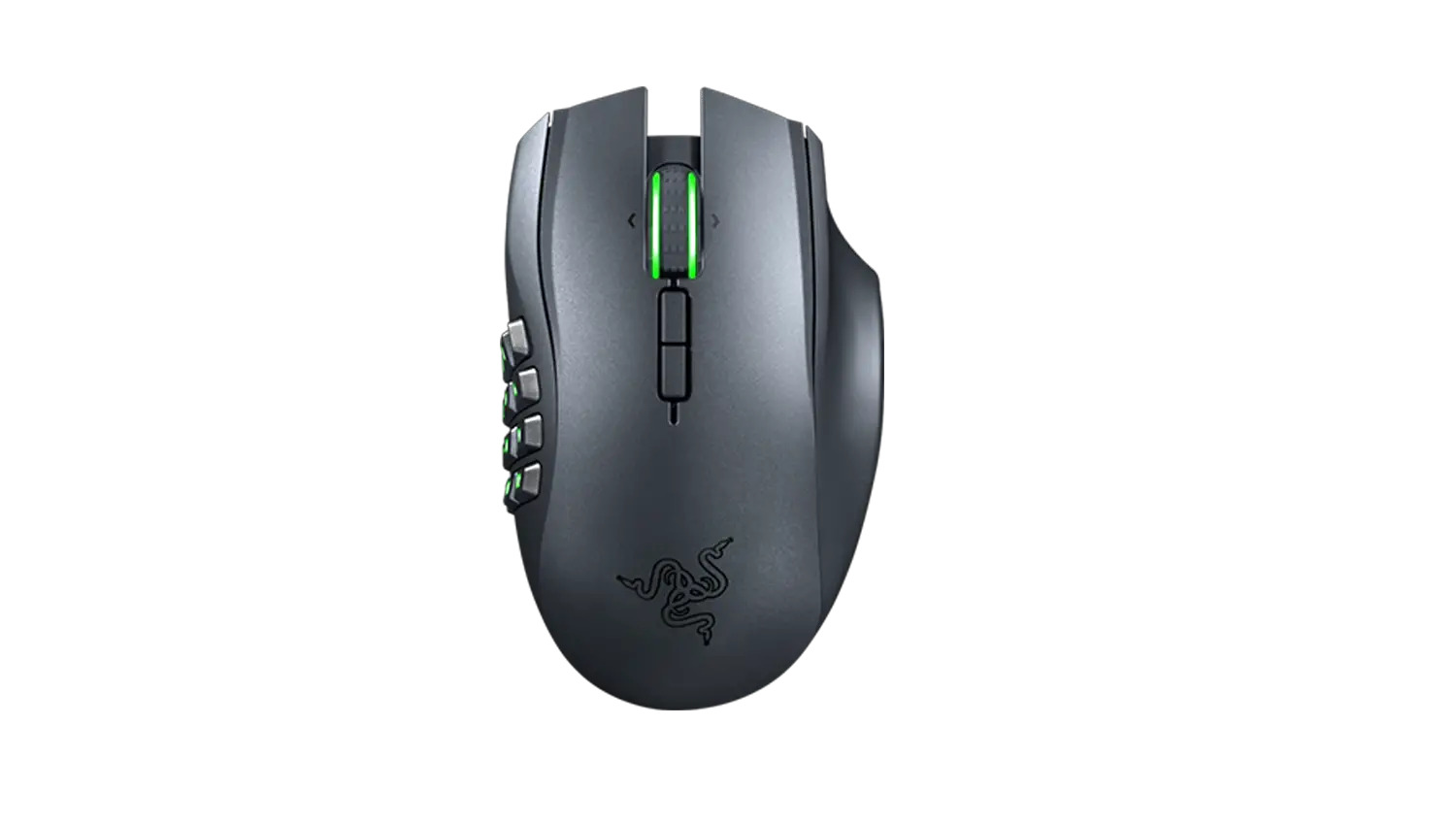
To connect your Razer Naga Epic Wireless mouse, you must use its included charging dock and receiver, this mouse does not use Bluetooth. The physical setup involves three steps: charging the mouse on the dock, pairing it with the receiver, and then installing Razer Synapse for configuration.
How to connect your Razer Naga Epic Wireless
The Razer Naga Epic Wireless connects exclusively through its charging dock, which also serves as the wireless receiver. Unlike many modern peripherals, this model does not support Bluetooth pairing, making the dock the only way to establish a wireless link. Follow the steps below in order to get the mouse connected and ready for use.
Step 1: Charge the mouse on the dock
- Connect the cable connector jack to the charging dock.
- Move the mouse’s switch to the Wired/Charging position before charging.
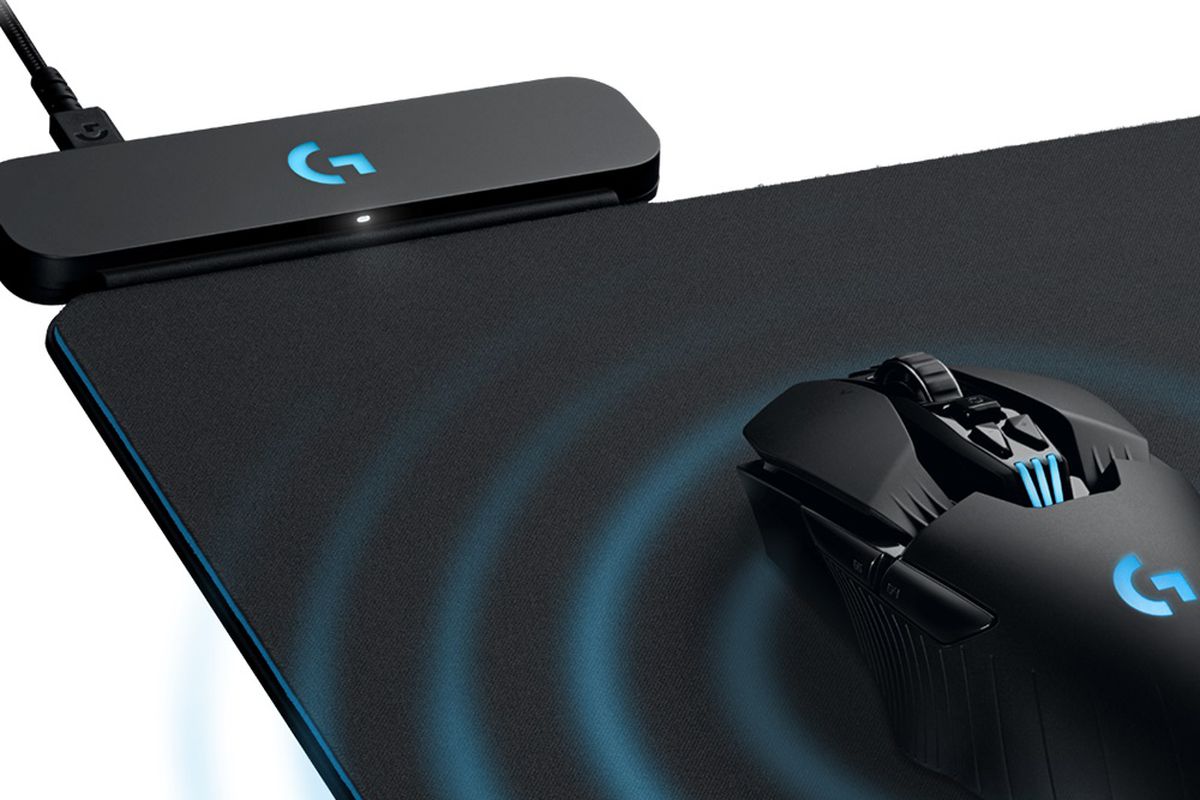
- Place the mouse on the charging dock to charge in wireless mode.
Charging the mouse while it is seated on the dock ensures the internal battery receives power. The switch must be set to Wired/Charging for the charging circuit to activate.
Step 2: Install the battery and pair with the dock
- Remove the side panel of the Razer Naga Epic.
- Slide the lock switch and insert the battery into the battery compartment.
- Replace the side panel.
- Slide the mouse switch to Wireless.
- Press the pairing buttons on the Razer Naga Epic and the charging dock. The lights on the mouse start flashing during pairing.
- Wait for the lights on the mouse to stop blinking, this confirms pairing is complete.
Once the lights stop blinking, the mouse is ready for wireless use. The dock and mouse communicate directly, so no separate receiver dongle is required.
Step 3: Install Razer Synapse and configure settings
Razer Synapse software is required for button mapping and performance customization. Visit Razer’s official support page to download the latest version compatible with your operating system. After installation, Synapse will detect the Naga Epic Wireless and allow you to adjust sensitivity, assign functions to the 12 thumb grid buttons, and create custom profiles.
Power-saving tip
Move the switch back to Wired/Charging when the mouse is not in wireless use to conserve battery power. Razer also says to move the switch back to Wired/Charging when not using wireless mode to conserve battery power. This disables the wireless radio and prevents unnecessary drain between gaming sessions.
Frequently Asked Questions
Does the Razer Naga Epic Wireless use Bluetooth?
No. The documented wireless connection is through the charging dock and receiver only. Bluetooth is not supported on this model.
How do you know pairing worked?
The mouse lights stop blinking after the pairing buttons are pressed on both the mouse and the dock. A steady light indicates a successful connection.
What switch position should be used while charging?
The switch must be set to Wired/Charging for the mouse to charge on the dock. Using the Wireless position will not allow the battery to charge.
Can I use the mouse while it is charging on the dock?
Yes. With the switch in the Wired/Charging position, the mouse functions as a wired device while the battery charges, making it suitable for extended sessions.
Does this mouse work with wireless gaming controllers?
No. The Razer Naga Epic Wireless is a standalone mouse and does not pair with wireless gaming controllers or any other input devices. Its wireless connection is limited to the included charging dock.
Related reading: How To Change Battery In HP Wireless Mouse Z3700 and How To Connect Wireless Mouse To Chromebook.