To change email password on iPhone 12, you must first update the password with your email provider, then update the saved password on your iPhone so the Mail app can sync again. This two-part solution resolves the common problem of mail stopping after you change your password online.
How to change email password on iPhone 12
After you change your email password with your provider, your iPhone’s Mail app will stop syncing until you update the saved password on the device. The process has two steps: change the password with your provider first, then update it on your iPhone 12.
Step 1: Change your password with your email provider first
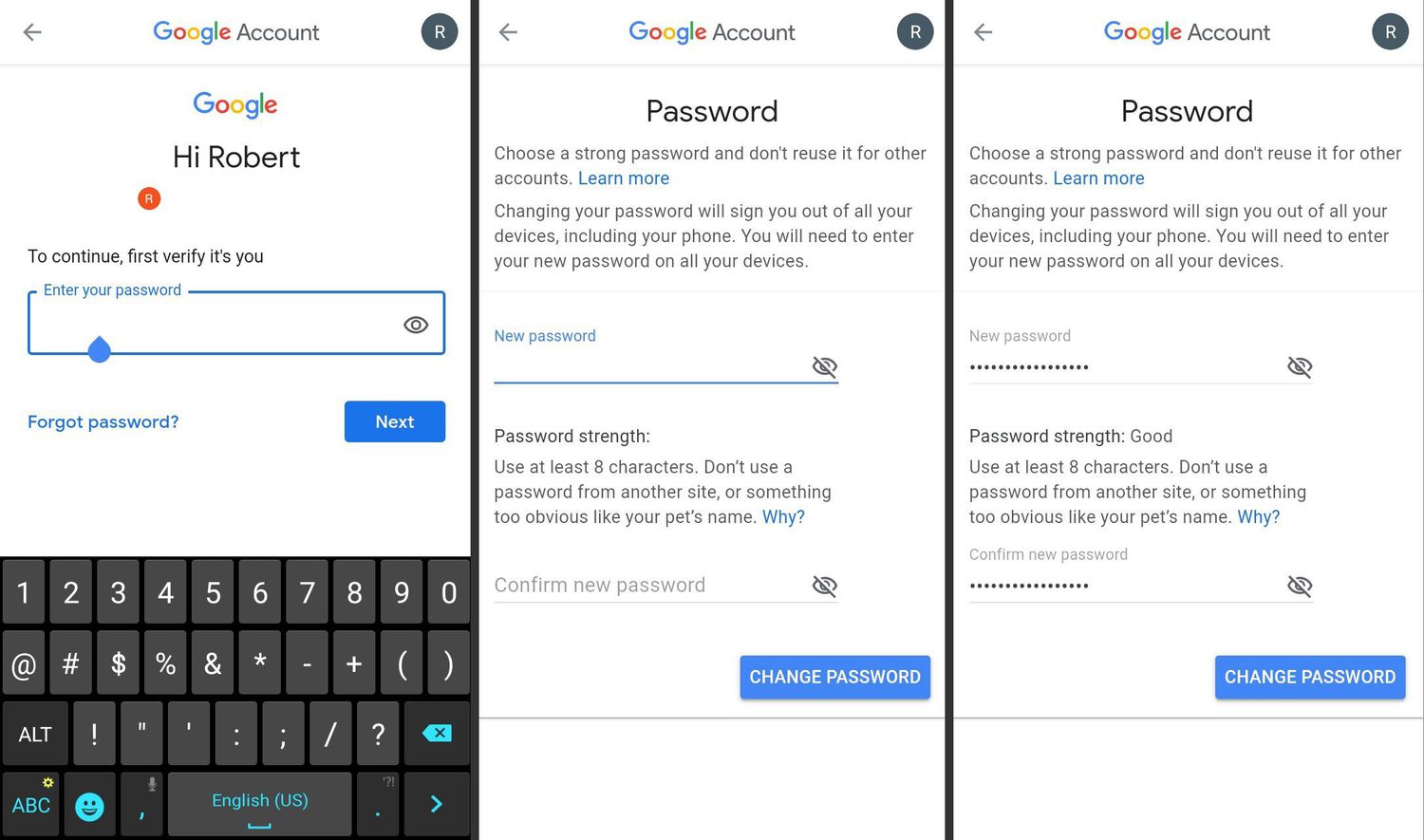
You cannot change most email passwords directly on the iPhone. You must use your email provider’s own password-reset flow first. You need to know your current email password to change it on iPhone 12; if you forgot it, you must reset it through your email provider's website first. Check whether the account is IMAP or POP before changing the password, because the account type affects how the change impacts email access on other devices. Verify incoming and outgoing server details, port numbers, and security protocols (SSL, authentication) in the account settings before changing the password. For the most common provider, Gmail, use the Gmail app on your iPhone or iPad. Open the Gmail app and tap your profile picture or initial, then tap Manage your Google Account. From there, go to Personal info and tap Password. Enter the new password and tap Next. For other providers such as Yahoo or Outlook, use their respective websites or apps to change your password.
Step 2: Update the saved password on your iPhone 12
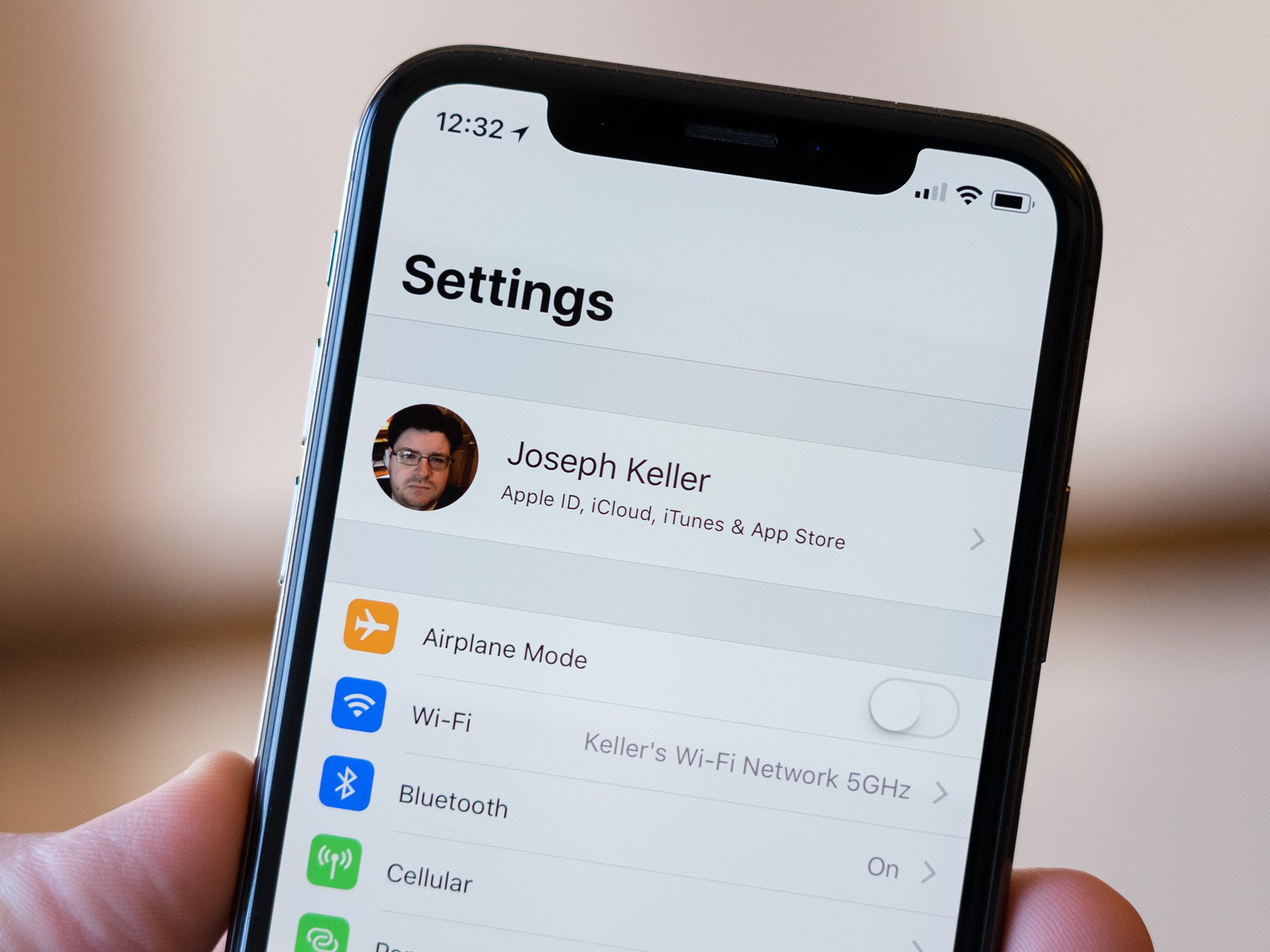
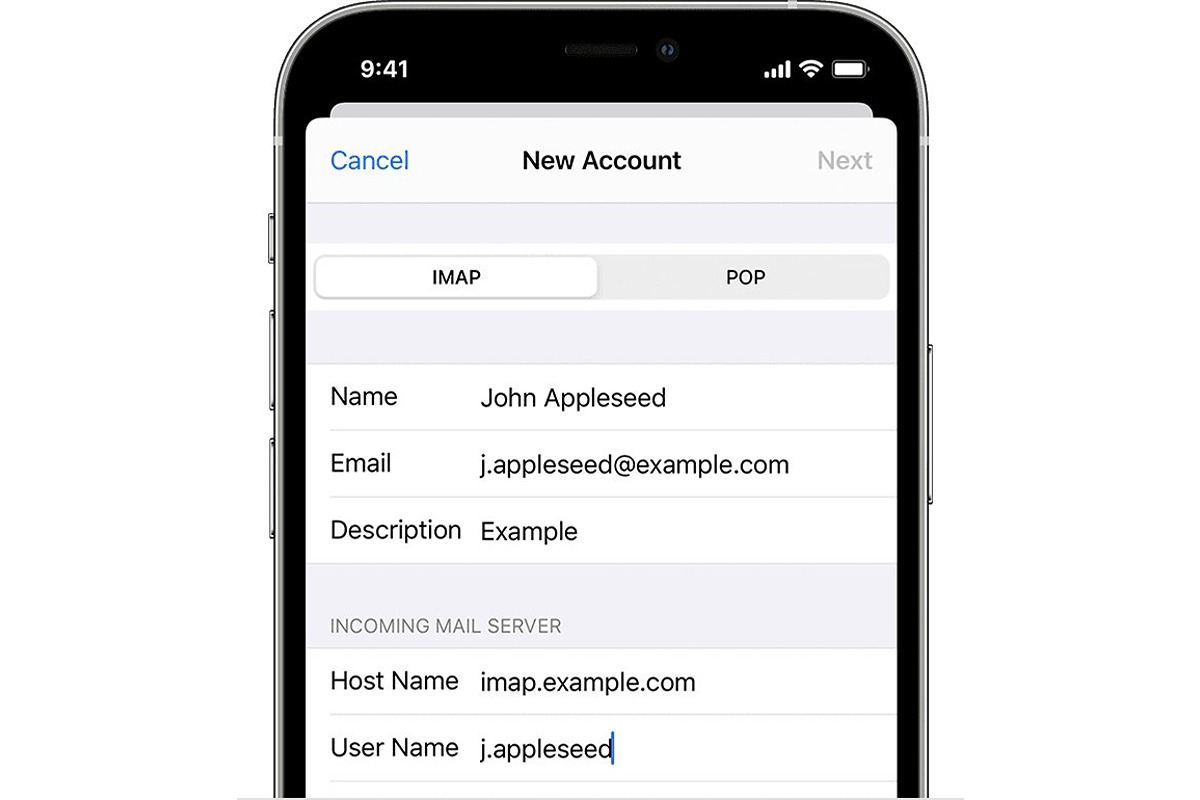
After changing your password with the provider, your iPhone 12 will often prompt you for the new password. If it does, simply enter it. If it does not prompt you, follow this path: open Settings, tap Apps, tap Mail, then tap Mail Accounts. Tap the email account you updated, then tap the Password field and enter your new password. Tap Done to save the changes. If the account still does not connect, the only documented universal fix is to delete the account from the iPhone and add it again.
Step 3: Test the new password
After updating the password, send a test email from your iPhone 12 to a secondary email address. Check that the email sends successfully. Then ask the recipient to reply, or send a test email to yourself from another account, to confirm that the incoming mail server accepts the new credentials. If mail sync resumes without error, the password update is complete.
What to do if mail still isn't working
If mail does not update after entering the new password, the account may need to be removed and added again. On your iPhone 12, go to Settings > Apps > Mail > Mail Accounts. Tap the account and tap Delete Account. Then add the account again by tapping Add Account and entering your email address and the new password. This is the documented universal fix for accounts that stop connecting after a password change. Changing the password can affect which devices stay signed in, and you may see device-sign-in options after the change.
Frequently Asked Questions
Can you change an email password directly on an iPhone 12?
Apple’s current Mail documentation does not show a direct built-in password-change flow for all email providers on iPhone. The documented approach is to update the password in the provider account and then refresh the account on the phone.
Where is the setting on iPhone?
For Gmail accounts, use the Gmail app: tap your profile picture or initial, then Manage your Google Account > Personal info > Password. For Apple Account passwords, go to Settings > [your name] > Sign-In & Security > Change Password. That is for the Apple Account itself, not a third-party email account.
Will changing my email password on iPhone 12 delete my emails or contacts?
No. Changing your email password on iPhone 12 will not affect your existing emails or contacts. Once you update the password, your device will continue to sync with your email account as usual.
What is the difference between Apple ID and email passwords?
Your Apple ID (Apple Account) password is used to sign into iCloud, the App Store, and other Apple services. Your email password is used to sign into your email provider, such as Gmail or Outlook. They are separate and must be changed through their respective account settings.
Can I use Face ID or Touch ID when changing my email password on iPhone 12?
If you have Face ID or Touch ID set up for app authentication, you can use it to verify your identity when changing your email password on iPhone 12, adding an extra layer of security. This works within the Settings app when entering or confirming the new password.
Where is the setting for display and home screen settings?
Your iPhone’s display and home screen settings are found in Settings > Display & Brightness and Settings > Home Screen & App Library. These are unrelated to email password changes but are useful for customizing how your iPhone 12 looks and behaves.
Related reading: How To Change Your Email Password On An IPhone Or IPad (iOS 16), How To Recall An Email On IPhone, and How To Change Email Password On Android.