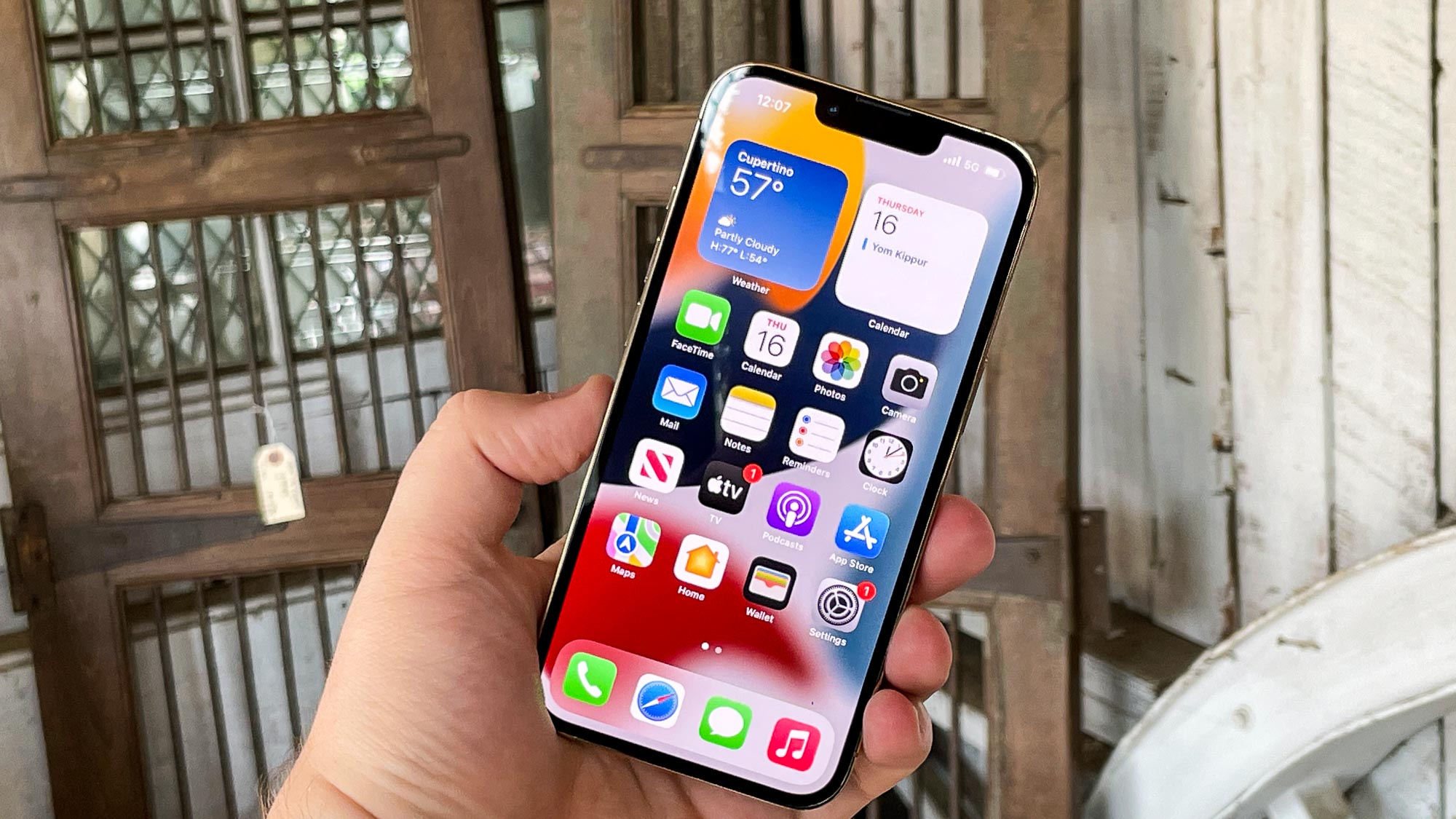
To change caller ID on iPhone 14, open Settings > Apps > Phone > Show My Caller ID and turn the switch off to hide your number or on to show it. This is the only documented Apple path for controlling how your number appears on outgoing calls, and it does not let you display a custom name or a different number.
How to change caller ID on iPhone 14
Apple documents the exact path for changing caller ID on iPhone 14, and it takes only a few taps. This setting controls whether your existing phone number appears when you make outgoing calls. It does not allow you to substitute a different number or a custom business name.
- Open Settings.
- Tap Apps.
- Tap Phone.
- Tap Show My Caller ID.
- Turn Show My Caller ID off to hide your number, or on to display it.
After you change the toggle, the new setting applies to your next outgoing call. There is no confirmation screen or additional step required. If you want your number visible again, return to the same path and turn the switch back on.
What Show My Caller ID actually does
The Show My Caller ID toggle only controls whether your phone number appears on outgoing calls. It does not let you pick a different number to display, and it does not let you show a custom name instead of your number. If you want recipients to see a business name or a different phone number, this setting will not accomplish that. The toggle is a simple on-or-off control for your existing number, nothing more. The custom name or phone number you choose may not be allowed if it violates your carrier's policies or local regulations. Certain services or apps may not recognize the changed caller ID and may still display your original caller ID.
Call forwarding technique: use *72 code followed by forwarding number to redirect calls and display that number as caller ID; use *73 to cancel.
When the toggle is missing or grayed out
Apple states that Show My Caller ID is a carrier feature. If the toggle is missing from your iPhone 14, or if it appears grayed out and cannot be changed, your carrier controls whether the option is available on your account. If the toggle switch is grayed out, contact your carrier to check if your account supports changing the caller ID. You must contact your carrier directly and ask them to enable or disable caller ID display on your line. The carrier may need to make the change on their end before the toggle becomes usable on your phone. Some carriers may charge an additional fee for changing your caller ID.
Incoming caller ID and call blocking apps
Separate from the outgoing Show My Caller ID switch, Apple documents a different area for incoming call identification: Settings > Apps > Phone > Call Blocking & Identification. This section is where you enable supported third-party caller ID apps and Business Call Identification. These tools identify who is calling you, not how your number appears to others. If you want to know the name behind an incoming number or block spam calls, this is the correct setting. It has no effect on what recipients see when you call them.
Frequently Asked Questions
Does changing Show My Caller ID affect all my outgoing calls?
Yes, the toggle applies to all outgoing calls made from your iPhone 14. It does not affect incoming calls, and it does not change how your number appears on other devices linked to your account.
Can I show a custom name instead of my number?
No. The Show My Caller ID setting only hides or shows your existing phone number.
Why is Show My Caller ID grayed out on my iPhone 14?
A grayed-out toggle means your carrier does not have the feature enabled on your account. You must contact your carrier and request that they enable caller ID control for your line.
Does this setting work on older iPhone models?
Apple's current guidance applies to iPhone models running iOS with the Phone settings layout shown in their support pages, not just iPhone 14. If your device has the same Settings > Apps > Phone path, the same steps apply.
What is the difference between hiding caller ID and changing it?
Hiding caller ID removes your number from the recipient's display entirely. Changing caller ID means showing a different number or name, which the iPhone 14 settings do not support. The only way to alter what appears is through a carrier-provided feature, not through the phone's settings.
For the wider topic, see updating phone number on apps.
Related reading: How To Change Theme On IPhone 13 and How To Change Fonts On IPhone 11.