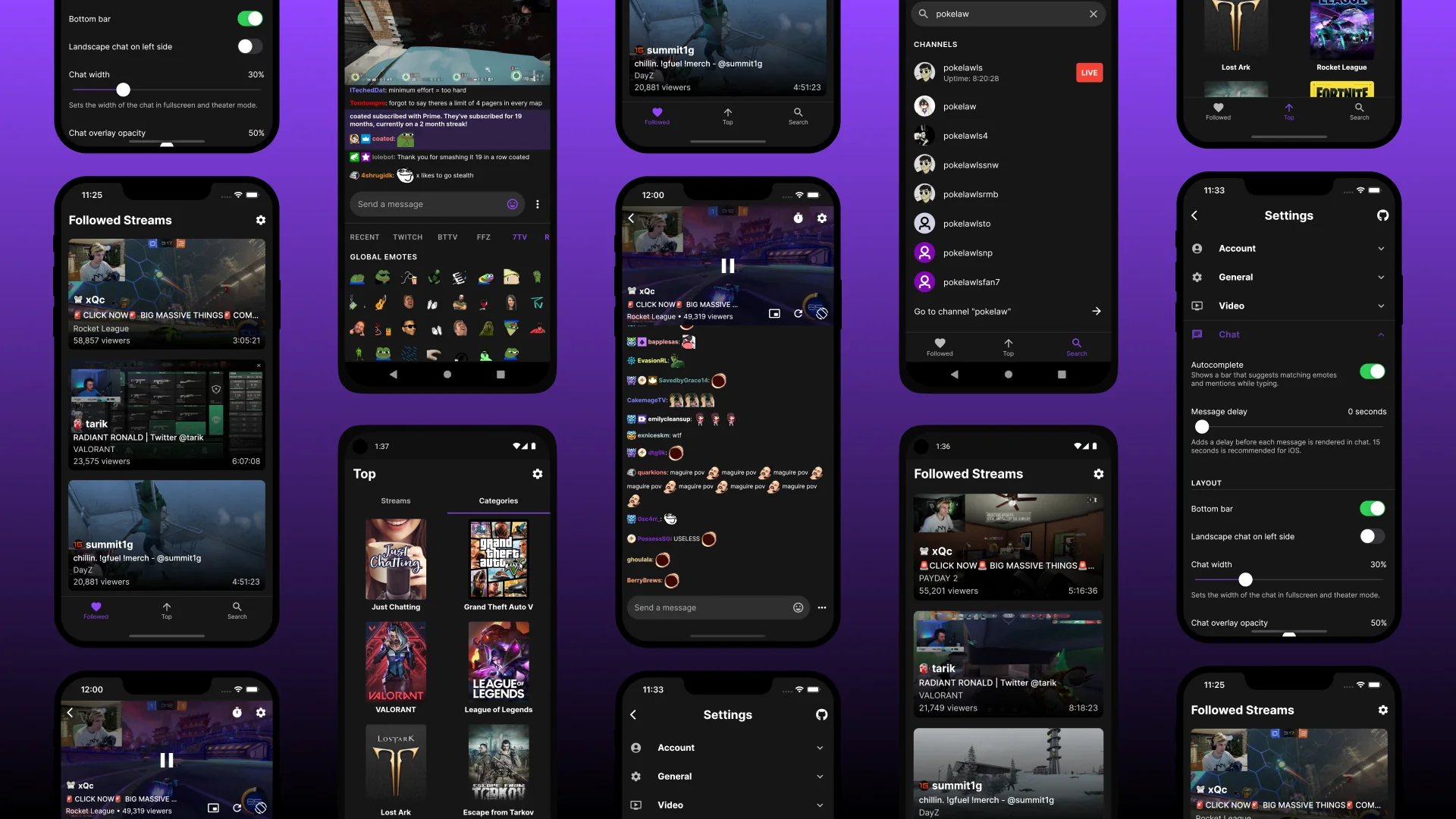
To hide Twitch chat on mobile and watch a stream without the distraction of scrolling messages, you simply need to rotate your phone to landscape mode and tap the chat bubble icon that has a line through it. This is the only way to completely remove the chat overlay while using Twitch on mobile, giving you a clean, full-screen view of the stream.
Why you might want to hide Twitch chat on mobile
When you are watching a stream on your phone, the constant flow of messages in the chat can be highly distracting, especially during intense gameplay or a quiet moment in a conversation. The small screen size makes the chat overlay feel even more intrusive, blocking parts of the video and cluttering your view. Hiding the chat allows you to focus entirely on the content, creating a cleaner and more immersive viewing experience, particularly when you are holding the phone in landscape mode.
The only way to hide Twitch chat on the mobile app
Unlike the desktop version, the Twitch mobile app does not have a settings menu option to permanently hide the chat. The only method to completely remove the chat from your screen is to use the landscape mode toggle. Follow these steps:
- Open the Twitch app on your mobile device (iPhone or Android).
- Navigate to and open the Twitch stream you wish to watch.
- Turn your mobile device sideways to view the stream in landscape mode (full screen).
- Tap on the stream video to bring up the on-screen controls.
- Locate and tap the "Crossed-out chat" icon, which typically looks like a chat bubble with a line through it. This is the "Hide Chat" icon.
Once you tap this icon, the chat will disappear entirely, leaving you with an uninterrupted, full-screen view of the stream. You can tap the same icon again at any time to bring the chat back.
Alternative: How to minimize the chat window
If you want to keep the stream information visible but reduce the chat's footprint, you can minimize the chat window instead of hiding it completely. To do this, look for the "Collapse" icon, which is located to the left of the "STREAM CHAT" label on the chat screen. Tapping this icon will shrink the chat panel. Minimizing the chat window and collapsing the channel list can provide an extended screen while retaining the ability to scroll through stream info. This is a useful middle ground if you want to occasionally glance at chat without it taking up half the screen.
Why the mobile app is different from desktop
The mobile app operates differently from the desktop version because it lacks a dedicated "Hide Chat" option within the main settings menus. On desktop, you can click a gear icon next to the chat button to find a permanent hide option. On mobile, this setting does not exist. This is why the landscape mode method is necessary: it is the only way to achieve a completely clean, full-screen viewing experience on your phone. The mobile interface is designed to prioritize touch controls and quick toggles rather than persistent settings for chat visibility.
Frequently Asked Questions
Can I still view the chat while it is hidden on the Twitch mobile app?
Yes. Even when the chat is hidden, you can access it again by tapping the chat icon on the video player controls. The chat is not disabled, only visually removed from the screen.
Will hiding the chat affect my ability to interact with other viewers?
No. Hiding the chat only removes the chat interface from the screen. You can still participate in the conversation by tapping the chat icon to bring it back, type a message, and then hide it again.
Does hiding the chat on the Twitch mobile app improve the viewing experience?
Yes. Hiding the chat provides a distraction-free environment, allowing you to focus solely on the content being streamed. This is especially beneficial for narrative-driven streams or when you want to watch without spoilers or off-topic discussion.
Can I customize the appearance of the chat on the Twitch mobile app?
Yes. Twitch offers various customization options for the chat, allowing you to adjust the font size, color, and other settings to suit your preferences. These settings are found within the chat interface itself, not in the main app settings.
Related reading: How To See Emotes On Twitch Mobile and How To See Twitch Chat In VR Oculus Quest 2.