To stream on Twitch, you need a Twitch account (you must be 13 or older to create one) and a device that can run the Twitch app or streaming software. Once your account is set up, you can start broadcasting gameplay or IRL content from your phone, PC, or console by following the specific steps for your platform.
How to stream on Twitch: what you need before you start
Twitch is a live-streaming platform where you can broadcast gameplay, creative projects, or real-life activities to a global audience. Before you start, create a free Twitch account at twitch.tv. You must be at least 13 years old to use the service. The basic prerequisites for any stream are a stable internet connection and a device capable of running the Twitch app or a streaming program like OBS or XSplit.
How to stream on Twitch with your phone
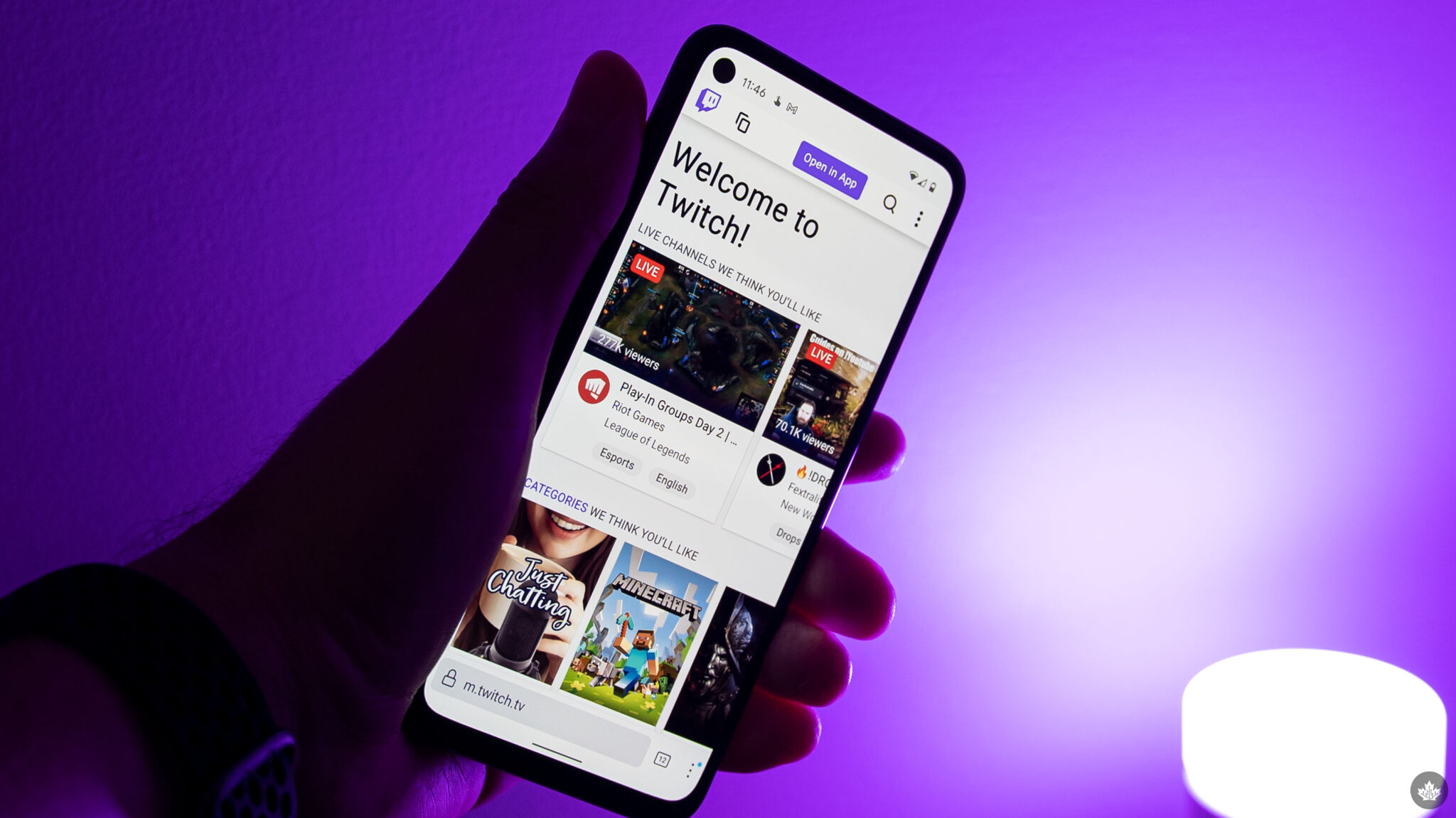
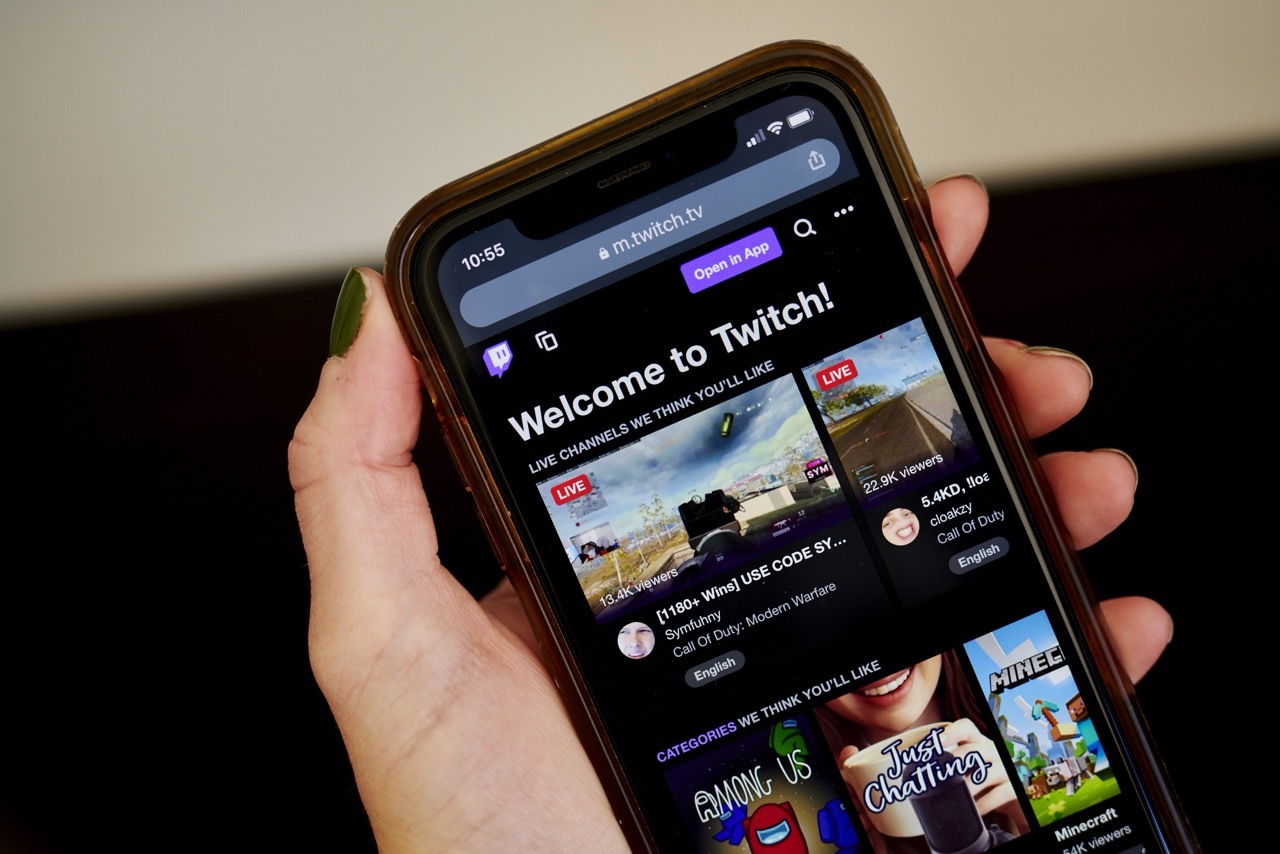
Using Twitch on mobile is the quickest way to start broadcasting. Your phone or tablet only needs to support the official Twitch app, no special hardware is required. Here are the exact steps to stream from your device:
- Open the Twitch app on your phone or tablet.
- Tap the + button in the bottom navigation bar.
- Select Stream or Stream from this device.
- Choose Stream IRL to broadcast using your device's camera, or Stream Games to broadcast a mobile game.
- After you make your selection, the camera preview will open, and you can begin your stream.
For Android mobile game streaming, download the 'Stream Screen Mirroring' app from Google Play and follow its steps: open the app, agree to the popup, open the menu, select Twitch, log in, give permission, and tap the green start button. For iOS mobile game streaming, download the 'Omlet Arcade' app from the App Store and follow its steps: create an account, start your game, tap the 'Start Streaming' popup, select Omlet Arcade, select Twitch, log in, give a title, and tap 'Start Streaming'. Twitch does not list specific hardware requirements for mobile streaming beyond the device being able to run the app. Your phone's built-in microphone and camera are sufficient for starting out, though you can add external hardware like a BOYA BY-M omnidirectional microphone and an Arkon iPhone Tripod.
How to stream on Twitch with a PC using OBS
OBS (Open Broadcaster Software) is a free, open-source streaming program for Windows, Mac, and Linux. To set it up for Twitch, follow these steps:
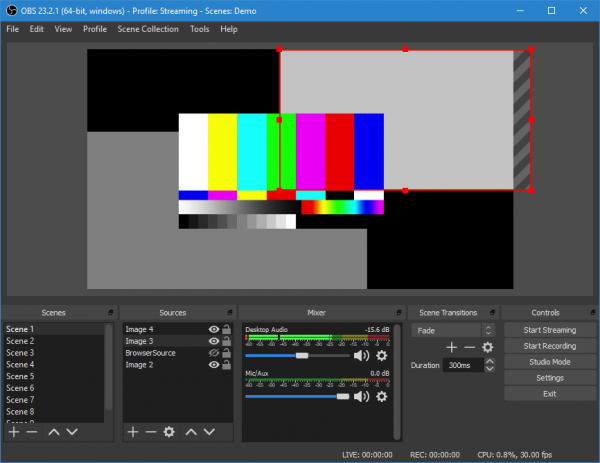
- Download and install OBS from the official website.
- Open OBS and go to Settings → Stream.
- For Service, select Twitch.
- Click Connect Account and log in to your Twitch account in the browser window that opens.
- After connecting, go back to the main OBS window. Right-click in the Sources box, select Add, then choose Game Capture to capture your gameplay, or Video Capture Device to add your webcam.
- Once your sources are set up, click Start Streaming to go live.
OBS also has a Help → Check for Updates option (for OBS Studio v30.2 or newer) to keep your software current.
How to stream on Twitch with a PC using XSplit
XSplit is another popular streaming application. While the free version is enough to stream on Twitch, some features require a subscription. Here is how to set it up:

- Download and install XSplit from the official website.
- Open XSplit and click Broadcast at the top of the screen.
- Select Twitch from the list, then click Authorize.
- Click Finish to let XSplit optimize your resolution.
- In the main XSplit window, click Add at the bottom left to add your game capture, screen capture, or webcam source.
- Click Broadcast → Twitch to start streaming.
How to stream on Twitch with a PS4
Streaming from a PS4 is straightforward and does not require additional software on the console itself. You will need your Twitch account ready on a phone or PC, as you cannot log in directly on the PS4.
- Open the game you want to stream on your PS4.
- Press the Share button on your controller.
- Select Broadcast Gameplay from the on-screen menu.
- Choose Twitch from the list of options.
- On your phone or PC, go to twitch.tv/activate and log in to your account.
- Enter the activation code displayed on your PS4 screen into the activation page on your phone or PC.
- Click Activate on your phone or PC, then confirm on your PS4.
- Press the Share button again, select Broadcast Gameplay, choose Twitch, customize your settings, and select Start Broadcasting.
A basic PS4 setup (console, TV, and controller) is enough to stream. You can add a PlayStation Camera for face and voice capture if desired.
How to stream on Twitch with an Xbox One
Streaming from an Xbox One requires downloading the Twitch app from the Xbox Store. As with the PS4, you must activate your account using a phone or PC.
- Go to the Xbox Store and download the Twitch app.
- Launch the app and select Log In.
- Enter the activation code shown on your Xbox screen into the activation page.
- Click Activate.
- Open the game you want to stream, then press the home button on your controller twice to open the guide.
- Open the Snap menu (or use the Kinect voice command "Cortana, open Twitch") and select the Twitch app.
- Tap Broadcast, give your stream a title, customize your settings, and tap Start Broadcast.
An Xbox One Kinect Sensor Bar can be used to add your camera and microphone to the stream. A Microsoft Xbox One Kinect Sensor Bar is a specific external hardware option for this.
Understanding Twitch raids, affiliates, and community features
Twitch raids
A Twitch raid allows a streamer to send their viewers to another channel. To start a raid, type /raid followed by the target channel's name in your chat. A countdown will begin; click Raid Now to send your viewers immediately, or the raid will automatically start after 80 seconds. Viewers can choose not to participate.
Twitch affiliates
The Twitch Affiliate program lets streamers earn money through subscriptions, Bits (used for Cheering in chat), and game sales. To be invited, you must have at least 50 followers, 500 total minutes broadcast, 7 unique broadcast days, and an average of 3 or more concurrent viewers.
Content rules
Twitch prohibits streaming copyrighted movies, hate speech, excessive violence, pornographic material, illegal activities, and harassment. Violations can lead to account deletion or legal action.
Twitch Turbo and Twitch Prime
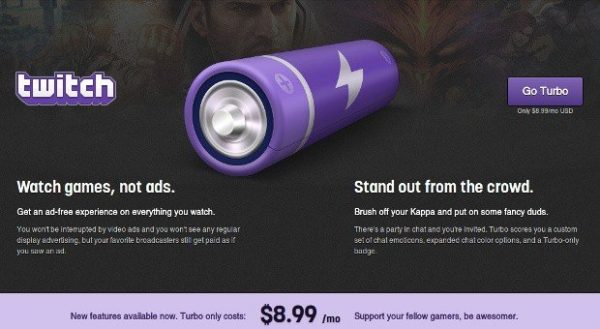
Twitch Turbo is a monthly subscription with benefits including ad-free viewing, more emoticons, chat username color customization, an exclusive badge, expanded memory for past streams, and priority customer support. When comparing Twitch Prime vs. Twitch Turbo, you cannot have both. Prime offers bonus games and in-game content, while Turbo is the only service guaranteed to be ad-free.

Frequently Asked Questions
What is a stream key and do I need one?
A stream key is a unique code that identifies you as the source of a broadcast. You may need it when setting up OBS, where you copy it from your Twitch Dashboard and paste it into OBS's stream settings. XSplit and the built-in console streamers do not require a stream key.
Can I stream privately on Twitch?
No, Twitch is a public streaming platform. The closest option is to set your channel to "not playing" while streaming, but anyone who visits your channel can still see your broadcast. For private streaming with friends, consider using YouTube or Skype.

What is the best time to stream on Twitch?
Activity on Twitch generally peaks during daytime in America (8 AM to 7 PM PST) and nighttime in Europe (3 PM to 2 AM GMT). You may want to avoid these peak times if you prefer less competition for viewers.
How do I test my stream before going live?
Twitch has a built-in feature called Broadcast Inspector. To test, go to your broadcast settings, select the closest Twitch server, and add "?bandwidthtest" to your OBS stream key. In XSplit, use the "Test Bandwidth" feature in the server list. If the test shows issues like dropped frames, switch to a different server.
What is a squad stream?
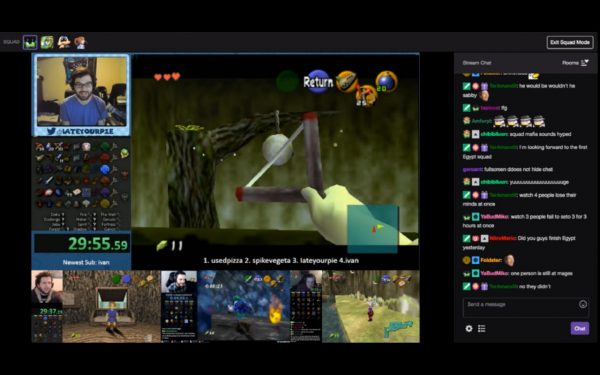
A squad stream allows up to four streamers to broadcast together in one window. All invitees must be present for the stream to begin.
Why does my stream keep disconnecting or failing to start?
Stream connection failure can have several causes and fixes. For modem or router issues, reset both, try bypassing the router, or disconnect other devices on shared Wi-Fi. If other software is competing for bandwidth, shut down Skype, Steam, and Torrent. For ISP issues, contact your ISP about technical difficulties or to inquire about higher upload speeds. If the problem is your location or distance to Twitch servers, there is no easy solution, but you could consider a closer streaming service.
What are the most popular games on Twitch?
The top five games on Twitch at the time of writing are Fortnite, League of Legends, Grand Theft Auto V, Teamfight Tactics, and World of Warcraft.
For the wider topic, see using Twitch on mobile.