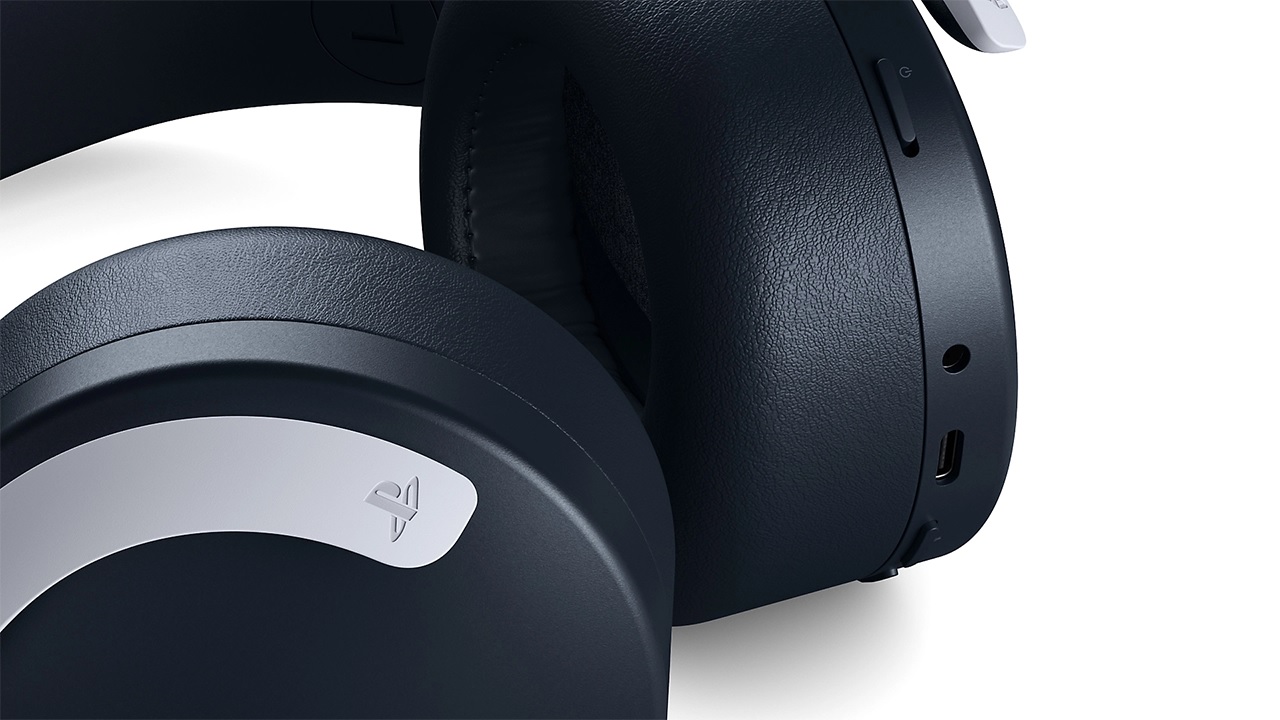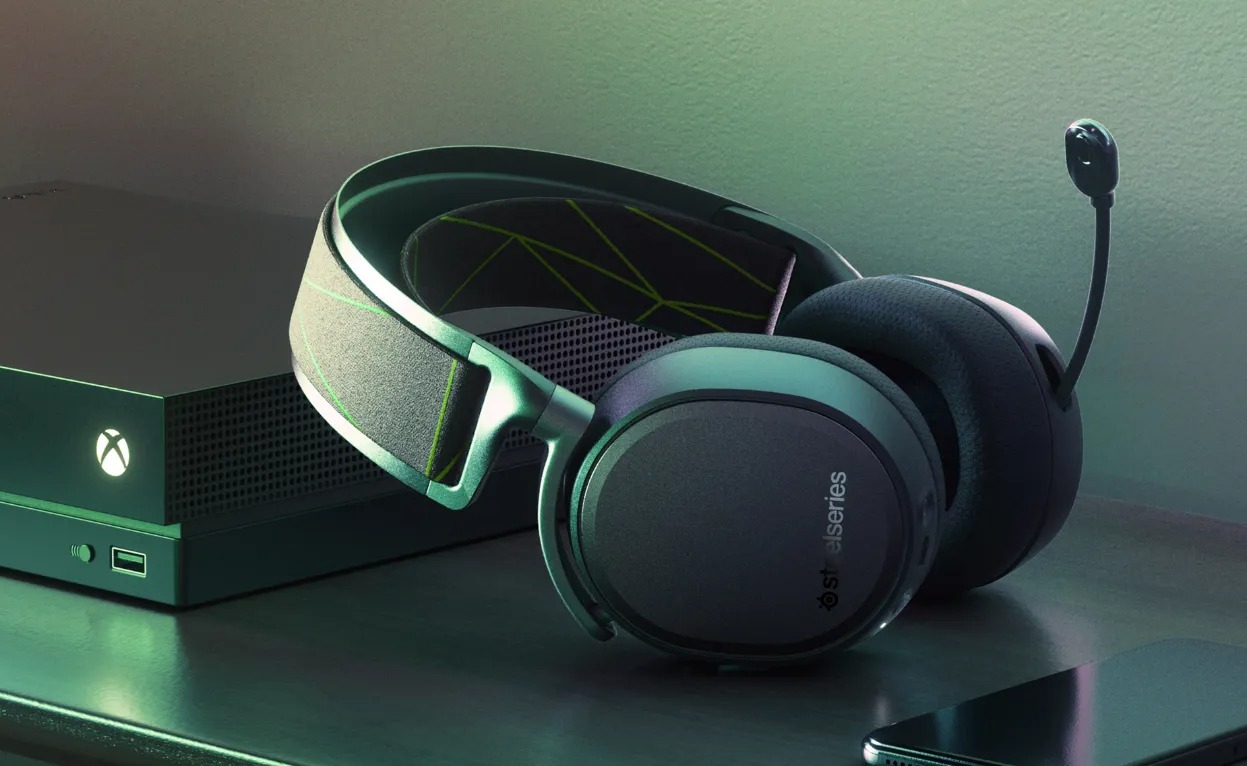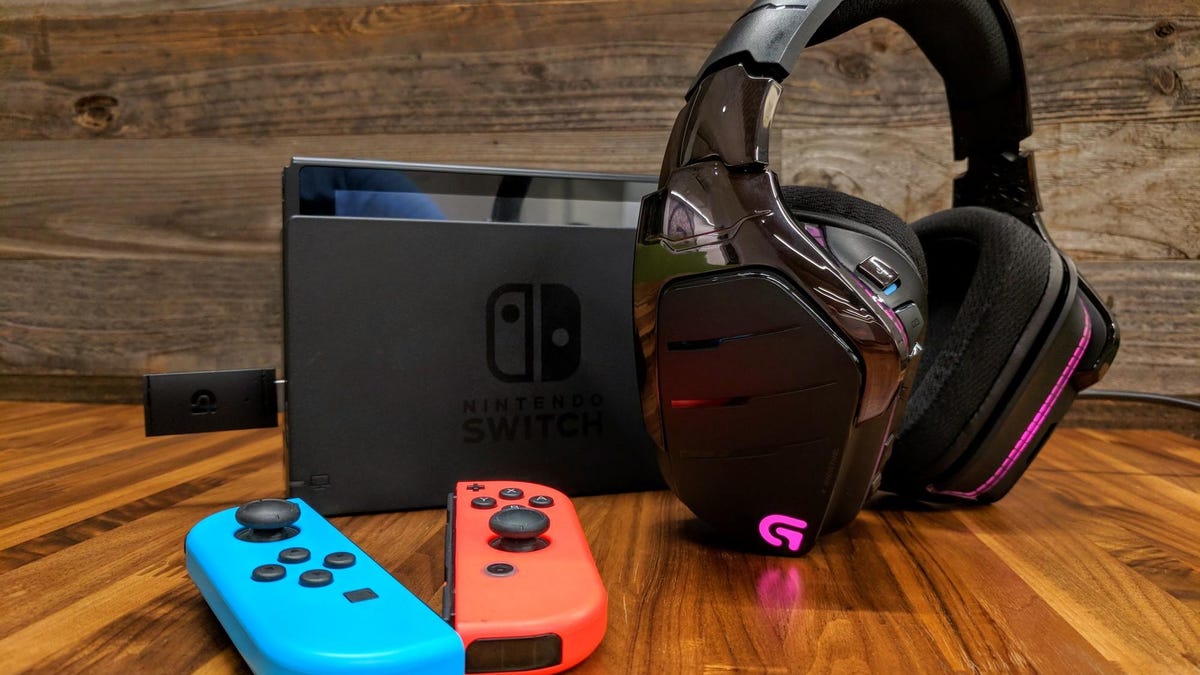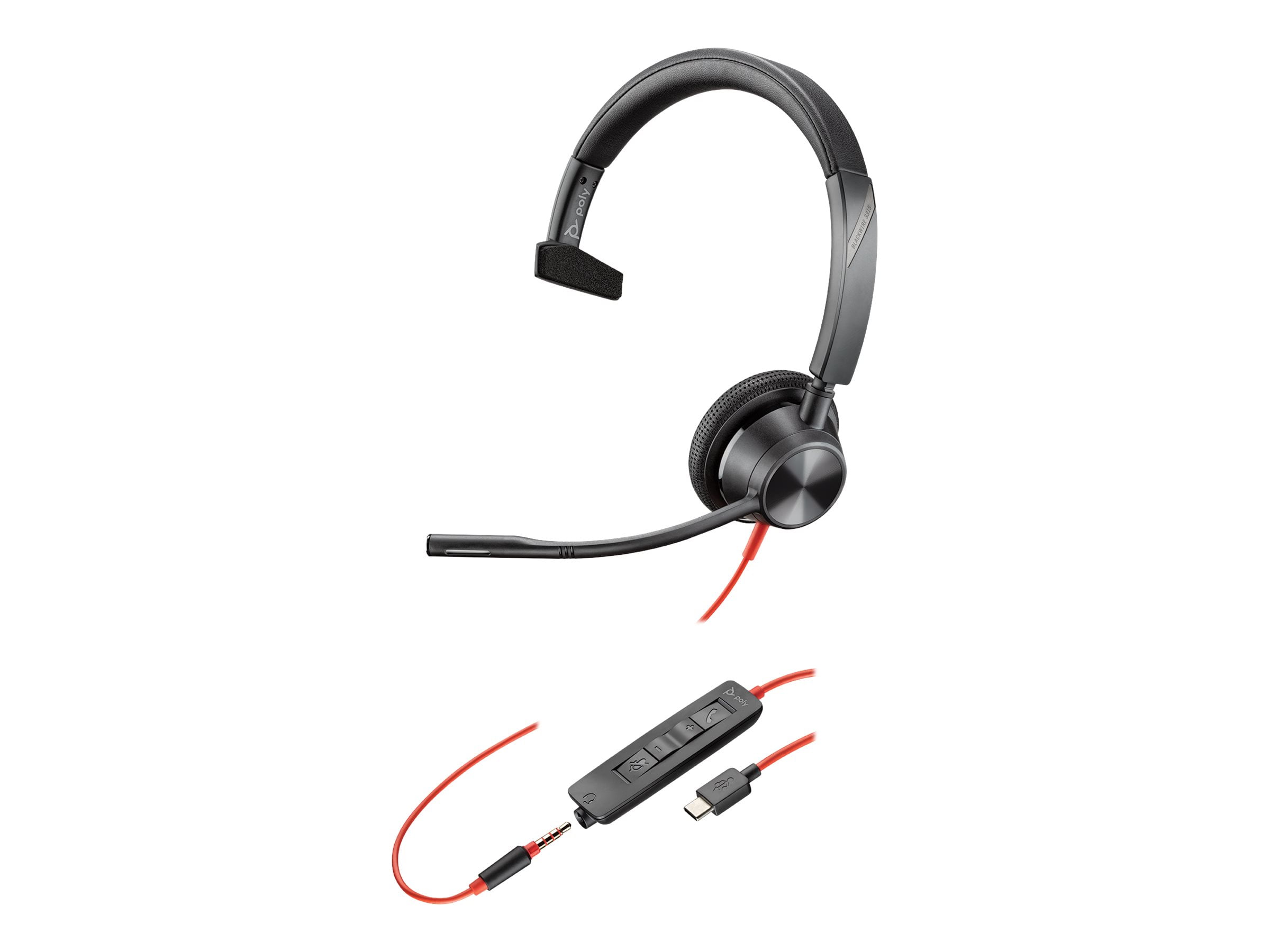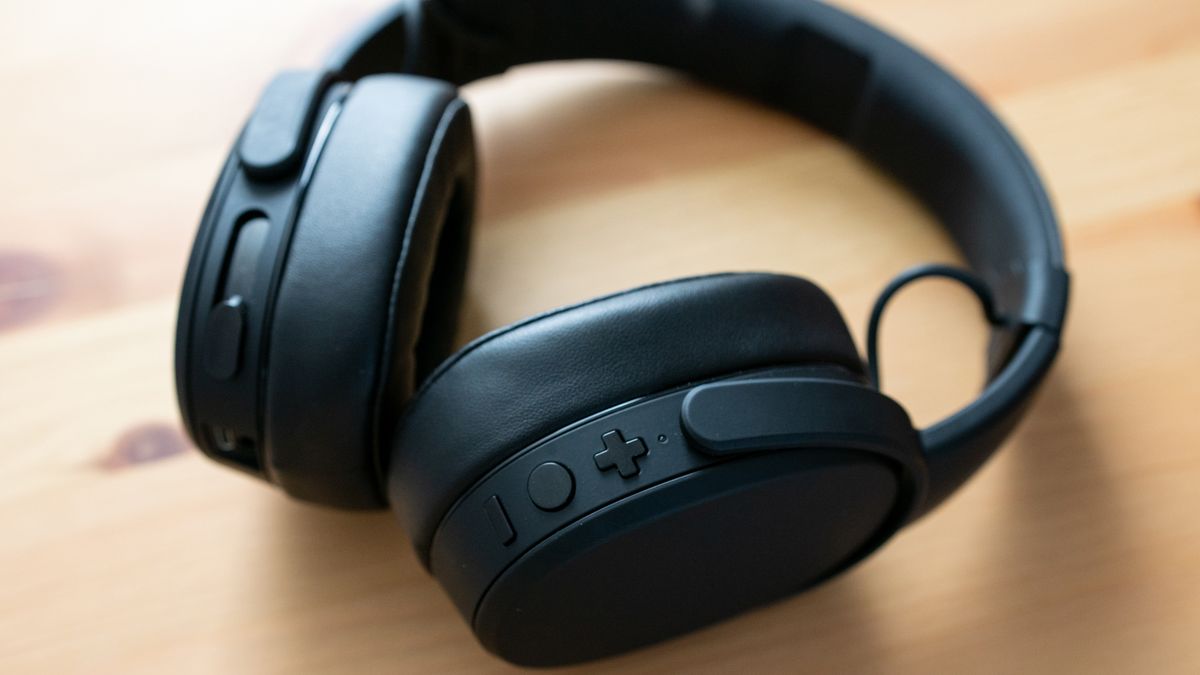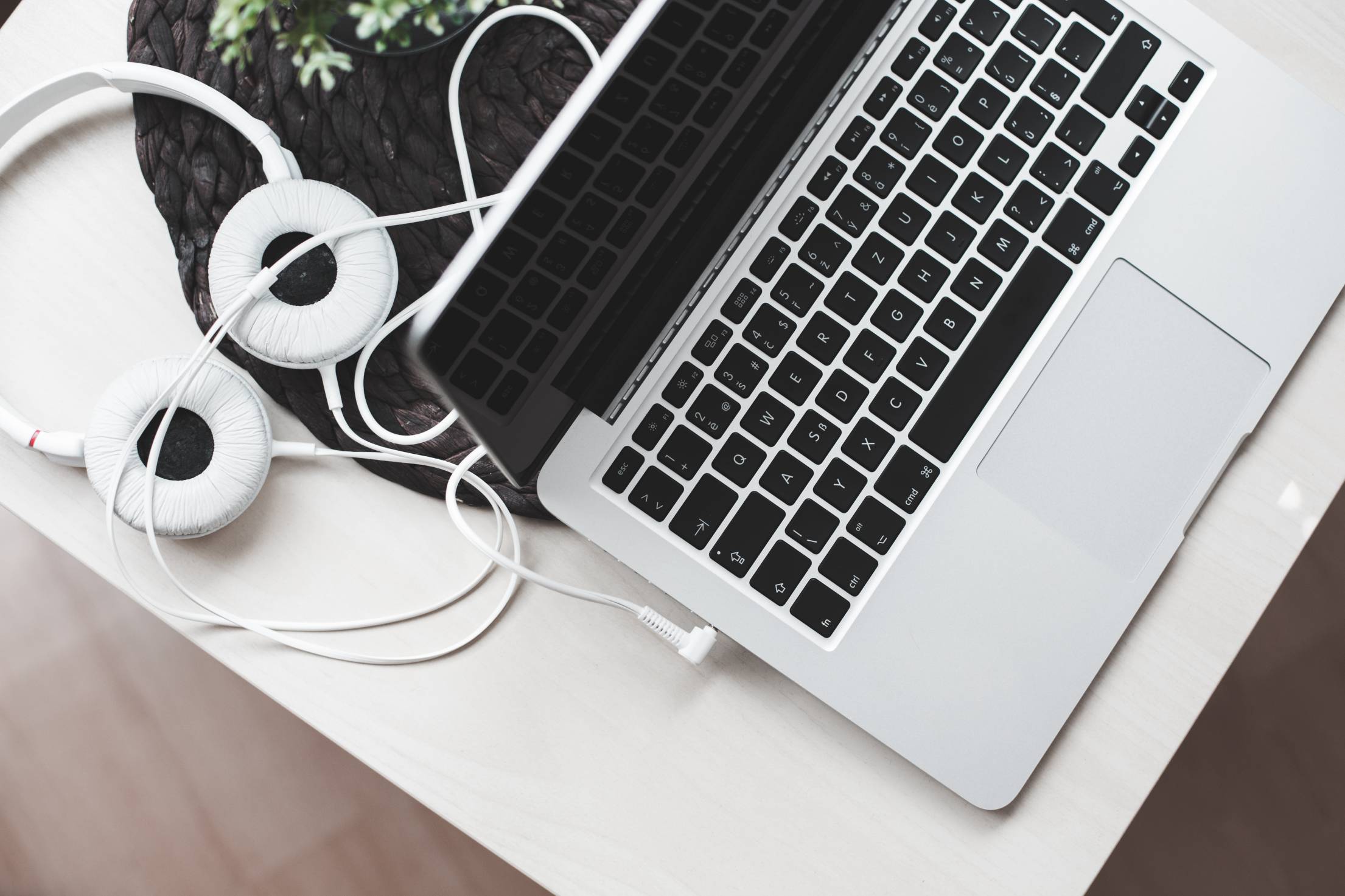
To connect a headset to your MacBook, use Bluetooth from Apple menu > System Settings > Bluetooth, then select your headset and click Connect. This general headset setup works for most Bluetooth headsets and automatically sets the headset as both your Mac's sound input and output.
Connect your headset to MacBook via Bluetooth
- Turn on your headset and put it in pairing mode. This usually means holding a button until a light flashes.
- On your Mac, choose Apple menu > System Settings > Bluetooth.
- In the device list, hold the pointer over your headset and click Connect.
- If prompted, click Accept or enter the numbers shown, then press Enter.
After connecting, the headset works as both your Mac's microphone and speakers. You can also connect a previously paired headset using the Bluetooth icon in Control Center or the menu bar.
Connect your headset using a wired connection
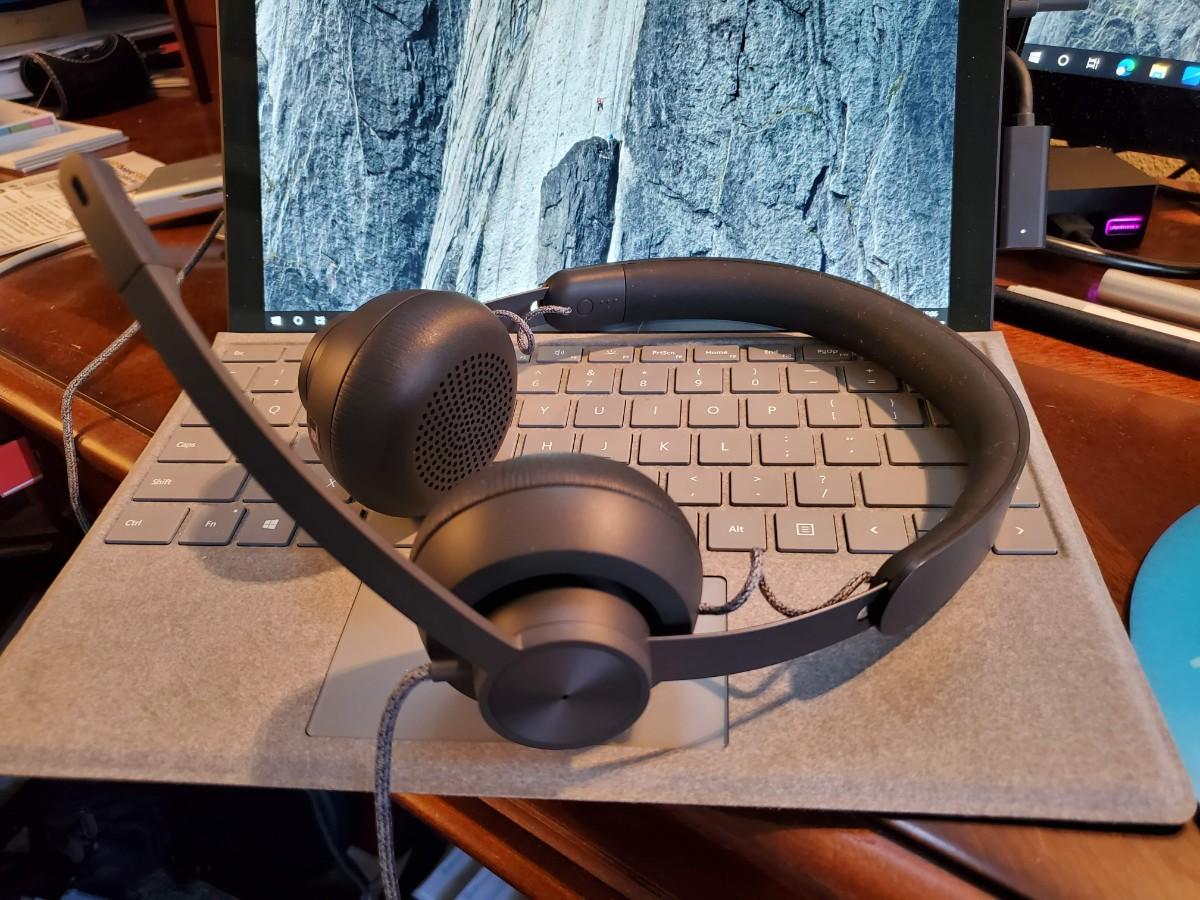
Plug the headset's 3.5mm or compatible connector into your MacBook's audio port. If the headset has a separate microphone plug, insert it into the microphone jack next to the headphone jack on some MacBook models. Then select the headset as the output device in System Settings > Sound > Output. Macs from 2021 or later support high-impedance headphones when connected directly to the audio port. Some headsets may require additional software or drivers to be installed on your MacBook for proper functionality; check the manufacturer's website.
Set your headset as the sound input and output device
Bluetooth headsets automatically become your Mac's microphone and speakers after you connect them. If audio still plays from the Mac speakers, click the Sound control in the menu bar and choose your headset as the output device. You can also check the input and output selections in System Settings > Sound.
Troubleshooting headset connection problems
- Headset does not appear in Bluetooth list: Make sure the headset is turned on and discoverable. Keep the devices near each other during pairing.
- Sound plays from Mac speakers instead of headset: Click the Sound control in the menu bar and select your headset as the output device.
- Bluetooth icon is missing from menu bar: Open Bluetooth settings and select "Show Bluetooth in menu bar."
- If Bluetooth connection problems persist, try resetting the Bluetooth settings on your MacBook and reconnecting the devices.
- If the microphone on the headset is not working, check the microphone settings on your MacBook to ensure it is selected as the input device and not muted.
- For constant disconnections, ensure the headset is within range and the Bluetooth signal is not being interrupted by other devices; try using a wired connection instead.
Frequently Asked Questions
Do Bluetooth headsets work as both microphone and speakers on MacBook?
Yes. After connecting, a Bluetooth headset acts as both the computer's microphone and speakers.
Where is the Bluetooth setting on MacBook?
Open Apple menu > System Settings > Bluetooth.
Can a headset connect automatically after pairing?
Yes. Bluetooth accessories reconnect automatically when they are nearby and turned on after the initial pairing.
Do wired headsets need special software on MacBook?
No. Wired headsets with a 3.5mm connector work by plugging into the audio port and selecting the headset in Sound settings.
Can I use AirPods with a MacBook?
Yes. Apple provides model-specific pairing steps for AirPods and AirPods Max, but these steps are for Apple's own headsets rather than generic headsets.
How can I use my headset for video calls on my MacBook?
Go to the audio settings within the video call application and make sure the headset is selected as the audio input and output device.
Related reading: How To Connect PS5 Headset and How To Connect Xbox Headset To Xbox Series X.