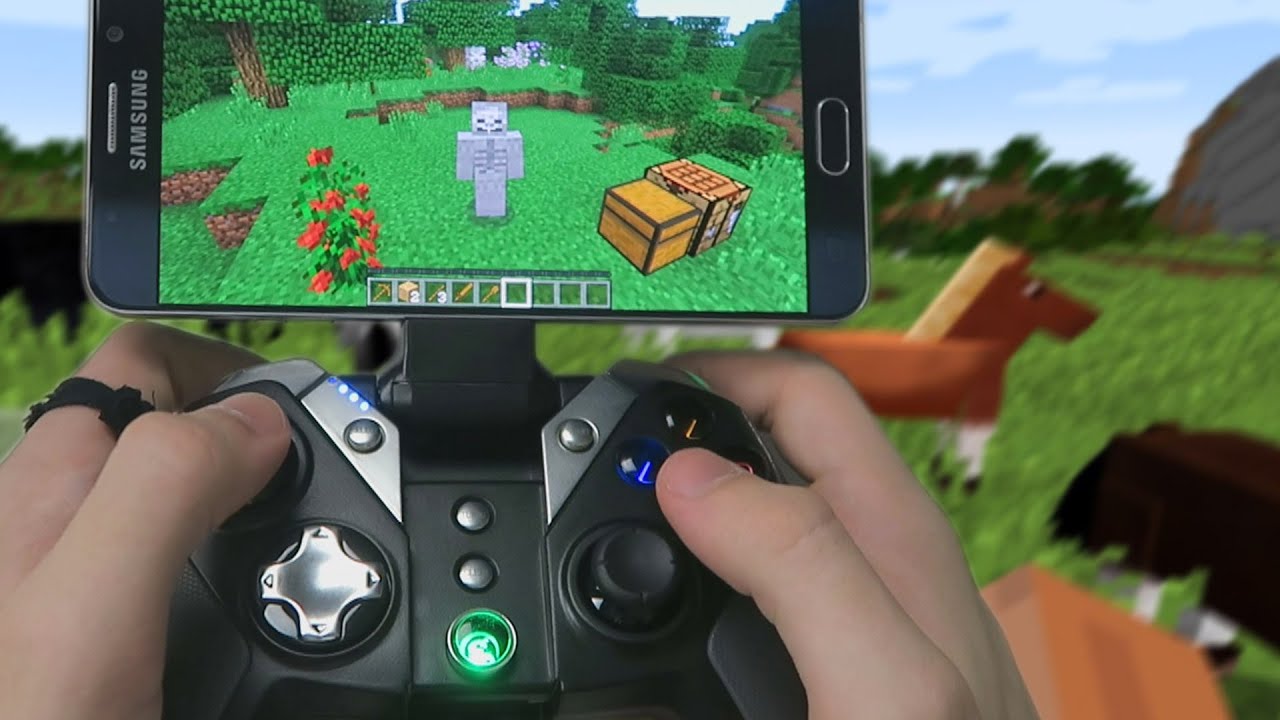
A gamepad for TV is a smartphone app or built-in feature that turns your phone into a wireless controller for your smart TV, letting you play cloud games or TV-based games without buying a physical controller. The two main ways to do this are Samsung's official Virtual Gamepad for its newer TVs and third-party apps that work with Android TV, Google TV, and other platforms.
What is a gamepad for TV
A gamepad for TV, in this context, is not a physical controller you buy, it is your smartphone acting as one. Instead of purchasing a dedicated gamepad, you install an app on your phone that sends button presses and joystick movements to your TV over Wi‑Fi or Bluetooth. This works for cloud-gaming services like Samsung Gaming Hub and for games built into your TV's operating system. The two main methods are Samsung's official Virtual Gamepad feature and third-party gamepad apps available on the Google Play Store and Apple App Store.
How a phone gamepad for TV works
Your phone connects to your TV either over the same Wi‑Fi network or via a direct Bluetooth pairing. Once connected, the phone transmits gamepad inputs, such as joystick movements, button presses, and directional pad commands, to the TV. The TV interprets these inputs as if they came from a physical controller, allowing you to navigate menus, play cloud games, or control supported TV games. The exact connection method depends on whether you use Samsung's official option or a third-party app.
Samsung virtual gamepad: the official option
Samsung's Virtual Gamepad is the clearest official phone-as-gamepad solution. It is a built-in feature of Samsung Gaming Hub, available on Samsung Smart TVs and monitors from 2022 and later. Samsung Virtual Gamepad is available on Android phones version 9 or later and only supports Samsung Smart TV and monitor models from 2022 and later. To use it, you scan a QR code displayed in Gaming Hub with your Android phone running Android 9 or later. The phone then pairs with the TV over Wi‑Fi, and you can play gamepad-free cloud games without any additional hardware. This option is limited to Samsung devices and does not work with other TV brands.
Third-party gamepad apps for Android TV and more
For TVs that are not Samsung, third-party apps provide a phone-as-gamepad option. Third-party app supports Android, Windows PC, macOS, Linux, and iOS as phone-side systems. The setup involves these steps:
- Install the gamepad app on your phone from the Google Play Store or Apple App Store.
- Install the same app on your Android TV, Google TV, Shield TV, or Fire TV from the TV's app store.
- On the TV, open the app and select the mode labeled "I'm a TV." On the TV open the app and select "I'm a TV," set it as keyboard input if using Android TV games mode on the phone.
- On the phone, open the app and select the mode labeled "I'm a Phone."
- Pair the phone and TV via Bluetooth settings on the TV, then choose the appropriate mode (e.g., keyboard input if using Android TV games mode).
- Scan or connect as prompted, then start playing.
These third-party apps claim support for Android TV, Google TV, Shield TV, Fire TV, and smart TVs with Bluetooth HID support. Note that these compatibility claims come from the app publishers, not the TV manufacturers.
Using an iPhone as a gamepad for TV
iPhone users can also turn their phone into a gamepad for TV. The app requires iOS 16 or later. Apple App Store listing says the phone and TV must be on the same Wi‑Fi network for pairing and remote controls to work properly. Apple App Store listing says the on-screen gamepad includes a joystick, directional controls, volume buttons, back actions, and more. The setup follows the same general steps as third-party Android apps: install on both devices, pair via Bluetooth, and select the correct modes.
What about Google's official support?
Google's official Android TV support does not include a phone-as-gamepad feature. The company's documentation only covers pairing a physical gamepad. The official menu path is: from the Android TV Home screen, scroll down and select Settings, then under "Remote and accessories" select Add accessory, then select the gamepad. This is for physical controllers only, not for using a phone as a gamepad for TV.
Frequently Asked Questions
Which iPhone versions are supported?
Apple's listing for one gamepad app requires iOS 16 or later. Older iPhone models that cannot update to iOS 16 will not be able to use that app as a gamepad for TV.
Which Android versions are supported?
Samsung's Virtual Gamepad requires Android 9 or later on the phone. Third-party apps may have their own minimum Android version requirements, but Samsung's official option is the most clearly documented.
What menu path do I use on Android TV for a physical gamepad?
This does not apply to using a phone as a gamepad for TV.
Can I use a phone as a gamepad for any smart TV?
No. The most clearly documented official option is Samsung's Virtual Gamepad, which only works with Samsung Smart TVs and monitors from 2022 onward.
Do I need a separate app for gamepad setup and troubleshooting?
Yes. For Samsung TVs, the Virtual Gamepad is accessed through the Gaming Hub on the TV, and no separate app is needed on the phone beyond the built-in QR code scanner. For third-party options, you need to install the same app on both the phone and the TV, and that app handles all gamepad setup and troubleshooting steps.
Related reading: Where To Get VR Gamepad.