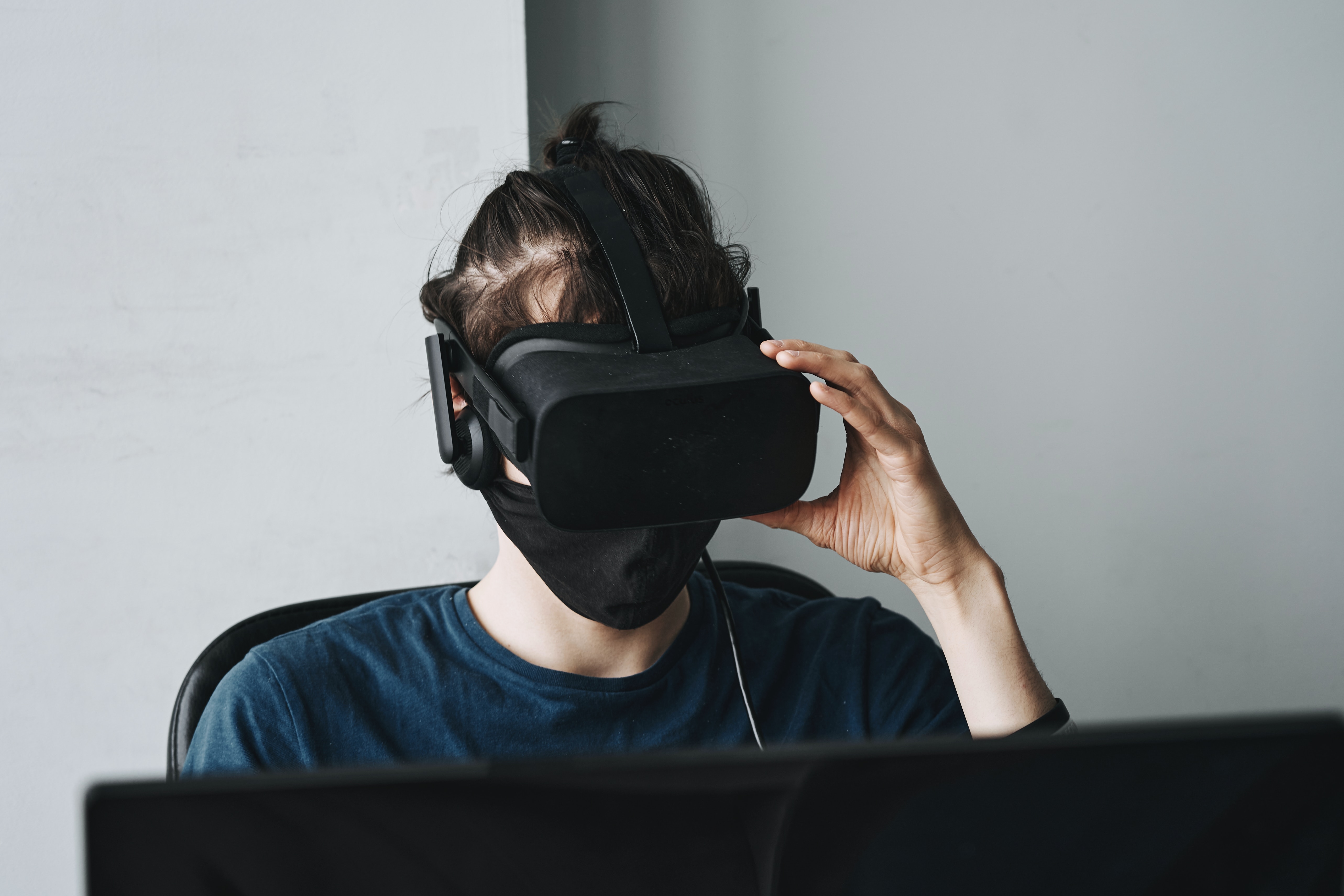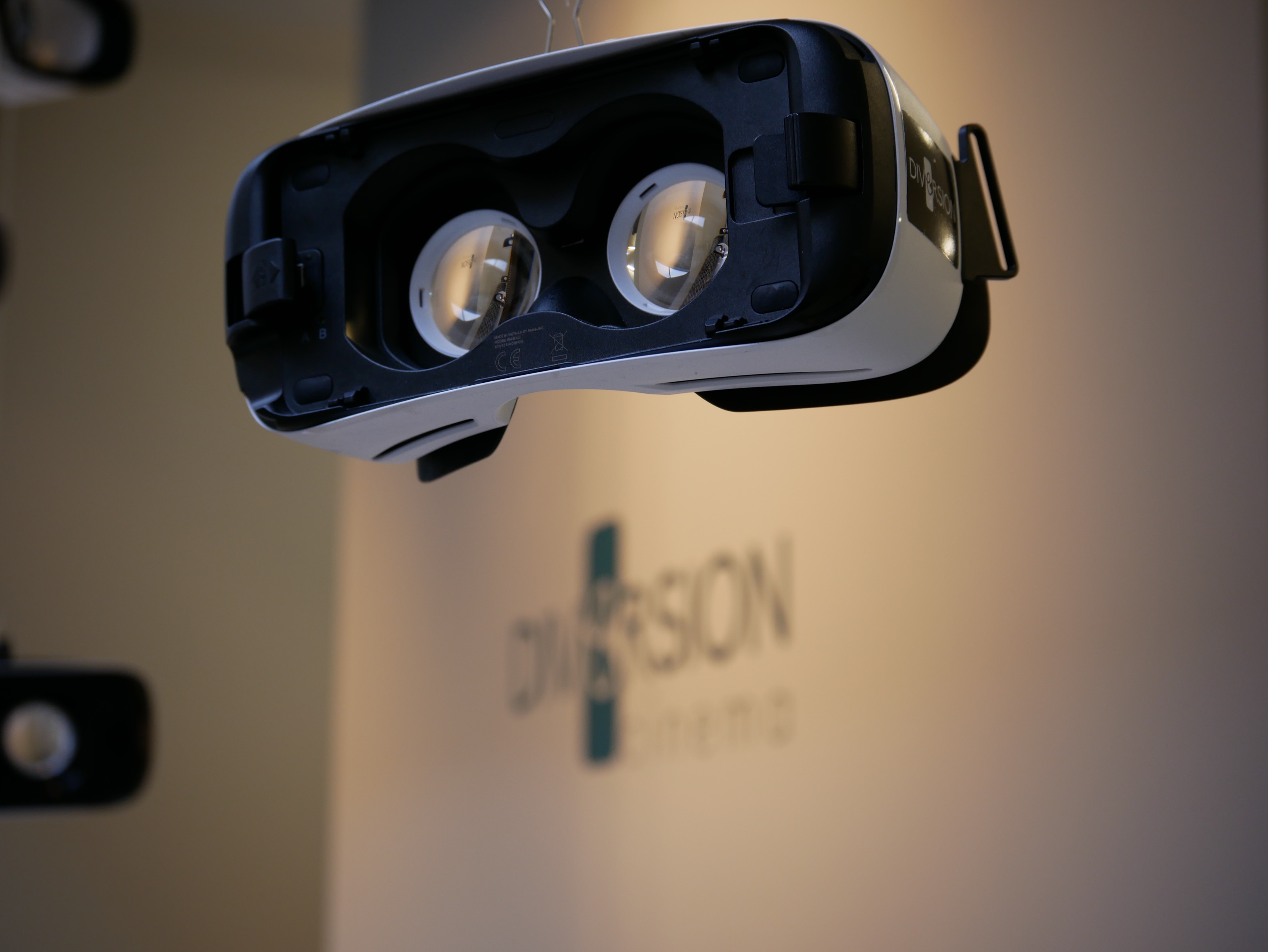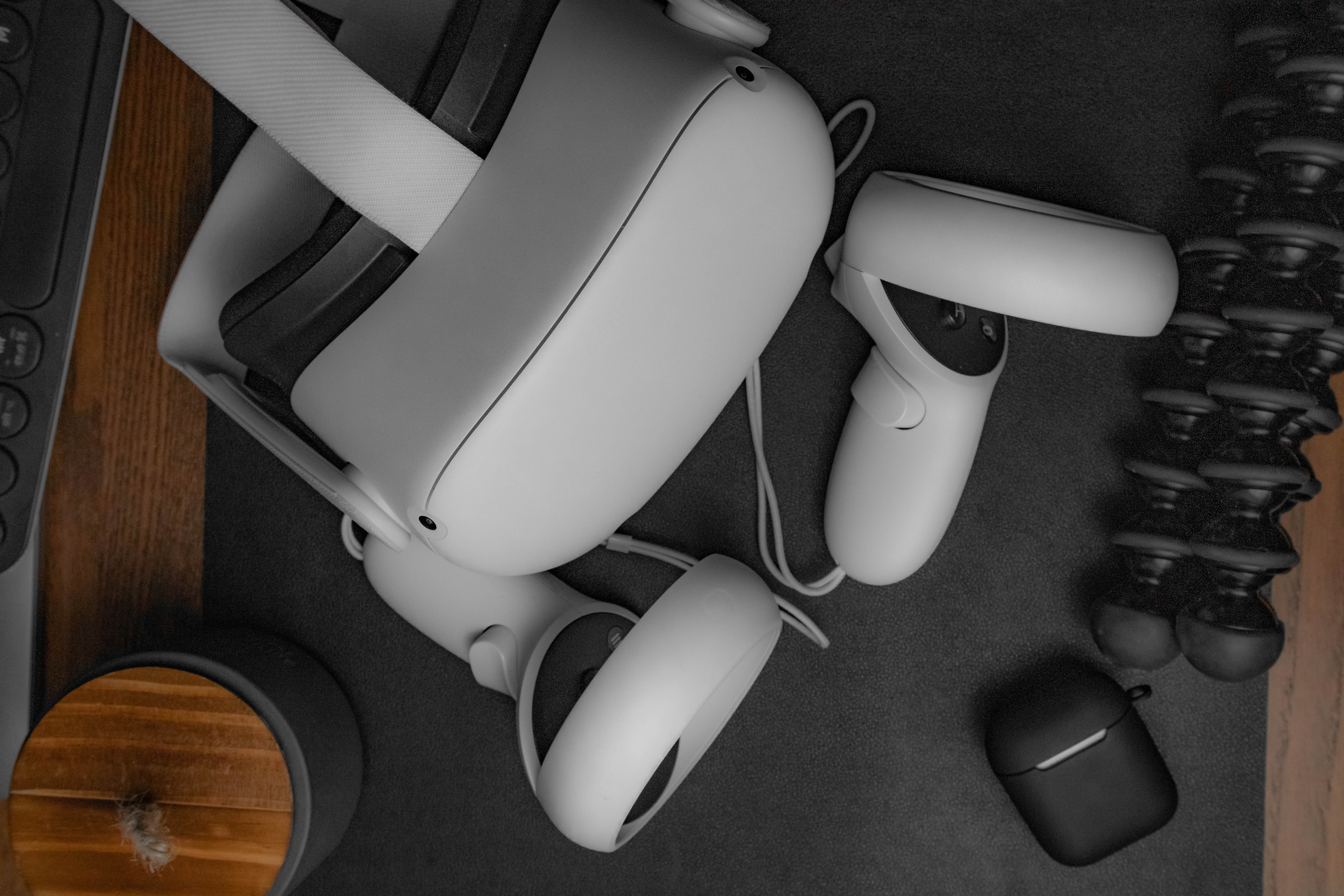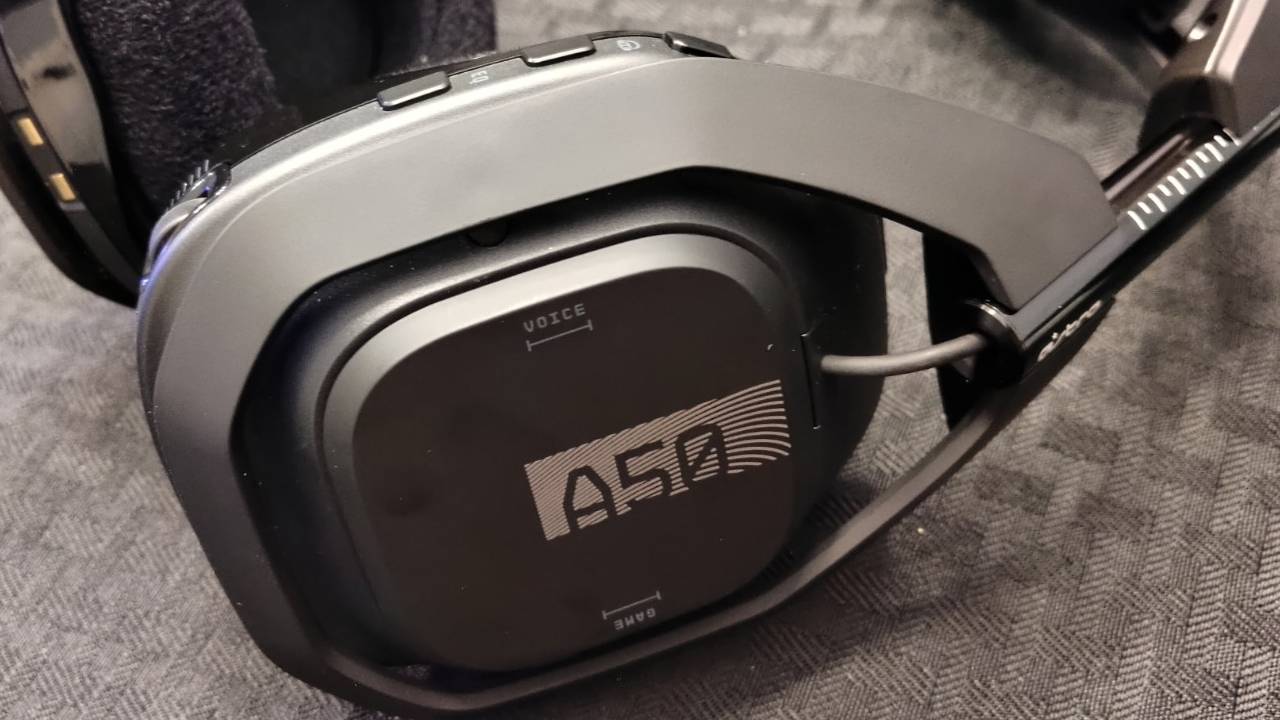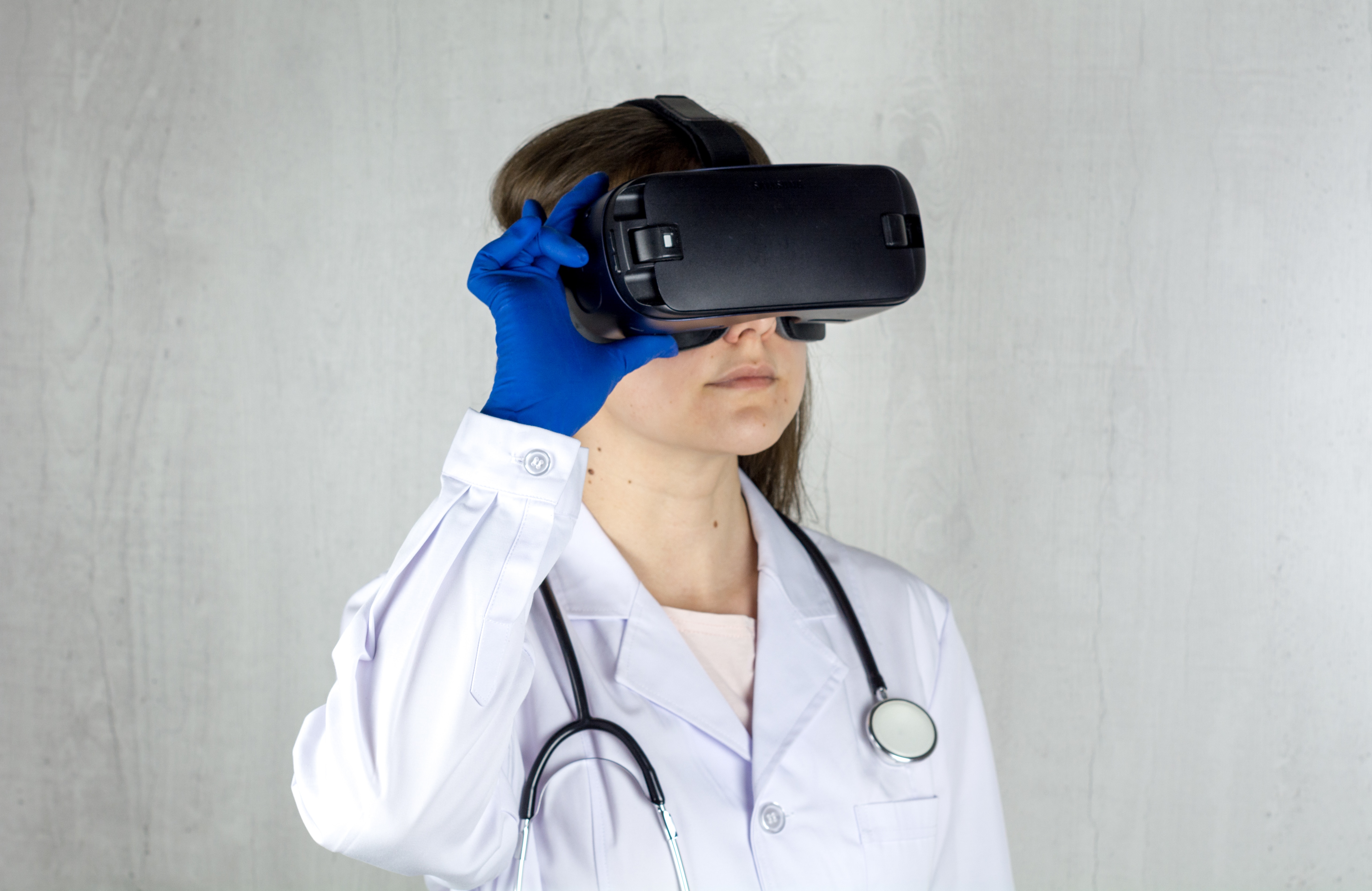
When your VR headset is not working, the most common causes are power issues, loose cable connections, outdated software or drivers, or tracking problems. Start by restarting your VR headset, the connected PC or console, and your Wi-Fi router or modem if using a wireless headset, as this simple step often resolves temporary glitches.
First steps when your VR headset is not working
The universal first-aid for any VR issue begins with a full restart. Shut down your VR headset, the PC or console it is connected to, and your Wi-Fi router or modem. Wait a minute, then power everything back on. While doing this, check all power connections: ensure the headset's power cable, the link box (if used), and the wall outlet are all securely attached. A loose connection is one of the simplest causes to overlook.
Fix a black screen or no image on your VR headset
If your headset has power but shows no display, start by checking all cable connections. Verify that the HDMI, DisplayPort, and USB cables are firmly plugged into your computer's dedicated graphics card, not the motherboard ports. For Meta Quest headsets, the proximity sensor between the lenses may be blocked or dirty; clean it gently with a soft cloth. For PlayStation VR2, ensure the headset connection cable is fully inserted into both the headset and the processor unit, then try unplugging and replugging each end. If your PS VR2 headset powers up but displays no image, ensure all cables are securely connected, including the headset connection cable to the headset and processor unit, and try unplugging and replugging them. If using PS VR2 on a PC, remember it requires a DisplayPort 1.4 or higher compliant cable directly connected to the GPU, and adapters like HDMI-to-DisplayPort or USB Type-C-to-DisplayPort are not supported.
Solve VR tracking and drifting problems
Lost, jittery, or drifting tracking often stems from environmental factors. Optimize room lighting: the space should be well-lit but not overly bright, as both dim and harsh light can confuse the sensors. Remove reflective surfaces like mirrors, glass tables, or glossy picture frames from the play area, as these can interfere with tracking. Clean the external tracking cameras or sensors on the headset with a microfiber cloth to remove dust or smudges. For SteamVR, if a device icon in the status window is pulsing green, it means it is not tracking; check your base station setup and monitor for CPU performance spikes that could cause tracking interruptions.
Get your PC to detect your VR headset
When your PC shows a 'headset not detected' error, try different USB ports, preferably USB 3.0 ports, as they provide the necessary bandwidth. Set your PC's power plan to High Performance by going to Control Panel > Power Options, and for NVIDIA graphics cards, set power management to "prefer maximum performance" in the NVIDIA Control Panel. For PC VR headsets not being detected, ensure Steam is running as an administrator and verify the integrity of SteamVR tool files.
Update graphics drivers, headset firmware, and VR software
Keeping everything updated resolves many software conflicts. Update your graphics card drivers from the manufacturer's website (NVIDIA, AMD, or Intel). Update your VR headset's firmware through its official app (e.g., the Meta Horizon app for Quest headsets). Update VR platforms like SteamVR and the Meta Horizon app themselves. This is a critical step in troubleshooting gaming headsets, as outdated software is a frequent cause of display, tracking, and connectivity problems.
Troubleshoot wireless PC VR and Air Link issues
For Meta Quest Air Link, connect your PC to your router using an Ethernet cable for a stable connection. For Meta Quest Air Link, ensure the headset is on the same 5 GHz Wi-Fi network as the PC. Minimize interference by reducing the number of devices connected to the 5 GHz network and keeping the headset and router in the same room, free from thick walls or large metal objects.
Fix VR controllers that won't pair or work
If controllers are not responding, first check their battery levels and replace them if low. Try re-pairing through your VR system's settings menu. For persistent issues, perform a hard reset: for PS VR2 Sense controllers, use a pinhole button on the controller to reset it. This clears temporary pairing data and allows the controller to reconnect fresh.
Interpret headset LED lights and error states
The status lights on your headset can tell you what is wrong. For an HTC Vive, a red LED indicates a cable connection or driver error, so check all cables and update drivers. A dim green light means the headset is in standby mode; it will activate when you move it or launch a VR app. For other headsets, consult the manufacturer's LED guide to decode specific error patterns.
Advanced fixes: hard reboot and factory reset
If your Meta Quest is stuck on the logo or a black screen during updates, perform a hard reboot by holding the power and volume down buttons for at least 10 seconds. Wait up to 15 minutes for the update to process before attempting this. A factory reset is a last resort for persistent issues like a bricked headset, pairing failures, or update loops. This will erase all data and require a complete re-setup, so only use it after exhausting other options.
Frequently Asked Questions
Why is my VR headset blurry even after adjusting the lenses?
Blurry images can result from incorrect Interpupillary Distance (IPD) settings, dirty lenses, or the headset not sitting properly on your face. Adjust the headset's fit, clean the lenses with a soft microfiber cloth, and set your IPD correctly through the headset's settings menu.
How do I fix audio issues in my VR headset?
Check the audio settings on your headset and ensure the volume is not muted. If using external headphones, try a different pair to isolate the issue. Update audio drivers on your PC and verify that the VR application's audio output is set to the headset.
Can a faulty USB port cause my VR headset to disconnect randomly?
Yes, a faulty or underpowered USB port can cause intermittent disconnects. Try a different USB 3.0 port, preferably one directly on the motherboard rather than a front-panel port. If the problem persists, a powered USB hub may provide stable power.
Why does my VR headset overheat during use?
Overheating is often caused by poor ventilation or prolonged use. If overheating continues, contact the manufacturer for potential hardware issues.
How do I prevent motion sickness while using VR?
Take frequent breaks, start with shorter sessions, and use VR content with comfortable movement. Ensure the headset is properly adjusted and focus on a fixed point in the virtual environment. If motion sickness persists, consider using anti-nausea wristbands or medications designed for motion sickness.