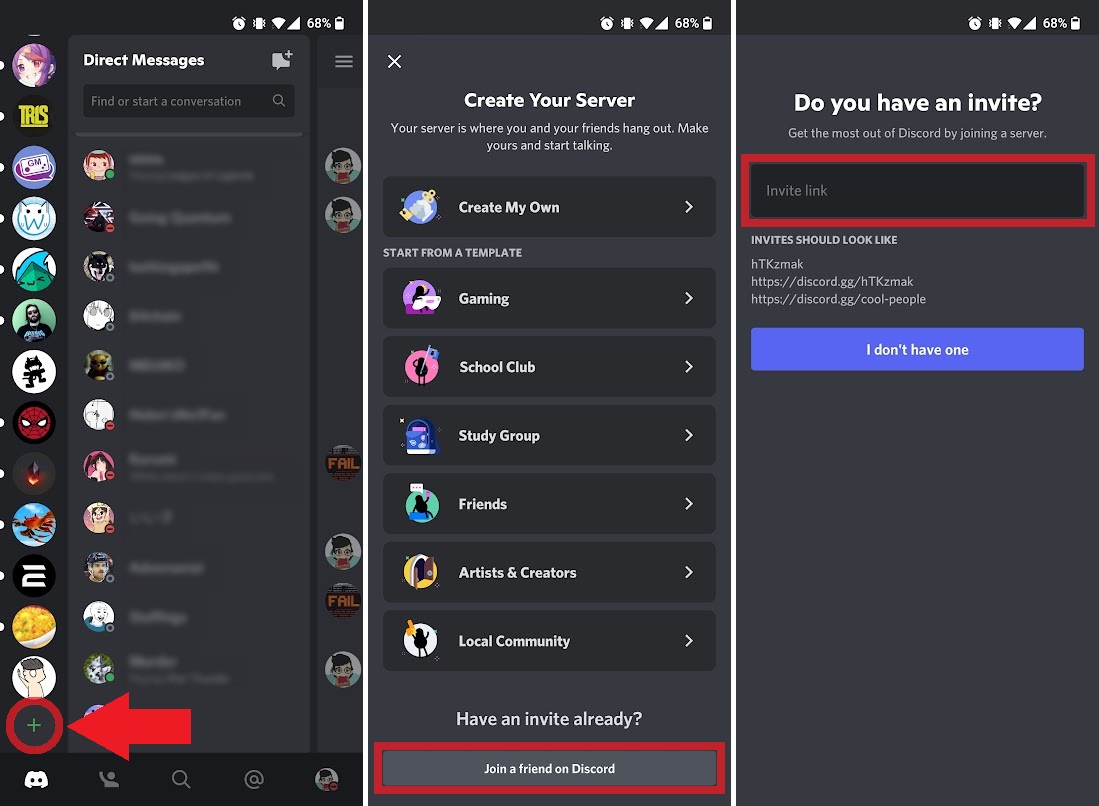
To join a Discord server on mobile, you can tap an invite link you receive or manually enter an invite code inside the Discord app. These two methods let you access any community instantly, whether someone sent you a link or you have the code from a website or friend.
How to join a Discord server on mobile
There are two primary ways to join a Discord server on mobile: tapping an invite link directly, or manually entering an invite code using the '+' button and 'Join a Server' option. Both methods work on iOS and Android and require the Discord app to be installed and your account to be logged in.
Download and install the Discord mobile app
Discord is available for iOS 16.0+ and Android 7+ devices that ship with Google Play Services by default. Discord has discontinued support for Android 6 with version 202, meaning older Android 6 devices will not receive updates and may stop working. Jailbroken or rooted devices and beta operating systems are not officially supported. Running Discord in a mobile browser is not officially supported for the full experience.
- Open the App Store on iPhone or iPad, or the Google Play Store on Android.
- Search for "Discord" and find the official app from Discord Inc. with the purple and white logo.
- Tap "Get" or "Install" to download and install the app.
- Open the Discord app once installation completes.
Create a Discord account
Creating an account is required for Discord account and server setup. You need a valid email address, a unique username, and a strong password.
- Tap "Register" on the welcome screen.
- Enter your email address, choose a username, and set a password.
- Tap "Register" to submit your information.
- Check your email inbox for a verification email from Discord and tap the verification link to confirm your account.
Join a server by invitation link
When someone sends you an invite link, tapping it is the fastest way to join.
- Tap the invitation link you received. It typically looks like discord.gg/xxxxxx.
- If prompted, choose to open the link in the Discord app. The app will open and take you to the server's join page.
- Review the server name, description, and member count. You can customize your username before joining the server.
- Tap "Join Server" to accept the invitation and become a member. You may be asked to solve a reCAPTCHA puzzle to confirm you are not a bot.
Join a server manually with an invite code
If you have an invite code but no clickable link, you can enter it directly in the app.
- Open the Discord app and tap the green plus sign button in the left sidebar.
- Select "Join a Server" from the options that appear.
- In the provided field, type the full invite link (e.g., discord.gg/xxxxxx) or just the invite code (the last part of the link).
- Tap "Join Server" to proceed.
- You may need to accept the invitation to confirm you are joining the correct server.
Join a server by server discovery
Server discovery lets you find public communities without needing an invite link.
- Tap the magnifying glass icon at the bottom of the screen to open the discovery feature.
- Use the search bar to type keywords related to your interests, such as "gaming" or "music."
- Browse the list of servers that appear, and tap any server to view its details.
- Read the server description and channel list, then tap "Join Server" to become a member.
Frequently Asked Questions
Can I join a Discord server on my mobile phone?
Yes. Discord is available on both iOS and Android devices, allowing you to join and participate in servers while on the go.
Do I need an invite link to join a Discord server on mobile?
No. You can also join public servers by browsing the Discover section in the Discord app without needing an invite link.
Can I join multiple Discord servers on my mobile?
Yes. You can join many servers and switch between them by tapping the server icon at the top left of the screen and selecting the server you want to access.
Is it possible to receive server notifications on my mobile phone?
Yes. Discord provides customizable notification settings so you can choose which alerts to receive, such as mentions or messages from specific channels. Configure these in the server settings under the Notifications tab.