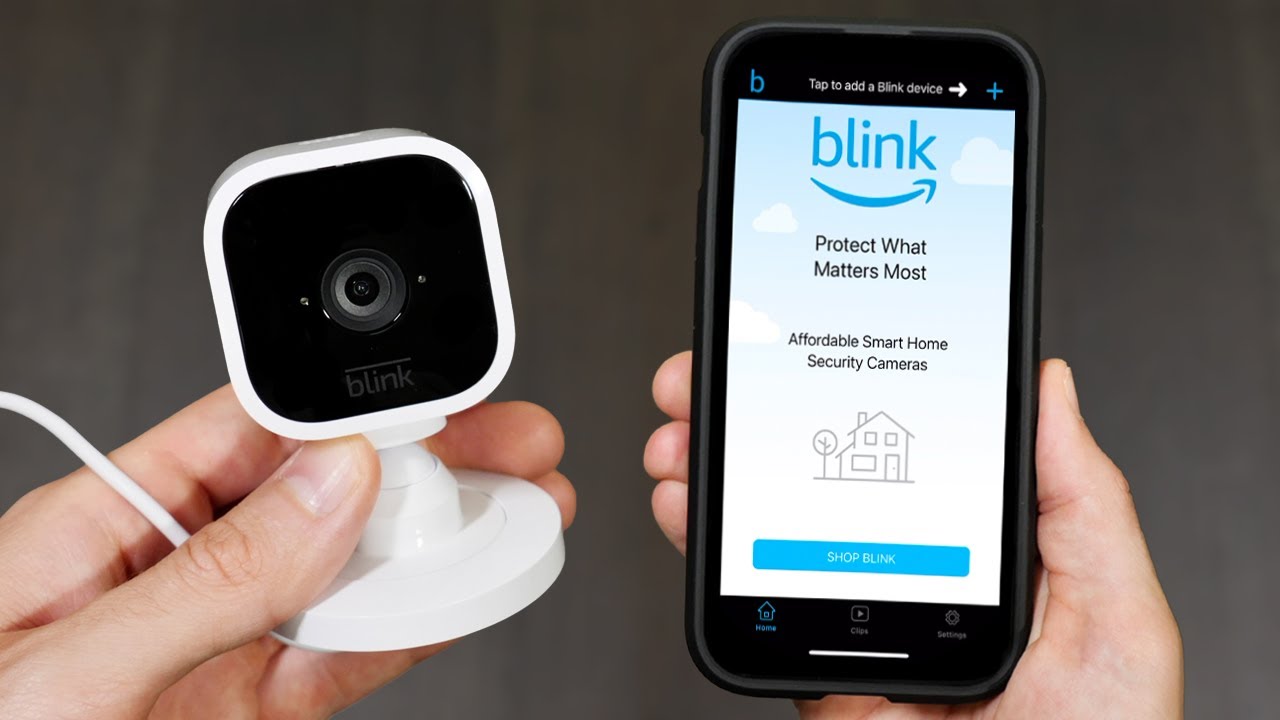
To add a second phone to Blink, simply install the Blink Home Monitor app on the new device and sign in using the existing Blink account email and password. This grants the second phone full control over the account, including live view, settings changes, schedules, and clip deletion, making it the only way to share complete camera access with a family member.
How to add a second phone to Blink
Adding a second phone to Blink means signing into the existing Blink account on the new device. Anyone signed into the account from the second phone will have full control, including live view, settings changes, schedules, and clip deletion. There is no separate sharing feature; logging in is the complete method.
Step 1: Prepare your second phone
Before starting, ensure the second phone is ready. Check the compatibility: Confirm that your second phone meets the system requirements for the Blink app. Visit the app store or the Blink website to see if your phone's operating system is compatible with the app. Confirm the operating system is compatible with the Blink app, update the software to the latest version, and free up enough storage space for the app. Charge the battery to avoid interruptions and connect the phone to a stable Wi-Fi network.
Step 2: Download and sign in to the Blink app
- Open the App Store or Google Play Store on the second phone.
- Search for and install the Blink Home Monitor app.
- Open the app and enter the existing Blink account email and password. You can only sign in to your Blink account on one device at a time. If you are already signed in on another device, you may need to log out before signing in on your second phone.
Step 3: Enter the SMS verification code
When signing in from a new device, a verification screen will appear. Blink sends a PIN via SMS to the mobile phone number associated with the account owner. Enter this code on the new device to complete the login process. To avoid entering a PIN for future logins on that specific device, select the "Trust This Device" option during login.
What the second phone can do
Once logged in, the second phone has full account control. For supported cameras, Multi-Client Live View allows up to five devices sharing the same Blink account to watch live video from a single camera simultaneously. This feature is available for Mini 2, Outdoor 4, Wired Floodlight Camera, Indoor and Outdoor (3rd Gen), Mini, and Video Doorbell devices. While multiple devices can view live feeds, only one device can use two-way audio at a time.
Frequently Asked Questions
Can I add a second phone to Blink?
Yes, you can add a second phone by logging into the existing Blink account on the new device. No additional setup or device pairing is required beyond the login process. Currently, Blink allows users to add up to 100 devices to their account.
Can I control Blink from multiple phones?
Yes, once multiple phones are signed into the same Blink account, each device can arm or disarm the system, view live feeds, and receive alerts. All connected phones share the same level of control.
What if I don't get the verification code?
If the SMS verification code does not arrive, check the mobile phone number associated with the account owner. Ensure the phone has cellular service and that the number is entered correctly in the Blink account settings. If you need to set up Duo Mobile on a new phone, that process is separate from Blink's SMS verification.
How to remove a phone from your Blink account
Open the Blink app on the device you want to remove, tap the menu icon, select 'Manage Account', tap the device, and remove it.
Related reading: How To Add Phone To Blink Camera and How Long Does The Ring Stick Up Cam Battery Last.