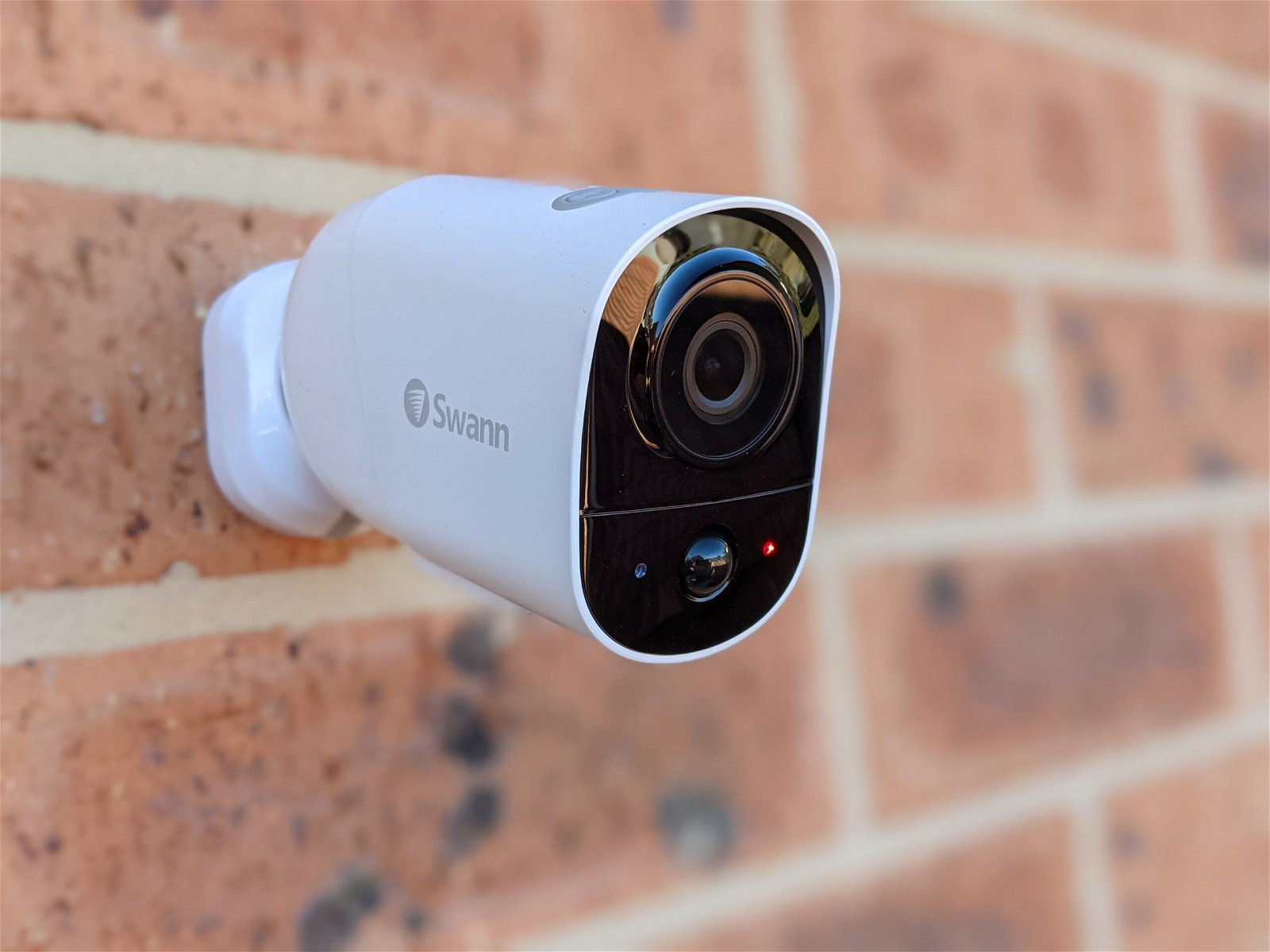
To connect Swann security cameras to a phone, use the official Swann Security app to pair the camera through your home's 2.4GHz Wi‑Fi network. This process involves scanning the camera's QR code or manually entering its device ID, then joining the camera's temporary hotspot to complete the connection.
What you need before you connect Swann security cameras to phone
Before starting, confirm your home Wi‑Fi network broadcasts on the 2.4GHz band, 5 GHz networks are not compatible for the pairing process. Ensure your phone has the Swann Security app installed and that you have allowed all requested permissions, including Location and Camera access, when prompted. You will also need the camera powered on and within range of your router.
Download and open the Swann Security app
Open the App Store (iOS) or Google Play Store (Android) and search for the Swann Security app by Swann Communications Pty Ltd. Download and install the app, then open it and sign in to your Swann account, or create a new account if you do not have one. This is the only app Swann currently supports for pairing stand-alone cameras and recorders with Software Version V8 and above. Older apps such as SwannView Link, HomeSafe View, and SwannView Plus exist for other device families but do not replace the current Swann Security pairing flow. The iPhone App Store listing for Swann Security says to contact Swann Tech Support for assistance.
Pair your camera using the QR code
- In the Swann Security app, tap Pair Device. If you already have a device paired, tap the menu icon in the top-left corner and select Pair Device.
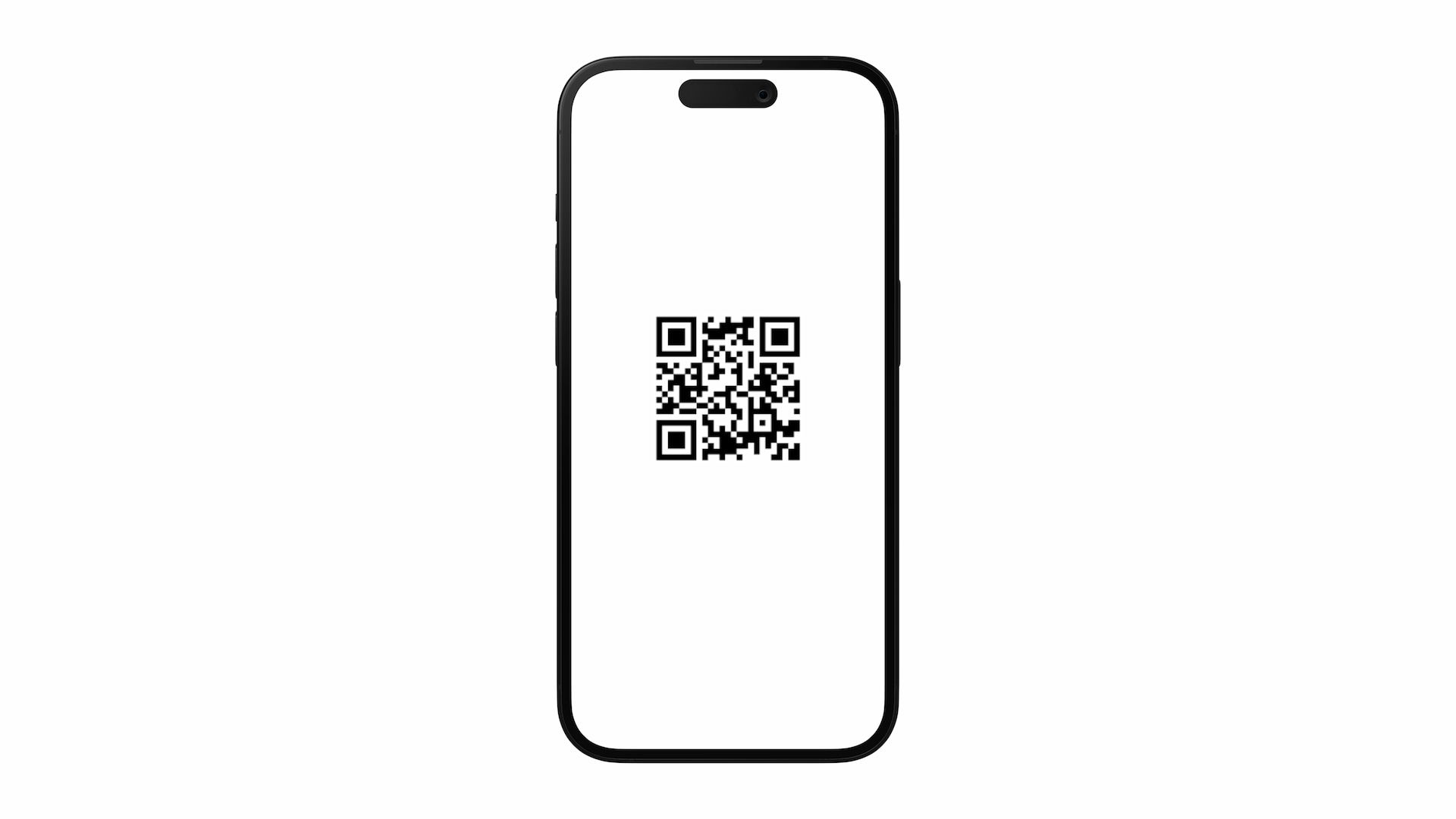
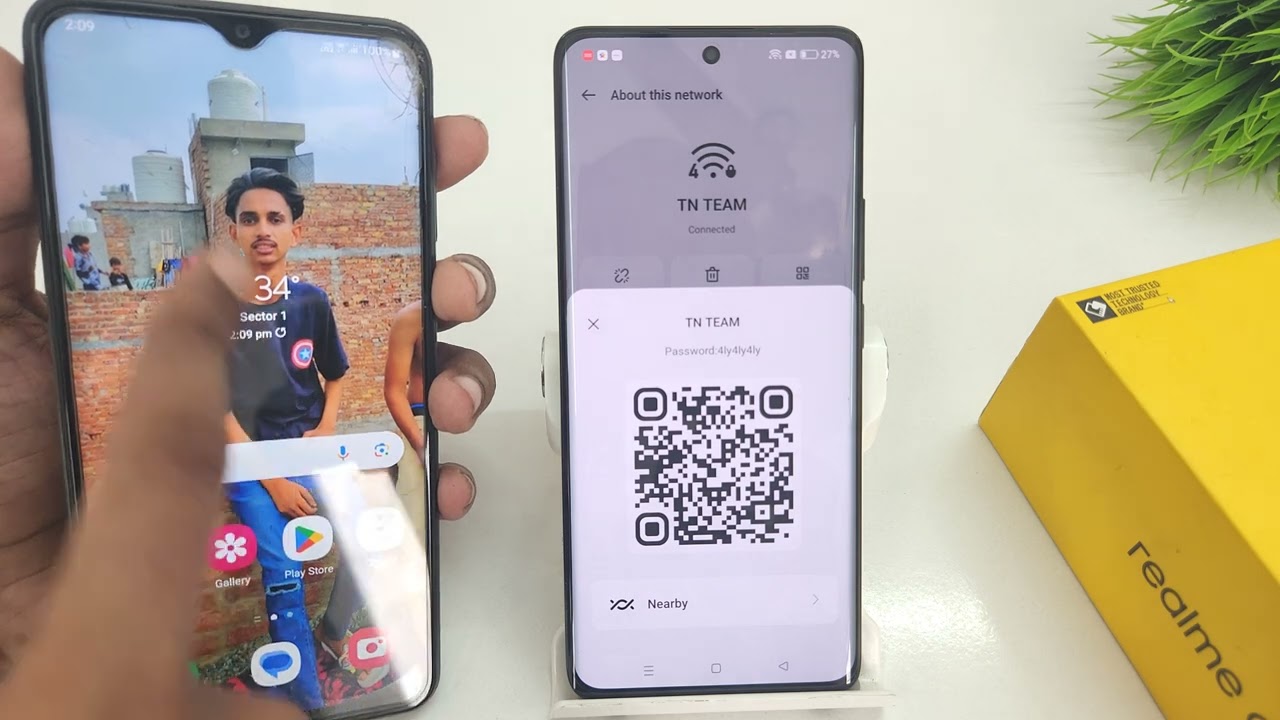
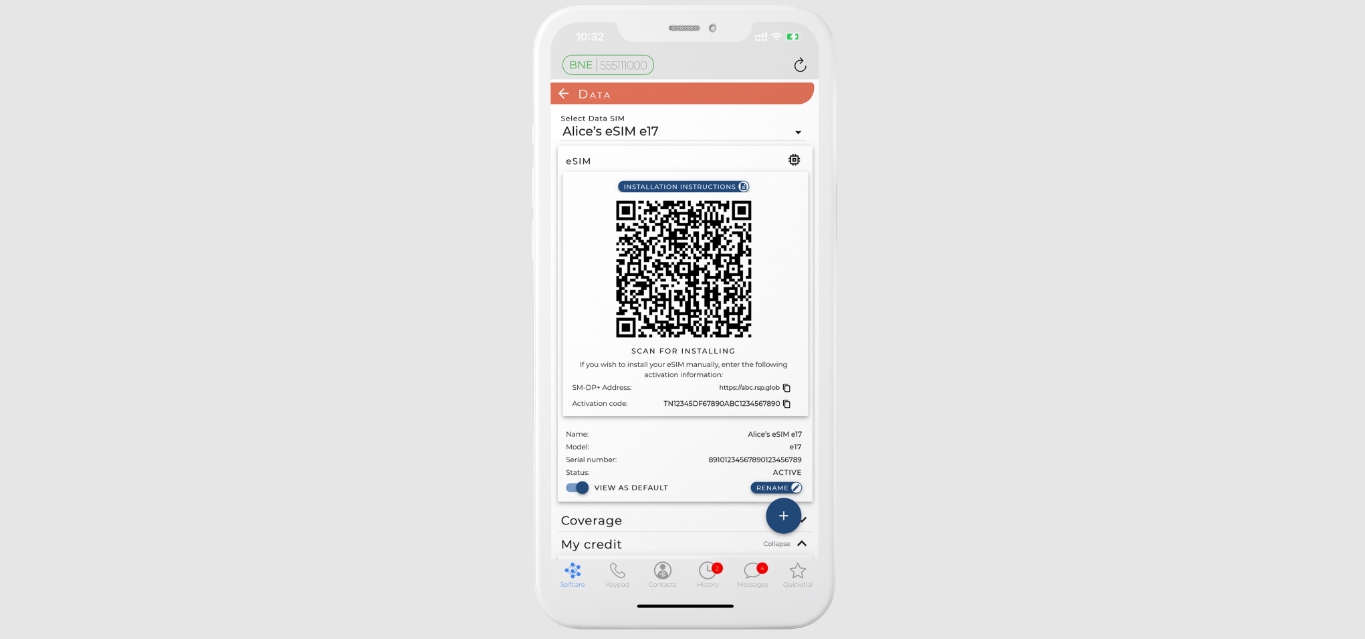
- Tap Scan the QR code and point your phone’s camera at the QR code on the camera body. The app will read the code automatically.
- The app may ask you to select where you bought the camera during the pairing flow. Then tap the Wi‑Fi network field. The app automatically detects the phone’s current Wi‑Fi network and fills the Preferred Wi‑Fi field, but you can tap that field and enter a different SSID manually.
- Tap Start. When prompted, tap Join to connect your phone to the camera’s temporary hotspot, which appears as Swann-SWIFIxxxxxx or Swann-SWIFI-xxxxxx.
- Wait for the app to confirm the connection. The status will change from “Connecting…” to “Connected” once the camera has joined your home Wi‑Fi.
Pair your camera using manual entry
If the QR code scan fails or the code is damaged, use the manual fallback method. On the pairing screen, tap Manual Entry. The device ID for manual entry is 12 alphanumeric characters beside the QR code (specifically documented for the 4K Floodlight camera). Type it exactly into the app. Then follow the same steps above to select your Wi‑Fi network, enter the password, and join the camera’s temporary hotspot. The manual entry route works identically to the QR method once the ID is correctly entered.
View and control your cameras from your phone
After pairing, the app displays your camera in the device list. Tap its thumbnail to open the live view. From there, you can switch between multiple cameras by swiping left or right, or by selecting a different camera from the menu. Basic controls available on the live view include zoom, enabling or disabling motion detection, activating night vision, and two-way audio. You can also adjust settings such as recording schedules, motion sensitivity, and push notification alerts directly from the app.
Frequently Asked Questions
Can I connect multiple Swann cameras to one phone?
Yes. Repeat the QR scan or manual entry process for each camera; all paired cameras appear in the same device list.
Do I need an internet connection to view my cameras?
An active internet connection is required for remote viewing away from home. When both your phone and camera are on the same local network, the app can show live video without internet access, but you will not be able to view footage when you are outside your home without an internet connection.
Can I view footage from my Swann camera on my phone when I'm away from home?
Yes. As long as your camera is connected to your home Wi‑Fi and both your home internet and phone’s mobile data or Wi‑Fi are working, the Swann Security app streams live video and recorded footage from anywhere using your Swann account.
What should I do if my phone cannot find the camera's temporary Wi‑Fi hotspot?
If it still does not appear, power cycle the camera by unplugging it for 10 seconds and try again. If you need to screen mirror Android, the Swann Security app does not block screen mirroring, so you can use your device’s built-in screen mirror Android feature to display the live view on a compatible TV or monitor.
Related reading: How To Add A Second Phone To Blink and How To Add Phone To Blink Camera.