To download on cellular data on an iPhone, turn on the master Cellular Data switch in Settings > Cellular, then go to Settings > App Store and enable the Cellular Data option to allow app downloads over your mobile network. This gives you the flexibility to install apps and download files when Wi‑Fi is unavailable, so you can stay productive or entertained while on the go.
How to download on cellular data: the essential iPhone setting
The primary setting that controls whether you can download apps over your cellular connection is located in the App Store section of your iPhone settings. Open Settings, tap App Store, then tap the Cellular Data toggle to turn it on. This single switch governs all app downloads from the App Store, including automatic installs of apps you purchase on your other devices. The App Store page says the Cellular Data area includes 'App Downloads' and 'Automatically install apps you purchased on your other devices'. Enabling this setting is the most direct way to allow app downloads on cellular data without needing a Wi‑Fi network.
Check your main cellular data switch first
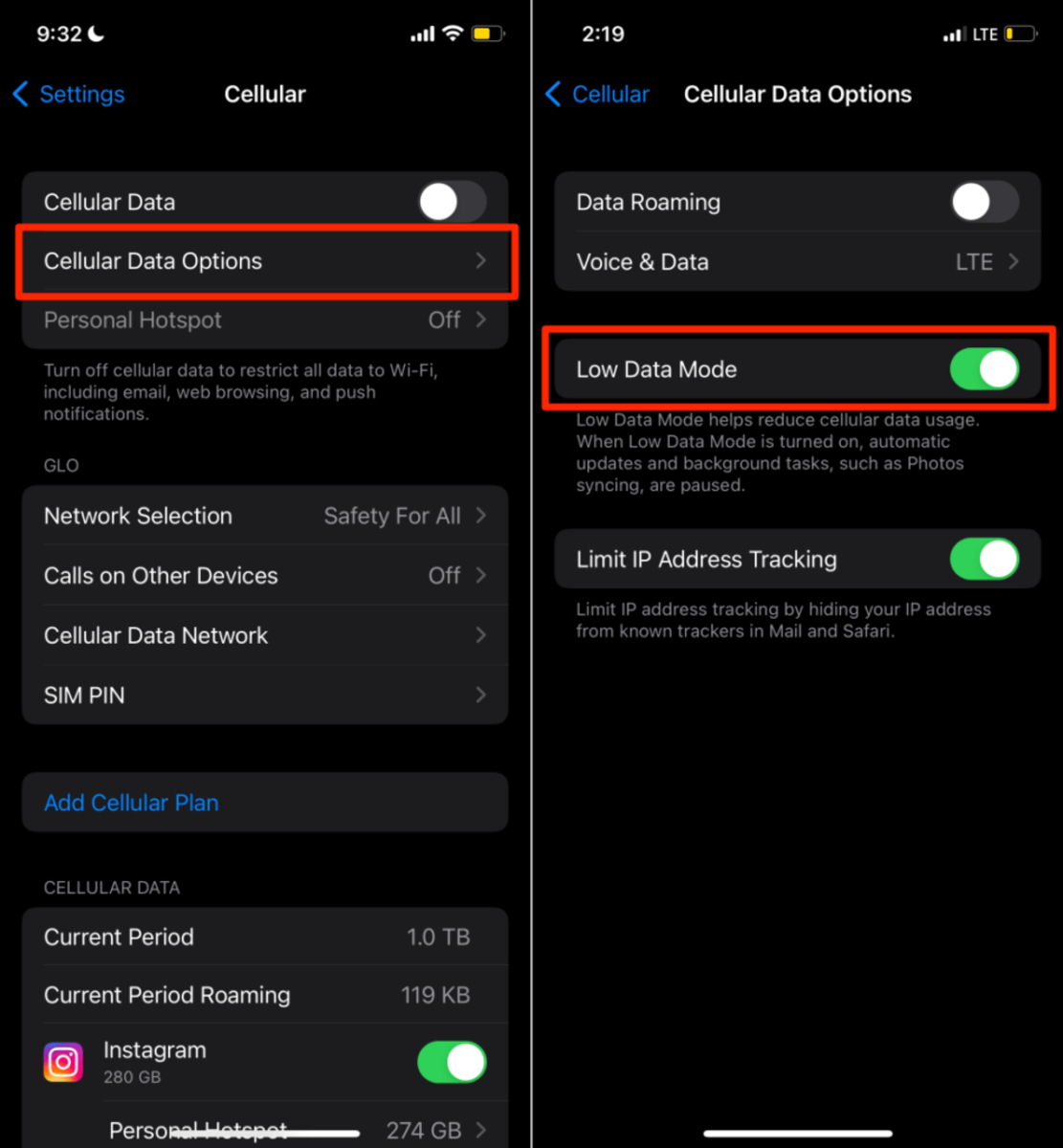
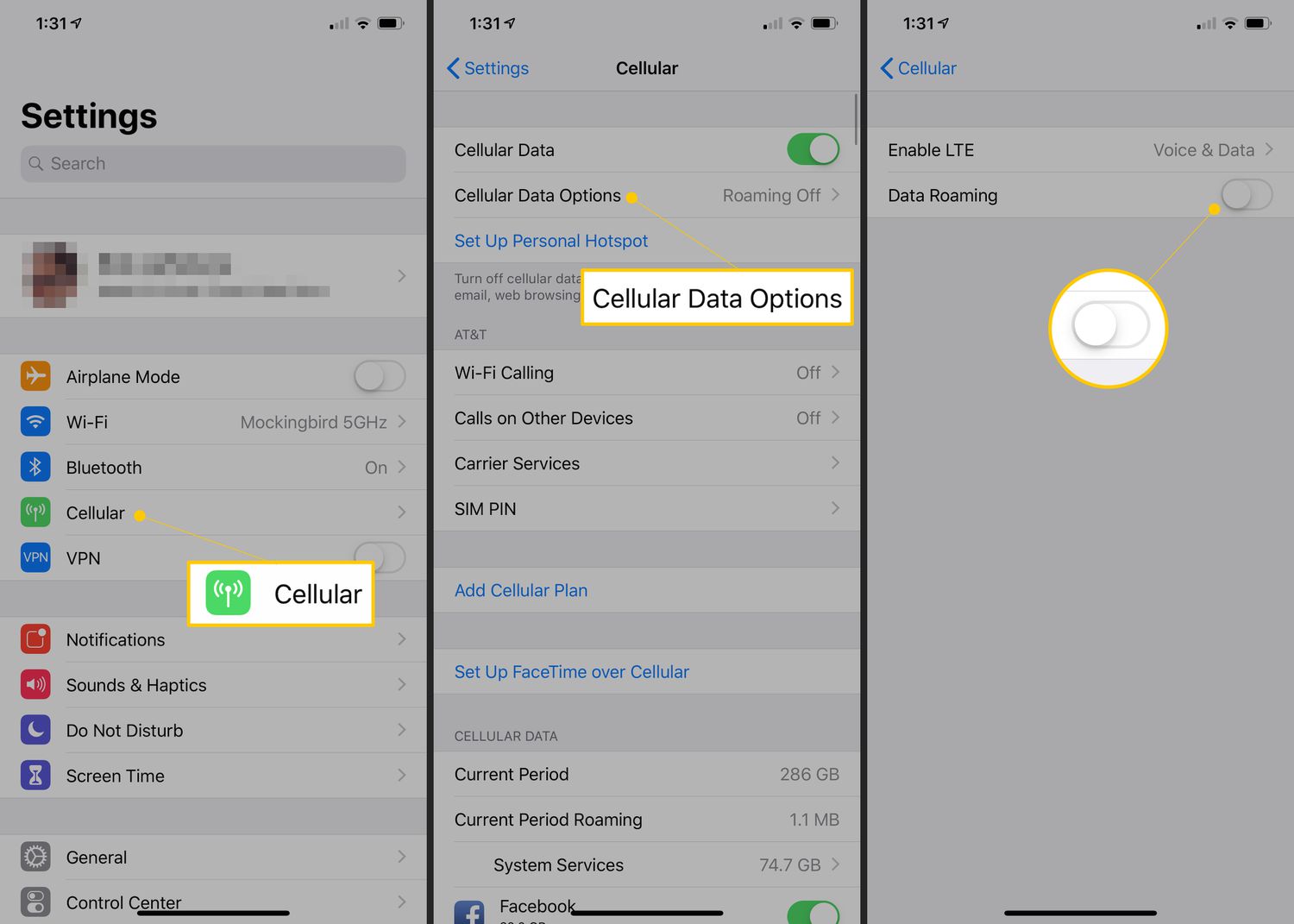
Before any app can use your mobile data connection, the master Cellular Data switch must be turned on. Go to Settings > Cellular and make sure the Cellular Data toggle is enabled. This is a prerequisite for every app or service on your iPhone to access the internet over your carrier’s network. If this switch is off, no app, including the App Store, can download anything using cellular data, regardless of other settings.
Allow downloads for specific apps
If you have the master Cellular Data switch on and the App Store Cellular Data setting enabled, but a particular app still fails to download, the issue may be with that app’s individual cellular permission. To fix this, go to Settings > Cellular and scroll down to the list of apps. Find the app that is having trouble downloading, and make sure its toggle is switched on. This per‑app control is a common troubleshooting step when a specific service or store cannot connect over cellular data. Apple documents checking that cellular data is enabled for the specific app you are using if the App Store or another service will not connect. If a file download fails in an app or store, Apple says to make sure cellular data is turned on for that app.
Manage data usage while downloading
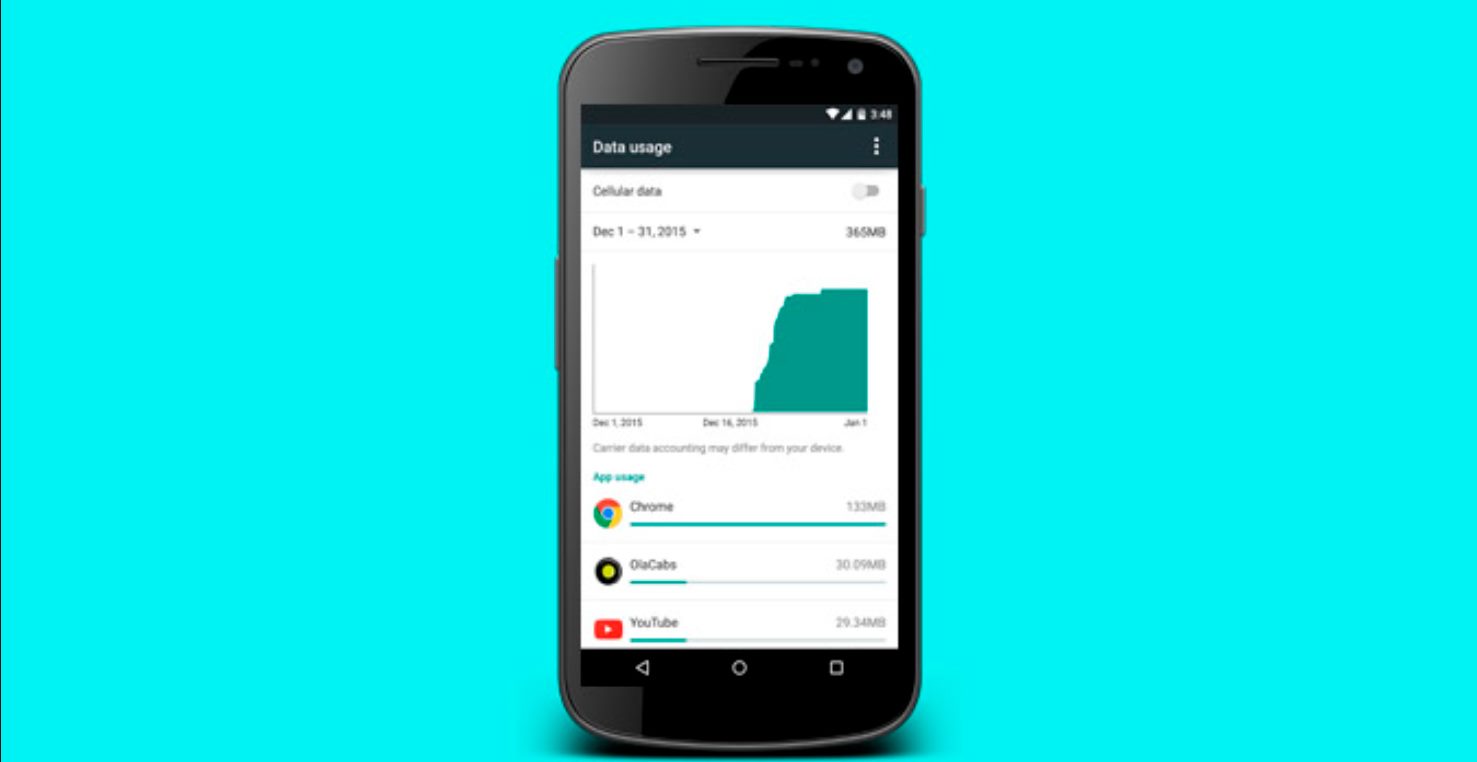
To avoid exceeding your data plan’s limits, you can monitor and control how much data your downloads consume. Open Settings > Cellular to see your overall data usage for the current period. Below that, you’ll find a list of every app that has used cellular data, along with the amount each has consumed. You can toggle off cellular data for any app you don’t want downloading over your mobile network. This is especially useful for data‑heavy activities like downloading large files or streaming, giving you direct control over which apps can use your plan’s data. The key to preventing overages is regularly checking data usage and balance through your carrier’s app or website, as well as using the iPhone’s built‑in data usage monitor. Understanding and managing cellular data settings helps you stay within your plan’s limits while still enjoying the convenience of downloading on the go.
Frequently Asked Questions
Can I download iOS updates over cellular data?
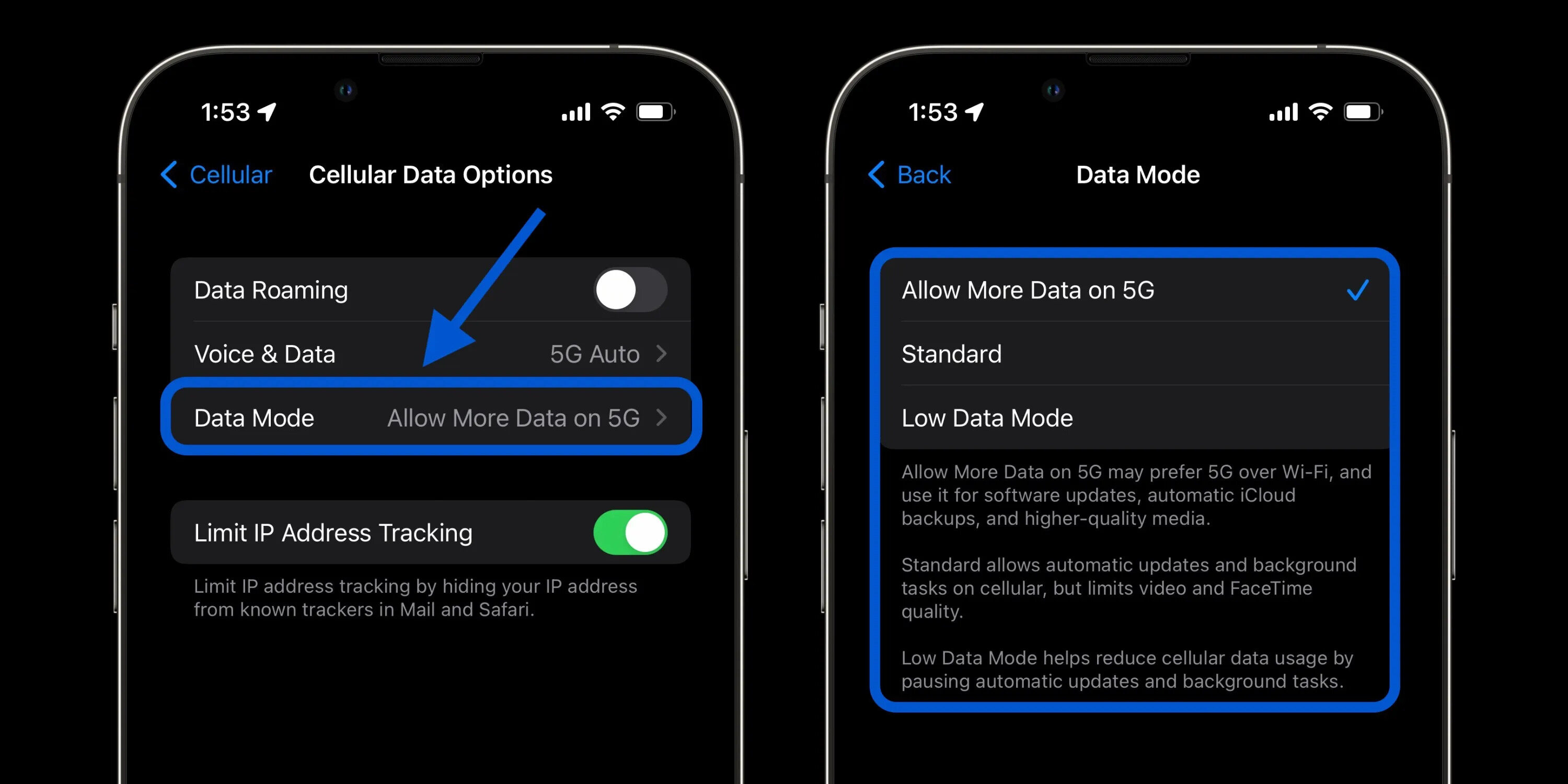
In practice, larger updates may require a Wi‑Fi connection, but some carriers and newer iPhone models may allow certain updates over 5G. Check your carrier’s policy for the most accurate information.
Will downloading apps over cellular data use a lot of my data plan?
App sizes vary widely, from a few megabytes for simple utilities to several gigabytes for games or professional software.
Why does my iPhone say “App Store cannot connect” even with cellular data on?
This error often occurs when the specific App Store app has its cellular data permission turned off. Go to Settings > Cellular, scroll to the App Store in the list, and ensure its toggle is enabled. Also verify that your main Cellular Data switch is on and that you have a stable cellular signal.
Can I stop the App Store from automatically downloading purchased apps over cellular?
Yes. In Settings > App Store > Cellular Data, you can turn off the “Automatically install apps you purchased on your other devices” option. This prevents the App Store from using your cellular data to sync purchases made on other iPhones or iPads.
Do these settings work the same on an iPad with cellular?
Yes. The same cellular data settings and App Store controls apply to iPads that have a cellular data plan. The retrieved Apple pages apply to iPad as well as iPhone. The menu path is identical: Settings > Cellular > Cellular Data for the master switch, and Settings > App Store > Cellular Data for app download permissions.
Related reading: How To Reset My Cellular Data.