Understand emoji keyboard basics
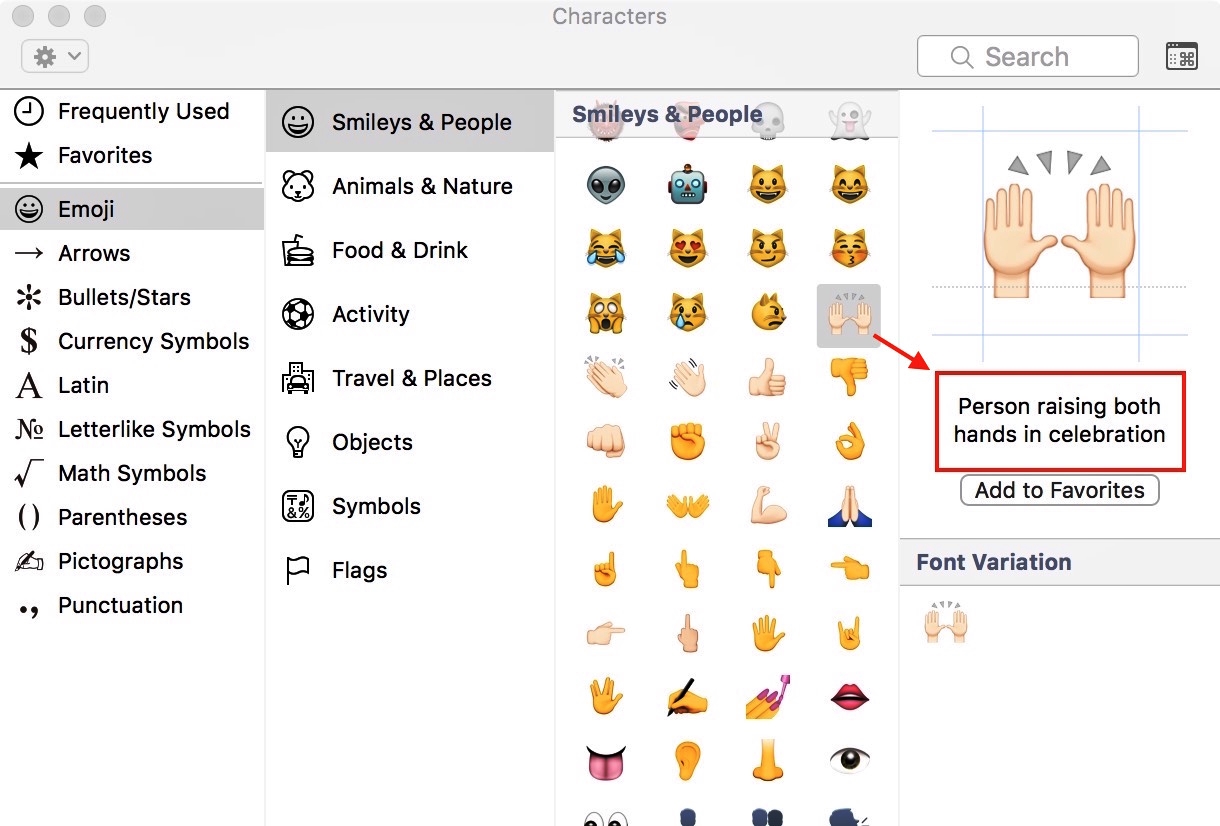
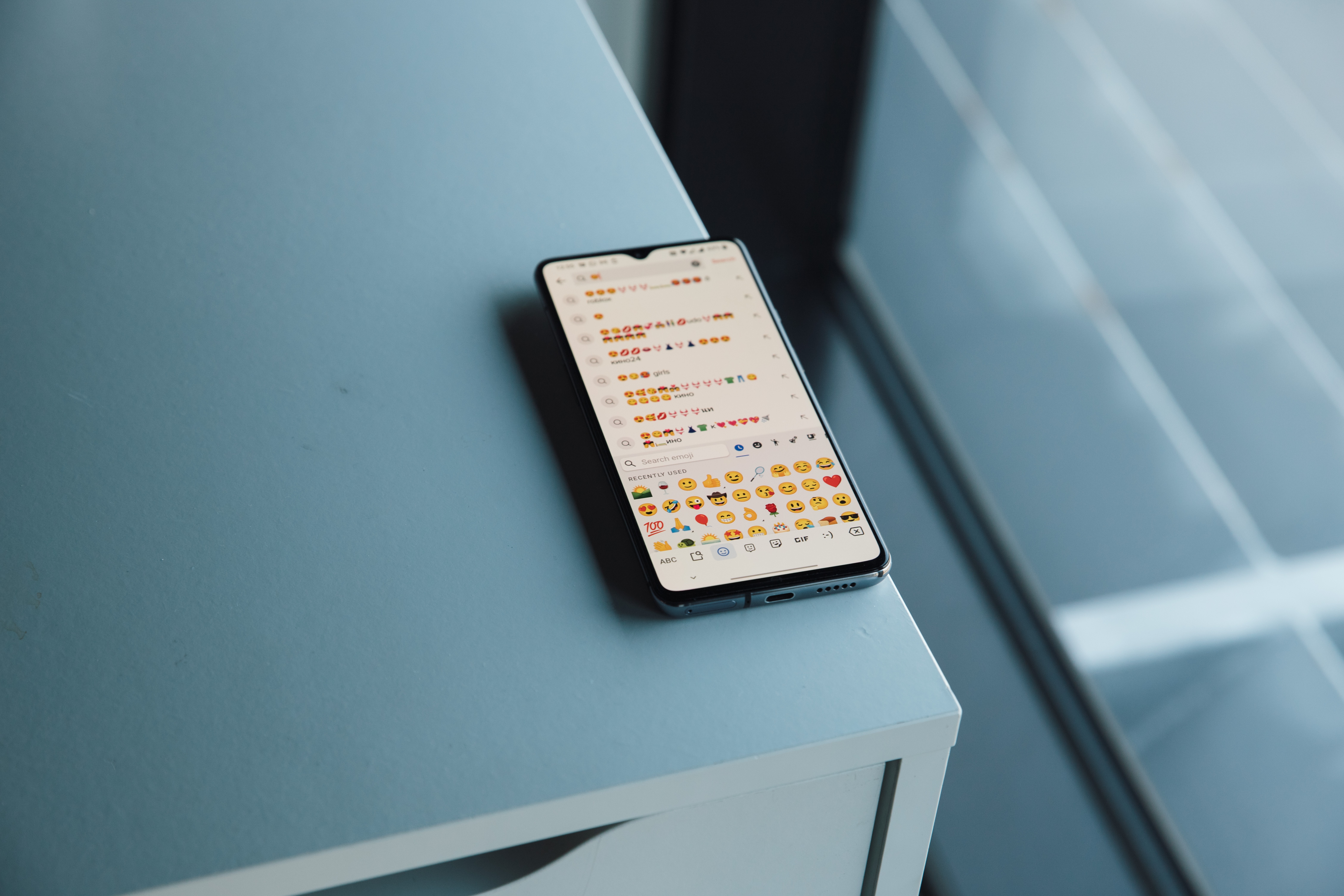
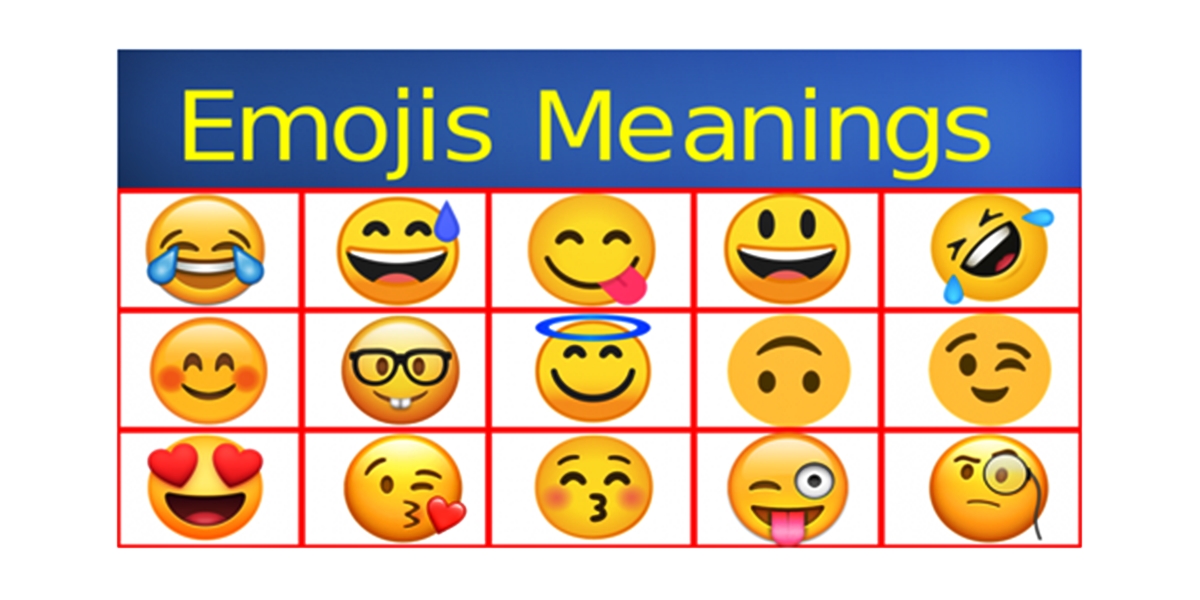
A proper emoji keyboard setup starts with understanding the definition of emoji, which are standardized pictographs built into the system keyboard, not standalone images you can force into another person's text bubble. On an iPhone or iPad, you open the emoji keyboard by tapping the emoji keyboard button or the globe/emoji switch key in any app that uses the standard keyboard, and you can add it anytime through Settings > General > Keyboard > Keyboards > Add New Keyboard > Emoji. Before you paste a block of viral text, it helps to know the meaning of copypasta, a chunk of text, often a meme or inside joke, that gets copied and pasted across platforms. You will also want a working grasp of common emoji meanings & text abbreviations, since a peach or an eggplant can carry a very different weight in a group chat than it does in a work email. When you stumble on a pictograph you do not recognize, you can find out what those emojis are called by using the system’s own lookup; on iPhone you can touch and hold an emoji to choose a variation such as a skin tone.
Set up your default phone keyboard
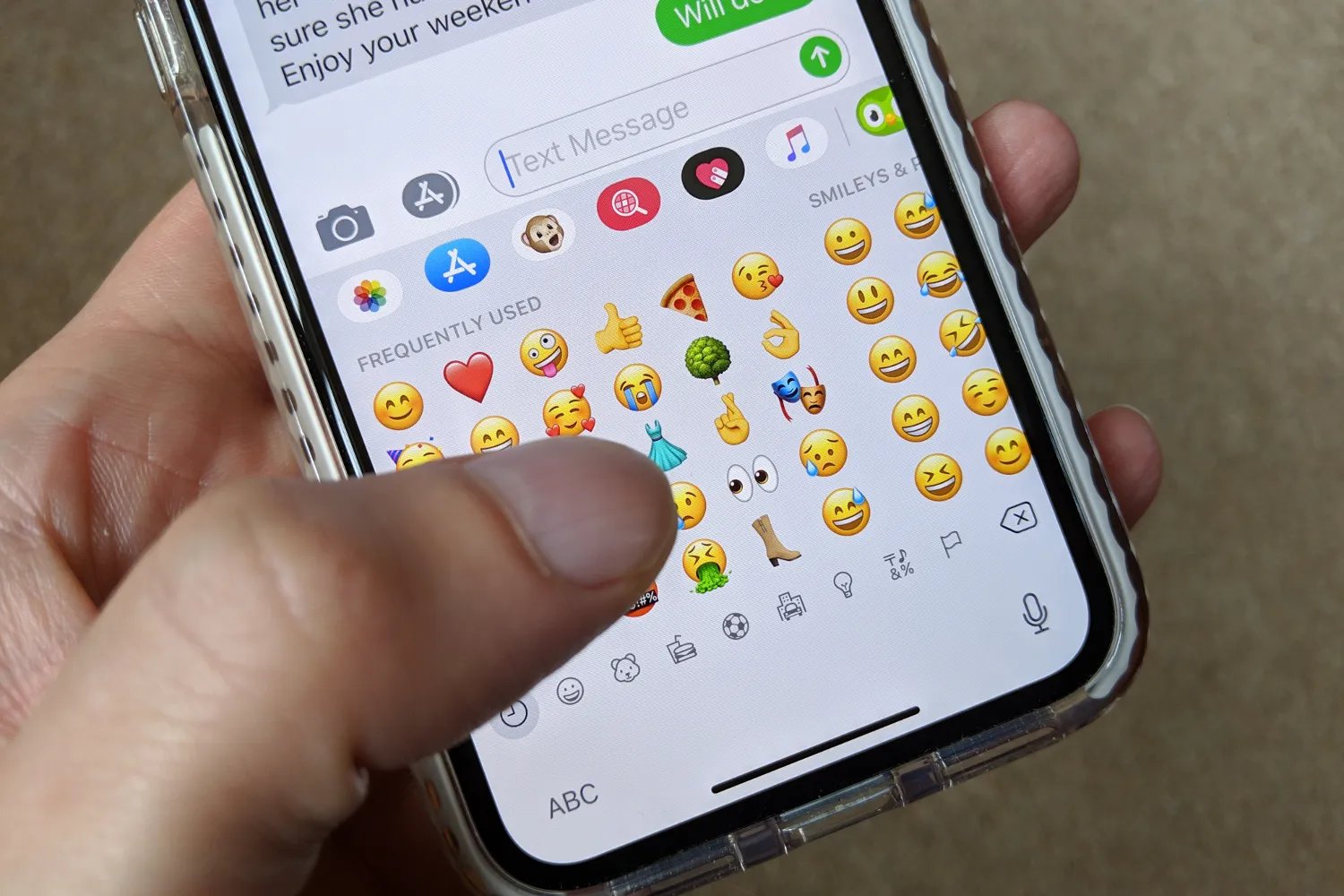
Before you chase third-party packs, make sure you understand that the most reliable way to add emojis to text messages with the emoji keyboard is directly through the system tool already sitting on your phone. On an iPhone or iPad, you can simply tap the smiley face or globe icon in any text field to pull it up. If it is missing, you add it once through the Keyboards settings. Tapping the category symbols at the bottom lets you jump straight to a set. Swiping left or right lets you browse the full grid. While you are there, you can use the diverse emoji keyboard on the iPhone & iPad by touching and holding any supported face or hand symbol until the skin-tone palette appears. Then slide to the variation you want before releasing. This works system-wide. Keep in mind that the recipient still sees the standardized character their own device renders, not a custom image you pasted in.
Beyond pictographs, the standard layout handles older text tasks that are not always obvious. For example, you can use the letters on phone keypad during a call to enter a name or extension. You do this by pressing the number that corresponds to the letter group. That is why the classic 2-through-9 keys still show ABC and DEF. When you are back in a regular text field and need punctuation, you type an apostrophe from the basic keyboard layout by tapping and holding the comma key on iOS. Wait until the single-quote symbol pops up. The tilde symbol on a keyboard, that squiggly dash often needed for coding or informal writing, usually hides on the secondary punctuation screen on a phone.
Create personal emojis and stickers
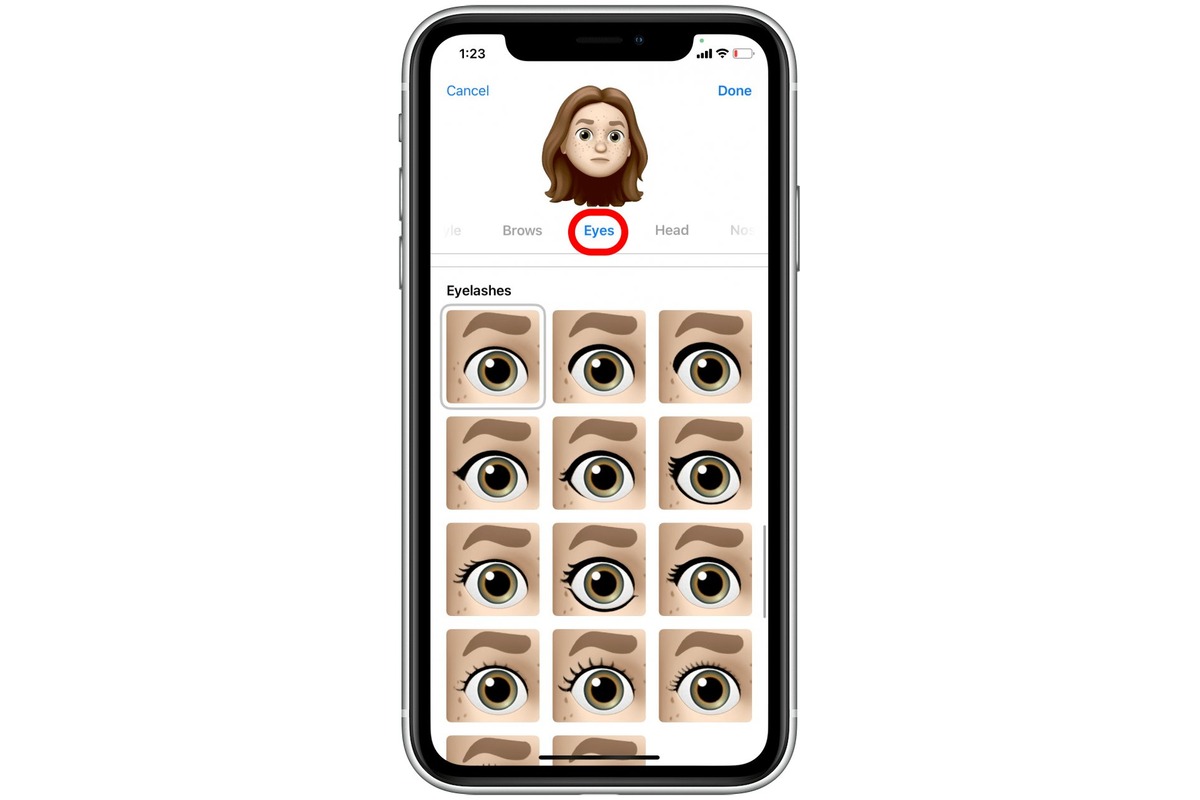
When you want something more personal than a standard pictograph, you can create, customize, and use Memoji in Apple’S iOS directly from the emoji keyboard in any supported text field by tapping the Memoji button, then the plus icon to design a face that matches your features. The system automatically generates a pack of expressive poses that lives in Messages and Mail. For a faster route, you can also make a custom emoji from a picture by tapping the stickers button and choosing the photo option to lift a subject right out of your library. The system searches for People or Animals to isolate the figure, and you then tap Add Sticker to save it.
On the Android side, you create emoji in Android using Gboard’s Emoji Kitchen, which merges two existing emojis into a single custom mashup that sits in your keyboard for quick sending as a unique reaction or illustration ready for any chat.
Once your library is built, you access stickers on iPhone by opening a text field, switching to the emoji keyboard, and tapping the stickers button to select the Memoji or sticker row and browse your recent creations and poses. Your favorite characters and lifted subjects appear here for immediate use, and you can swipe horizontally to cycle through different expressions and saved figures.
Install third-party emoji and gif keyboards
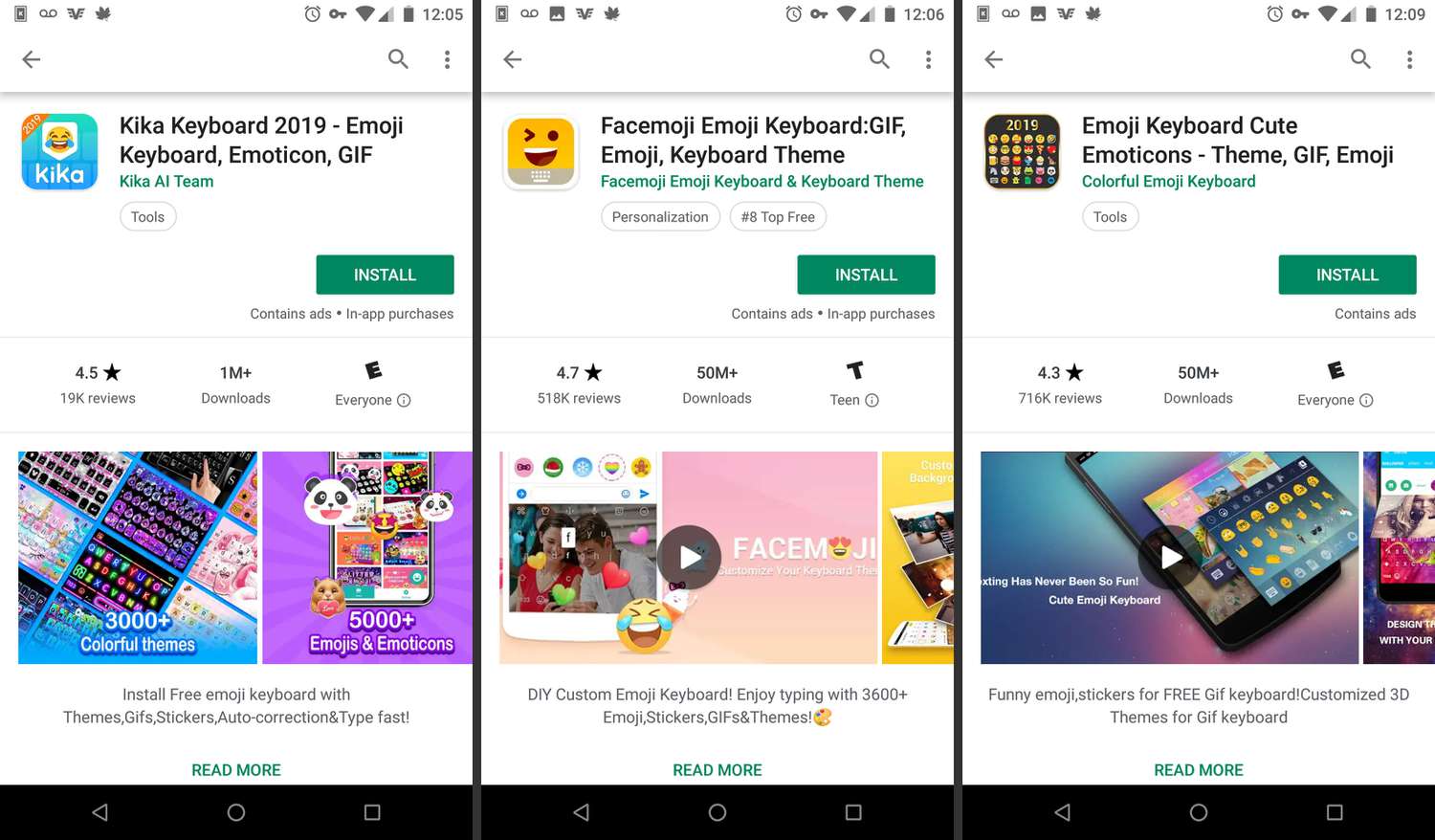
Once you are ready to move beyond the built-in choices, you can expand your options by installing a dedicated media keyboard. To set up Bitmoji keyboard on Google phone, make sure you have the latest app installed. Then open it and tap the Globe icon to find the Keyboard tab. If the prompt does not appear, you can manually enable it. Navigate to Settings > Languages and input > Virtual or On-screen keyboard > Manage keyboards and toggle it on. If you want to get emojis on Android, a dedicated keyboard like this makes it easy to access a much wider library of expressive icons beyond the default set.
On an iPhone, you can add custom emojis to iPhone by going to Settings > General > Keyboard > Keyboards > Add New Keyboard. Select Bitmoji from the third-party list and grant Full Access so your avatar can sync across apps. A separate app like Bitmoji gives you a full panel of personalized visuals. Similarly, if you want to get GIFs on Android, a third-party keyboard that includes a GIF search bar is an option. Just keep in mind that these custom packs live inside their own keyboards. A graphic you send from one will appear as a static image to a recipient who does not have the same keyboard active on their end.
Use emojis inside specific apps
Because each app handles reactions and stickers differently, the place you build them matters. If you want to make Discord emojis for a server, you must open the specific server, tap its name, and navigate to Server Settings, then Emoji, where the Upload Emoji button appears only if you have the Manage Emoji permission or own the server. The file you choose must stay under 256 KB and use a name with at least two alphanumeric characters or underscores.
In an Apple Messages conversation, tap the Apps button next to the text field, select Stickers, and browse the App Store section to install graphic packs from other creators right into the tray, though the steps to download stickers for Facebook Messenger on iPhone are not covered here. When you want to shift the mood of a status update rather than a chat, you can also add colored or patterned backgrounds to Facebook posts.
A common wish is to make emojis bigger on iPhone 13, but the system does not offer a universal slider to increase emoji size across all text fields. The effect relies on sending a single large character in a message or using the sticker feature to scale the image manually.
Translate and design with emojis
When a message arrives that looks like a string of random pictures, a reliable set of emoji translation tools can help you parse the intended meaning before you reply with the wrong reaction. You can find the 10 best emoji translator websites and mobile apps through curated roundups that compare accuracy and supported platforms. On the design side, you can curve text on cricut mobile app by selecting your type on the Canvas and opening the Curve tool from the Text Edit bar, which is especially useful when you want to curve text on cricut mobile app for a personalized project. A slider then lets you shape the words into a smooth arc.
If you are working inside a game rather than a craft project, the Minecraft enchantment table is documented mainly through its available enchantments. The official help pages focus more on the available enchantments than on the step-by-step crafting recipe. For quick system-level input, a three-finger salute command may come up in troubleshooting contexts. A specific keyboard shortcut triggers a screenshot or a forced restart. The exact result depends on your device’s manufacturer.
Similarly, using the Rosetta emoji translation feature requires checking whether the feature is currently active in your app version. The official documentation was not available to confirm its current menu path. Once you have a design ready, you can create and use it across different messaging platforms. A static graphic works well for quick reactions, while an animated visual adds personality to a lively group chat. You can also save your custom creation as a reusable element in your personal library.
Frequently Asked Questions
Can I make a Memoji on an iPad with a hardware keyboard attached?
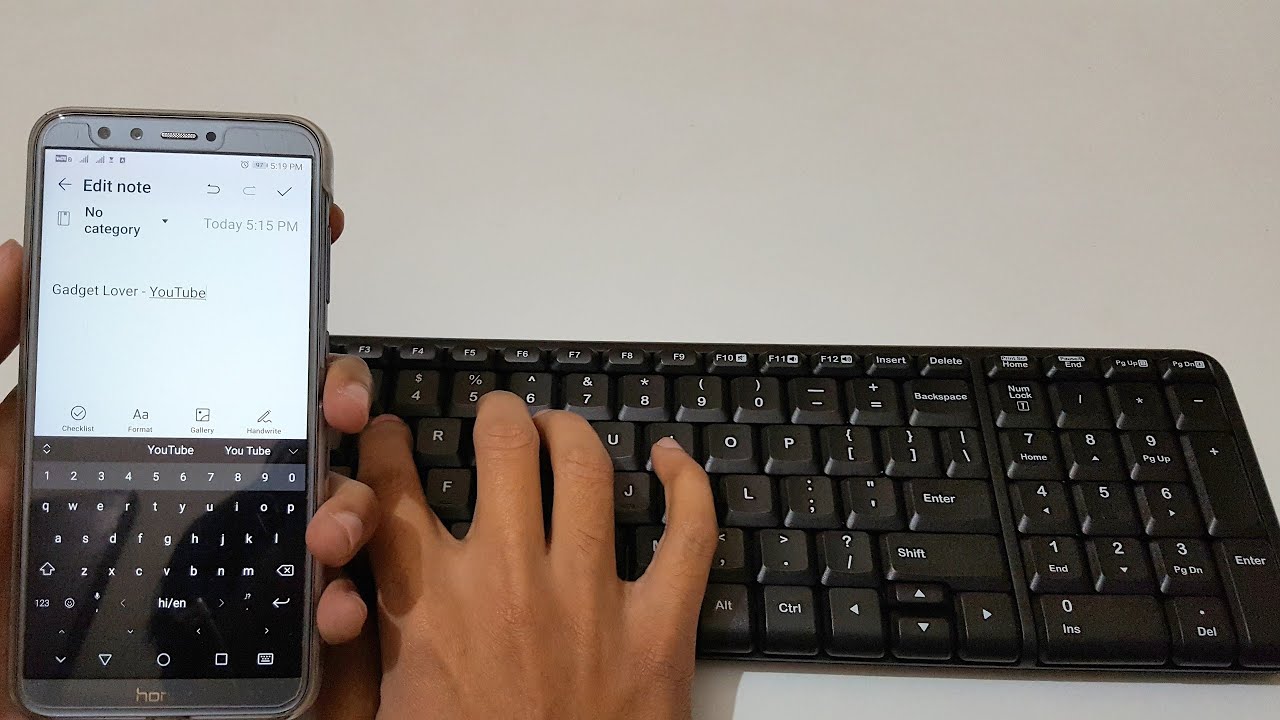
Yes. Press and hold Control then press Space to cycle to the emoji keyboard, or press Globe-E on a Magic Keyboard for iPad. You can also turn on Press for Emoji under Settings > General > Keyboard > Hardware Keyboard to make the Globe key show only emoji.
How do I merge two emojis into one sticker using Gboard?
Open Gboard in any text field, tap the Emoji button, and select two emojis. Emoji Kitchen automatically generates a merged sticker mashup above the keyboard that you can tap to send as a unique reaction in your chat.
Why do some words turn orange when I type a message on my iPhone?
In the Messages app, words that can be replaced with emoji turn orange after you tap the emoji keyboard. Tapping an orange word swaps it for the corresponding pictograph, letting you quickly add emojis without browsing the full grid.