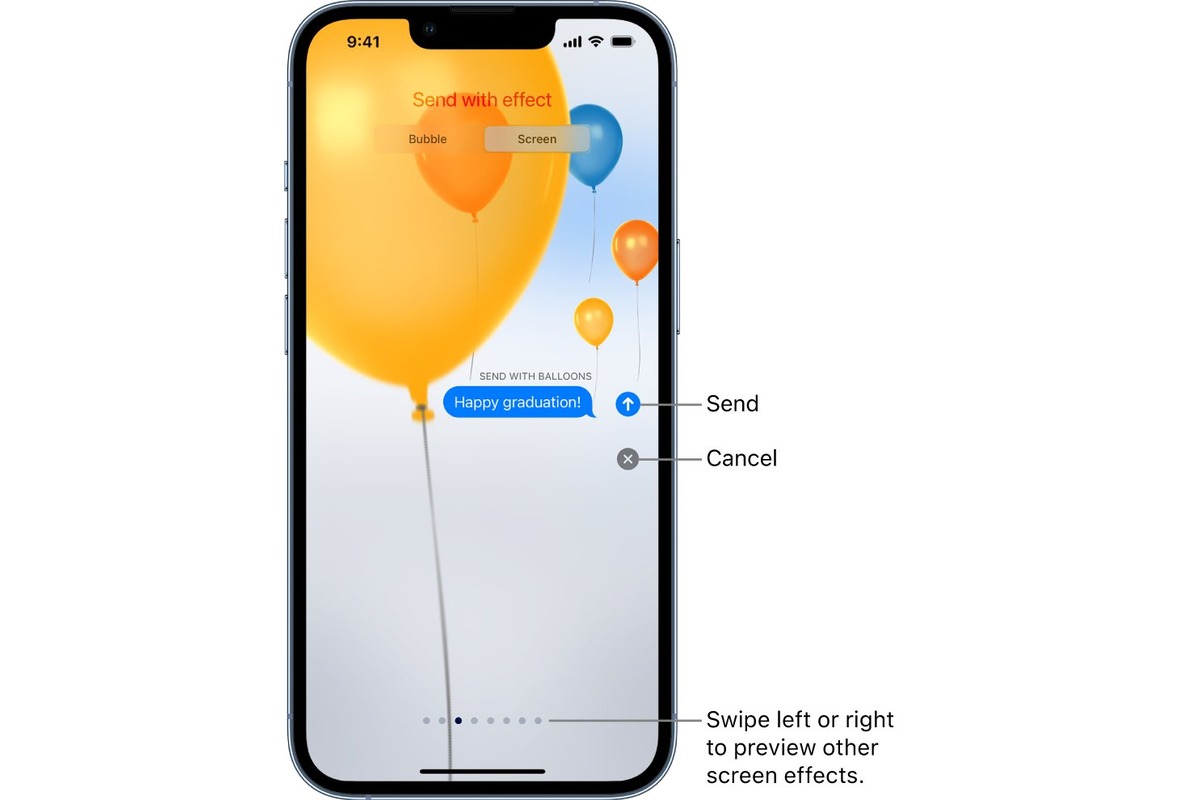
To send birthday balloons on iPhone, type "Happy birthday" exactly in an iMessage conversation, and the celebratory balloon animation will appear automatically. If the automatic trigger does not work, you can manually add the balloons effect by holding the blue Send arrow, selecting Screen, swiping to Balloons, and tapping Send.
How to send birthday balloons on iPhone automatically
Apple documents that typing the exact phrase "Happy birthday" in an iMessage conversation instantly applies the Balloons screen effect. This automatic trigger is the quickest way to send birthday balloons on iPhone, as the animation fills the screen with rising balloons when the message is sent. The effect works only when the text is precisely "Happy birthday", no extra spaces, punctuation, or variations, and the conversation uses iMessage (blue bubbles). The automatic trigger requires the exact phrase with no extra spaces, punctuation, or variations.
How to manually add the balloons effect
If the automatic trigger does not activate, Apple provides a manual path to add the balloons effect:
- Open Messages and start or open an iMessage conversation.
- Type your birthday message in the text field.
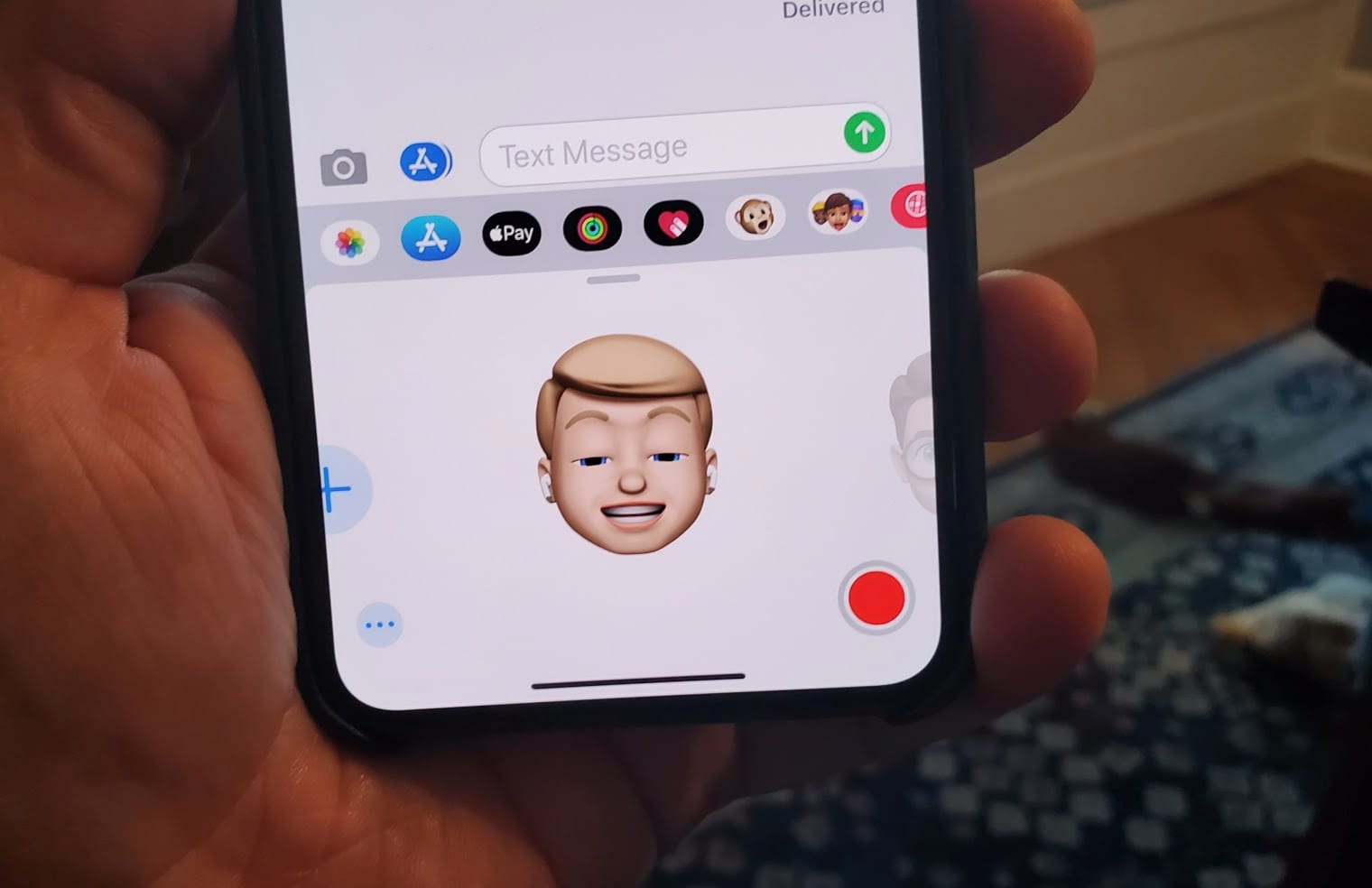
- Touch and hold the blue Send arrow until a menu appears.
- Tap Screen.
- Swipe left or right until you reach Balloons.
- Tap the Send arrow again to send the message with the balloon animation.
This manual method ensures you can always send birthday balloons on iPhone, even if the automatic trigger is missed or the phrase is not used. The effect is part of iMessage screen effects, which are designed for blue bubble conversations only.
Why aren't the balloons working?
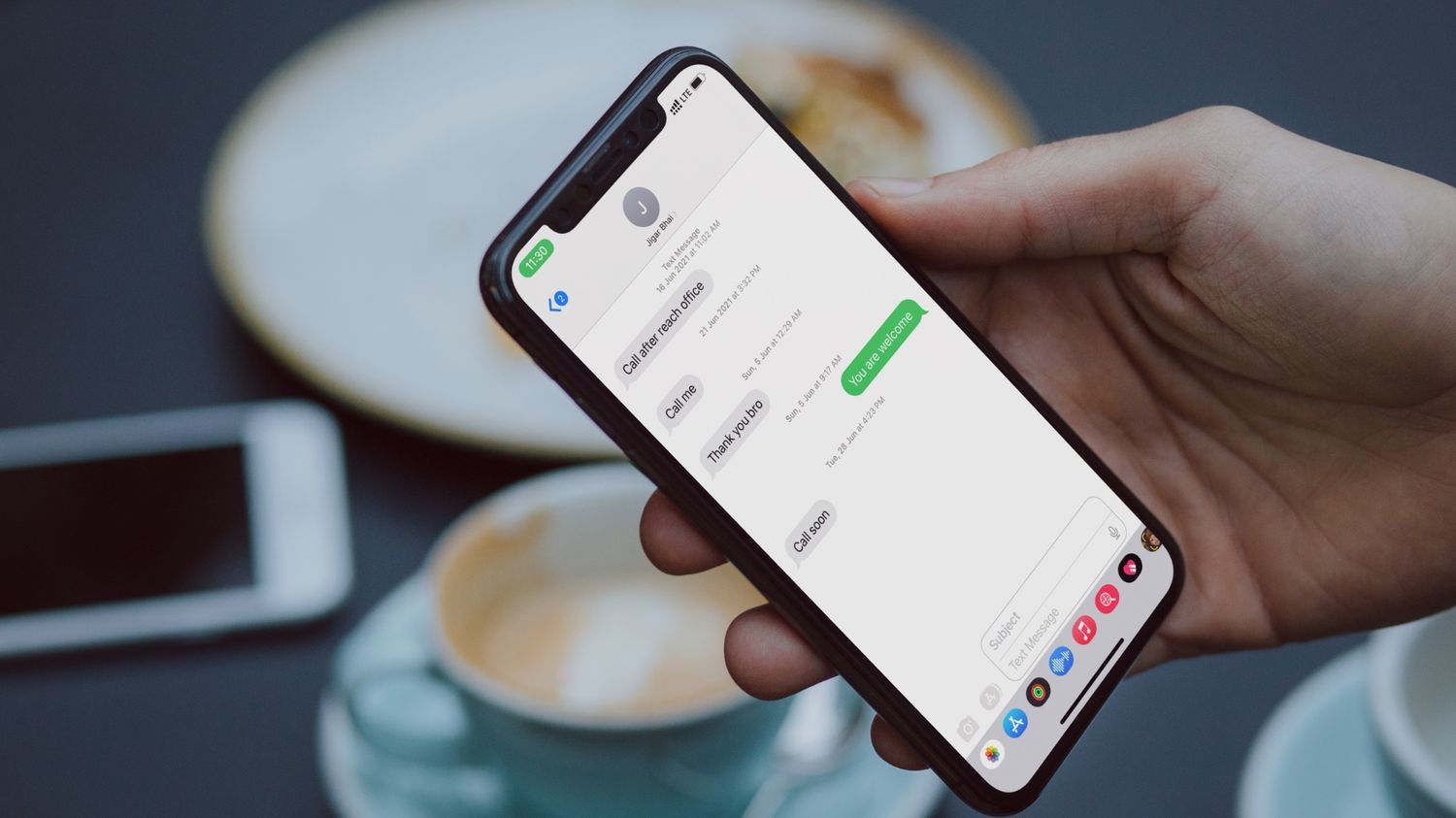
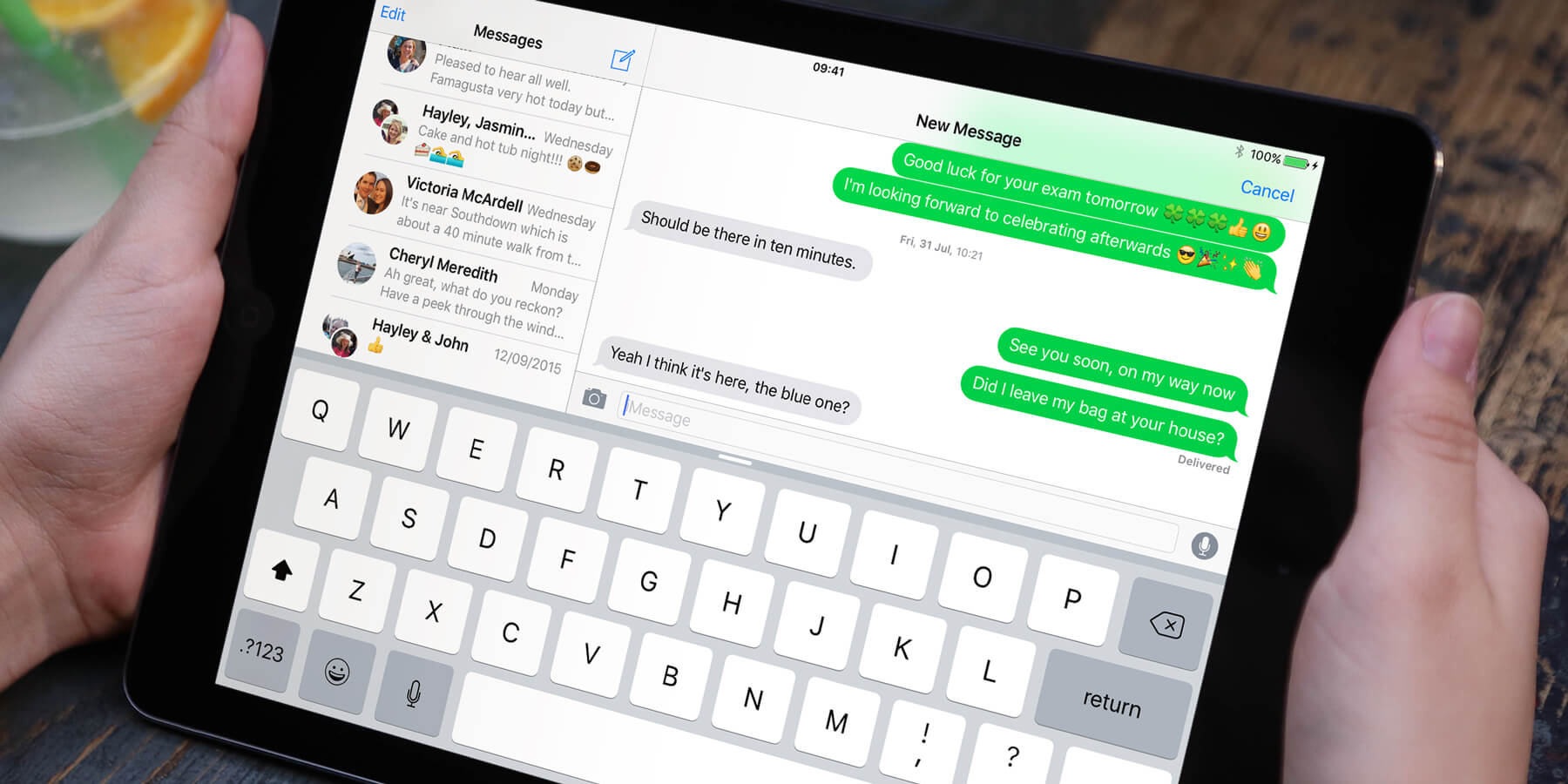
The most common reason balloons do not appear is that the message is sent as SMS or MMS (green bubbles) instead of iMessage. Apple documents that the balloons screen effect works exclusively with iMessage, not with regular text messages. To check, ensure both you and the recipient have iMessage enabled in Settings > Messages, and that you are connected to Wi-Fi or cellular data. The effect also requires that the recipient's device supports iMessage screen effects. If the conversation shows green bubbles, the balloons cannot be triggered automatically or manually.
Frequently Asked Questions
Does the birthday balloon effect work on Android?
No. Apple documents this feature for iMessage only, which is exclusive to iPhone, iPad, and Mac. Android devices cannot receive or display the balloon animation, and the effect cannot be sent to Android contacts through the Messages app.
Does it work with SMS or MMS?
No. The balloons effect is documented by Apple as an iMessage screen effect, not for ordinary SMS or MMS. Messages sent as green bubbles will not trigger the animation, even if the text says "Happy birthday" or you follow the manual steps.
What exact phrase triggers balloons automatically?
Apple documents that the exact trigger phrase is "Happy birthday." The automatic effect activates only when this precise text is typed in an iMessage conversation.
Can I add the balloons effect to a message with photos or media?
Yes. You can include photos and media in your birthday message before applying the balloons effect. Type your message, attach photos or videos from your library, then touch and hold the Send arrow and select Screen > Balloons to send the media with the animation. This is useful for sharing birthday memories alongside the celebratory effect.
Is there a minimum iOS version required for the balloons effect?
However, the feature has been available since iOS 10 introduced screen effects. If your iPhone runs a recent iOS version, the automatic and manual methods should work as documented.
Does the effect require a specific iPhone model?
Apple's documentation does not list a separate iPhone model requirement for the balloons effect. As long as the device supports iMessage and the iOS version includes screen effects, the feature should work on any iPhone model that runs a compatible operating system.
For the wider topic, see phone photos and media.
Related reading: How To Change Text Bubble Color On IPhone and How To Access Stickers On IPhone.