To change your avatar on iPhone, open the Messages app, tap the ••• button in the conversation list, then tap Edit Name and Photo. From there, you can choose a photo, a Memoji, or a monogram with your initials and confirm your selection.
Change my avatar on iPhone in Messages
This is the primary method for updating the profile picture that appears next to your name in iMessage conversations. Start by opening the Messages app and navigating to the conversation list. Tap the ••• button, then select Edit Name and Photo. On the next screen, you can type your name and tap the profile image area to change it. After selecting a new image, adjust the crop or pose if the screen offers those controls, then tap the confirmation button such as Choose or Continue.
Changing your avatar through Settings
If you prefer using the Settings app, you can also update your avatar there. Open Settings and navigate to Messages, then tap Share Name and Photo. This path provides the same editing options as the Messages method, allowing you to choose a new photo, Memoji, or monogram. You can also change your avatar in Contacts by opening the Contacts app, selecting a contact, tapping Edit, and then tapping the existing avatar or Add Photo option.
Choosing your avatar image
When you tap the profile image area on the Edit Name and Photo screen, you have several options. You can take a photo with the Camera, pick an existing image from Photos, use a monogram with your initials, or select a Memoji or Animoji if offered. Each option lets you personalize how you appear to others in iMessage and other Apple features that use name and photo sharing.
Customizing a Memoji for your avatar
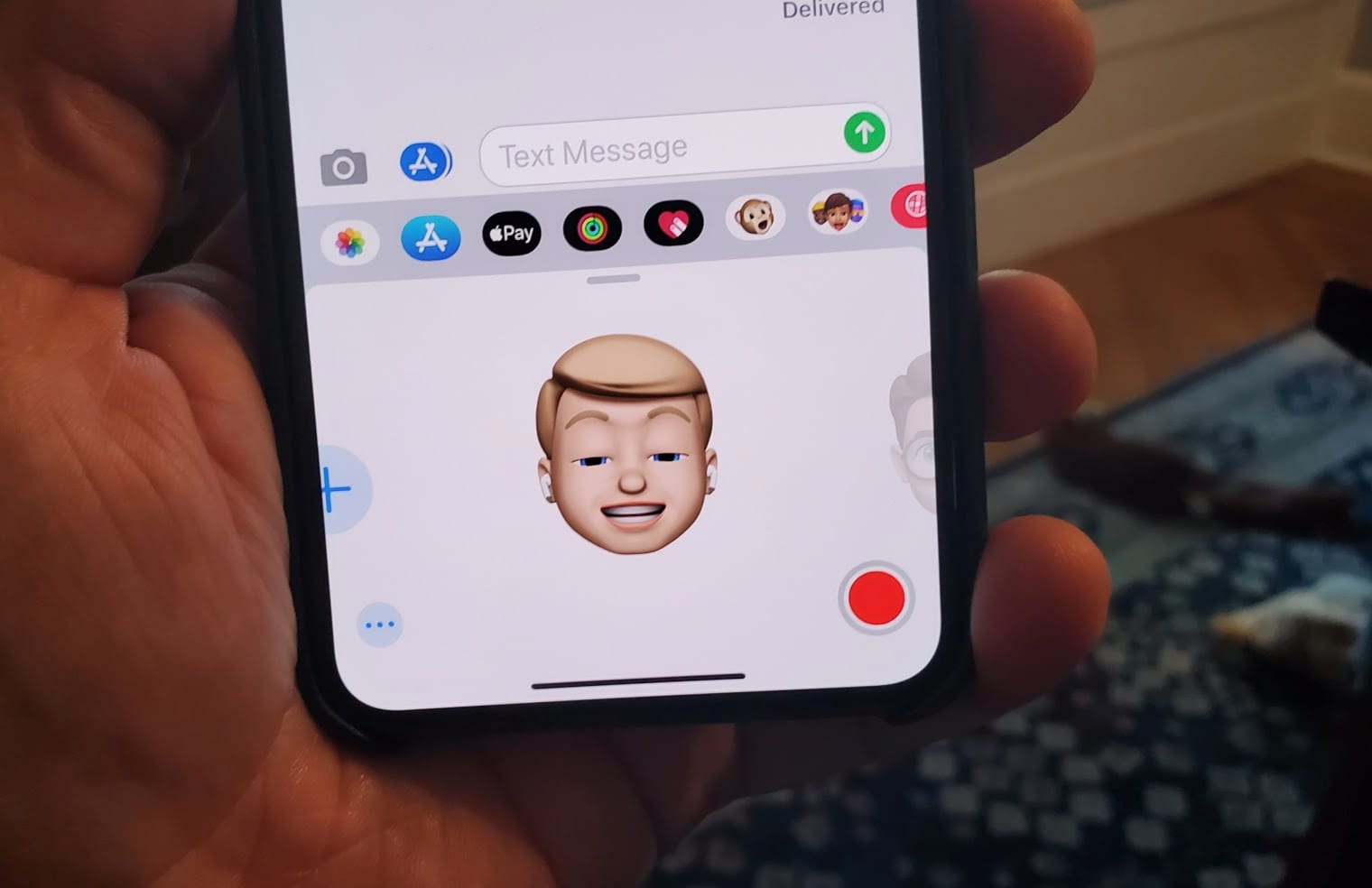
To modify a Memoji’s facial features and accessories, start in the Messages app. Open a new message or an existing conversation, tap the Apps button, swipe up, and tap Memoji. Select the Memoji you want to edit, then tap the More button and choose Edit, Duplicate, or Delete. This allows you to fine-tune your avatar’s appearance before using it in your profile.
Saving and where your avatar appears
After you have made your selection, tap Choose or Continue to save your avatar. Once saved, this avatar appears next to your name in iMessage conversations and in other Apple features that use name and photo sharing, such as FaceTime and certain system menus. It is not a system-wide change like changing wallpapers and themes on phones; rather, it is specifically tied to your Apple ID profile for communication services. Similarly, this is distinct from how you might change your Netflix icon and customize your profile on a streaming service. Note that an iOS update for iPhone squashes bugs in mail, notes, and messages, but the avatar setup process itself remains consistent across recent versions.
Frequently Asked Questions
Can I use a photo from my camera roll as my avatar?
Yes. When editing your name and photo, you can choose Photos to select any image from your camera roll. You can then adjust the crop and position before confirming.
Will changing my avatar in Messages also change it in Contacts?
Your Messages profile avatar will appear in iMessage conversations and other name-and-photo sharing features, but contact avatars for other people are managed separately.
What if I don't see the Edit Name and Photo option?
This feature is tied to iOS 13 and later. Ensure your iPhone is updated to a recent iOS version. If the option still does not appear, check that you are signed into iCloud and that Messages is enabled in your iCloud settings.
Can I change my avatar for all messaging apps at once?
No. The avatar you set in Messages and Settings applies only to Apple’s iMessage and related services. Other messaging apps, such as WhatsApp or Telegram, have their own separate profile picture settings that you must update individually.
Can I change the avatar of my contacts on iPhone?
You cannot change the avatar of your contacts directly on the iPhone, as they are managed by the messaging app or social network associated with their contact information.
How many Memojis can I create?
You can create and store multiple Memojis and switch between them when editing your name and photo.