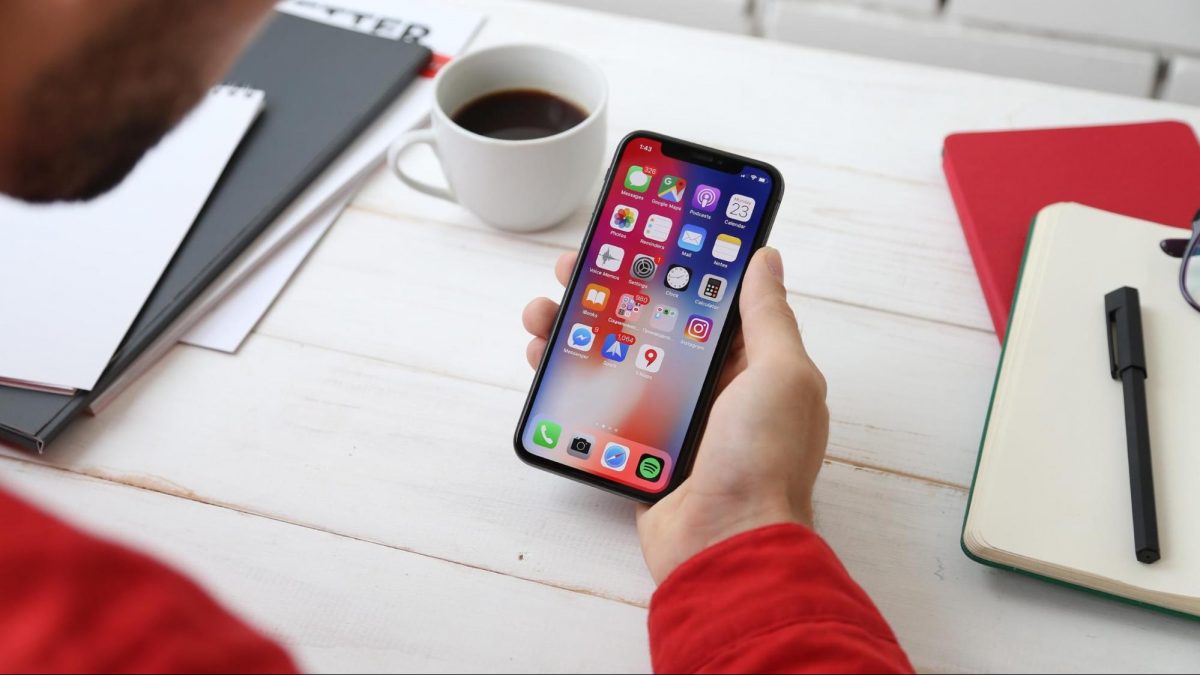
Transfer photos from phone to computer
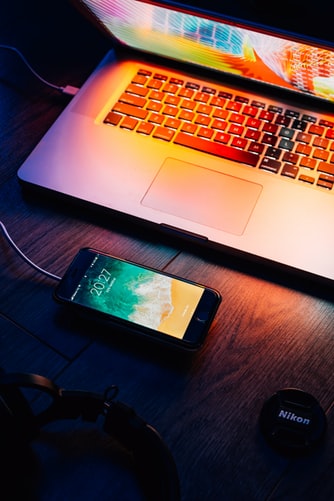
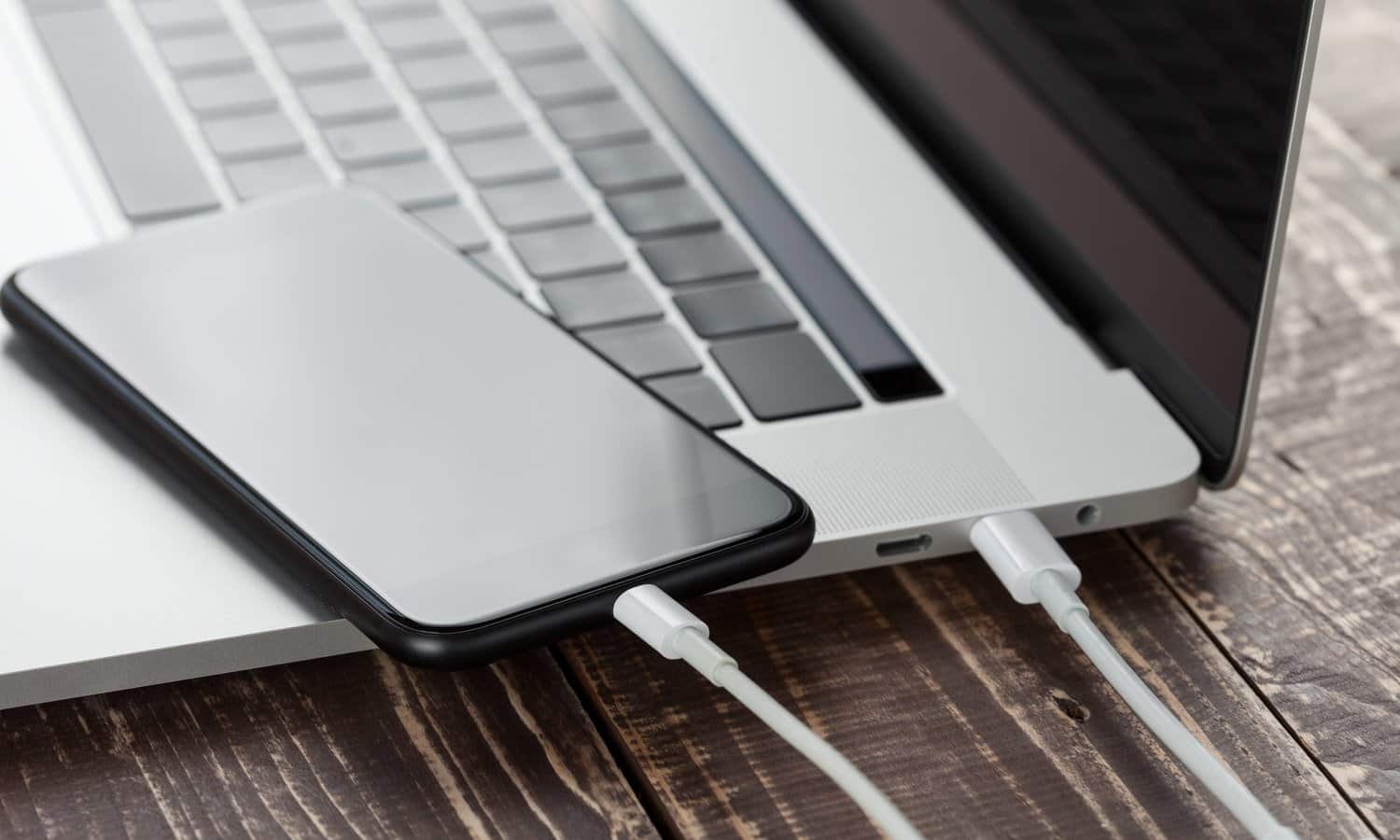
The most straightforward method to transfer photos from phone to computer is a USB cable, giving you room to edit, print, and make a real backup. Connect your iPhone to a Mac and open the Photos app; if the import screen doesn't appear, click the device name in the sidebar. After you tap Trust on the phone, you can choose Import Selected or Import All New Items. Windows users follow a similar cable connection and use the PC's Photos app, clicking Import and selecting the device to pull the images across.
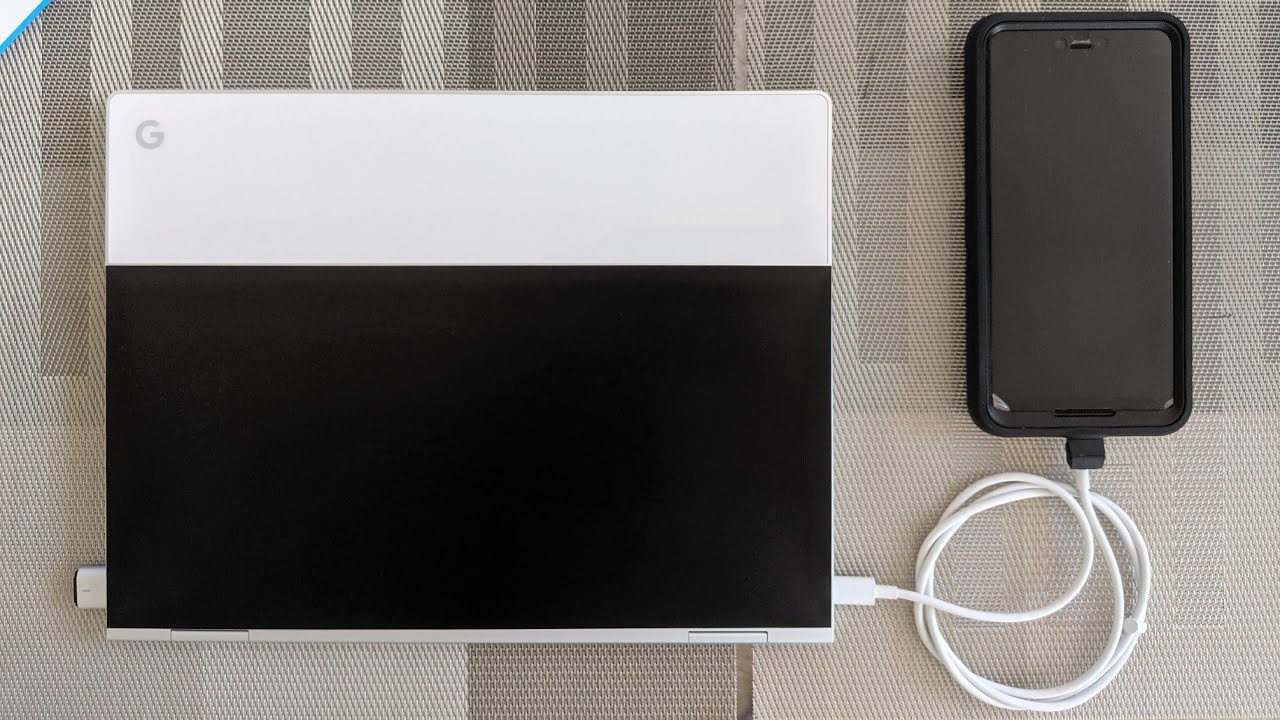
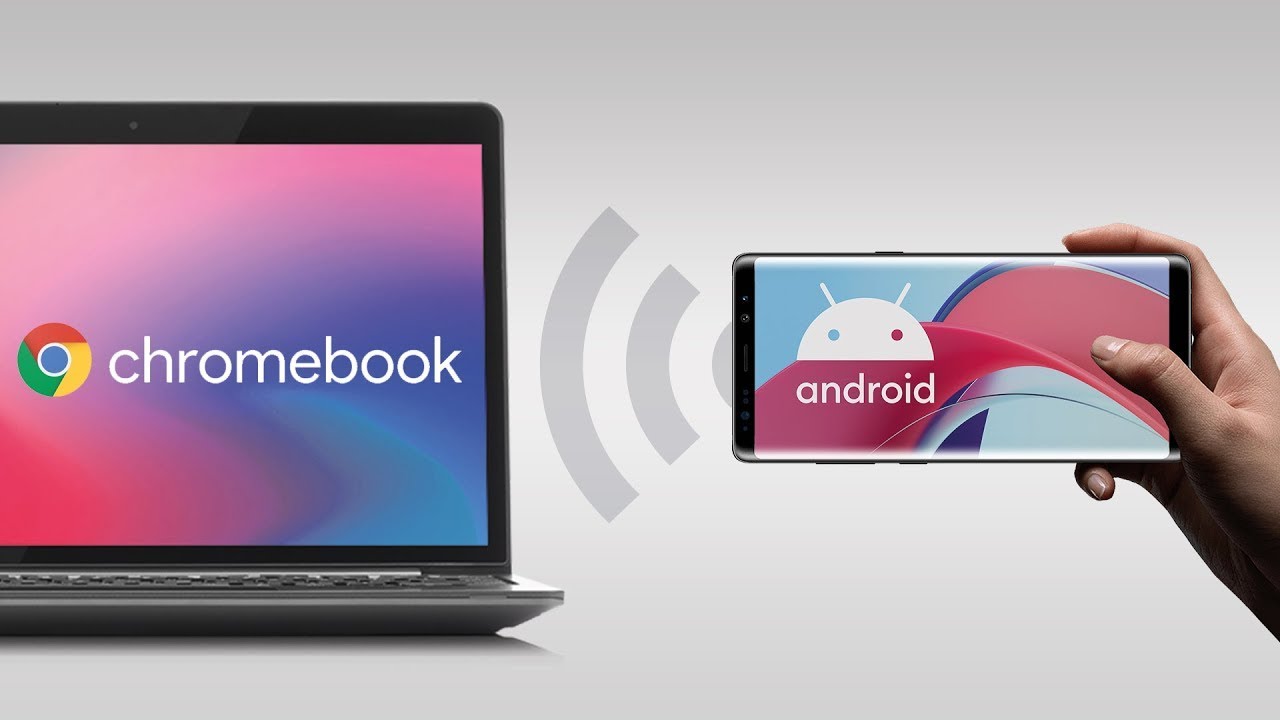
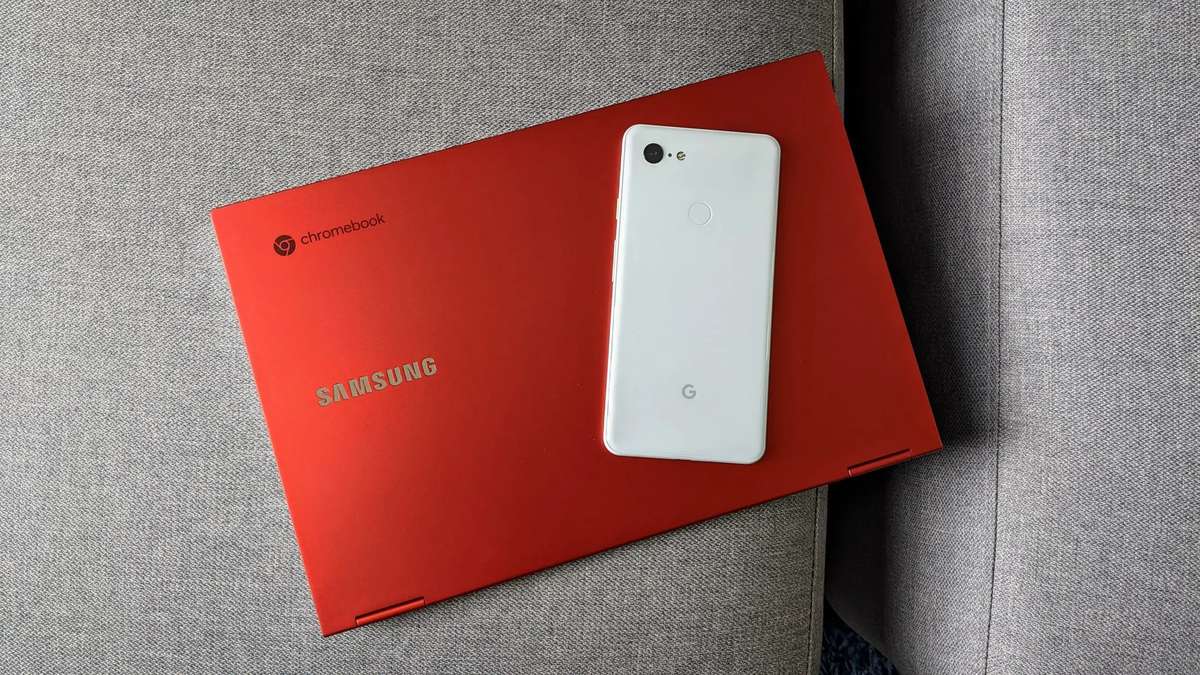
For those working entirely within Google's ecosystem, you can send pictures from phone to Chromebook using a USB connection, then browse and drag image folders over. A slightly different path lets you transfer photos from Android phone to Chromebook wirelessly once both devices are signed into the same account, making a cable-free handoff feel effortless. When your goal is to move pictures to a flash drive from Google phone, a USB-C flash drive or an adapter plugged into the charging port lets you use the phone’s file browser to copy selected shots onto the external storage.
Keep in mind that many cloud platforms sync changes both ways, so simply deleting a picture in an app may remove it from your handset. To avoid this, first use the app's own “remove from device” function. For a local backup that bypasses the internet entirely, a direct wired link between your Google-powered device and a laptop remains the fastest route. The phone appears as a media device, letting you explore the DCIM folder and drag folders to your desktop. This approach sidesteps upload queues and works even when the Wi-Fi is down.
Wireless transfers offer convenience when you have no cable handy. Nearby Share on modern Google handsets beams images to a Chromebook in seconds, while Bluetooth provides a fallback for smaller batches at a slower pace. Dedicated file-syncing tools create a private tunnel between the handset and a desktop app, often preserving folder structures and file names which makes organizing large libraries less painful later. A quick-response code pairing can initiate the link, and then you simply mark the photos you want and send them off.
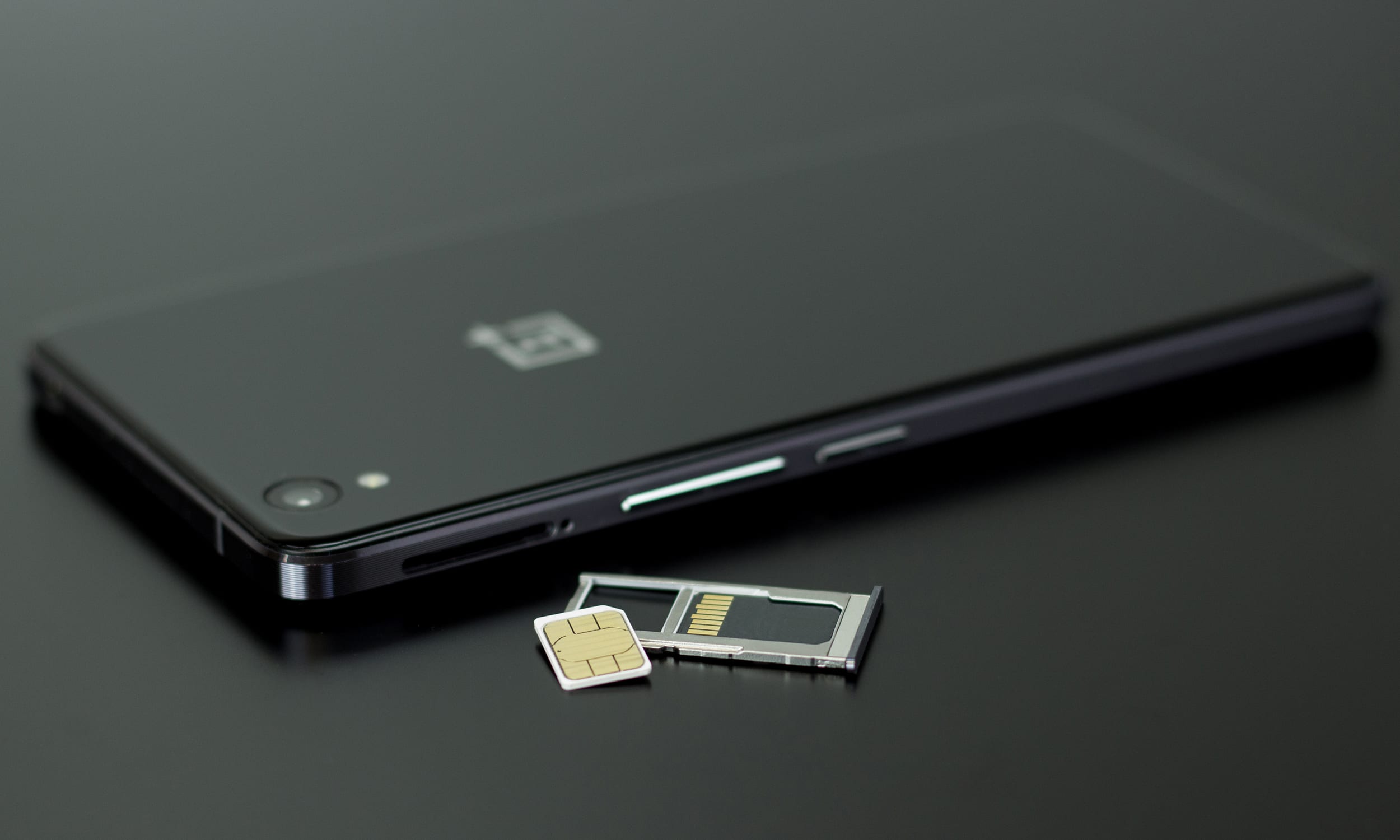
External storage gives you a physical copy that doesn't depend on a cloud account. A dual-connector thumb drive with USB-C on one end and USB-A on the other bridges the gap between a Google phone and any computer. Insert the drive into the handset's port and the system file manager will recognize it, letting you select an album, a date range, and a few stray portraits for copying. When you plug that same drive into a laptop, the images are ready to edit or archive. This workflow is especially useful when traveling, because it creates a backup without needing a network.
Email and messaging apps work for a quick shot or two. Attach the image and send it to yourself, then download it on the receiving machine. The quality may suffer if the app compresses attachments, so check the settings for an original-size option. For a handful of high-resolution files, this method avoids installing anything extra and works across different operating systems with zero setup.
Automated backup tools on the handset can quietly push every new shot to a paired desktop folder. Once configured, the process runs in the background so you don't need to remember to initiate anything. The photos appear on the computer a few moments after you take them, as long as both devices are on the same network, turning the transfer into an invisible habit rather than a chore.
Deleting images after a successful transfer requires caution. A cloud platform that mirrors deletions can wipe the original from the handset if you remove the synced copy. To break that link, use the platform's device-only removal option or turn off syncing temporarily before you clean up the computer's local library. Then you can safely archive the files on an external drive and free up space on the handset.
File format compatibility occasionally trips people up. Most modern Google-powered devices capture in JPEG or HEIC, and both open easily on a computer. Raw files from a pro-mode camera app need software that can interpret the sensor data, so before you move a large batch confirm that the destination machine has an app capable of reading the format. Converting a raw file to a DNG on the handset before the transfer can smooth the path.
Organizing photos after the move saves hours of searching later. Create a folder structure based on year and month, then add a descriptive tag for the event. The computer's batch-rename tool can apply this scheme to hundreds of files at once, and a consistent naming pattern makes it simple to find a specific shot while preventing duplicate files when you merge archives from different sources.
Security matters when you carry a flash drive full of personal images. Encrypt the drive so that a lost device doesn't expose your library; the handset's settings include an option to encrypt external media before the copy begins. On the computer side, full-disk encryption protects the archive at rest. These steps add a few seconds to the workflow but guard against a privacy breach.
Large video files present a special challenge, as a single 4K clip can exceed the attachment limit of an email platform. For these, a wired connection or a physical drive is the practical choice. The handset's file manager shows the size of each clip so you can prioritize the largest ones first. Some video-editing apps on the computer can ingest footage straight from the connected handset, skipping the manual copy step entirely.
Importing photos from cameras and other devices
Bringing images from a dedicated camera into your phone library is a straightforward process. The exact steps depend on your gear. If you need to send pictures from Switch to phone, Nintendo’s own flow uses the Sharing and Editing menu on the console to display a QR code. Your phone scans this code to receive up to ten screenshots and one video at a time wirelessly. For mirrorless camera owners, the path to connect Sony a7iii to phone may involve a companion app and the camera’s built-in Wi-Fi. This lets you select and copy files straight to your camera roll, bypassing a computer. Action camera users who need to connect my GoPro to my phone may rely on a companion app to browse the SD card and pull down clips over a local wireless link. This process keeps the originals safe on the camera until you manually delete them.
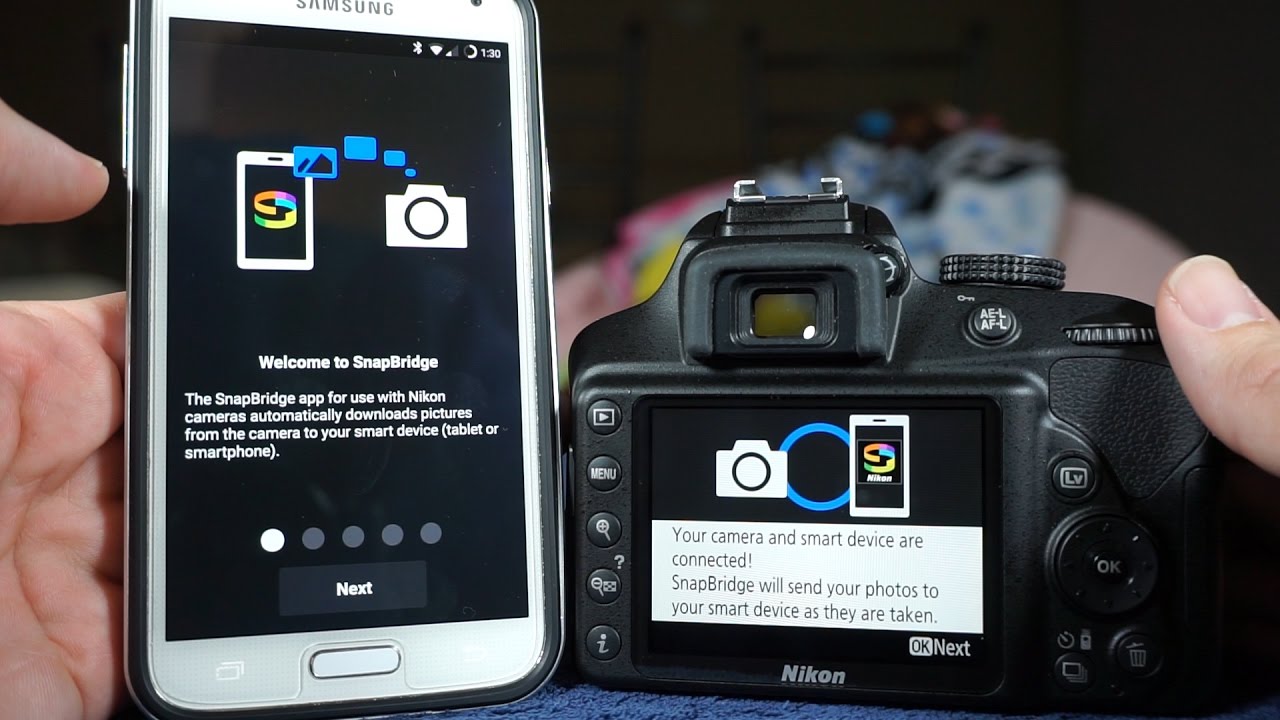
Older or entry-level cameras require a slightly different approach. To transfer photos from Nikon Coolpix to phone, many models may rely on a companion app. This app can maintain a wireless connection for transfers as you shoot. If your body predates built-in wireless, you can use Nikon wireless adapter plugged into the camera’s port to create that same bridge. Pairing it successfully often means checking that the adapter shows a steady connection before you open the app. Even fully analog workflows have a mobile endpoint. One way to get photos from a disposable camera onto a phone is to ask the lab for digital scans at the time of processing. They can deliver these in a format that you then import to your device. Regardless of the source, remember that once these images land in a syncing platform, deleting them inside that tool may also wipe them from your handset unless you first turn off backup or use the platform’s specific device-only removal option.
Sending and sharing photos with others
Getting a photo to another person usually works fastest inside the app where you already chat. When you want to send a picture from an Android phone, your messaging app and the share sheet built into your photo gallery both offer the same starting point. The question of how to send a picture from my phone to another phone number is typically handled inside your default texting app. For iPhone, open the photo or select multiple photos, tap the Share button (square with an upward arrow), then choose Messages or Mail. For anyone who wants to instantly send photos in messages without digging through folders, iPhone lets you snap and attach a shot from right inside a conversation by opening the thread, tapping the + button, tapping Photos, picking the photo or video, adding an optional message, then tapping Send. If the recipient prefers an inbox over a notification, you can email photo from Android phone. In Mail on iPhone, tap in the message body, tap above the keyboard, then choose Photo Library to attach a saved photo or video. A much less common but still useful path lets you email picture to Verizon phone. To send long videos on phone you can attach and send videos in Mail on iPhone or send photos or videos in Messages on iPhone, though the receiving handset must be a messaging-capable phone and a camera phone is required for Picture and Video Messaging; some camera phone models may not support Video Messaging.
Sharing between your own devices and apps
Moving a file to your own tablet or console starts with picking the right wireless path for the two devices in front of you. If you need to get a shot from a Google-powered handset onto an iPad, you can use AirDrop for Android to share files on iPhone by opening Quick Share on the Android device. Tap the QR code option. Scan it with the Apple device's camera to download the file in a browser. When the goal is the opposite direction, you can stop sharing photos from iPhone to iPad by turning off the iCloud Photos toggle under Settings > [your name] > iCloud > Photos. This keeps the library separate without affecting the originals. For the living room screen, the process to upload pictures from your phone to your Xbox One is not available. Pick a capture and send it to your console's local storage. Presentation builders work the same way. You can add a video to Google Slides from camera roll on phone. A lesser-known yet handy feature lets you share apps on Android, though the precise steps aren't covered in official support pages. This beams the installer to a friend's gadget without using mobile data. Whatever you are moving, remember that pulling a photo into a syncing platform means deleting it there can also wipe it from your handset. You must first use that app's specific device-only removal tool to avoid this.
Managing cloud and backup storage
The cloud should not dictate what stays in your local gallery. Many people are surprised that when they access the cloud on Android through Google Photos, the default behavior links the two locations together. To break that link while keeping a tidy local gallery, you can remove photos from Google Photos without deleting from phone. Open a picture, tap the three-dot menu, and choose Delete from device, or use the Free up space feature. For those using Amazon’s platform, the behavior is different but the goal is the same. How to delete photos from Amazon photos without deleting from phone. This leaves the local file untouched on your handset. If you are switching ecosystems entirely and want to disconnect Google Photos from iPhone. Future deletions in the app no longer reach your camera roll. In the background, your Google-powered device keeps a broader safety net. You see your Google phone backups by visiting the Drive or Google One backup area. There you can preview what is saved, though downloading the entire package as a single file is not possible.
Cleaning up and deleting photos
When you need to reclaim space, the real danger is that most cloud photo platforms sync deletions both ways. If you simply open the app and tap the trash icon, you are removing the image from Google Photos, which trips up countless users who want to delete all my photos from Google photos on my Google phone but then realize their local gallery is suddenly empty too. The safer route, when you only want to clear the online copy, is to first turn off Backup in the Google Photos app settings on all synced devices, then visit the platform's website in a browser, because deleting there leaves the phone’s local file untouched. If you are trying to save hidden pictures on Google phone, know that the documented privacy controls are deleting items or using Trash. When you need to pull a clean copy off the handset, you can save pictures from Google phone by downloading them to your device through Google Photos, which writes a duplicate to a folder outside the sync engine’s reach. For those migrating from older hardware, the workflow to download pictures from flip phone is not available.
Organising photos on your phone
When you want to keep certain images private, you can make a locked album on iPhone by hiding photos in the Photos app, and the hidden album then requires Face ID, Touch ID, or your passcode to open, a lock that is on by default starting in iOS 16, so anyone borrowing your phone cannot peek at shots you have moved there. On handsets with expandable storage, you can move photos to SD card on Android through the Files by Google app by selecting the images and choosing a folder on the card. Before trusting a card with your library, take a moment to format an SD card for Android phone from the Android storage setup to ensure the file structure matches what your device expects. When pulling images from a camera, you can use SD card reader on Android phone by inserting the card or reader, and it then appears as external storage inside the My Files or Files app, ready for copying.
Scanning and creating documents
Getting a receipt or form into a digital file starts with the camera you already carry. Tap the plus button and choose Scan. The tool auto-captures the page and saves it as a PDF straight to your Drive storage. The scanning tool lives inside that app rather than a standalone utility. Once the capture is confirmed, you can make a PDF in phone simply by tapping save, and the article about that process shows how to do it without a computer. The file lands in your chosen folder. No desktop computer ever enters the workflow. Using the same scan flow converts the selected image into a single document. Adding more pages builds a multi-page file if needed.
Apple handsets offer a parallel path. The Files app lets you scan straight into any folder and saves the result as a PDF. The Notes app embeds the scan inside a note. Both approaches produce a clean document ready for sharing. Many cloud sync tools delete in both directions. Removing the uploaded PDF from the app may also wipe the local copy. Prevent this by disabling backup first. Alternatively, use the specific remove-from-device option that severs the link while keeping the cloud file intact.
Modern camera apps on Google-powered devices pack a dedicated document mode. This mode straightens skewed pages and boosts text contrast automatically. The result looks closer to a flatbed scan than a casual snapshot. Samsung’s camera includes features that can detect a document and trigger a scan button on screen. Tapping it crops to the edges and applies a sharpening filter. The processed image saves to the gallery. From there, you can use the system print dialog to generate a PDF without any extra software. The built-in tools handle the entire job natively.
Third-party utilities expand the toolkit considerably. Adobe Scan captures multiple pages in sequence and runs optical character recognition on the result. The text becomes searchable and selectable. Microsoft Lens offers tight integration with OneNote and Word. It exports whiteboard captures, documents, and business cards as editable files. CamScanner adds smart cropping and a robust set of filters. Each of these apps can produce a PDF from a fresh capture or from an image already in your library. They also connect to cloud storage platforms. This means the finished file appears on every linked device moments after you finish scanning.
Managing the files after creation prevents clutter and accidental loss. A dedicated folder for scanned documents keeps everything findable. Naming the files with a date and a short description makes searching faster later. Many file manager apps on Google-powered devices include a built-in PDF viewer. This viewer can rename, move, or share the document with a couple of taps. The share sheet connects to email, messaging apps, and nearby sharing protocols. Sending a scan to a contact happens in seconds. The entire chain stays on the handset and moves at the speed of a text message.
Cloud synchronization introduces both convenience and risk. Services like Google Drive, OneDrive, and Dropbox automatically mirror the scans folder to their servers. The upside is an instant off-site backup. The downside is the two-way sync behavior. Deleting a file from the cloud platform removes it from the handset on the next sync cycle. This catches many users off guard. The safer workflow treats the cloud copy as a temporary transmission vehicle. After the recipient confirms receipt, delete the cloud copy from the web interface. Then manually remove the local file using a file manager. This two-step process keeps the deletion intentional and isolated.
Printing from a mobile device often bypasses a computer entirely. The print spooler built into Google’s operating system includes a Save as PDF option. Any app that can print can produce a PDF. Open the photo or document, tap the menu, and choose Print. Select Save as PDF from the printer list. The system writes a new file to a location you specify. This method works for web pages, emails, and any content that supports the print command. The output is a compact, universally readable document. No extra app install is required. The feature sits in the core system and waits for the print dialog to appear.
Sharing scans with people who use different platforms requires attention to file format. PDF is the universal choice. It opens on every modern operating system and preserves the exact layout. Image formats like JPEG work for single pages but lose fidelity with text-heavy documents. PNG preserves sharp edges better but creates larger files. For multi-page submissions, always bundle the pages into a single PDF. Most scanning tools include a merge or append function. This keeps the recipient from juggling a dozen separate image files. A single, well-named PDF attachment looks professional and reduces follow-up questions.
Security considerations apply when the document contains sensitive information. A scan of a passport, tax form, or medical record needs protection. Many file manager apps on Google-powered devices support encrypting individual files or entire folders. A password or biometric lock gates access. Before transmitting the file, consider whether the communication channel uses encryption. End-to-end encrypted messaging apps provide a secure tunnel. Email generally does not. For maximum control, share a link from a cloud storage platform that lets you set an expiration date and a download password. Revoke the link after the recipient confirms they have saved a copy.
Offline workflows remain important when connectivity is spotty. The scanning tools in Google Drive and Samsung Notes work without an internet connection. The captures queue locally. They sync to the cloud the next time the device connects to Wi-Fi or mobile data. This design ensures that a dead zone never blocks the capture step. You can scan a stack of papers on a plane or in a basement archive. The files sit safely on the handset. When the device reconnects, the backlog uploads automatically. No manual intervention is needed. The system bridges the gap between offline work and online access seamlessly.
Optical character recognition turns a static image into searchable text. Google Drive runs OCR automatically on uploaded PDFs. The processed text becomes searchable within Drive and in the companion Docs app. Adobe Scan performs the same task on the device before uploading. Microsoft Lens sends recognized text straight into a Word document or a OneNote page. This feature transforms a scan from a picture of words into a living document. You can copy a paragraph
- turn a picture into a PDF on Android
- upload documents on Android phone
- scan on an Android phone
- scan on my Samsung phone
- make a PDF in phone
Converting and editing files
Getting a shot into a shareable state starts with format. You might need to convert photo to JPEG in mobile for free before sending it to someone who does not use an Apple device. On an iPhone that captures HEIF, open Settings > Camera > Formats and select Most Compatible so future standard photos save as JPEG from the start. For an existing file, the Files app offers a Quick Actions > Convert Image option where you can pick JPEG, though this path comes from community guidance rather than official Apple documentation.
Sometimes you need a compact preview instead of a full‑resolution copy. Learning how to make a thumbnail on mobile typically involves third‑party tools. There is no official way to get an image ID on mobile, so you will likely turn to a file‑management utility or a specialised metadata viewer.
Motion clips follow their own rules, and there are no official steps for how to save a GIF on Android.
Copying, pasting, and selecting multiple files
Once you have marked the photos you want, the mechanics of selecting multiple files remain straightforward. On an iPhone, you enter selection mode by tapping Select in the Photos app, then tap the thumbnails you need. Tapping the Share button reveals the Copy command, and you can paste the images straight into a document or email. The same gesture logic applies when you need to share or copy multiple photos and videos on an Android device: open the Gallery, touch and hold a thumbnail to start the selection, then tap additional items or use Select all before hitting the Share icon. If you are moving files instead of sharing them, the Move to folder option lets you shift everything to an SD card in one action. For those who prefer a dedicated utility when handling large batches, a roundup like 9 best file upload apps for iOS you need now helps you find a tool that queues transfers without compressing your library. Anyone who has mastered copy and paste on mobile already knows the clipboard is temporary, and committing the selection to a folder or a shared album is the safer way to keep the set intact.
Connecting accessories and granting permissions
Before a security camera can talk to your handset, you often need to grant permission inside the operating system. To let an unfamiliar app access your lens, you first enable camera on Android phone by opening Settings, tapping Apps, selecting the application, and granting camera permission, which is a necessary step if you want to use your phone for photography or video calls. For Blink owners setting up a new outdoor unit, the process to add phone to blink camera involves tapping Add Device in the Blink app and using your mobile camera strictly to scan the QR code on the back of the module, ensuring you can monitor your property from anywhere. Blink only activates your lens for that single scan, though a manual serial-number entry is available if you prefer to keep the shutter blocked. When your footage lives online instead of on a memory card, you can download videos from Google drive to phone by opening the file in the Drive app on an iPhone, tapping More, choosing Send a Copy, and then Save Video, making it easy to access your important clips offline.
Frequently Asked Questions
What cable do I need to import photos from a Panasonic camera to Android?
Use a USB-C to USB-C cable. Connect the camera to the Android phone, open the Files app, tap the USB notification, navigate to the DCIM folder, and copy the images to your device.
How many photos can I send at once in iPhone Messages?
You can send up to 10 photos at a time when sharing from the Photos app using Messages. Select the images, tap the Share button, and choose Messages to attach them to a conversation.
How do I stop my iPhone photos from appearing on my iPad?
Turn off iCloud Photos syncing on the iPad. Go to Settings, tap your name, then iCloud, then Photos, and toggle off Sync this iPad to keep the libraries separate without affecting originals.