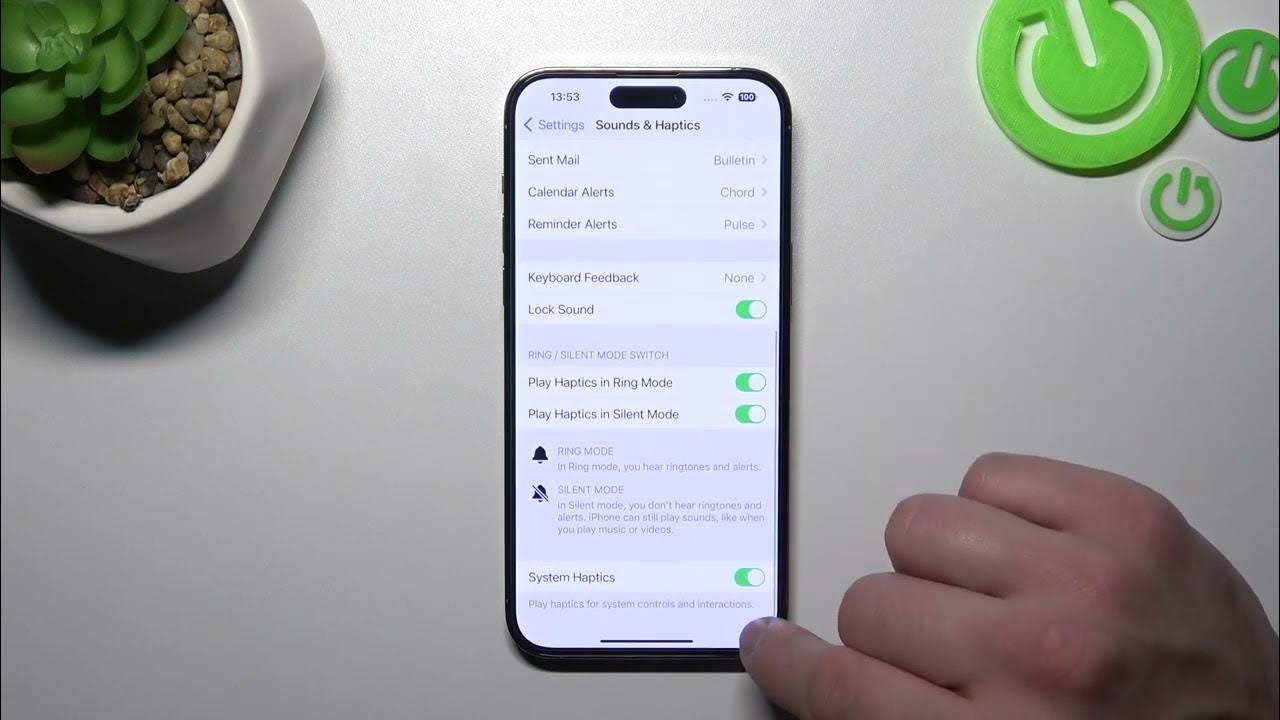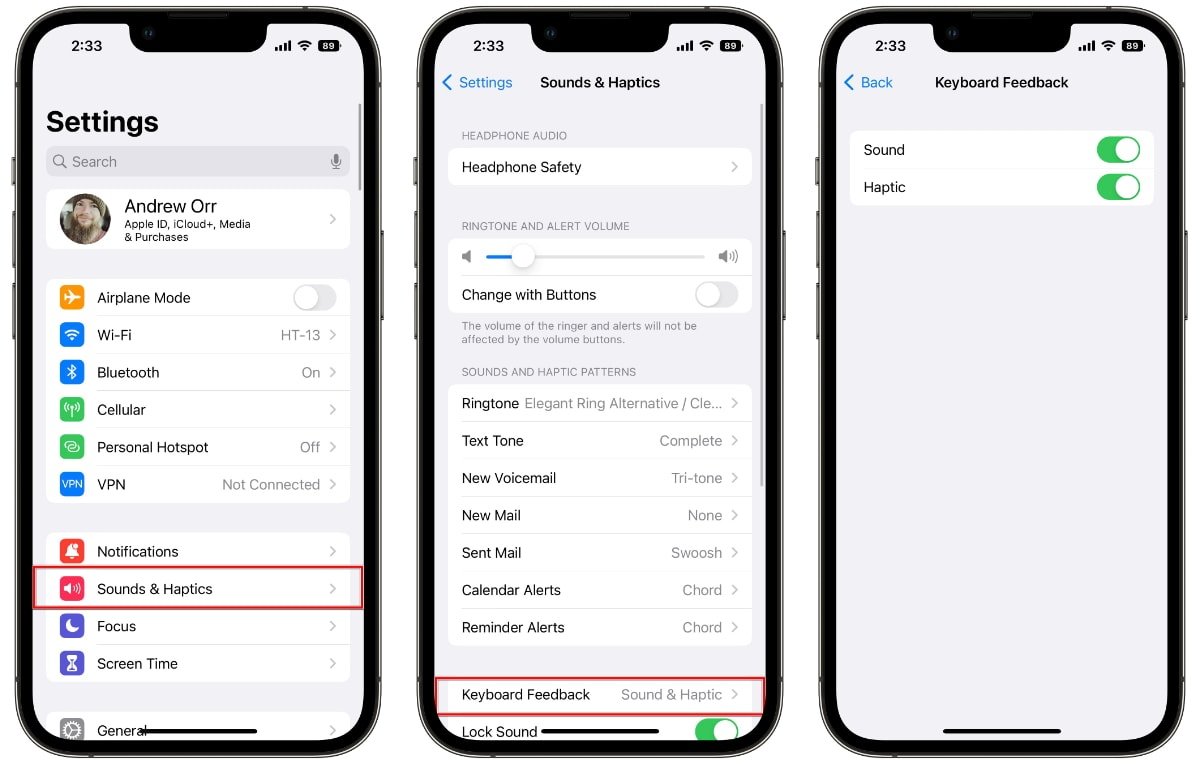
To turn vibrate on iPhone iOS 16, open Settings and tap Sounds & Haptics. Then enable the toggles for Play Haptics in Ring Mode and Play Haptics in Silent Mode to control when your iPhone vibrates for calls and alerts.
Open Sounds & Haptics to turn vibrate on iPhone iOS 16
Navigate to the Settings app on your home screen and tap Sounds & Haptics. This is where all vibration settings on your phone are controlled in iOS 16. On iPhone 7 and later, this menu replaces the older "Sounds" path used by earlier models. For older iPhone models, the path is Settings > Sounds, while iPhone 7 and later use Settings > Sounds & Haptics. Adjust vibration intensity via the Haptics slider in Settings > Sounds & Haptics.
Step 2: Enable play haptics in ring mode
- Inside Sounds & Haptics, locate the Play Haptics in Ring Mode toggle.
- Turn the toggle on (green) to make your iPhone vibrate for incoming calls and notifications when the Ring/Silent switch is not showing orange, meaning the phone is in normal ring mode.
This setting is useful when you want to feel alerts in a noisy environment without relying on sound alone.
Step 3: Enable play haptics in silent mode
- Still in Sounds & Haptics, find the Play Haptics in Silent Mode toggle.
- Turn this toggle on to make your iPhone vibrate when the Ring/Silent switch is set to silent (showing orange).
With this enabled, you'll feel incoming calls and alerts discreetly when your phone is silenced, ideal for meetings or quiet spaces.
Important note about vibration
If both Play Haptics in Ring Mode and Play Haptics in Silent Mode are turned off, your iPhone will not vibrate at all for calls or notifications. This is a documented limit in iOS 16. For a quick way to turn on vibrate on phone, ensure at least one of these toggles is active. Note that Apple renamed the older "Vibrate on Ring" and "Vibrate on Silent" labels to the current "Play Haptics" names in iOS 16.
Frequently Asked Questions
Can I customize the vibration pattern on iPhone iOS 16?
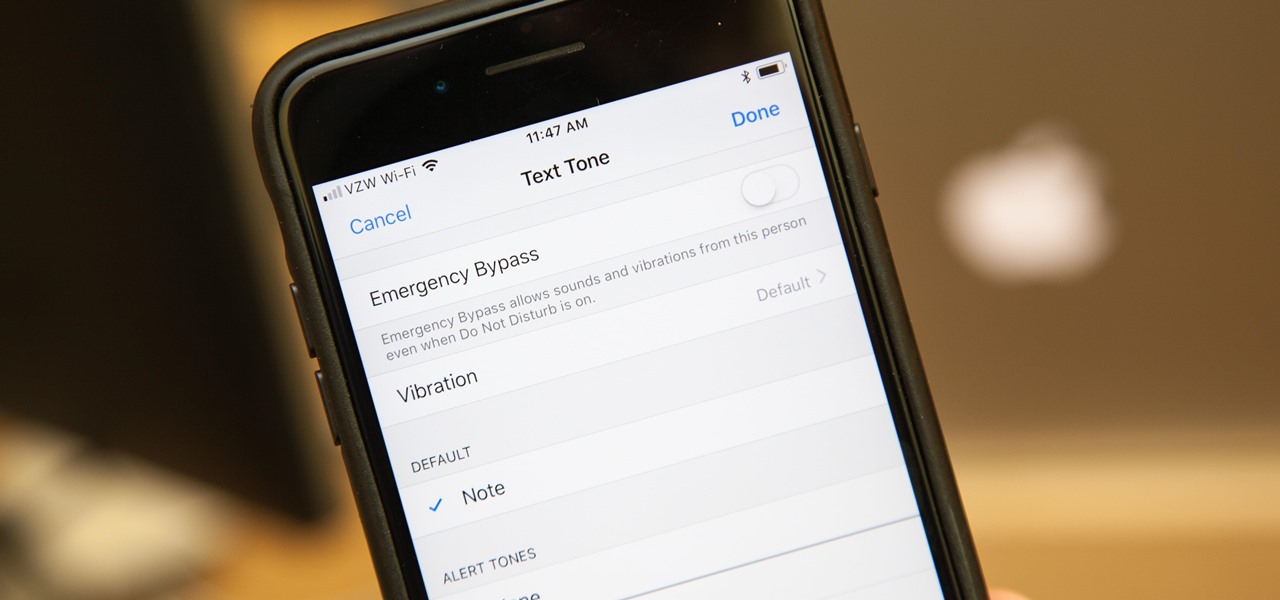
Yes. In Sounds & Haptics, tap Ringtone or Text Tone, then tap Vibration at the top. You can choose from preset patterns or create a custom vibration by tapping and holding on the screen.
Will my iPhone vibrate for all apps if I enable these settings?
These settings control system-level vibration for calls and alerts.
How do I turn off vibration completely on iPhone iOS 16?
This stops all vibration for calls and notifications.
Does the Ring/Silent switch affect vibration?
Yes. When the switch shows orange (silent mode), your iPhone will only vibrate if Play Haptics in Silent Mode is enabled. When the switch does not show orange, it will vibrate if Play Haptics in Ring Mode is enabled.
How do I turn on vibrate on Android?
For Android, press a volume button, then tap Vibrate above the slider to turn vibrate on, or Mute to silence the phone.
Related reading: How To Turn Vibrate On IPhone 12.