How to switch iPhone vibration settings between ring and silent
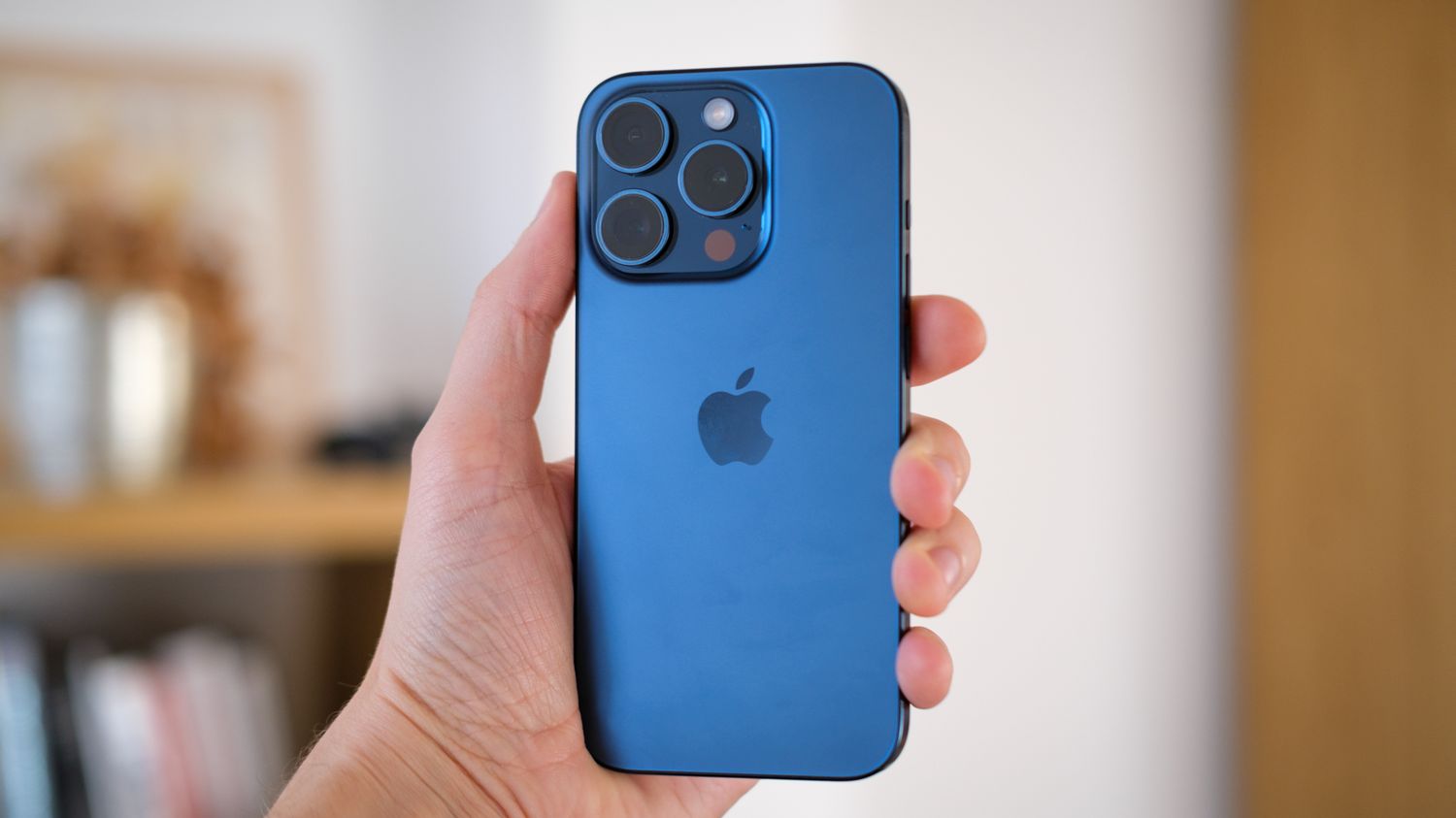
Managing your iPhone vibration settings often depends on a single physical control that is easy to overlook. On most iPhones, you can put iPhone 11 on vibrate mode by finding the small Ring/Silent switch above the volume buttons and flipping it so you see orange, which is exactly what you need to do if you want to silence your ringer without missing alerts. The device will then pulse for incoming calls, and to put iPhone 14 on vibrate the process is identical, ensuring you stay notified discreetly in quiet environments. To change silent mode on iPhone 13 or earlier devices, this same switch is the primary gatekeeper, working alongside the tactile options in the Settings app so you can quickly mute your phone without fumbling through menus.
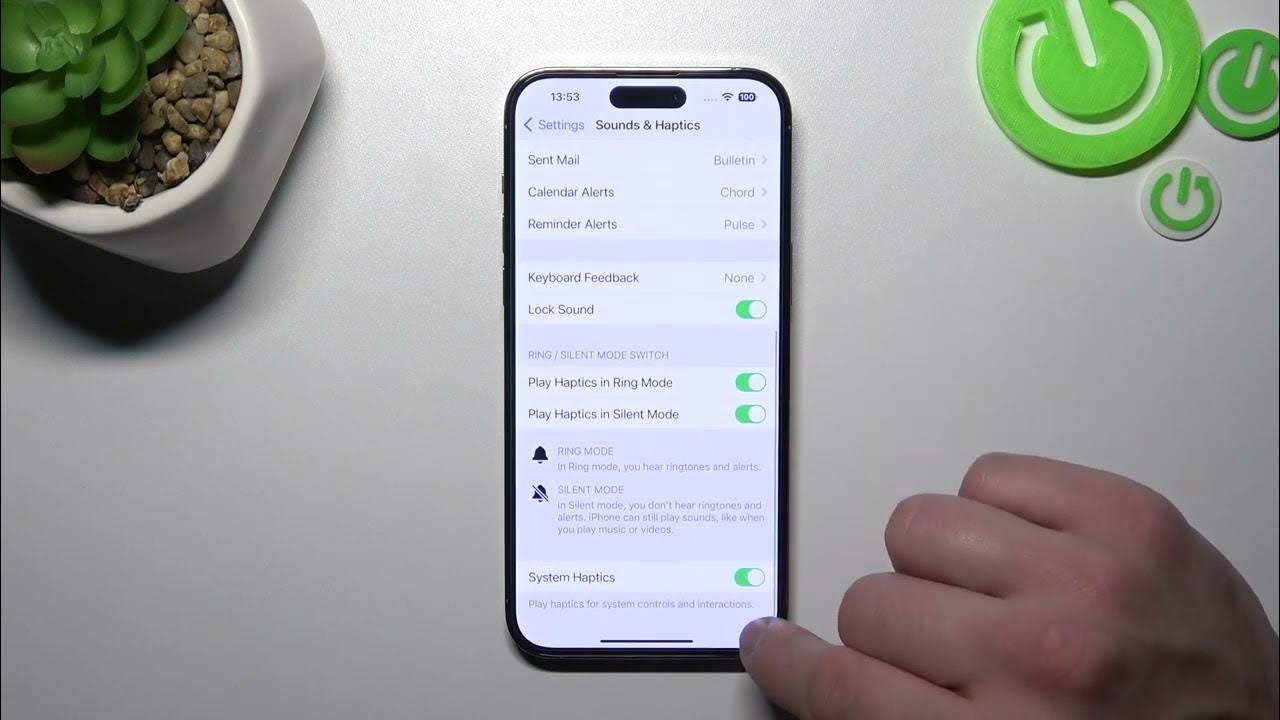
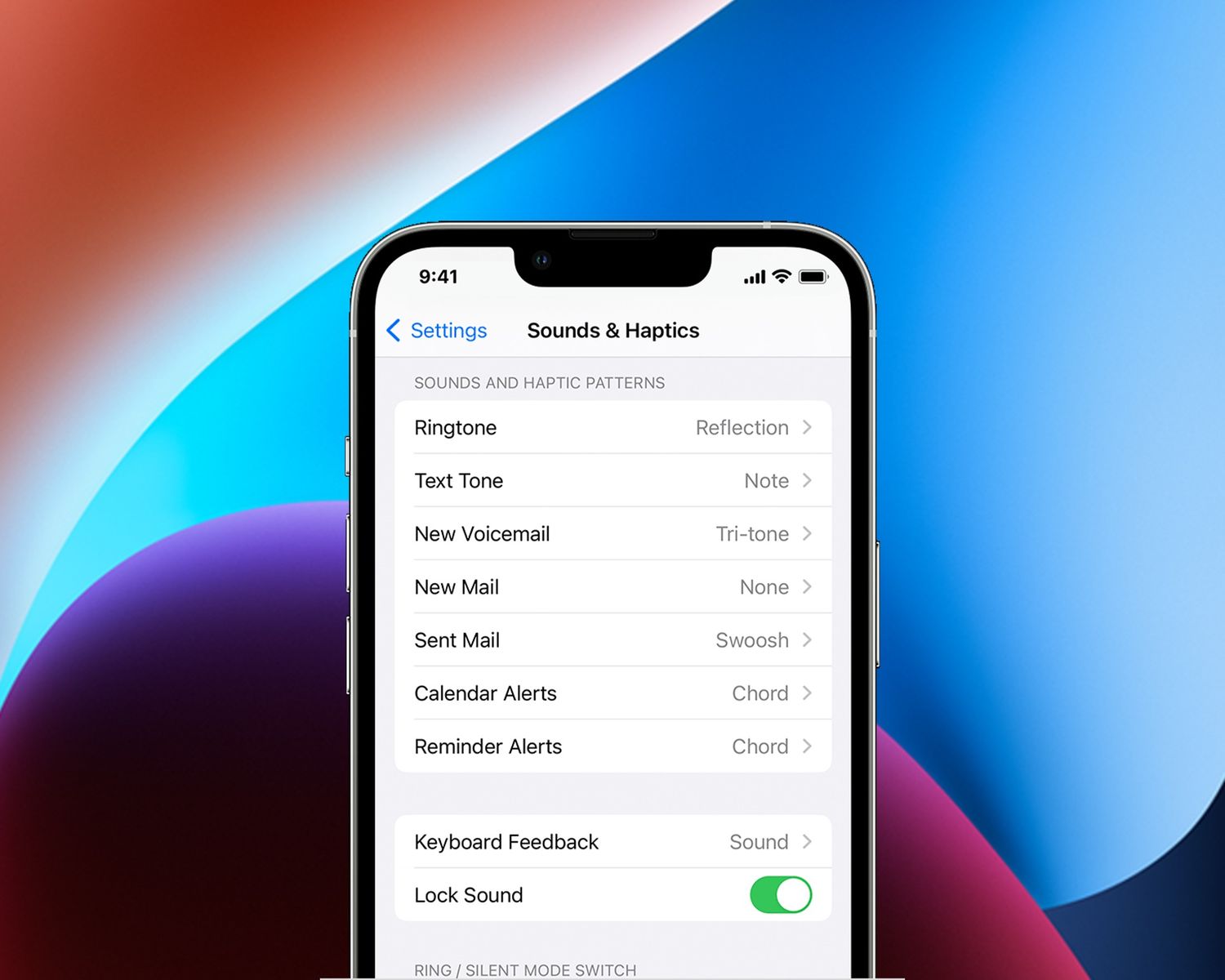
For a software-driven approach, you can turn vibrate on iPhone iOS 16 by opening Settings, tapping Sounds & Haptics, and adjusting the tactile behavior for both Ring and Silent modes, which gives you fine-grained control over how your phone alerts you. This menu is also where you confirm the physical feedback is working if you are trying to turn vibrate on iPhone 12 after engaging the physical switch, helping you troubleshoot when haptic feedback seems missing. The logic differs completely on Android, where many phones lack a side switch. To turn on vibrate on phone models from Samsung or Google, you press a volume key, tap the icon above the slider, and cycle through the sound states entirely through on-screen controls, a method that is essential when you need to switch to silent quickly during a meeting.
- change silent mode on iPhone 13
- put iPhone 11 on vibrate mode
- turn vibrate on iPhone iOS 16
- turn vibrate on iPhone 12
- turn on vibrate on phone
- put iPhone 14 on vibrate
Making your phone vibrate for calls and texts
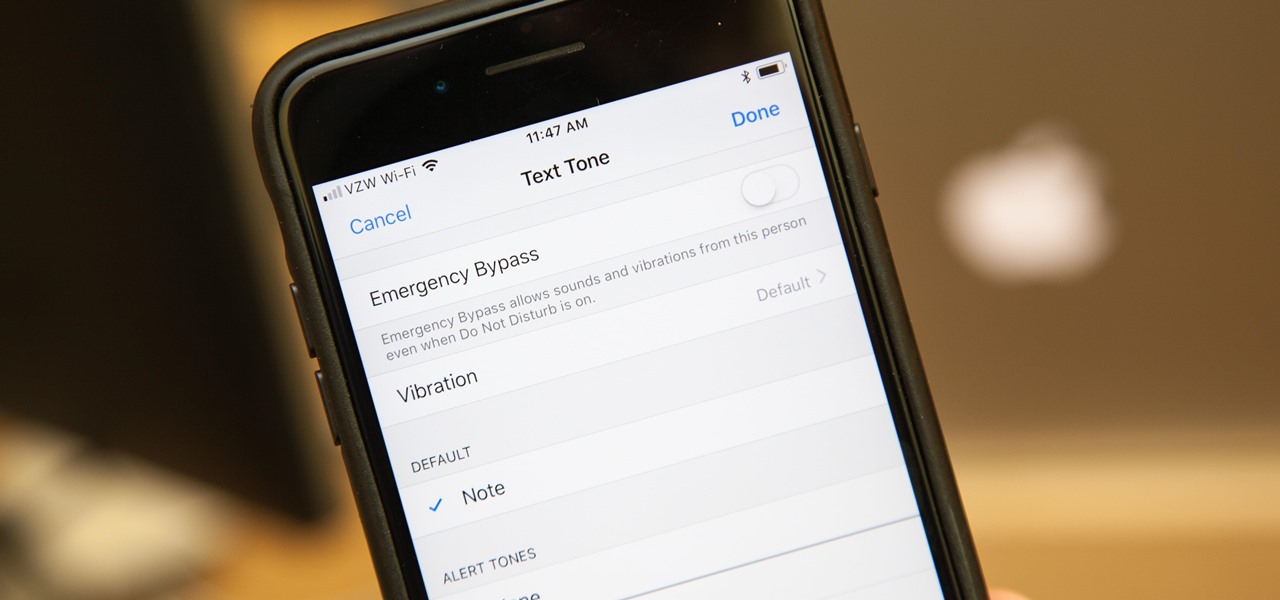
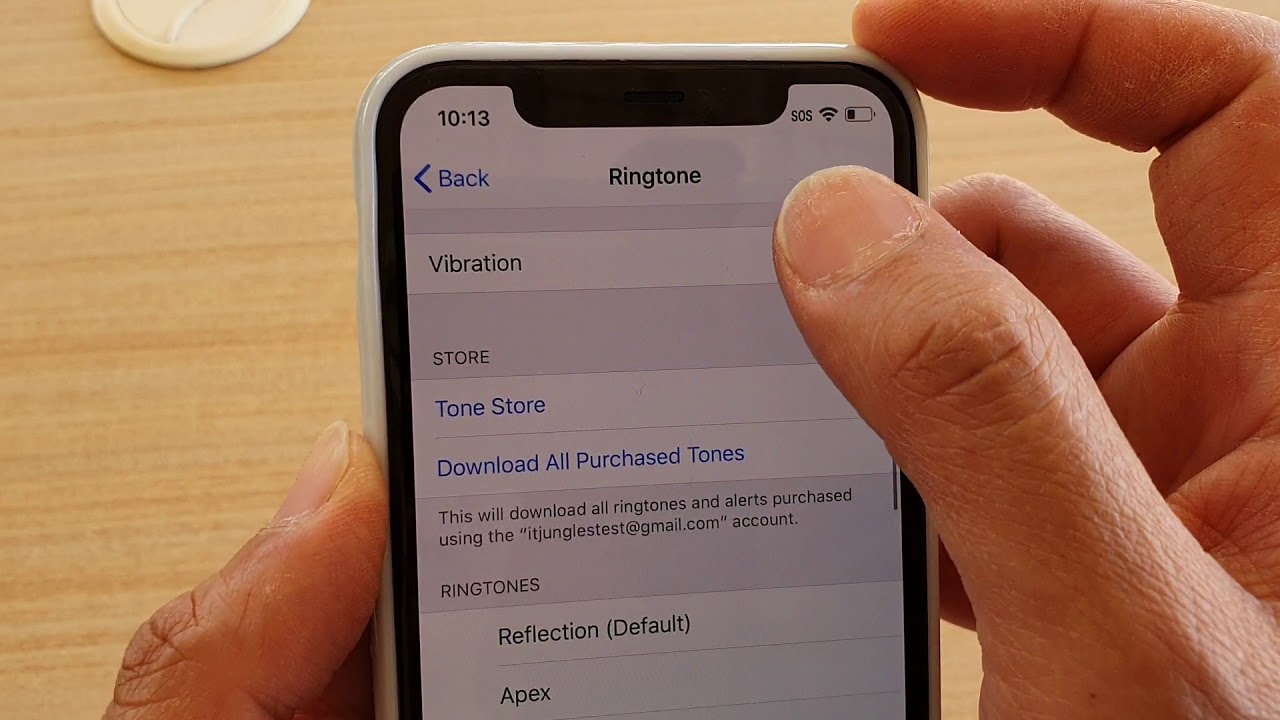
Before changing any software toggle, locate the physical Ring/Silent switch on the left edge of your iPhone. If that switch shows orange, the phone is in silent mode. The software settings you are about to adjust will then only produce a buzz. To reliably make your iPhone vibrate when receiving calls & texts, open Settings and tap Sounds & Haptics. Open Settings and tap Sounds & Haptics. Tap Ringtone, then tap Haptics and pick a standard pattern. You can also tap Create New Vibration to draw your own. Repeat that path for Text Tone to cover incoming messages. In the Sounds & Haptics settings, tap Haptics and confirm it is set to Play in Silent Mode or Always Play. Choose Play in Silent Mode if you want a buzz when the phone is silent; to also vibrate in normal ring mode, choose Always Play.
If your device stays silent even with those patterns chosen, you may need to turn on ringer on iPhone 12 or a newer model by flipping the side switch toward the screen so the orange strip disappears. On an iPhone 13, the process is identical. You set iPhone 13 to vibrate through the same Sounds & Haptics menu. When tactile feedback is active but text alerts still fail silently, the issue often sits inside the notification settings for the Messages app. A common culprit is a conversation-specific mute. If you are not getting text notifications on iPhone? here's how to fix the vibration: open the conversation in Messages, tap the contact icon, tap Info, then check the Text Tone under Edit Contact Info. Open the conversation in Messages and tap the contact icon at the top. Hit Info and check that Hide Alerts is toggled off.
Adjusting vibration intensity and haptic feedback
If the vibration feels too soft on an Apple device, there is no separate vibration-strength slider to make vibrate stronger on iPhone. Instead, you change the perceived intensity by picking a more aggressive pattern. Head to Settings > Sounds & Haptics, tap Ringtone or Text Tone, then tap Haptics and select a prominent preset like "Synchronized." You can also draw a dense custom pattern that sustains contact with the Taptic Engine. The term haptics on iPhone 13 refers to the entire system of precise taps and buzzes produced by a linear actuator, not a spinning weight, so the texture of a pattern matters more than raw power. On a Google Pixel, open Settings > Sound & vibration > Vibration & haptics to find separate toggles for ring, notification, and touch feedback. Samsung Galaxy owners get finer control through Settings > Sounds and vibration > Vibration intensity, where individual sliders for calls, notifications, and system interactions let you dial in the physical buzz. There is no built-in setting to make your phone vibrate non stop, as continuous vibration is not a standard alert option and would only drain the battery.
Stopping unwanted sounds and vibrations
When you need a break from constant pings, silencing specific interruptions is often more useful than muting the whole device. If a single conversation keeps buzzing, understanding what does "hide alerts" mean on iPhone lets you quiet just that thread by swiping left on the chat in your message list and tapping the bell icon so that person’s texts arrive silently while everything else rings normally. For broader relief, you can stop the ding when getting a text by going to Settings > Sounds & Haptics, tapping Text Tone, and setting the sound to None, then tapping Haptics and choosing None for the haptic pattern.
Keyboard clicks and system feedback create their own layer of noise. If you want to turn off sound when sending text iPhone 14 models produce, the path runs through Settings > Sounds & Haptics where you can disable Keyboard Feedback sounds independently of your ringer volume. On the Android side, the absence of a physical mute switch means you manage everything through software menus, and when you need to turn off vibration on Android for typing or screen taps, you will typically find those controls inside Settings under Sound and vibration, separate from your call and notification settings.
Customizing notification and emergency alerts
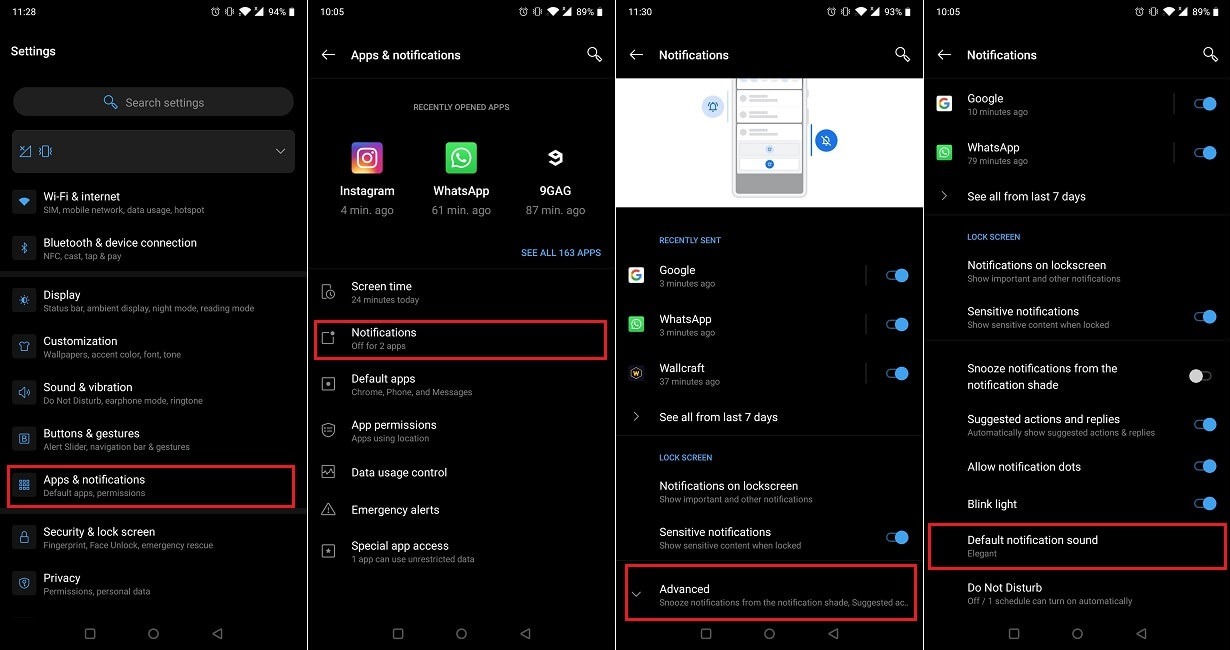
Getting a distinct sound for each app makes it easy to identify an incoming message without looking at the screen. On an iPhone, you can assign a unique tone by opening the Settings app. Then tap Notifications, select the specific app, and tap Sounds. This works provided the app supports custom alert tones. The physical Ring/Silent switch on the side of the device will still mute those custom sounds unless you have flipped it to ring mode. Checking that hardware control remains the first troubleshooting step for a silent device. For Samsung Galaxy owners, the process to customize a Samsung phone's notification sounds for individual apps begins in Settings under Notifications. There you select App notifications, choose your target app, and then tap a notification category to change its Sound with the Alert type selected. If you are searching for Android how to change notification sound at a system-wide level on a Galaxy, you will find that master control under Settings > Sounds and vibration > Notification sound. Tapping Notification sound there lets you preview and pick a new default tone. When severe weather threatens, you need to know how to get tornado warnings on my iPhone. Apple routes these critical messages through the Government Alerts section at the bottom of the Notifications menu. You must turn on Emergency Alerts there. Then enable Emergency Alerts there so the warning can break through even when the Ring/Silent switch is set to silent.
Frequently Asked Questions
How do I make my Samsung Galaxy vibrate for calls but not notifications?
Open Settings > Sounds and vibration > Vibration intensity and adjust the individual sliders for calls and notifications separately. You can set the call slider to your preferred strength and drag the notification slider all the way down to zero.
Why does my iPhone alarm still sound when silent mode is on?
Apple documents that alarms set in the Clock app will always sound even when the Ring/Silent switch shows orange. Silent mode does not fully silence alarms or calls from favorite contacts, which is a documented limit of the feature.
Can I set a custom vibration pattern for one Android contact?
Open the Phone app, tap the contact, then tap the menu icon and select Set ringtone or Vibration pattern. The exact steps vary by manufacturer and Android version, but most phones let you assign a unique vibration to individual contacts from within the contact card.
What does the orange strip on my iPhone switch actually mean?
When the Ring/Silent switch shows orange, your iPhone is in silent mode and will not ring or play alert sounds. The device may still vibrate for incoming calls and alerts depending on your Settings > Sounds & Haptics configuration.