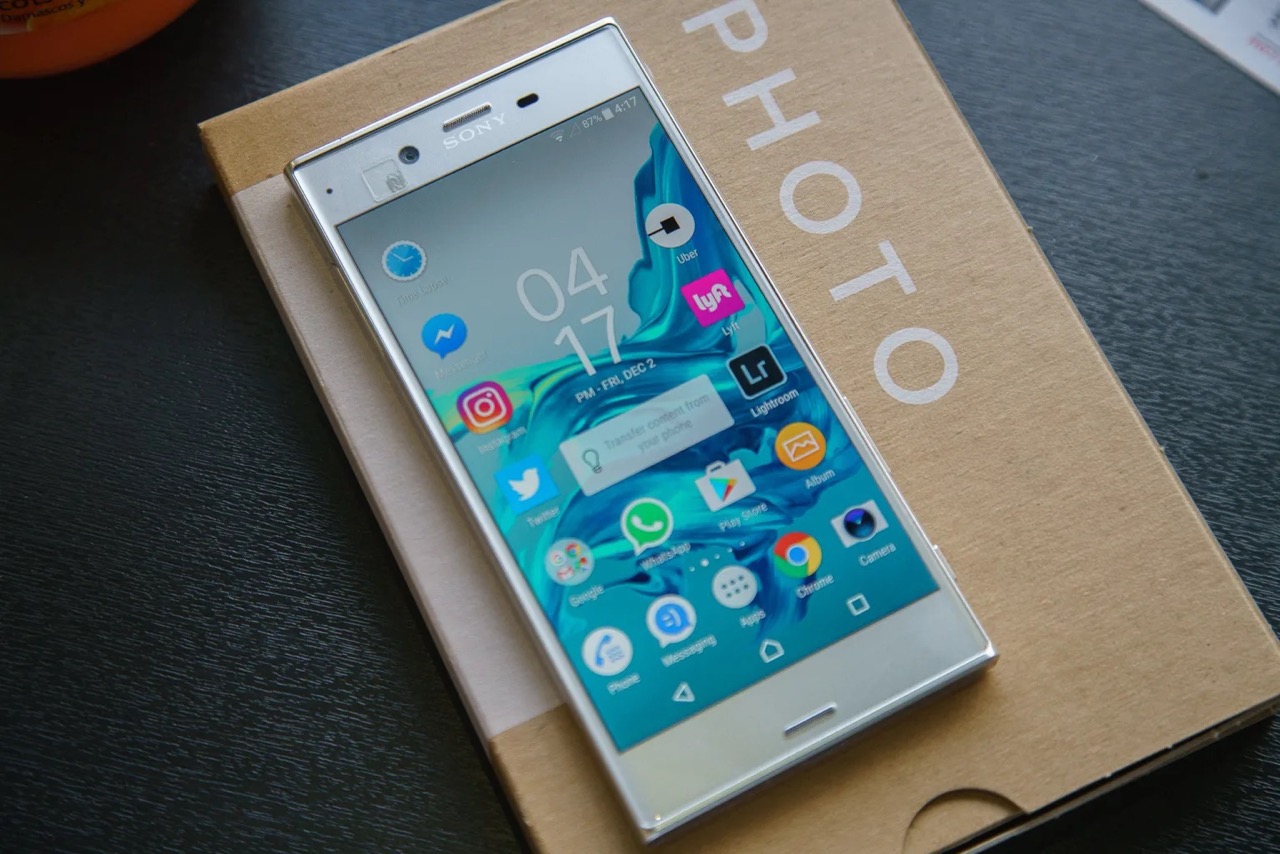
Where do my Sony Xperia backups get saved depends entirely on the method you use: newer Xperia phones from 2019 onward back up to Google Drive, older supported models use Xperia Companion on a computer, and some legacy devices can save backups to an SD card. Knowing the correct location for your specific model and Android version is essential for verifying, restoring, or transferring your data.
How to access Xperia backups on your phone
The exact settings path to find and manage backups on your Xperia device depends on its Android version. Use the path that matches your phone's operating system.
On Xperia phones running Android 9 and above, open Settings → System → Backup. On Android 8, open Settings → System → Automatic backup and turn on the switch. On Android 5, 6, and 7, open Settings → Backup & reset → Xperia Backup & restore → Automatic backup. For some legacy devices, Sony also documents the older path Settings → Backup & reset → Xperia Backup & restore → Automatic backup, with Manual backup available under More.
Sony Xperia backups on Google Drive
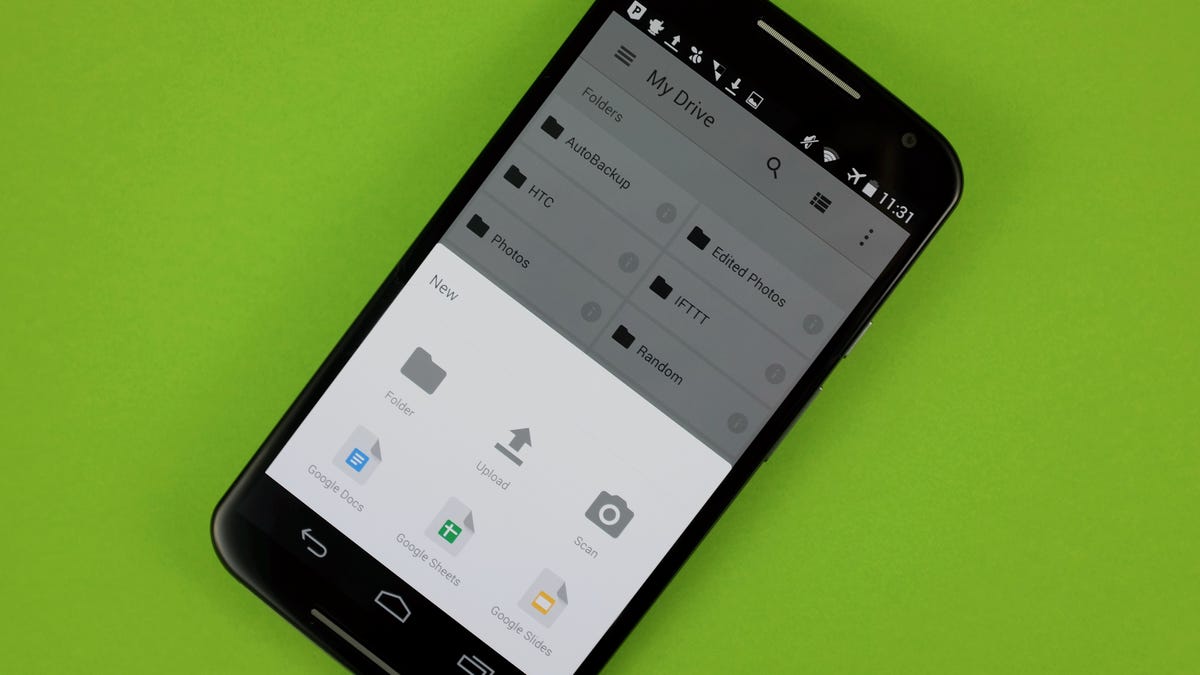
Xperia phones released from 2019 onwards use Google Drive for backup and restore, and Xperia Companion is not supported for these newer models. To enable this, go to Settings → System → Backup and turn on Backup to Google Drive. The backup is tied to the selected Google account and saved in the cloud in encrypted form. You cannot browse these backups as files inside the Google Drive app; they are stored in a private folder and are not user-browsable. To view device backups, open the Google Drive app, tap the three horizontal lines, and select Backups. If you are checking memory and storage capacity, remember that Google limits app data backups to 25 MB per app.
Finding Xperia backups on a computer with Xperia Companion
For older supported Xperia devices, Sony documents computer backup using Xperia Companion. To back up, open Xperia Companion on your computer, connect the smartphone, choose Start under Backup & Restore, click Backup, select the content you want, click Next, enter a backup name, then click Next and OK. Backup files on your computer may have file extensions .ab or .xperiabackup. To restore, you use the same tool rather than navigating to a file folder. If you need to change phone number on Sony account, that is managed separately from your backup settings.
Sony Xperia backups on an SD card
SD card backup was available on legacy Xperia models through the Backup & restore workflow, where Sony documents backup to an online account or SD card in older manuals. On the SD card, look for a folder named Backups or Xperia Backup. However, current support pages do not give a specific folder path or file name for SD card backups. If you are using an older Xperia Backup & restore workflow and want to view saved passwords on Android, note that those passwords are not included in an SD card backup and must be managed separately through your Google account or password manager.
Backup limits and supported models
Google’s Android backup storage limit for app data is 25 MB per app. Sony says Xperia phones released from 2019 onwards use Google Drive and do not support Xperia Companion for backup or restore. The exact settings menu path for managing backups varies by Android version, so always check your device’s specific operating system release.
Frequently Asked Questions
Can I see my Sony Xperia Google Drive backup files in the Drive app?
No. Google Drive backups for Android devices are stored in a private folder that you cannot browse or open as regular files. You can only manage them through the backup settings on your phone or during device setup.
What happens to my Xperia backups if I factory reset my phone?
If you have backups on Google Drive, they remain in your account and can be restored during the setup of a new or reset device. Backups stored on an SD card or via Xperia Companion on a computer are not affected by a factory reset of the phone itself.
Does Sony Xperia backup include my app passwords or login data?
No. Android device backups include app data, but passwords and login credentials are not backed up in a readable form. To view saved passwords on Android, you must use your Google account's password manager or a third-party password app.
Can I transfer my Xperia backup from Google Drive to a non-Sony phone?
Android device backups from Google Drive are designed to restore to any compatible Android phone during initial setup, not just Sony devices. However, some Sony-specific settings or apps may not transfer to other brands.
How do I know if my Xperia model supports Xperia Companion backup?
Sony states that Xperia phones released from 2019 onwards do not support Xperia Companion for backup and restore. If your phone is older than 2019, check the Sony support page for your specific model to confirm compatibility.
Can I selectively restore specific items from my Sony Xperia backups?
Selective restore depends on the backup method. Google Drive backups are restored during initial setup as an all-or-nothing process. Xperia Companion allows you to choose which content to restore from a computer backup.
How often should I create backups on my Sony Xperia smartphone?
Enable automatic backups in your phone's settings to back up daily when connected to Wi-Fi, idle, and charging. For extra protection, manually back up before major system updates or a factory reset.