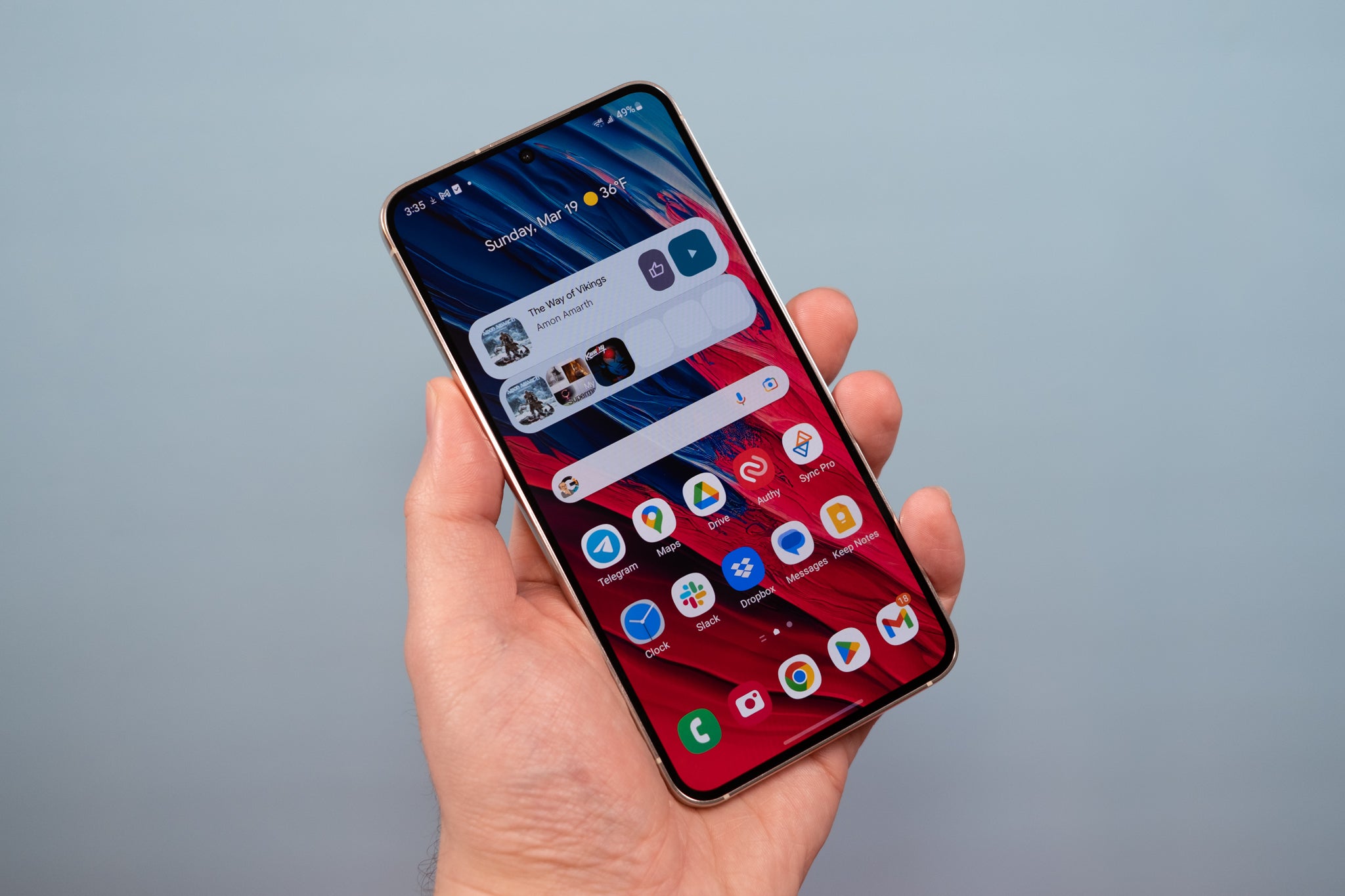
To email a photo from an Android phone, the quickest and most reliable method is to attach it directly from the Gmail app's compose screen. Open the Gmail app, tap Compose, then tap Attach and choose Photos to select an existing image, or Camera to take and attach a new one.
How to email photo from Android phone with Gmail
The primary method for emailing a photo from an Android phone uses the Gmail app's built-in attachment tools. This approach works on any Android phone or tablet and does not require leaving the email composition screen.
- Open the Gmail app on your Android phone or tablet.
- Tap Compose at the bottom right.
- Tap Attach at the top right.
- From the menu, choose Photos to browse your gallery or Camera to capture a new photo.
- Select the photo and tap Send.
If your photo is stored in Google Drive rather than on your device, Gmail offers a separate path. After tapping Attach, select Insert from Drive, choose the file, tap Select, and then Send. This method is useful for managing and transferring photos that are already backed up to the cloud.
How to send photos from Google Photos or Gallery to Gmail
An alternative documented method is to share photos directly from your default photo app into a new Gmail draft. This approach is ideal when you want to select multiple images at once or prefer browsing your photo library outside the email app.
- Open Google Photos or your device's default Gallery app.
- Tap a single photo, or long-press to select multiple photos.
- Tap Share.
- Tap the Gmail icon from the sharing menu.
- A new Gmail draft opens with the photo or photos already attached. Add the recipient and message, then tap Send.
This share-to-Gmail workflow is the only third-party app method officially documented by Google for Android. It works the same way whether you use Google Photos or the manufacturer's gallery app. If you need to transfer photos from phone to computer instead of emailing them, consider using a USB cable or a cloud storage service rather than email, which compresses files and limits attachment size.
Frequently Asked Questions
Can I send multiple photos in one email from Android?
Yes. In Gmail, tap Attach then Photos and select multiple images. When sharing from Google Photos or Gallery, long-press to select several photos before tapping Share and choosing Gmail. Multiple photos are always sent as attachments.
Is there a file size limit for photo attachments in Gmail on Android?
However, very large files may take longer to upload or fail to send. For oversized images, consider using Google Drive and the Insert from Drive option instead.
Does the method work on all Android phones?
Yes. The documented Gmail steps apply to any Android phone or tablet running a supported version of the Gmail app. The share-from-gallery method works on all Android devices with a default photo app, regardless of manufacturer.
How do I email a photo from an iPhone instead?
In the iPhone Mail app, start a new email, tap in the message body, then tap the control above the keyboard to open attachment options. Choose a saved photo or take a new one. In Gmail for iPhone, a single photo inserts inline by default; multiple photos attach automatically. To send a single photo as an attachment, tap the photo and choose Send as attachment. To insert an attachment into the message instead, tap it and choose Send inline.
Can I attach a photo from a file manager app instead of Gmail?
The supported methods are attaching from within Gmail or sharing from Google Photos or Gallery into Gmail.
For the wider topic, see managing and transferring photos.
Related reading: How To Delete All Email On Android Phone.