To change phone number on Sony account, sign in at account.sony.com and navigate to Security, then edit your Mobile Number. The change applies to all devices and consoles linked to your account, so updating it once keeps your contact information consistent everywhere.
How to change phone number on Sony account via a web browser
This is the primary method for changing your phone number on a Sony account. Because your Sony account and PlayStation Network account share the same sign-in ID and password, updating the number here updates it everywhere.
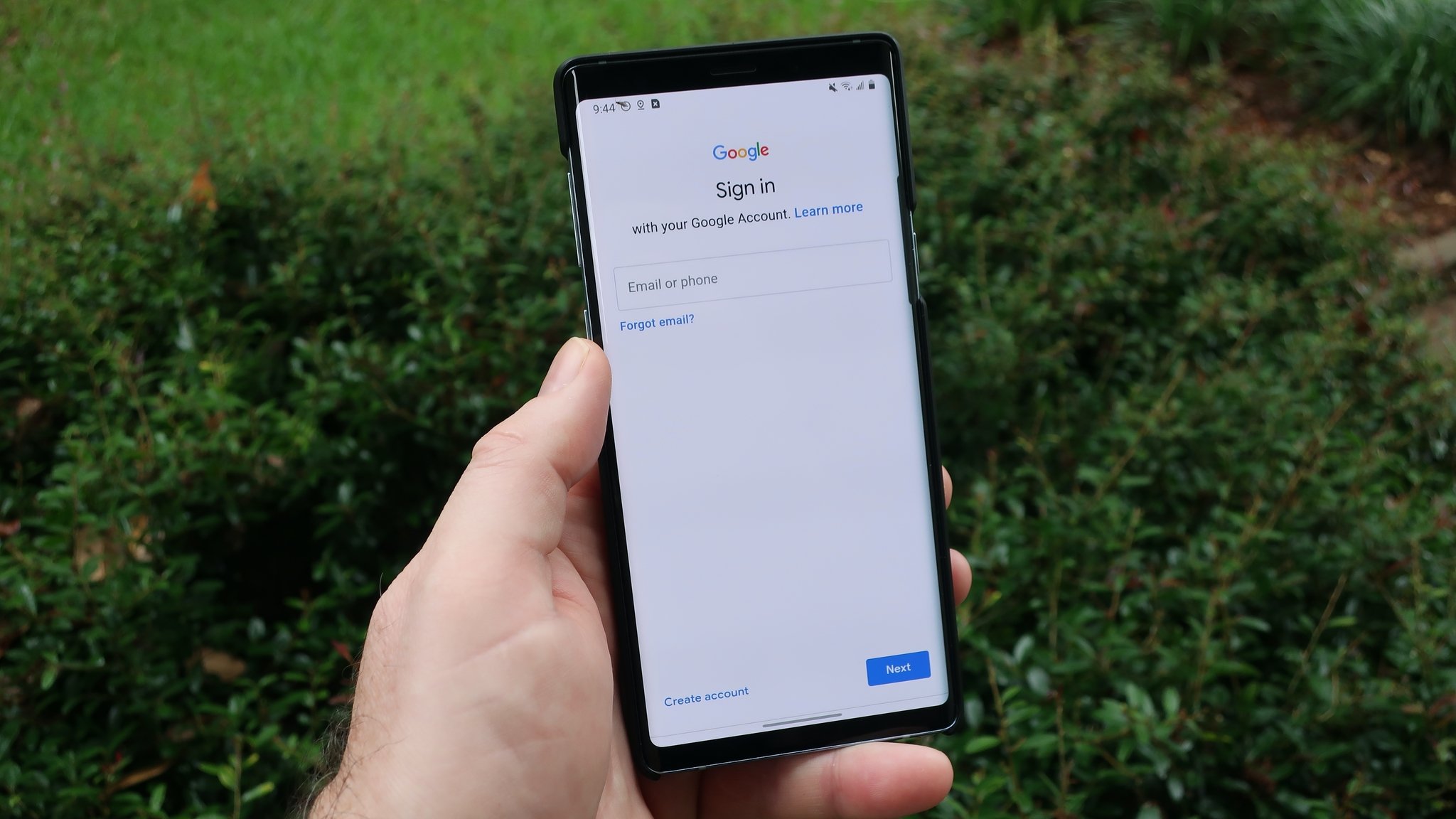
- Go to account.sony.com and sign in.
- Select "Security."
- Click "Edit" next to "Mobile Number."
- Choose "Add Mobile Number" or select the existing number to remove it.
- Enter your new mobile number and select "Continue."
- A text message with a verification code will be sent to the new number.
- Enter the verification code and select "Verify" to complete the change.
Sony may send a confirmation email or notification to your new phone number to ensure that the update was intentional.
Restart each device after updating the phone number. This can help refresh the device's cache and ensure the updated information is properly recognized.
It's a good practice to log out of your Sony account on all devices and then log back in. This can help refresh the account settings and ensure the new phone number is recognized.
How to change your phone number on a PS5 or PS4 console
Changing Your Phone Number on Accounts can also be done directly from your PlayStation console. You may need to re-enter your password during the process of changing security settings.
Ensure that your PlayStation console is connected to the internet and has a stable network connection. A poor connection could hinder the update process.
Try restarting the console and attempting the update again. Sometimes a simple restart can resolve minor glitches.
On PS5
- Go to Settings.
- Select Users and Accounts.
- Select Account.
- Select Security.
- Edit the mobile number following the on-screen prompts.
On PS4
- Go to Settings.
- Select Account Management.
- Select Account Information.
- Select Security.
What to do if you are locked out of your old phone number
If 2-Step Verification (2SV) is enabled on your account and you no longer have access to your old phone number, you will need backup codes to sign in and change the number. If you have your backup codes, use one to sign in, then follow the web browser steps above to update your mobile number. If you cannot sign in because you don't have access to your old phone number and lack backup codes, you will need to contact PlayStation Support using their Online Assistant for account recovery.
If you encounter an error message stating that the phone number change is unsuccessful, double-check that you have entered the correct phone number without any typos or errors.
Frequently Asked Questions
Does changing my phone number on my Sony account affect all my devices?
Yes.
Do I need to re-enter my password when changing my phone number?
What if I don't receive the verification code on my new number?
Double-check that you entered the number correctly and that your device has cellular reception. If the code still does not arrive, try restarting the process from the beginning or contacting PlayStation Support.
Can I change my phone number if I no longer have access to my email?
Changing the phone number requires signing in first. If you cannot sign in due to lost email access, you will need to use account recovery options through PlayStation Support.
How do I get help if the process fails?
If you encounter an error or the verification step does not complete, contact PlayStation Support using their Online Assistant for further assistance.
Related reading: How To Change Phone Number On Klarna and How To Change Phone Number On PS5 Without Signing In.