To improve wireless strength Xbox One, start by checking your console's current signal quality and then power cycling your network equipment. These two steps establish a baseline and clear temporary glitches that often cause lag and disconnections.
Check your Xbox One wireless strength first
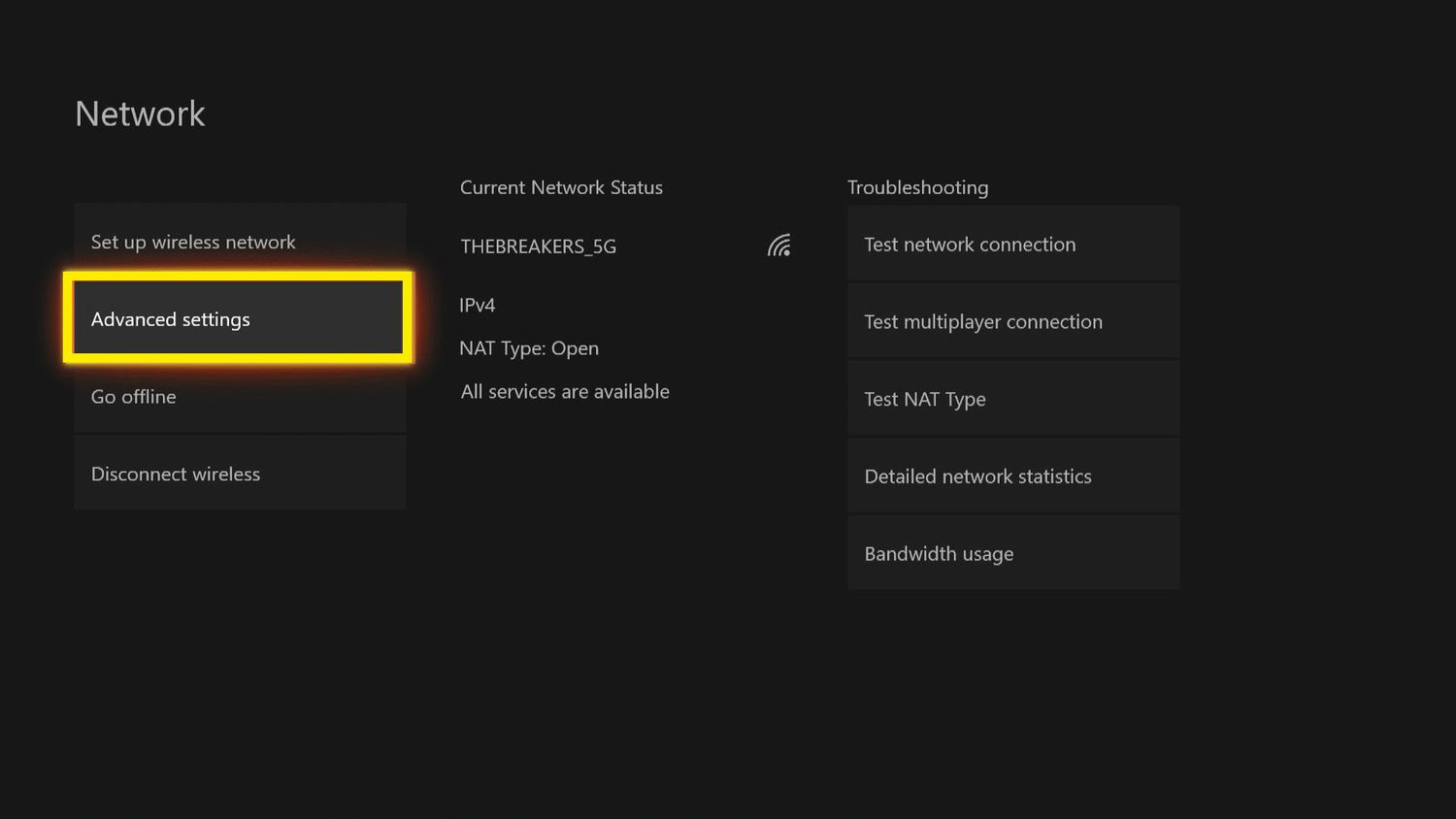
Finding your detailed network statistics gives you a diagnostic baseline before making any changes. On your Xbox One, go to Settings, then Network, and select Network settings. Choose Detailed network statistics to see your current signal strength (measured in percentage), latency (in milliseconds), and NAT type. Write down these numbers so you can compare them after making improvements.
Power cycle your Xbox and network
A full hard reset clears temporary network glitches that degrade signal quality. To power cycle your Xbox One, hold the power button on the console for 10 seconds until it fully shuts off, then unplug the power cord. Simultaneously, unplug your modem and router. Once all lights return to normal, plug in your Xbox and turn it on. This resets the entire network path and often resolves intermittent lag spikes.
Place your Xbox One console for the best signal
Console placement directly affects signal reception because walls and obstacles weaken Wi-Fi. Position your Xbox One in a central location within your home, elevated on a shelf or TV stand to improve line-of-sight with the router. Keep it away from thick walls, large furniture, and enclosed cabinets that block signals. Also maintain distance from other electronics that emit wireless signals, such as cordless phones, microwave ovens, and baby monitors, as these can interfere with your connection. Your wireless gaming controllers will also benefit from a clearer path between the console and router.
Optimize your router's position and channel
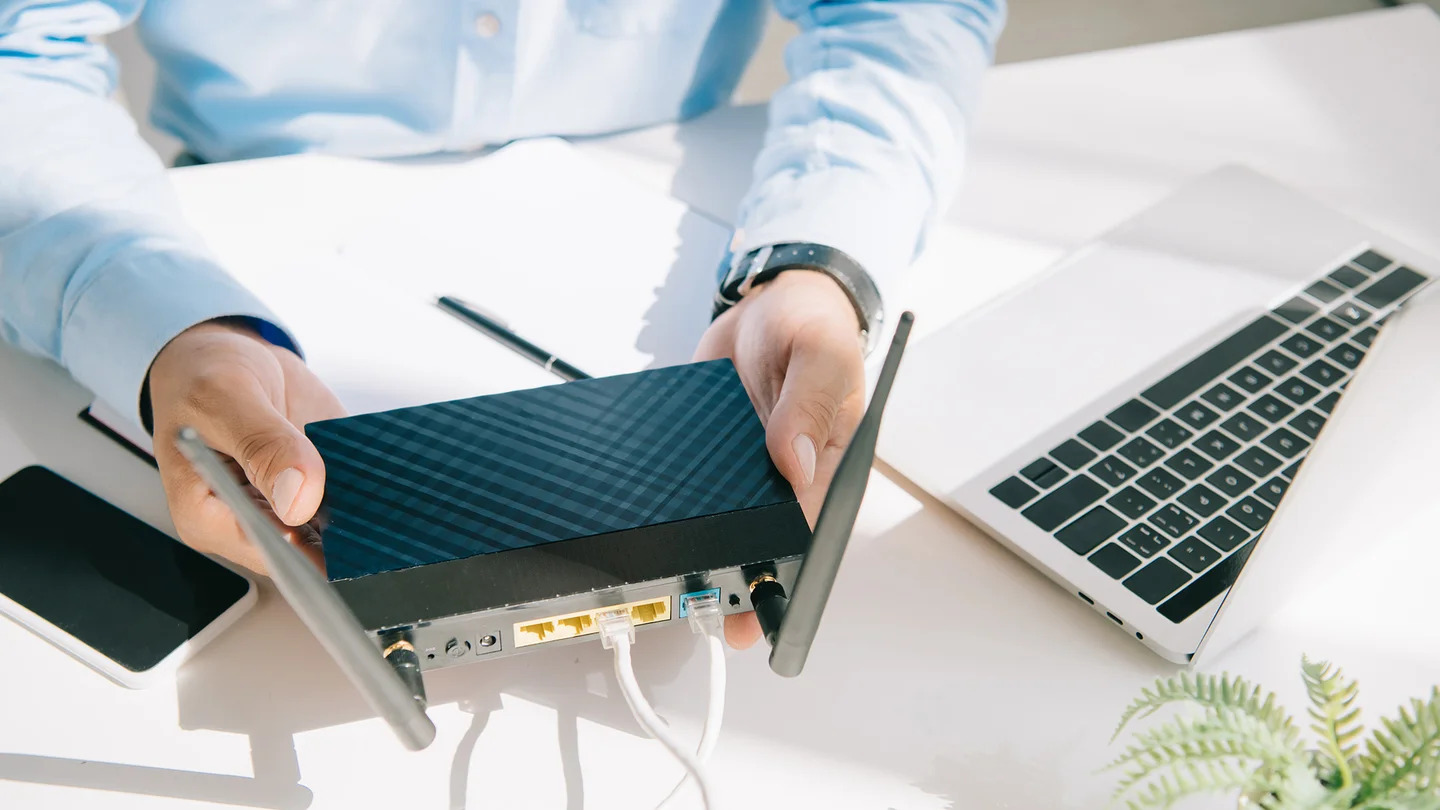
Router placement is equally important for delivering a strong signal to your Xbox. Position your router in a central, elevated location away from walls and floors. Avoid placing it inside cabinets or behind large metal objects. Upgrade to a dual-band or tri-band router for improved performance. Enable Quality of Service (QoS) settings on your router to prioritize gaming bandwidth. Change your router's wireless channel to the least congested one by logging into your router's settings page and selecting a channel that neighboring networks are not using. Use a Wi-Fi analyzer app on your phone to identify which channel has the least interference. Switching from the default channel can dramatically improve signal stability.
Reduce wireless interference
Physical and electronic interference between your router and Xbox One weakens the signal. Keep both devices away from cordless phones, microwave ovens, Bluetooth speakers, and other wireless devices. Thick walls, concrete floors, and large mirrors also block signals, so minimize the number of obstacles between the router and console. If possible, position both devices in the same room to eliminate wall interference entirely.
Change your Xbox One DNS and MAC settings
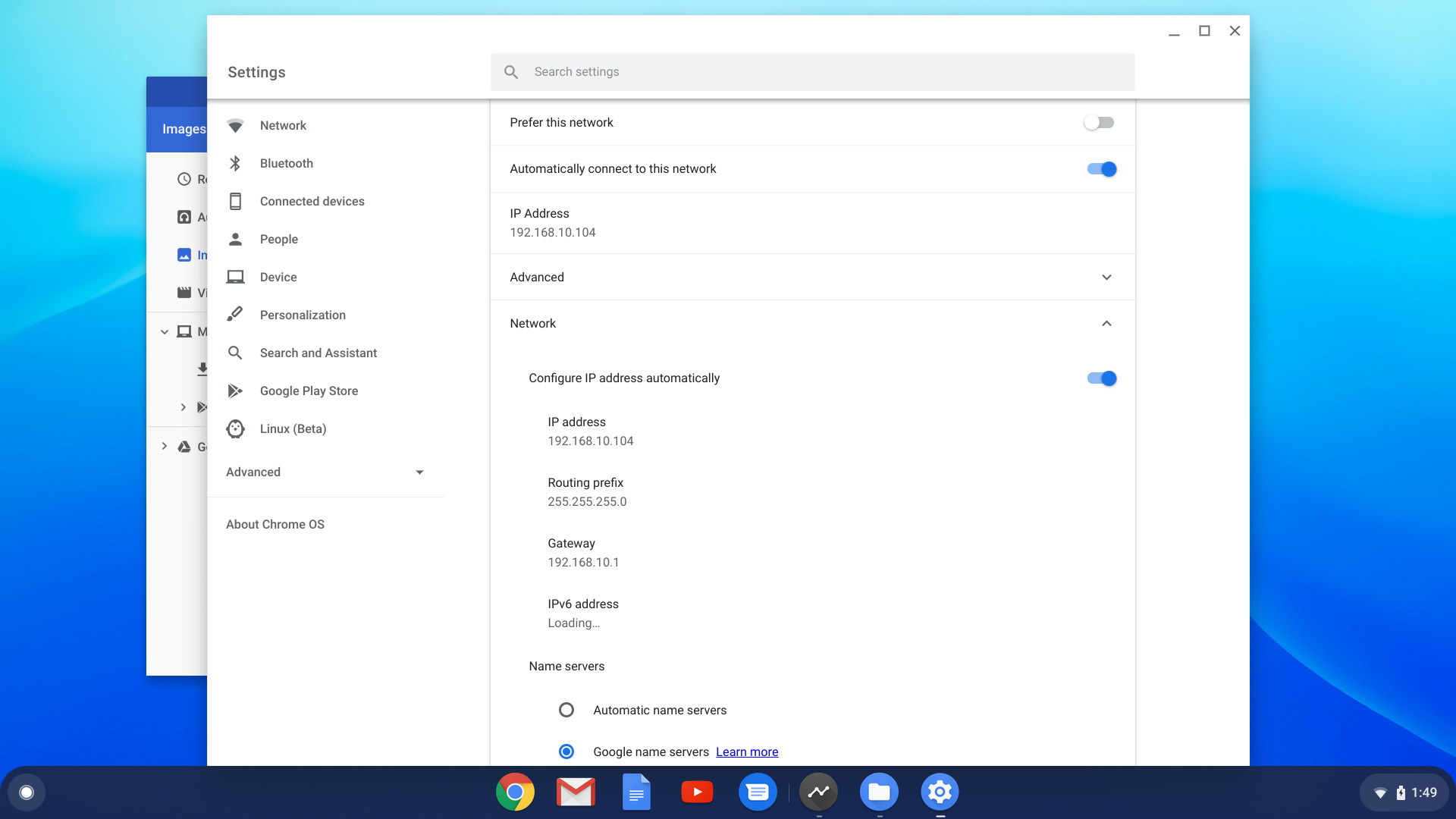
Switching to a public DNS server can resolve communication issues that cause lag and disconnections. On your Xbox One, go to Settings, Network, Network settings, Advanced settings, and select DNS settings. Disable background downloads and uploads on your Xbox One to prioritize gaming bandwidth. Additionally, use the alternate MAC address setting by going to Advanced settings, selecting Alternate MAC address, and then Clear. This forces the router to assign a fresh connection to your console, resolving IP conflicts that degrade wireless performance.
Frequently Asked Questions
Why does my Xbox One show a strong signal but still lag?
A strong signal percentage does not guarantee low latency. High network congestion, interference from other devices, or a poor NAT type can cause lag even when signal strength appears high. Check your detailed network statistics for latency and NAT type to identify the real issue.
Will a Wi-Fi extender help my Xbox One connection?
A Wi-Fi extender can help if your console is far from the router, but it often introduces additional latency. For gaming, a powerline adapter or mesh network system usually provides better performance than a standard extender. Use a powerline adapter as an alternative to Wi-Fi extenders for better gaming performance. Set up a mesh network system for better coverage throughout your home.
Should I use 2.4 GHz or 5 GHz for my Xbox One?
The 5 GHz band offers faster speeds and less interference but has shorter range. Test both bands in your router settings to see which provides lower latency and higher signal strength in your console's location.
How often should I power cycle my network equipment?
Only power cycle when you experience persistent lag or disconnections. Doing it weekly as maintenance is unnecessary and can actually disrupt stable connections. Reserve hard resets for troubleshooting specific issues.
Related reading: How To Check Wireless Signal Strength and How To Use Xbox One Wireless Display.