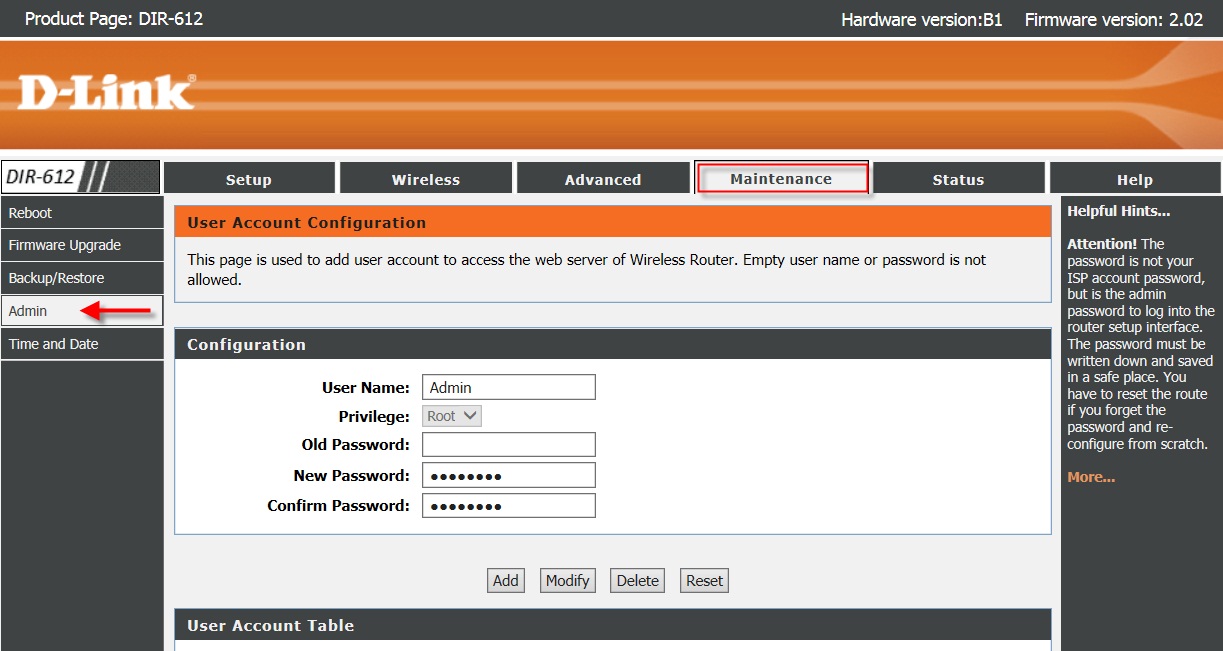
To reset a Dlink router password when you are locked out, use the physical reset button on the router to restore factory defaults, or view the current password from the router's web interface if you can still log in. If you have forgotten the admin password, holding the reset button restores the default admin login and clears all custom settings.
How to reset dlink router password when you're locked out
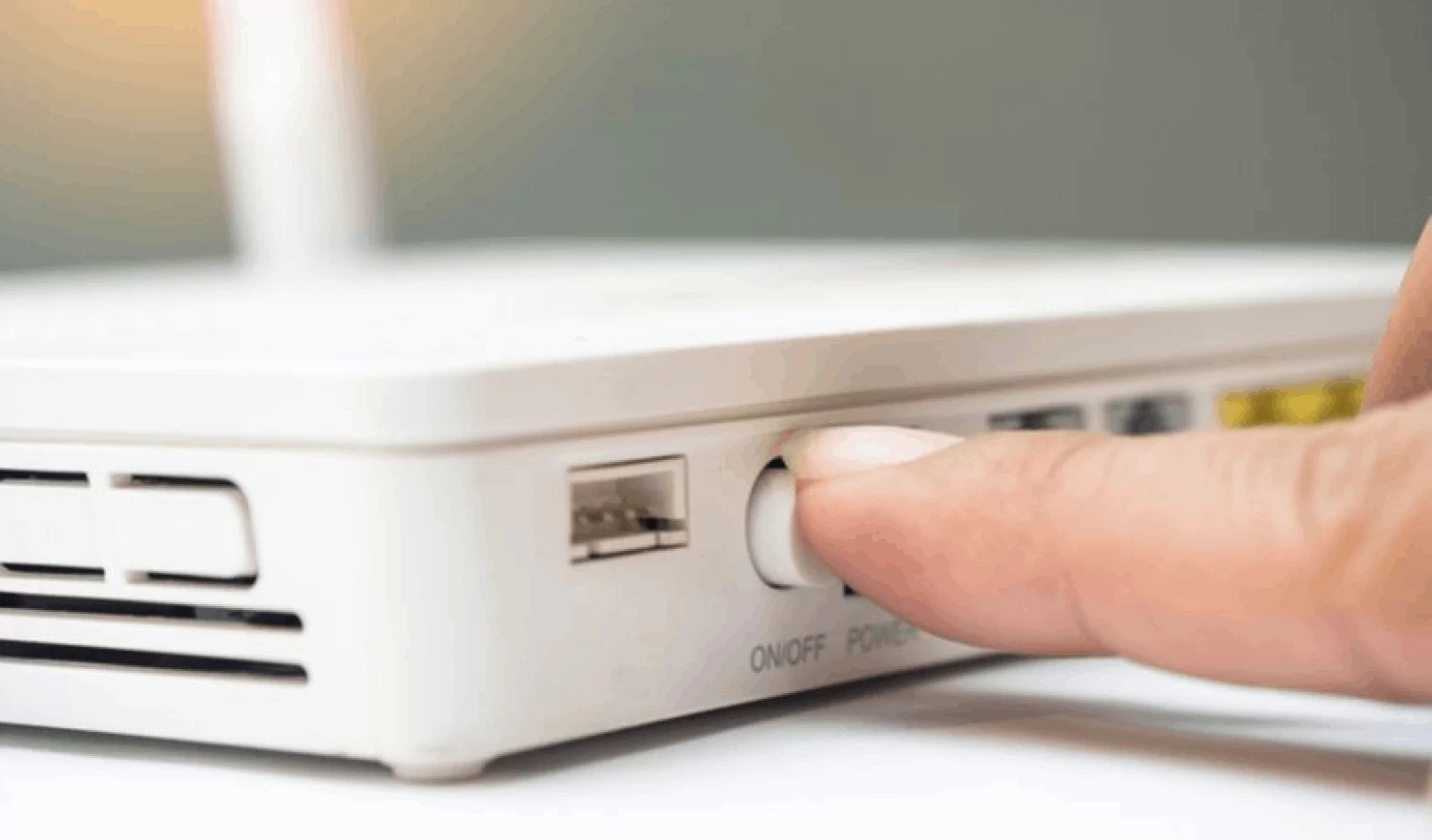
When you cannot log in to the router because you have forgotten the admin or Wi‑Fi password, the physical reset button is the immediate solution. The router must be powered on. Locate the reset button on the back of the router or inside a small reset hole, depending on the model. Press and hold the button. D‑Link’s support pages give two hold times: 10 seconds on some pages and “more than ten seconds” or about 30 seconds on others. Release the button when the front lights flash or the power light changes or starts blinking. Let the router reboot. After the reset, the router returns to factory defaults. D‑Link states the default admin username is Admin and the password field should be left blank. The firmware version remains unchanged and is not rolled back by the reset. One D-Link page also says the firmware is not rolled back by resetting. To log in after the reset, leave the password field empty and use Admin as the username.
How to view or change your Wi‑Fi password from the router interface
- Open a web browser and go to http://dlinkrouter.local or http://192.168.0.1. On the DIR-605L page, D-Link says to open http://dlinkrouter, http://dlinkrouter.local, or http://192.168.0.1.
- Enter the admin login. D‑Link says many routers use username admin and password admin or leave the password blank if unchanged.
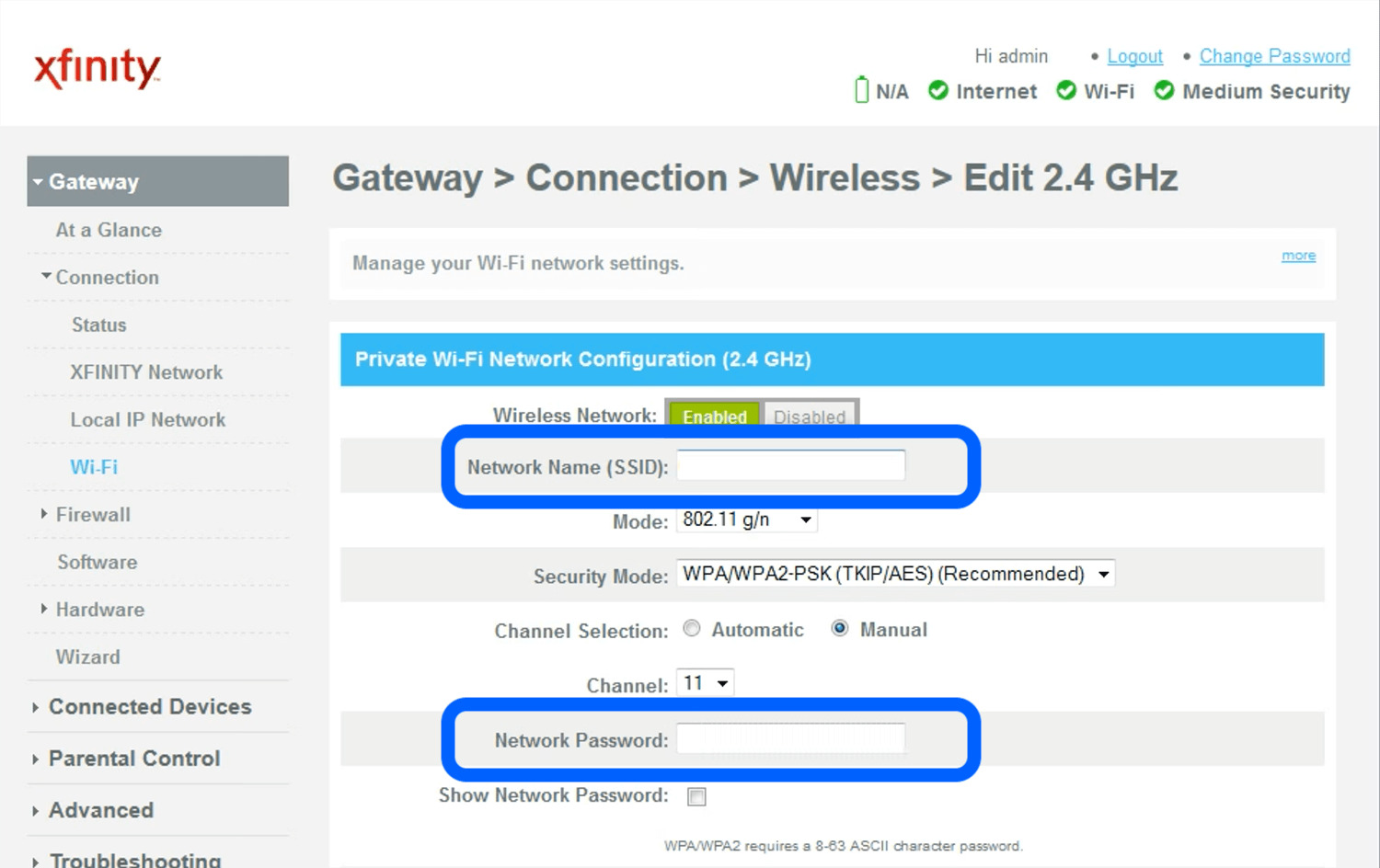
- On models such as the DIR‑605L, the password appears next to the Network Key field under Wireless Settings on the summary page. To change it, click Configure, choose the AUTO‑WPA/WPA2 radio button, enter a new password in the Network Key field, and click Save. On a generic D‑Link change‑password page, locate Wireless Settings, enter the new password in the Password field, and click Save.
This method lets you view or update your wireless key without performing a factory reset, which is useful for managing wireless passwords and maintaining your current router configuration.
What happens after a factory reset
All settings return to factory defaults. The admin username becomes Admin with a blank password, so you must leave the password field empty when logging in for the first time. The firmware version is preserved and is not rolled back. Any custom network names, security settings, and forwarded ports are erased, so you will need to reconfigure the router from scratch after the reset.
Frequently Asked Questions
Can I recover the password without resetting?
Yes, if you already know the admin login, you can view the current Wi‑Fi password in the router interface. On supported models such as the DIR‑605L, the password is displayed under Wireless Settings as the Network Key.
What if I forgot the admin password?
A factory reset using the reset button returns the admin password to the default. On the pages retrieved, that means leaving the password field blank at first login. All other settings are also cleared.
Does this work on all D‑Link routers?
The exact screen names and login defaults vary by model. D‑Link’s recovered pages show model‑specific instructions for the DIR‑605L and DIR‑868L/DIR‑860L/DIR‑850L families. Check your router’s label or manual for the exact default credentials.
Are there mobile app steps for iPhone or Android?
Browser‑based management and the physical reset button are the documented methods.
Related reading: How To Change Password On Xfinity Wireless Router and How To Find The Wireless Password.