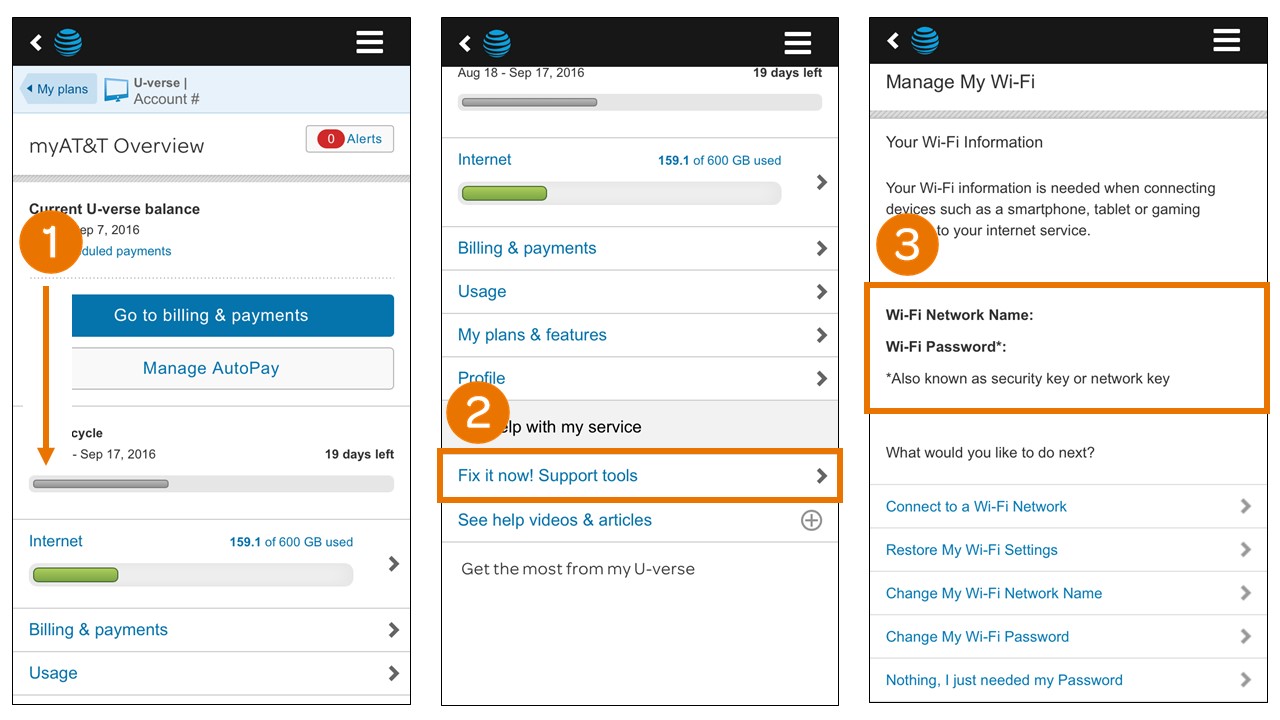
To change your wireless password on an AT&T gateway, the fastest method is using the AT&T Smart Home Manager app or website. This is the primary way to change wireless password att settings, allowing you to secure your network quickly without needing to access the gateway's technical interface.
How to change your AT&T wireless password with the Smart Home Manager
The Smart Home Manager is AT&T's recommended tool for managing wireless passwords. The BGW320 gateway also uses the Smart Home Manager app for editing Wi-Fi name or password.
Using the Smart Home Manager app
- Sign in to Smart Home Manager on your mobile device.
- From the main screen, tap "My Wi-Fi".
- Tap "Edit" next to the Wi-Fi password field.
- Clear the existing password by selecting the "X" to the right of the line.
- Enter your new Wi-Fi password.
- Tap "Save".
Using the Smart Home Manager website
- Sign in to Smart Home Manager at att.com.
- Scroll to the "My Wi-Fi" card and choose "Change" next to the password.
- Select "X" to clear the existing password.
- Enter a new Wi-Fi password.
- Select "Save".
After saving, reconnect your devices with the updated network information. Note that Smart Home Manager cannot be used with older gateways including the 2Wire 2701, 2Wire i38, Netgear 7550, Westell 327, or Pace 4111. For those models, use the gateway user interface method instead.
How to change your AT&T Wi-Fi password via the gateway user interface
If you prefer direct access to your gateway settings, or if your gateway is not compatible with Smart Home Manager, you can change the password through the gateway's built-in web interface. The default gateway IP address for most AT&T routers is 192.168.1.254. Instructions are available for finding and changing Wi-Fi name and password on 3600HGV, 3801HGV, 5031NV, or 5168NV Wi-Fi Gateways. The model number is listed on the front of the Gateway toward the bottom.
- Ensure your device is connected to your AT&T network.
- Open a web browser and go to
http://attwifi.managerorhttps://192.168.1.1. - Locate the Device Access Code on the side or bottom label of your AT&T gateway. Enter it and select "Submit". If you haven't logged into the admin page before, the default password may be "admin", and you may be prompted to change it.
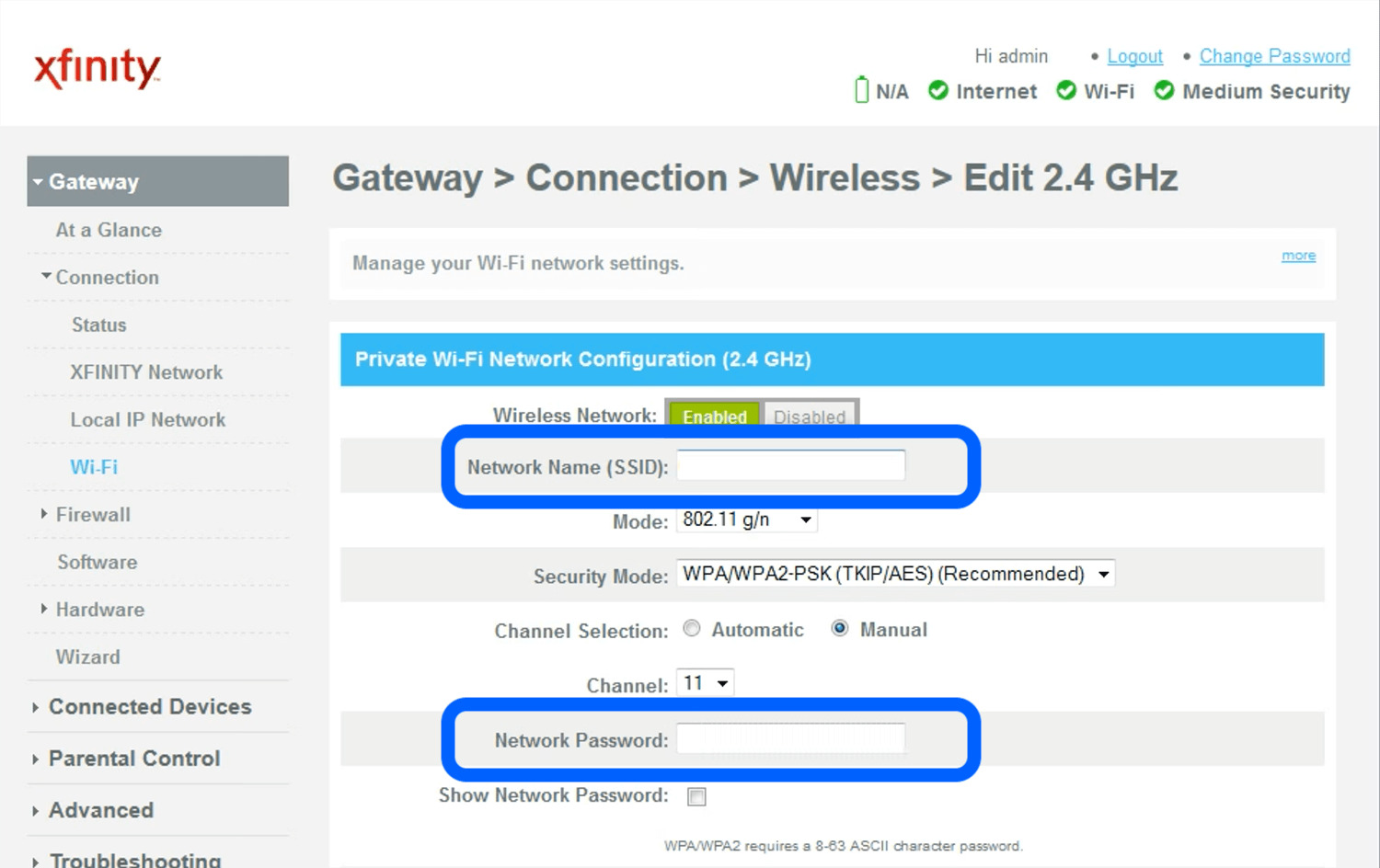
- Navigate to the Wi-Fi settings. This is often found under "Key Things to do Using Your Gateway" or "Wireless". For some models, click the "Network" drop-down menu on the left, then click "Wi-Fi". For AT&T Wireless Internet WiFi 4G LTE Router, from the Web User Interface main screen, click 'Wi-Fi', click 'Edit' for your preferred network frequency, click the 'Password' field, enter your new password, and click 'SAVE & APPLY'.
- Select "Use custom Wi-Fi network password" or locate the "WPA/WPA2 Network Key" field.
- Enter your new password.
- Select "Save". The Wi-Fi network will restart. Click "OK" to confirm.
For Business Fixed Wireless Internet gateways, scroll to "Key Things to do Using Your Gateway", select "Wi-Fi", enter the Device Access Code, then select "Use custom Wi-Fi network password" and enter a new password.
AT&T Wi-Fi password requirements and tips
When creating a new password, follow these AT&T guidelines:
- Must be 6-24 characters long.
- Must include at least one letter and one number.
- Can include uppercase and lowercase letters, numbers, and the special characters underscore (_) and hyphen (-).
- Should not be the same as your Wi-Fi network name (SSID).
- Avoid personal details, simple words, or obvious patterns like 123456 or abcdef.
Note that the Wi-Fi password (also called your wireless security key) is distinct from your AT&T online account password. Your account password grants access to your myAT&T profile, email, and billing services, while the Wi-Fi password only controls access to your home network. For WPA/WPA2/WPA3 security protocols, passwords can technically be 8 to 63 characters, but AT&T recommends staying within their 6-24 character guideline for compatibility. WEP is an outdated and insecure protocol; use WPA or WPA2/WPA3 instead.
Reconnecting your devices to the new Wi-Fi network
After changing your password, every device that was connected to your Wi-Fi will lose its connection. You must update each device with the new password. This includes phones, laptops, tablets, smart TVs, gaming consoles, smart speakers, and any other Wi-Fi-enabled devices. To check wireless signal strength on your devices after reconnecting, look for the Wi-Fi icon in your device's status bar, more bars indicate a stronger signal. If you need to reset wireless network connection on a stubborn device, forget the network in your device's Wi-Fi settings, then reconnect by selecting your network name and entering the new password.
Troubleshooting common issues
Cannot find the Device Access Code
The Device Access Code is printed on a label on the side or bottom of your AT&T gateway. If the label is worn or missing, check the original packaging or documentation that came with your gateway. For some models, the default admin password is "admin" if you have never changed it.
Incompatible gateway models
If you have a 2Wire 2701, 2Wire i38, Netgear 7550, Westell 327, or Pace 4111 gateway, you cannot use the Smart Home Manager app. Use the gateway user interface method by typing http://attwifi.manager or https://192.168.1.1 into a browser on a connected device.
Unable to access the gateway settings page
First, confirm your device is connected to your AT&T network (either via Wi-Fi or an Ethernet cable). If the page does not load, try using a different web browser. Ensure you are typing the address correctly, http://attwifi.manager or https://192.168.1.1.
Frequently Asked Questions
What is the default Wi-Fi password for my AT&T gateway?
The default Wi-Fi network name and password are printed on a label on your gateway. This information is typically found on the side or bottom of the device.
Can I use the same password for both my 2.4 GHz and 5 GHz networks?
Yes, most AT&T gateways allow you to set a single password that applies to both frequency bands. Some gateways let you set different passwords for each band if you prefer.
Will changing my Wi-Fi password affect my wired connections?
No, changing your Wi-Fi password only affects wireless devices. Devices connected via Ethernet cables will continue to work without interruption.
How often should I change my AT&T Wi-Fi password?
AT&T recommends changing your Wi-Fi password periodically for security. A good practice is to change it every few months or immediately if you suspect unauthorized access to your network.
What should I do if I forget my new Wi-Fi password?
You can always look up or reset your Wi-Fi password by signing into the Smart Home Manager app or website, or by accessing your gateway's user interface using the Device Access Code on the label.