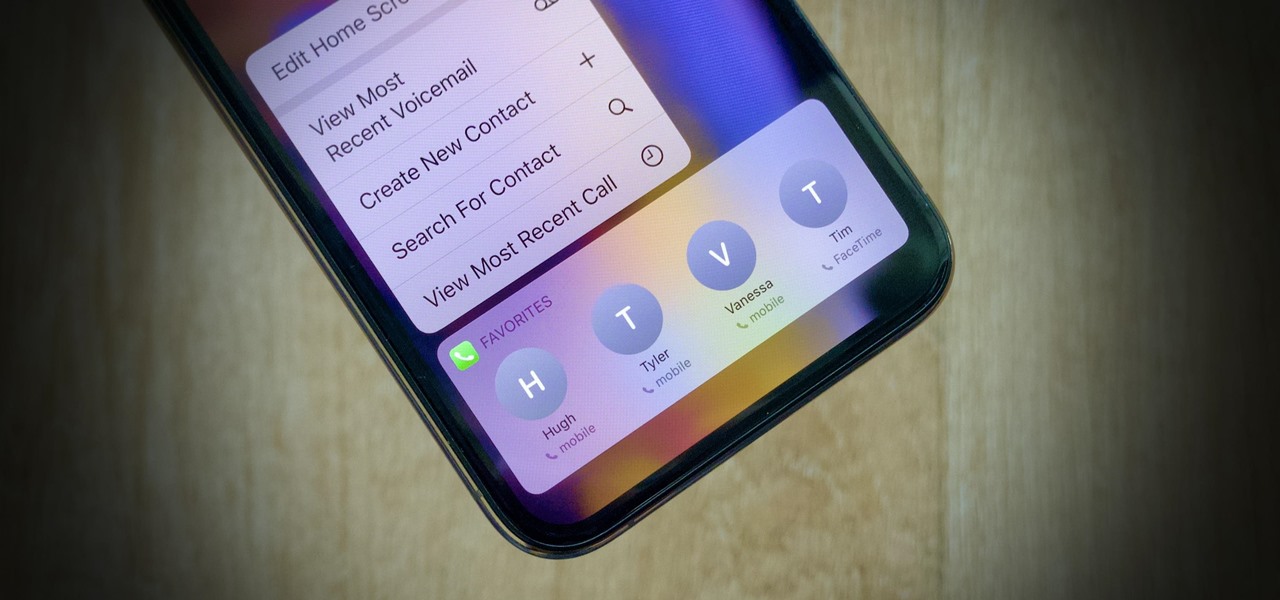
On an iPhone 13, "favorites" are not a single feature but are stored separately across multiple built-in apps, each with its own location and management method. To find where favorites are on iPhone 13, you need to look in the Phone, Safari, Photos, and Maps apps rather than expecting a unified favorites list on the home screen.
Finding your favorites in the Phone app on iPhone 13
In the Phone app, your favorite contacts are located in the "Favorites" tab at the bottom left of the screen. This tab shows the contacts you have marked as favorites, making it quick to call, message, or FaceTime them without searching your full contact list.
To add a contact to your favorites:
- Open the Phone app and tap the "Contacts" tab.
- Select the contact you want to add.
- Scroll down and tap "Add to Favorites".
- If multiple contact methods are available (such as call, message, or FaceTime), choose your preferred method.
Once added, the contact appears in the Favorites tab with the method you selected. You can manage the list by tapping "Edit" in the top-right corner of the Favorites tab to reorder or remove contacts.
Safari favorites: websites you visit often
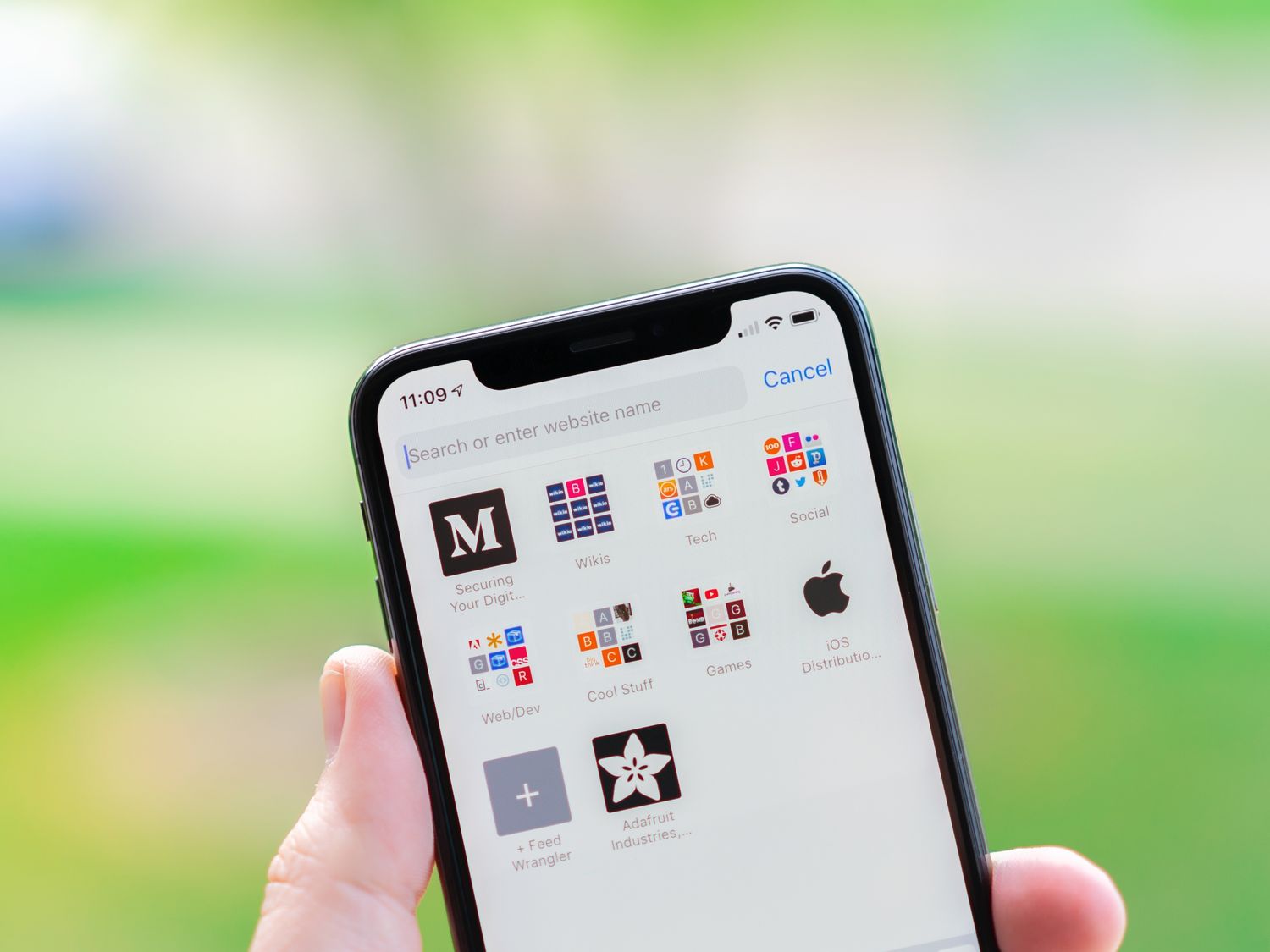
Safari Favorites appear in three places: at the top of the Start Page when you open a new tab, in address bar suggestions as you type, and within the Bookmarks menu under the "Favorites" folder. This makes frequently visited websites accessible without typing a full URL.
To add a website to Safari Favorites:
- Open the webpage in Safari.
- Tap the Share button (square with an upward arrow) at the bottom of the screen.
- Select "Add to Favorites".
- Optionally rename the bookmark, then tap "Save".
To manage your Safari Favorites, long-press a favorite icon on the Start Page to edit or delete it, or tap the Bookmarks icon (looks like an open book) at the bottom, then tap "Favorites" to view and organize them. This is especially useful when navigating home screen and apps, as you can quickly return to saved sites without leaving Safari.
Photos favorites: your best shots in one album
In the Photos app, favorited photos and videos are stored in a dedicated "Favorites" album. To find it, tap the "Albums" tab, then look under "Pinned Collections" or "Utilities" for "Favorites." This album collects all your marked images in one place for easy viewing.
To favorite a photo or video, open it in the Photos app and tap the heart icon at the bottom of the screen. Favoriting does not remove the item from your main photo library; it simply adds it to the Favorites album for quick access. You can unfavorite an item at any time by tapping the heart icon again.
Maps favorites: saved places for quick directions
Maps Favorites are saved locations that appear in the Maps app for one-tap directions. To add a location to Maps Favorites, open the Maps app, pull up the bottom card, and tap the "Add" (+) button next to Home and Work. Then search for a place or select a Siri suggestion, and tap the checkmark to save it.
Once saved, your favorite places appear in the Favorites section of the Maps app, letting you get directions or check traffic without re-entering the address. You can edit or remove these favorites by tapping the location and selecting the appropriate option.
How favorites sync across your Apple devices
All types of Favorites, Contacts, Safari, Photos, and Maps, sync across your Apple devices if iCloud syncing is enabled for the respective app. This means a contact added to Favorites on your iPhone 13 will appear on your iPad or Mac, and a website saved as a Safari Favorite on one device will be available on others. To ensure syncing works, go to Settings, tap your name, select iCloud, and verify that the toggle for each app (Contacts, Safari, Photos, Maps) is turned on.
Frequently Asked Questions
How do I access the Favorites on my iPhone 13?
Accessing favorites depends on the app. In the Phone app, tap the Favorites tab. In Safari, open a new tab to see favorites on the Start Page. In Photos, go to the Albums tab and find the Favorites album. In Maps, pull up the bottom card to see your saved places.
Can I customize the Favorites list on my iPhone 13?
Yes, each app allows you to customize its favorites list. In the Phone app, you can reorder or remove contacts. In Safari, you can edit or delete favorites from the Start Page or Bookmarks menu. In Photos, you can add or remove items by tapping the heart icon. In Maps, you can edit or delete saved places.
Are Favorites contacts synced across all my Apple devices?
Yes, if iCloud syncing is enabled for Contacts, your Phone app favorites will sync across all devices signed into the same Apple ID. This also applies to Safari, Photos, and Maps favorites when their respective iCloud toggles are on.
What happens if I remove a contact from my Favorites list on my iPhone 13?
Removing a contact from the Favorites list in the Phone app does not delete the contact from your Contacts. The contact remains in your address book but no longer appears in the Favorites tab for quick access.
Is there a limit to the number of contacts I can add to Favorites on my iPhone 13?
There is no documented limit to the number of contacts you can add to Favorites in the Phone app. However, a very long list may become less convenient to scroll through, so it is best to keep it to the contacts you call most often.
Related reading: How To Clear Trash On IPhone and How To Lock Hidden Photos On IPhone 12.