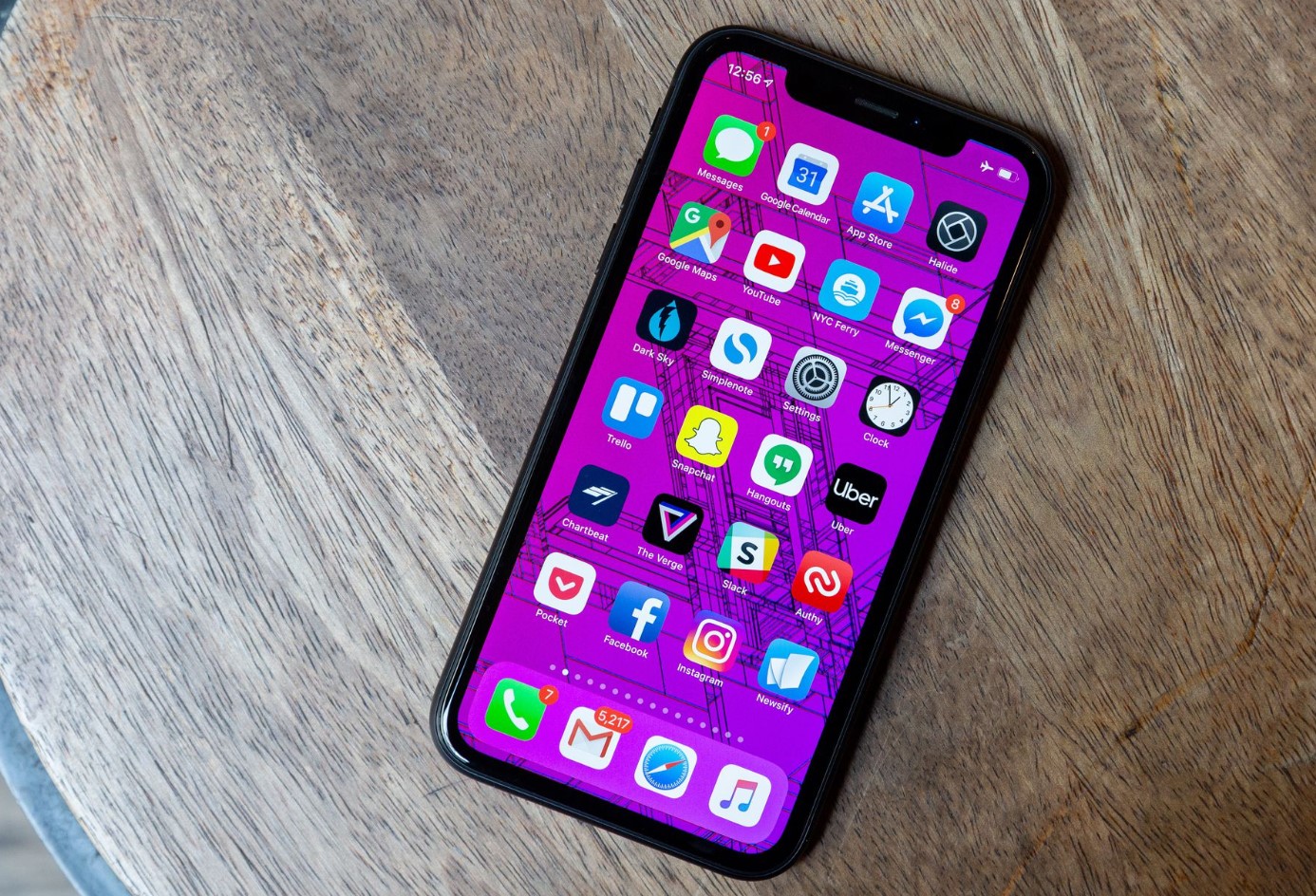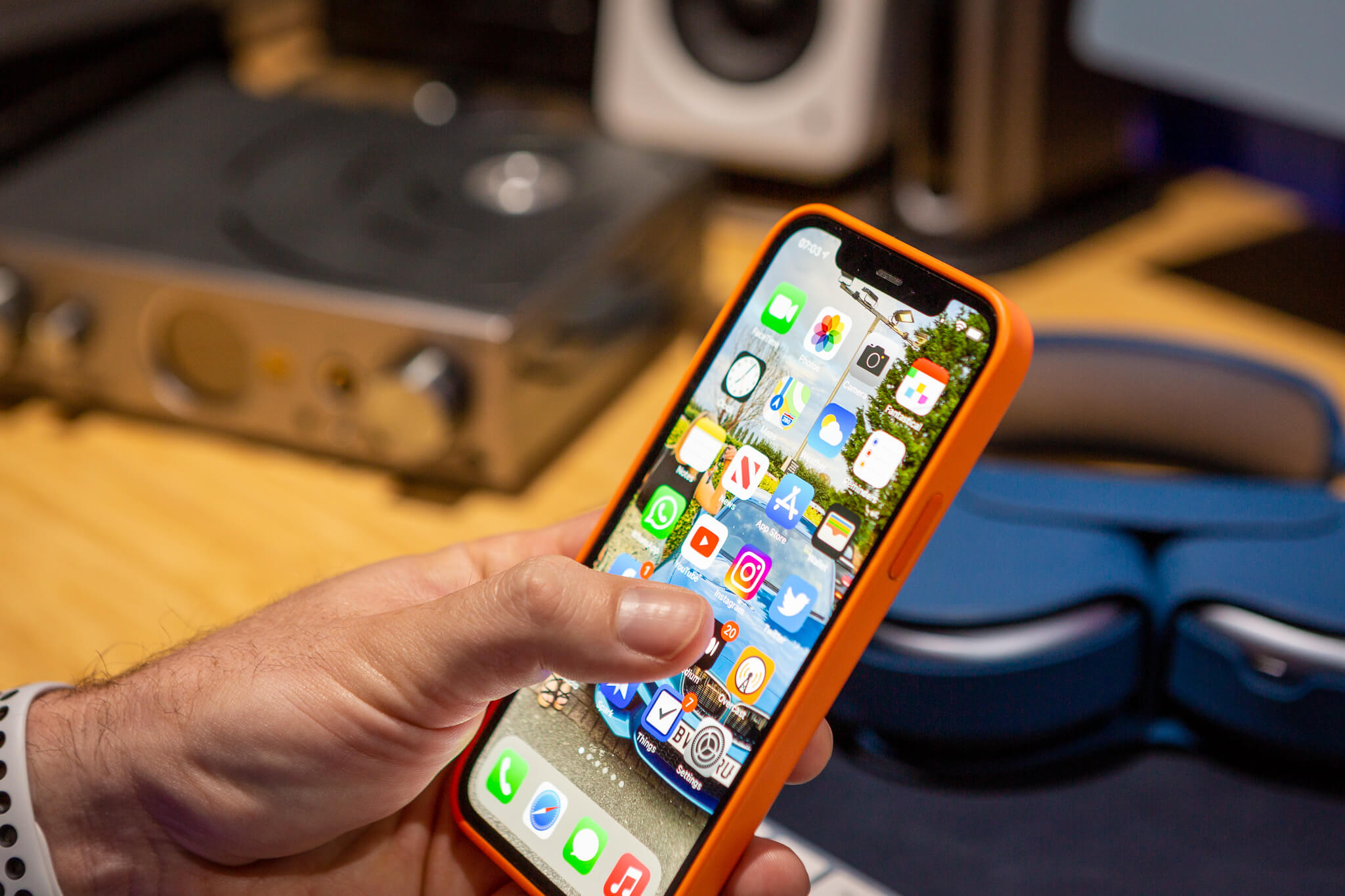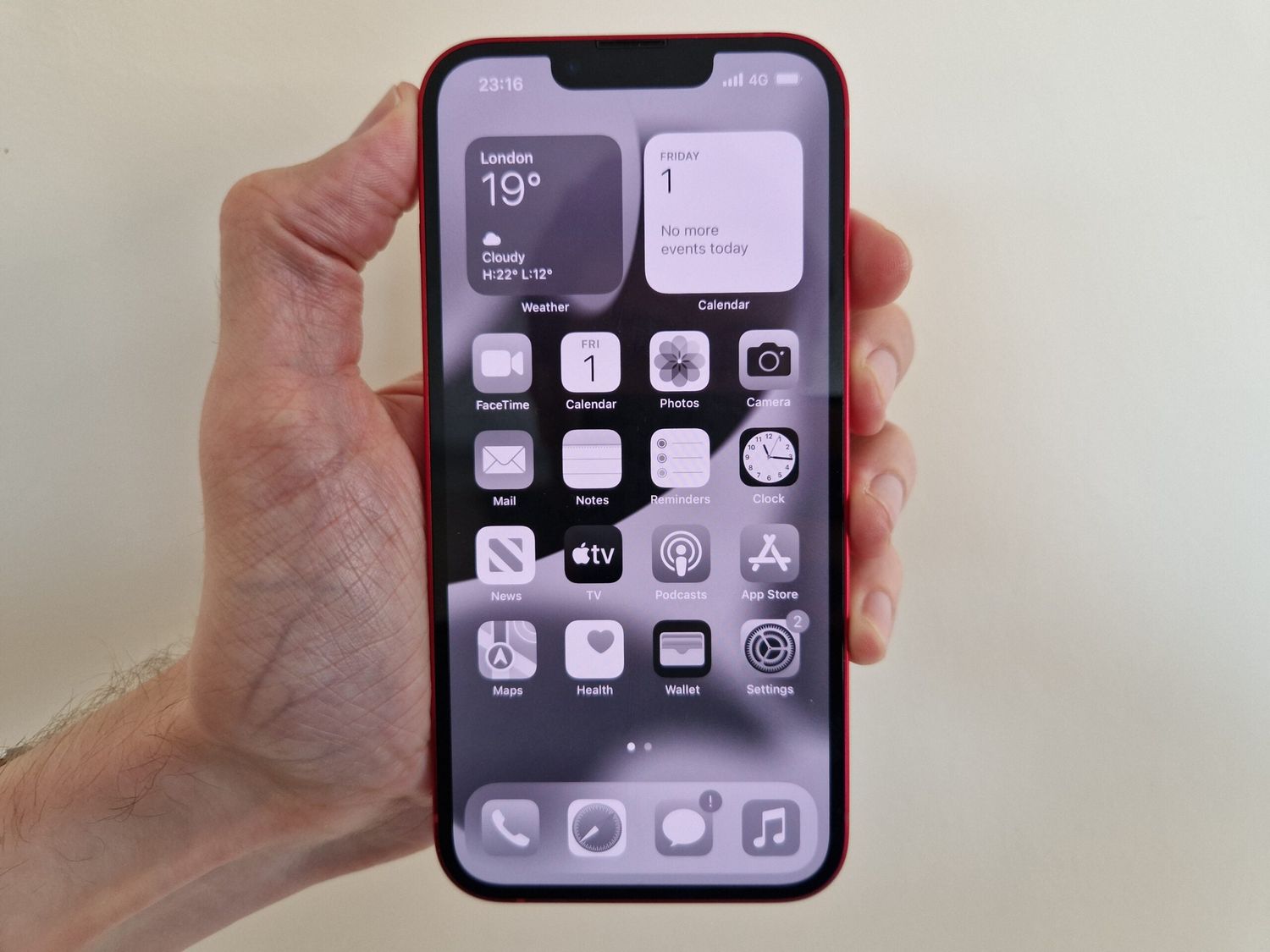
Your phone icon is grey because Low Power Mode or Battery Saver is turned on, or because an app restriction in Screen Time or Digital Wellbeing has disabled it. These are the two most common causes for the phone icon symbols and indicators to appear greyed out on your device.
Why your phone icon is grey
Two documented causes explain why the Phone icon turns grey. The first is Low Power Mode on iPhone or Battery Saver on Android, which dims or greys out certain icons to conserve battery. The second is app restrictions set through Screen Time on iPhone or Digital Wellbeing on Android, which can disable the Phone app and make its icon appear grey. These are the most common reasons, and checking them first will usually restore the icon to normal.
Turn off Low Power Mode on iPhone
Low Power Mode reduces power use and can make settings or apps appear disabled or unavailable. Turning it off restores the Phone icon to full color. Low Power Mode may limit ProMotion refresh rate to 60 frames per second on supported iPhone models. Apple says Low Power Mode can be added to Control Center.
- Open Settings and tap Battery.
- On iPhone 14 or earlier, turn Low Power Mode off.
- On iPhone 15 or later, go to Settings > Battery > Power Mode and choose an option other than Low Power Mode.
Turn off Battery Saver on Android
Battery Saver can cause apps to appear greyed out. Turning it off may restore the Phone icon.
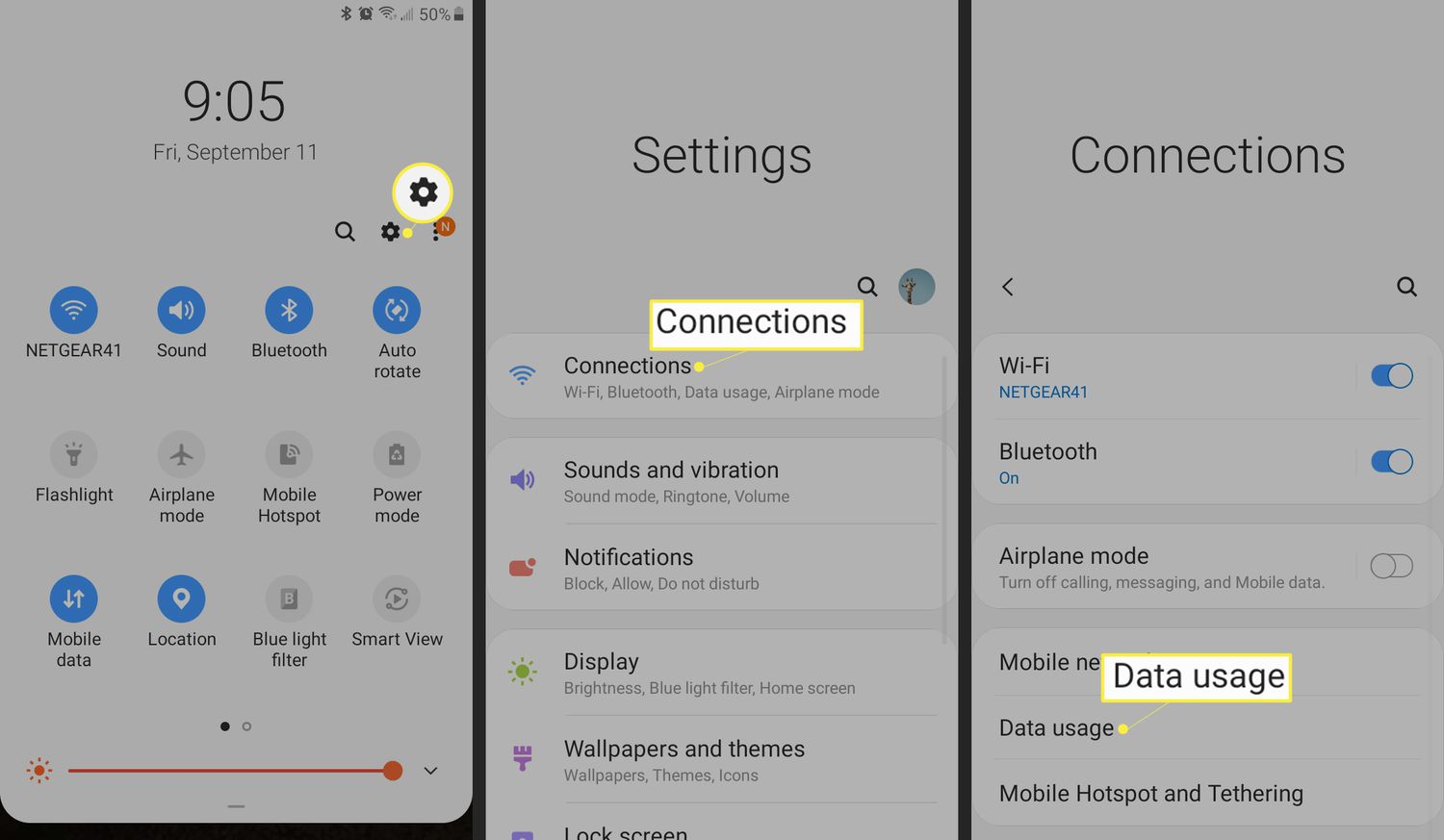
- Open Settings and tap Battery.
- Tap Battery Saver and turn it off. On Android, the documented Battery Saver path is Settings > Battery > Battery Saver, then turn it off.
Check Screen Time and app restrictions on iPhone
If an app or feature is not working or appears restricted, it may have been disabled using Screen Time or by an IT administrator on a managed device. Apple documents that disabled or restricted items can appear greyed out in some cases, but it does not specifically document the Phone app icon becoming grey.
- Open Settings > Screen Time > Content & Privacy Restrictions.
- Look for any restrictions that affect apps or features, and turn them off if needed.
- If the device is managed, check Settings > General > VPN & Device Management and contact the managing IT department if necessary.
Check Digital Wellbeing and focus mode on Android
Digital Wellbeing app timers and focus mode can disable apps and cause them to appear greyed out. The Android support results vary by device family, including Pixel, Fairphone, and general Android help pages, and they do not give one universal menu path for every manufacturer.
- Open Settings > Digital Wellbeing (or Screen Time on some devices).
- Check for any app timers set on the Phone app and remove them.
- Turn off focus mode if it is active and disabling the Phone app.
What to do if the phone icon is still grey
If the above steps do not restore the icon, no official page describes a phone-icon-specific issue beyond these causes. Try restarting your device to clear any temporary glitches. If the icon remains grey, contact your device manufacturer or carrier support for further assistance.
Frequently Asked Questions
Is a grey phone icon always a battery issue?
No. While Low Power Mode and Battery Saver are common causes, Screen Time restrictions, Digital Wellbeing app timers, and device management profiles can also grey out the Phone icon.
Does a grey phone icon mean the app is broken?
Not usually. A grey icon typically indicates a setting or restriction is active, not that the app itself is corrupted. Re-enabling the app or turning off the restriction usually fixes it.
What happens when the phone charges past 80%?
Low Power Mode automatically turns off when the iPhone charges to 80 percent or higher. If the grey icon was caused by Low Power Mode, it should return to normal once the battery reaches that level.
Related reading: What Does The Phone Icon Look Like?.