To pin conversations in the Messages app, you mark important chats so they stay at the top of your conversation list for quick access. On iPhone, pinned conversations appear as larger icons above your other messages, while Android users can pin chats in Google Messages or Samsung Messages to avoid endless scrolling through their inbox.
How to pin conversations in the messages app on iPhone
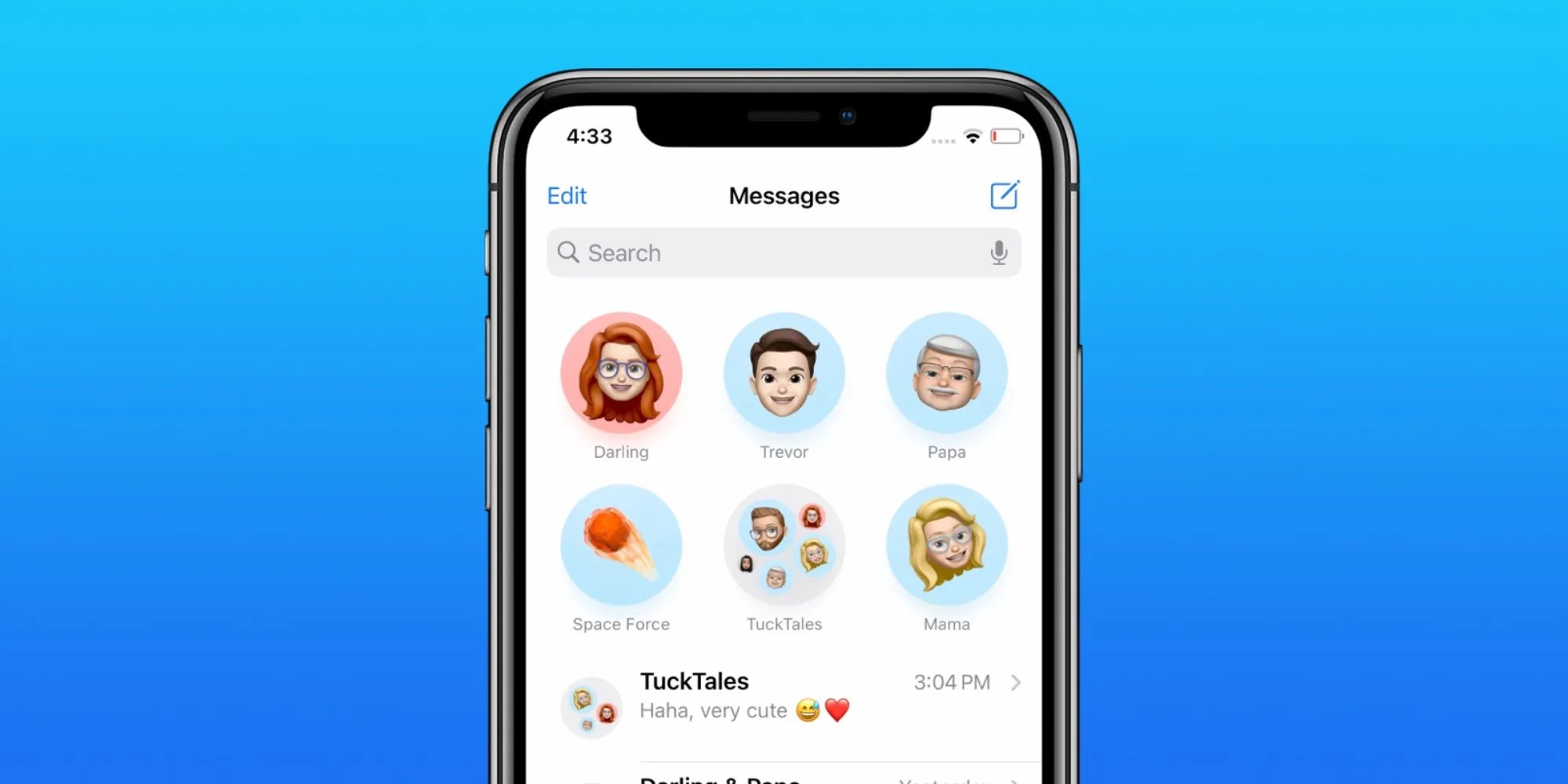
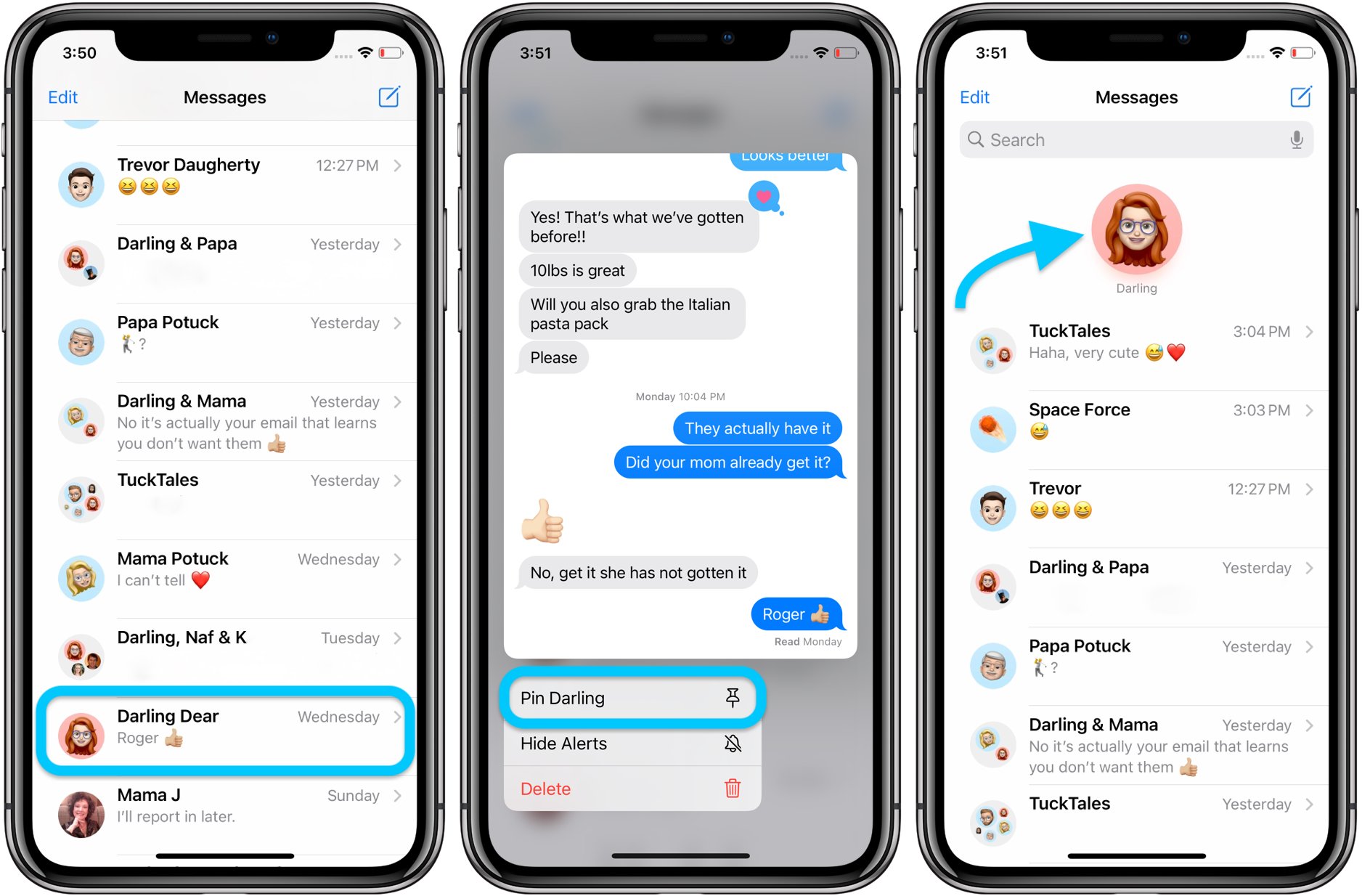
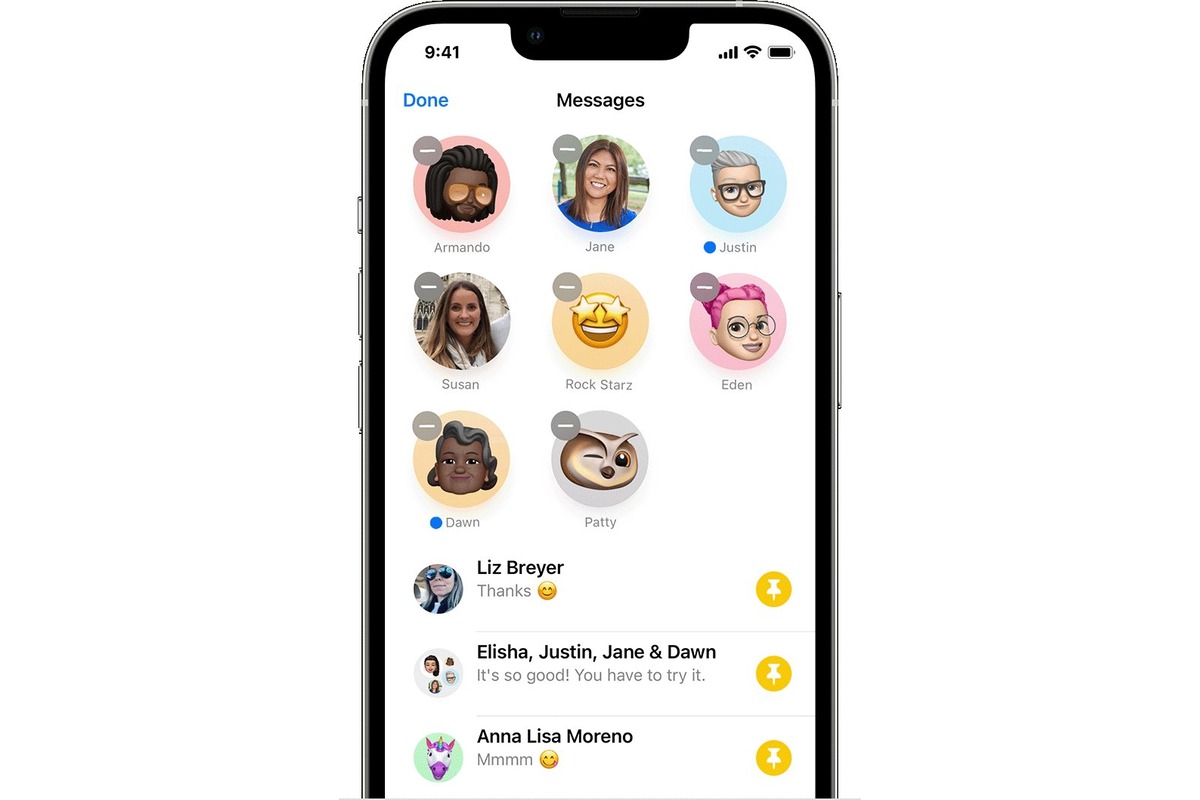
On an iPhone or iPad running iOS 14 or iPadOS 14 or later, you can pin up to nine conversations to the top of the Messages list. Apple documents this for iPhone and iPad in iOS 14 and iPadOS 14 and later. Apple says you can pin up to nine conversations. Pinned conversations appear as larger circular icons above your other chats.
To pin a conversation:
- Open Messages.
- Tap Edit or the More button.
- Tap Edit Pins, then tap the Pin button next to the conversation.
- Tap Done.
You can also touch and hold a conversation in the list, then tap Pin from the menu that appears. On iPhone, you can also touch and hold a conversation, then tap Pin.
To unpin a conversation, touch and hold the pinned conversation and tap Unpin, or drag it to the bottom of the pinned row and let go. Pinning does not delete messages or affect the content of the conversation.
How to pin conversations in Google Messages on Android
Google Messages lets you pin up to 20 conversations. Google says you can pin up to 20 conversations. Pinned chats appear at the top of your conversation list and sync to Google Messages for Web, so you see them on your computer too. Google says pinned conversations can be viewed on your mobile device and on Google Messages for Web. Note that the pin feature is not available in India.
To pin a conversation:
- Open Google Messages.
- Touch and hold the conversation you want to pin.
- At the top of the screen, tap Pin.
Unpin a conversation by touching and holding it again and tapping Unpin. Pinning does not delete any messages, and your pinned conversations remain visible on both your phone and the web interface.
How to pin conversations in Samsung Messages
Samsung Messages also supports pinning conversations to the top of the list.
To pin a conversation:
- Open Samsung Messages.
- Long press the chat you want to pin.
- Tap More, then tap Pin to top.
To unpin, long press the pinned conversation, tap More, and select Unpin from top. This feature helps you keep important chats like those related to text messaging and T-Mobile texts easily accessible without scrolling.
Frequently asked questions about pinning conversations
Can you pin multiple conversations?
Yes. iPhone allows up to nine pinned conversations, Google Messages allows up to 20, and Samsung Messages supports multiple pins without a documented limit in official sources.
How do you unpin a conversation?
On Google Messages, touch and hold the conversation and tap Unpin. On Samsung Messages, long press the chat, tap More, then select Unpin from top.
Does pinning delete messages?
No. Pinning only changes where the conversation appears in your list. All messages, photos, and other content remain untouched.
Can you reorder pinned conversations?
On iPhone, you can drag pinned conversations to rearrange their order within the pinned row. On Google Messages and Samsung Messages, pinned conversations appear in the order you pinned them, and there is no documented way to manually reorder them.
Does pinning sync across devices?
On iPhone, pinned conversations sync across your Apple devices signed into the same iCloud account. On Google Messages, pinned conversations appear on Google Messages for Web when you scan the QR code. Samsung Messages does not have documented cross-device syncing for pins in official sources.
Related reading: How To Customize Who Sees Your Focus Status In Messages and How Can I Recover Deleted Texts and Messages on Android & iPhone?.