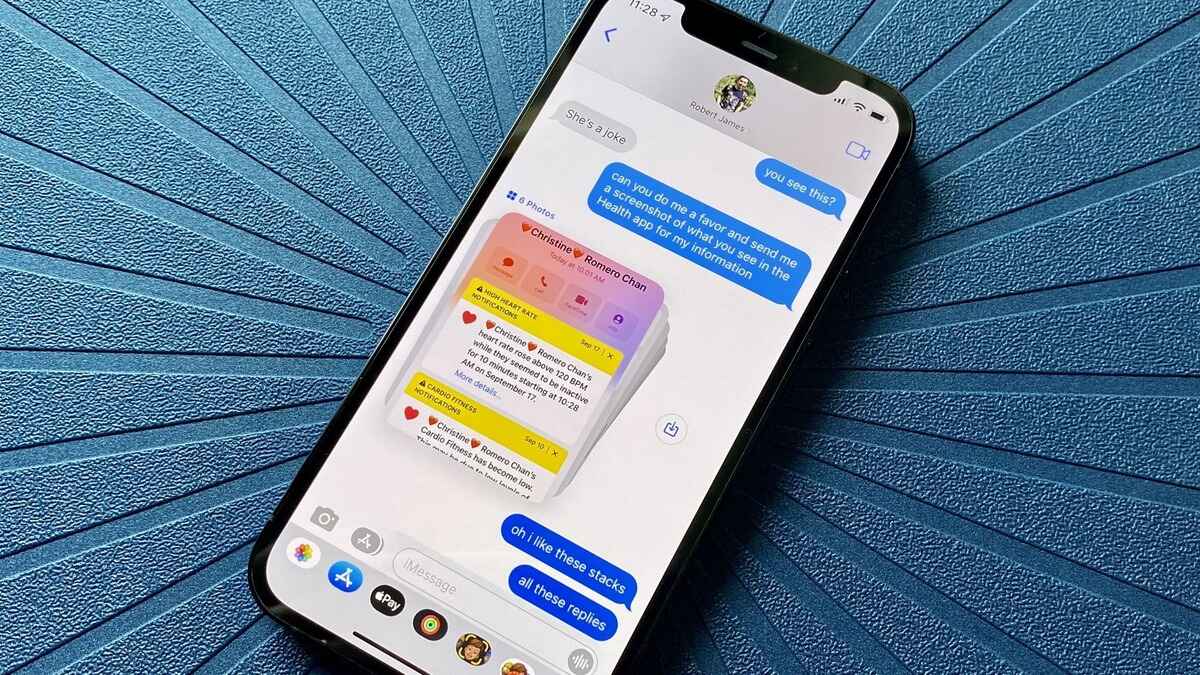
To send photos in messages instantly on your phone, open your default messaging app, start or open a conversation, and use the attachment button to select a photo from your gallery or take a new one with your camera.
Send photos in messages from your gallery or camera
Apple Messages on iPhone provides a direct path to send photos without leaving the conversation. Apple documents the path varying by iOS version and region. Follow these steps:
- Open the Messages app and open a conversation or start a new message.
- Tap the + button in the message composer. In older iOS wording, while writing a message tap the app drawer item for photos or camera, then send.
- Choose one of these options:
- Tap Photos to browse, search, or change albums, then select the images you want to send.
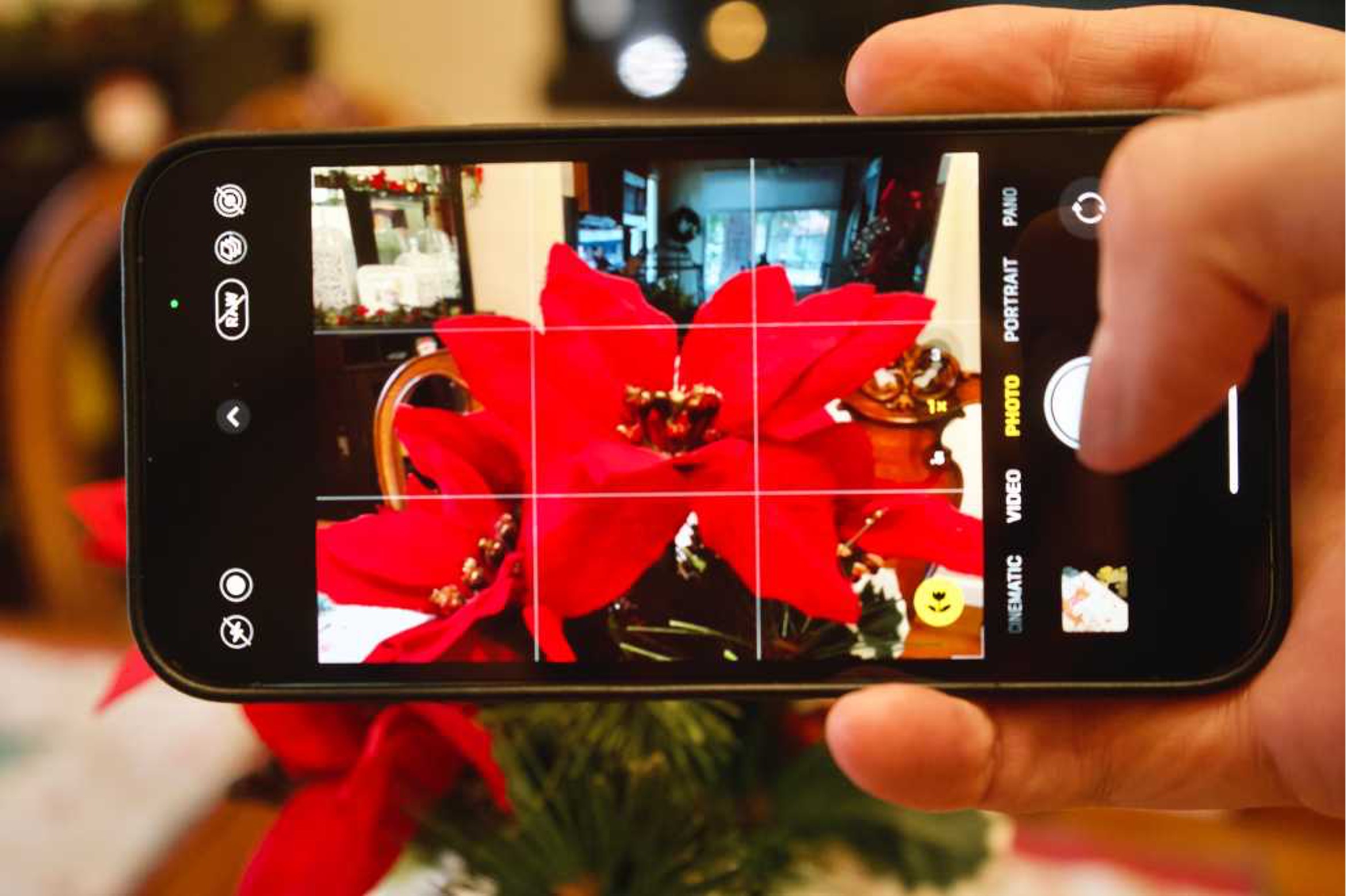
- Tap Camera to take a new photo with your phone's camera.
- After selecting or capturing your photo, tap Done.
- Tap the Send button to instantly share the photo.
Edit or mark up a photo before sending on iPhone
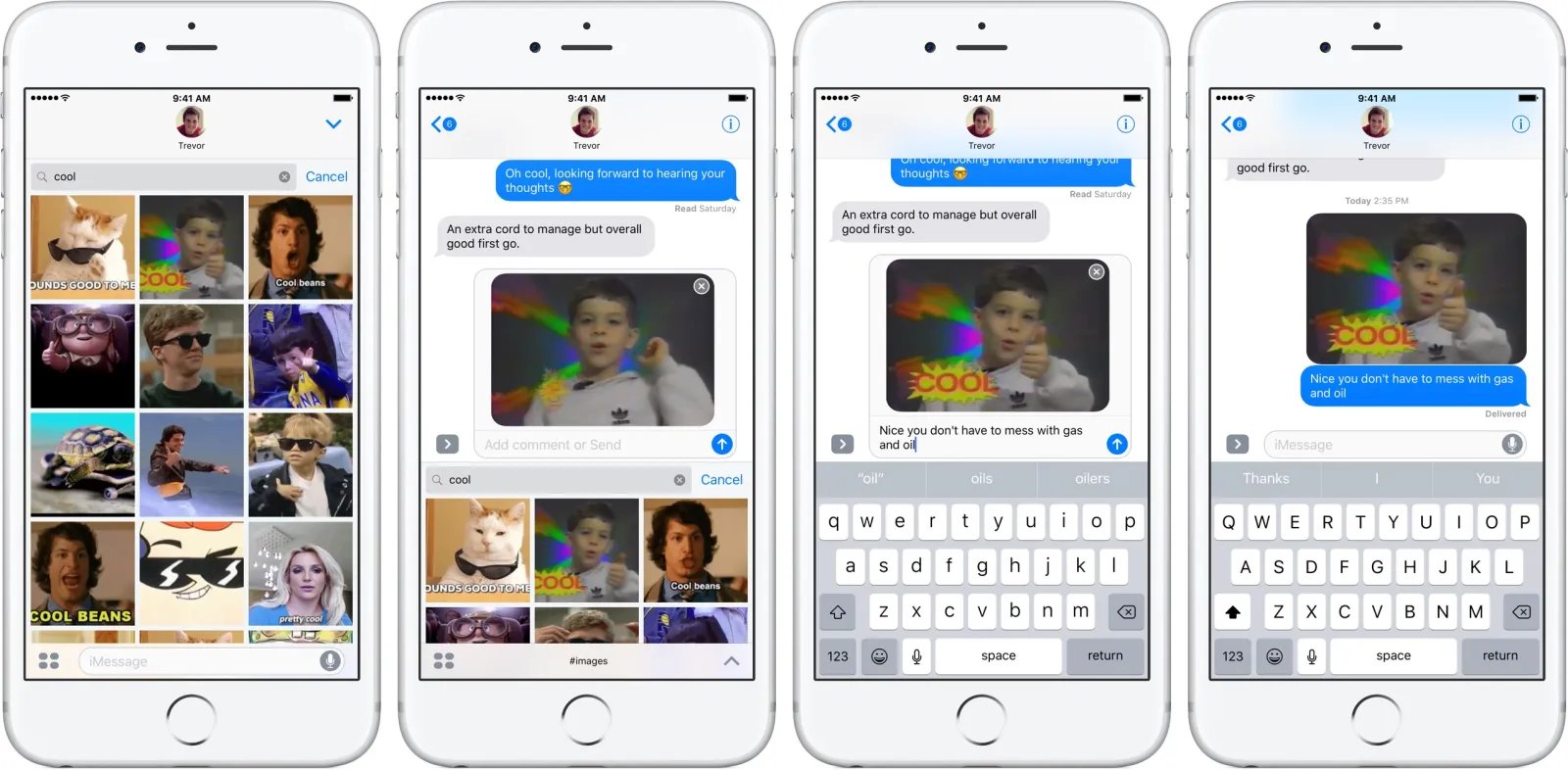
Apple Messages lets you refine your photo before it leaves your phone. After you have selected or taken a photo but before you send it, tap the image in the message bubble to access editing tools:
- Tap Edit to crop the image, apply filters, or make other adjustments.
- Tap Markup to add stickers, labels, shapes, or handwritten text, then tap Save and Done.
You can also type a text comment alongside the photo before sending it, giving context to the image you share.
Send a photo from your gallery or camera on Android
Google Messages on Android offers a straightforward way to attach photos. Here are the steps:
- Open or start a conversation in Google Messages.
- Tap the Gallery button in the message composer.
- Select an existing photo from your gallery, or use the in-app option to take a new picture.
- The photo will attach to your message; tap the send button to share it.
A key photo setting for iPhone users
If you want to reduce data usage when sending photo previews, Apple includes a dedicated toggle. Go to Settings > Apps > Messages > Send Low Quality Photo Previews. Enabling this setting compresses the preview image that appears in the conversation, which can help when you are on a limited data plan or a slow connection. Apple's support page for Send Low Quality Photo Previews does not explain size limits or exactly what the setting changes beyond the name.
Frequently Asked Questions
Can I send multiple photos at once?
Yes, on iPhone you can select multiple images by tapping each one while browsing in the Photos picker. On Android in Google Messages, you can select multiple files from the Gallery view before sending them in a single message.
Why is my photo blurry when I send it?
If you have enabled the Send Low Quality Photo Previews setting on iPhone, the preview image sent may appear less sharp. On both platforms, messaging apps may compress photos to reduce file size, which can lower image quality. For the clearest result, ensure the low-quality setting is off and send photos over a strong connection.
How do I send a photo that is already on my computer?
To send a photo stored on your computer, you first need to transfer it to your phone. The process for managing and transferring photos between devices varies, but you can use cloud services, email, or a cable to move the image to your phone's gallery, then follow the steps above to send it from your messaging app.
What is the difference between sending via iMessage and SMS/MMS?
On iPhone, if you send a photo to another Apple user, it goes through iMessage (blue bubbles) and can be higher quality. If the recipient uses a non-Apple device, it sends as an MMS (green bubbles), which may compress the image more and count toward your carrier's messaging limits.
Can I transfer photos from phone to computer after receiving them?
Yes, after you receive a photo in Messages, you can save it to your phone's gallery. From there, you can use a cable, cloud storage, or wireless transfer methods to move the image to your computer. The specific steps for how to transfer photos from phone to computer depend on your phone model and computer operating system.
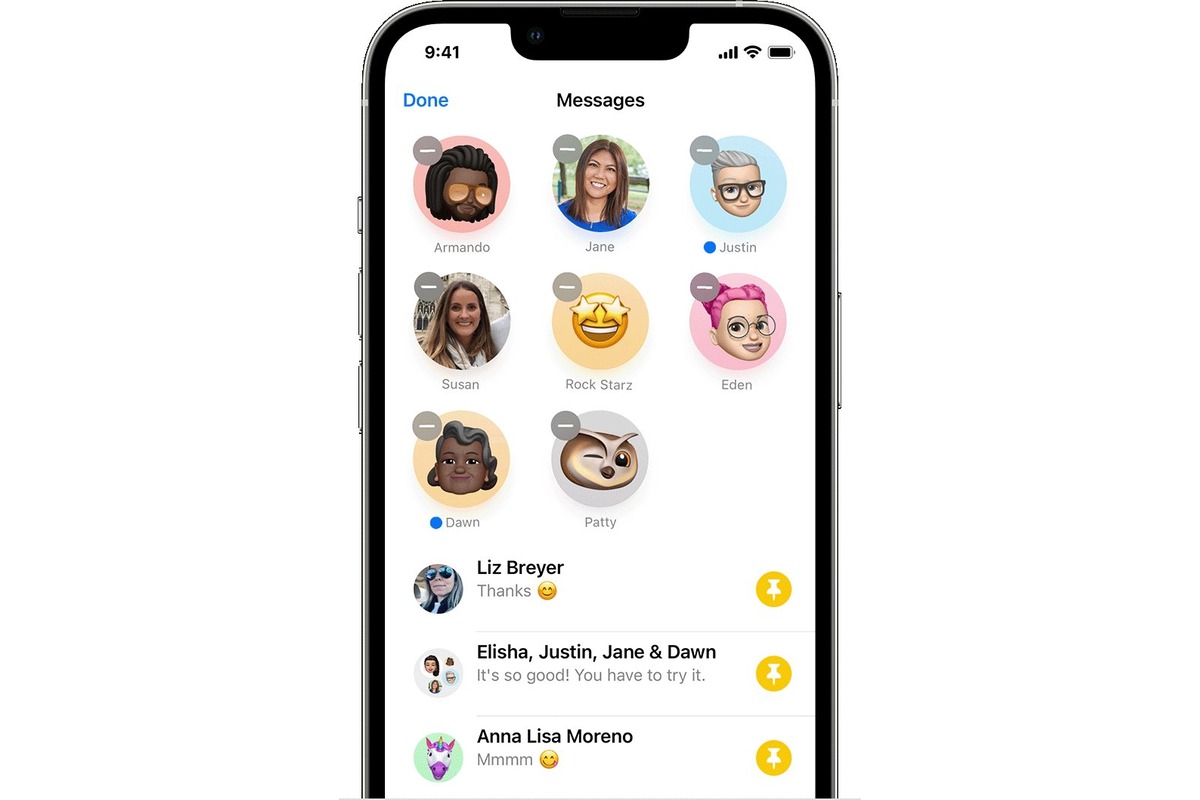
Related reading: How To Pin Shared Content In Messages (2024).