If your mobile hotspot toggle is grayed out, it usually means your carrier has blocked the feature on your plan, your device settings are misconfigured, or a temporary software glitch is preventing the hotspot from activating. In rare cases, a hardware problem with the Wi-Fi antenna or cellular modem can cause the hotspot grayed out issue, but this is the least common cause.
Why your hotspot is grayed out
A grayed-out Personal Hotspot option on an iPhone or a grayed-out Mobile Hotspot on an Android device can stem from four main sources. Carrier restrictions, such as a plan that doesn't include tethering, a carrier-locked device, or regional blocks, are the most frequent cause on Android. On iPhones, incorrect or missing APN settings and device restrictions (like Screen Time or MDM policies) are common. Temporary software glitches can also disable the toggle, while hardware failures are the rarest explanation. Older or budget devices may lack the necessary hardware or software capabilities to support hotspot functionality.
Check your carrier plan and restrictions
Your mobile carrier may have blocked hotspot functionality on your plan entirely. Contact your carrier to confirm whether Personal Hotspot or Mobile Hotspot is included in your subscription. Some carriers may require an additional fee to enable hotspot functionality. Carriers may impose data caps or speed throttling on hotspot usage. If hotspot was previously working and suddenly grayed out, a plan change or provisioning error may have occurred. Carrier-locked devices can also impose restrictions, if your phone is locked to a specific carrier, that carrier may limit hotspot use even if your plan supports it. Some carriers restrict hotspot usage in certain regions or countries due to regulatory requirements or network capacity issues.
Verify APN and mobile data settings
Personal Hotspot requires mobile data to be active; if mobile data is disabled, the hotspot cannot be created. Ensure mobile data is ON in your device's settings. On an iPhone, incorrect or missing APN settings for Personal Hotspot can cause the option to be unavailable. To check APN settings on iPhone, go to Settings → Mobile Data → Mobile Data Network, then scroll to the Personal Hotspot section and enter your network's APN details if blank. For Android devices, verify that your APN settings include the correct tethering or DUN (Dial-Up Networking) values from your carrier.
Look for device restrictions and controls
Device restrictions, such as Screen Time, parental controls, or Mobile Device Management (MDM) policies (for work/school devices), can disable the hotspot feature. Third-party apps or customizations can cause software conflicts that gray out the hotspot. If your device is managed by an employer or school, the hotspot toggle may be intentionally grayed out by MDM policy, contact your IT administrator for assistance.
Refresh your network connection
- Toggle Airplane Mode ON, wait a few seconds, then toggle it OFF.
- Toggle Mobile Data OFF, wait a few seconds, then toggle it ON.
- Restart your device normally. If the hotspot remains grayed out, perform a force restart (the method varies by device model).
These steps clear temporary network glitches that can cause the hotspot toggle to appear grayed out. Resetting network settings will remove saved Wi-Fi passwords. A simple restart or force restart of your device can often resolve temporary software glitches preventing the hotspot from working. A factory reset can resolve persistent software glitches but will erase all data and settings.
Update software and carrier settings
Ensuring your device is running the latest iOS or Android software update can resolve known bugs that affect hotspot functionality. On an iPhone, updating carrier settings, which are separate from iOS updates, can restore missing features or fix configuration issues. To check for carrier settings updates, go to Settings → General → About; if an update is available, a prompt will appear. On Android, carrier settings are typically updated automatically or through a system update.
When to suspect a hardware problem
If you have tried all the above steps and the hotspot remains grayed out, a hardware malfunction may be the cause. Signs of physical damage, such as a drop or water exposure, can damage the Wi-Fi antenna or cellular modem. A loose or disconnected antenna connection can also prevent the hotspot from functioning. Hardware issues are not repairable at home; contact a professional technician or the manufacturer's support team for diagnosis and repair.
Frequently Asked Questions
How can I enable the hotspot feature on my phone?
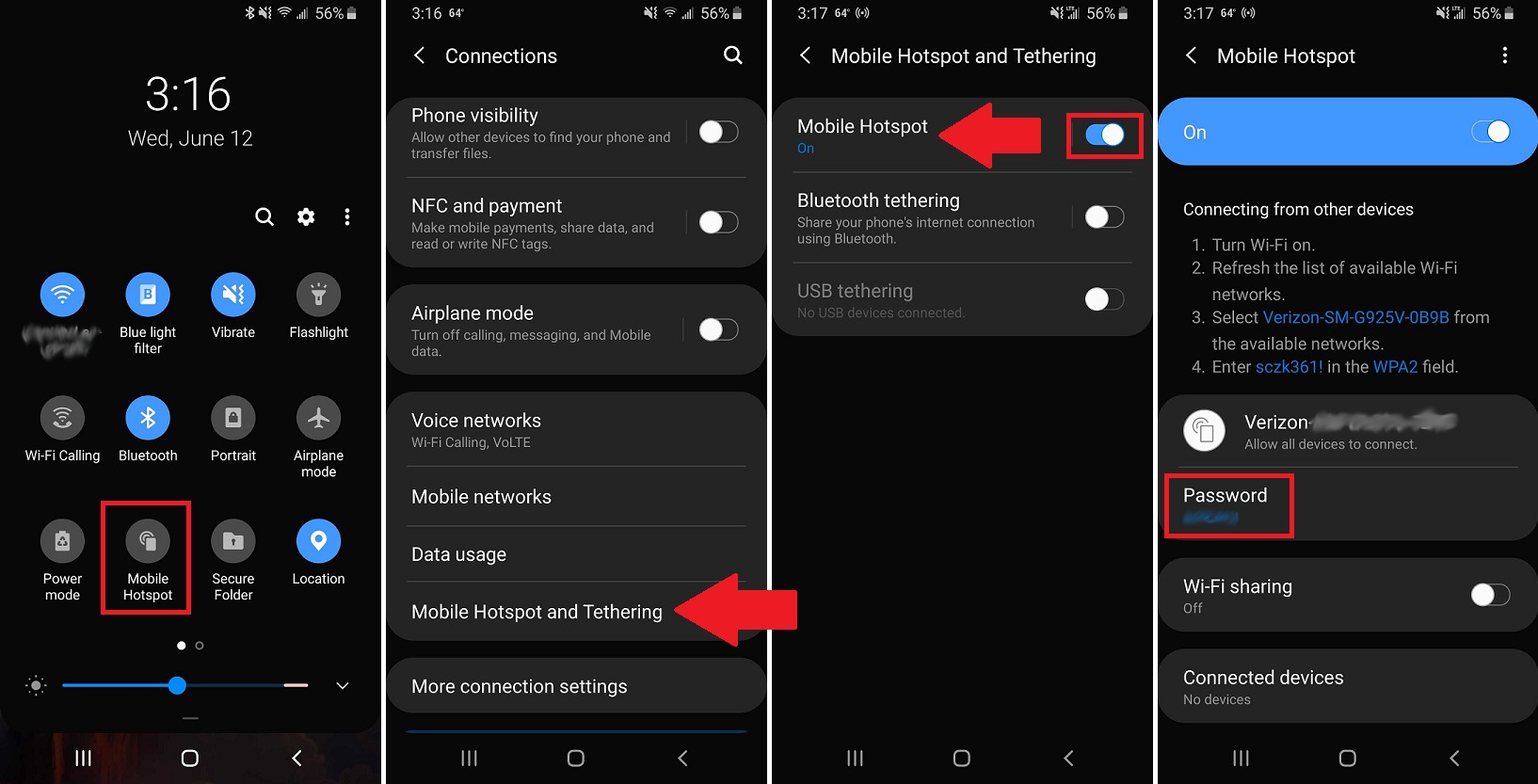
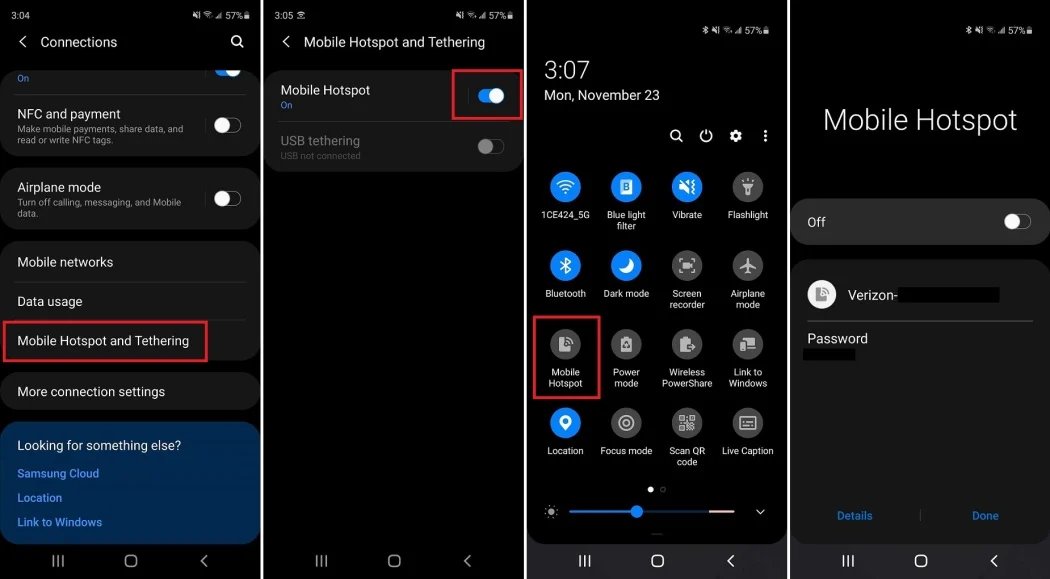
On most phones, go to Settings → Network & Internet (or Connections) → Hotspot & Tethering, then toggle Mobile Hotspot or Personal Hotspot ON. You can set a password to secure the connection. Connecting your phone to a power source while using the hotspot can help maintain a stable connection. Placing your phone in a location with good airflow prevents overheating, which can impact hotspot performance. If the toggle is grayed out, follow the troubleshooting steps above.
Can I connect multiple devices to my phone's hotspot?
Yes, modern smartphones typically allow up to 5 or more devices to connect simultaneously. However, connecting too many devices will share the available bandwidth, which may slow down the connection speed for each device.
When should I contact my carrier about a grayed-out hotspot?
Contact your carrier if hotspot was previously working and suddenly stopped, if you have confirmed your plan should include hotspot but the toggle remains grayed out, or if you have completed all software and settings troubleshooting steps without success. The carrier can check for provisioning issues or plan restrictions on your account.
For the wider topic, see hotspot basics and troubleshooting.
Related reading: What Happens When Hotspot Runs Out.