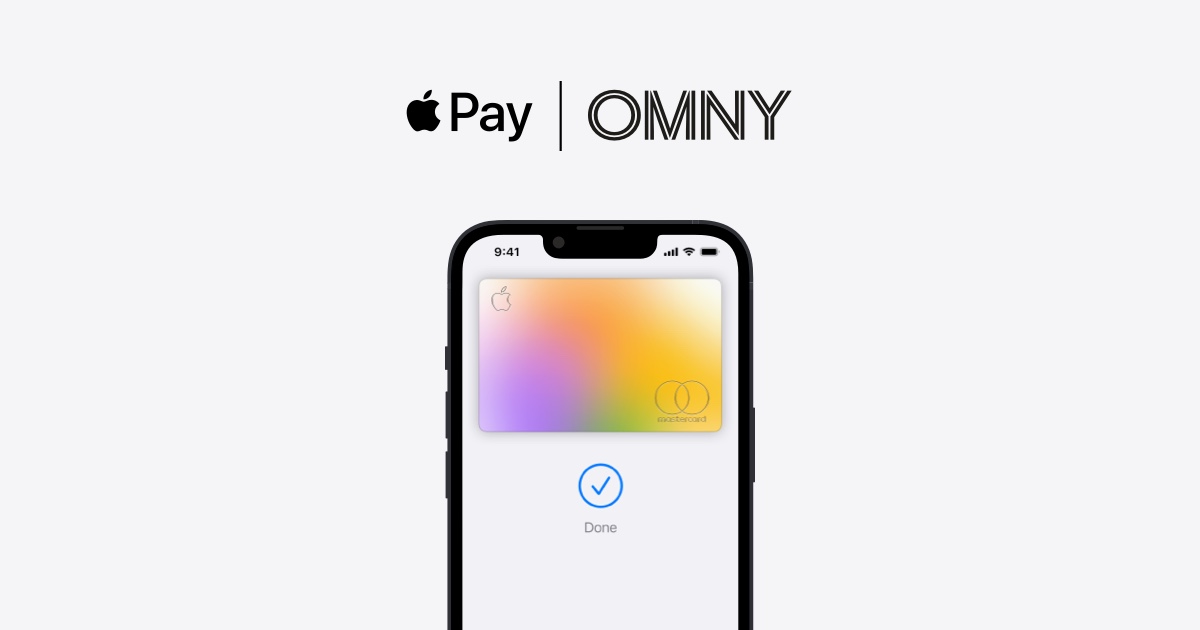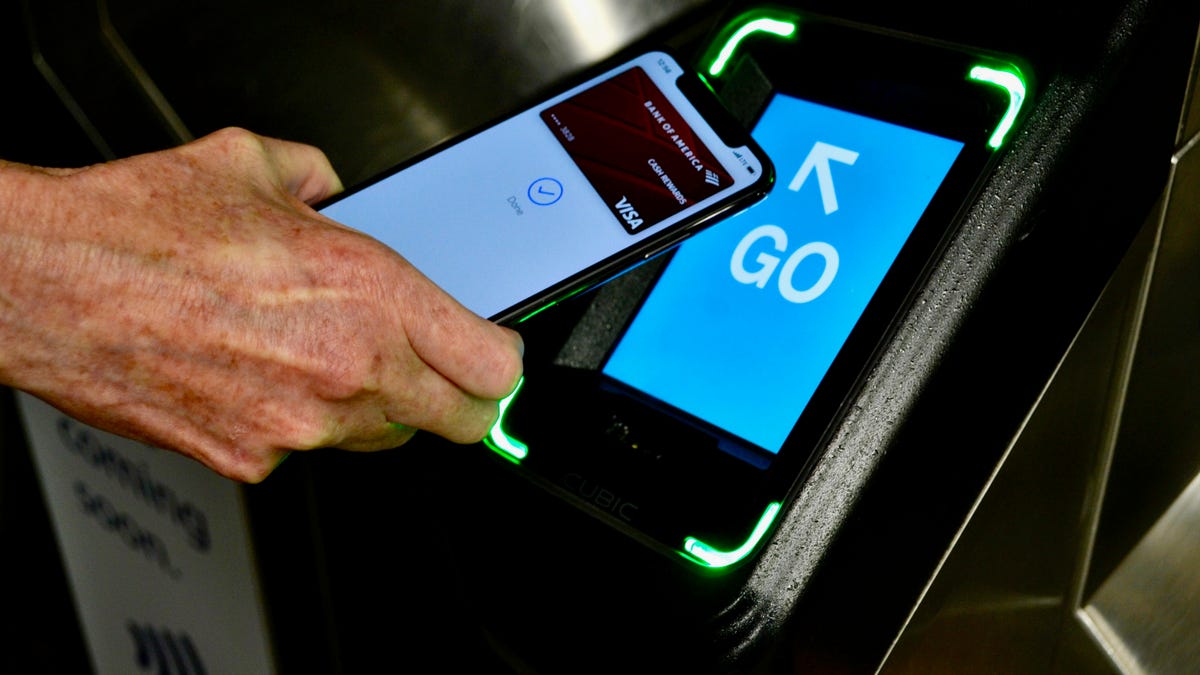
The OMNY system is the MTA's contactless fare payment method that lets you tap your iPhone or Android phone at subway turnstiles and bus readers using Apple Pay or Google Pay, replacing the physical MetroCard. You simply add a payment card to your digital wallet, hold your device near the OMNY reader, and authorize the payment to ride.
What is the OMNY system and how does it work with Apple Pay and Google Pay?
OMNY (One Metro New York) is the MTA's contactless fare payment system that uses near-field communication (NFC) technology. Riders can tap a phone or wearable at an OMNY reader after adding a payment card to a digital wallet. The MTA confirms that digital wallets including Apple Pay and Google Pay are supported, and Apple states that Apple Pay is accepted on MTA subways and buses in New York. The OMNY system offers auto-refill options.
How to use Apple Pay on iPhone for MTA transit
- Open the Wallet app on your iPhone and tap the Add button.
- Tap Transit Card, then choose a card from your available options or use Cards Found for You if one is already available to add.
- Hold your iPhone near the OMNY reader at the subway turnstile or bus fare box.
- Authorize the payment using Face ID, Touch ID, or your passcode.
Apple's transit page for New York says Express Mode with Apple Pay works only with OMNY readers at MTA bus and subway stations, meaning you can tap and ride without authenticating each time at those specific readers. Apple Watch is explicitly named as a compatible device for tapping at OMNY readers.
How to use Google Pay on Android for MTA transit
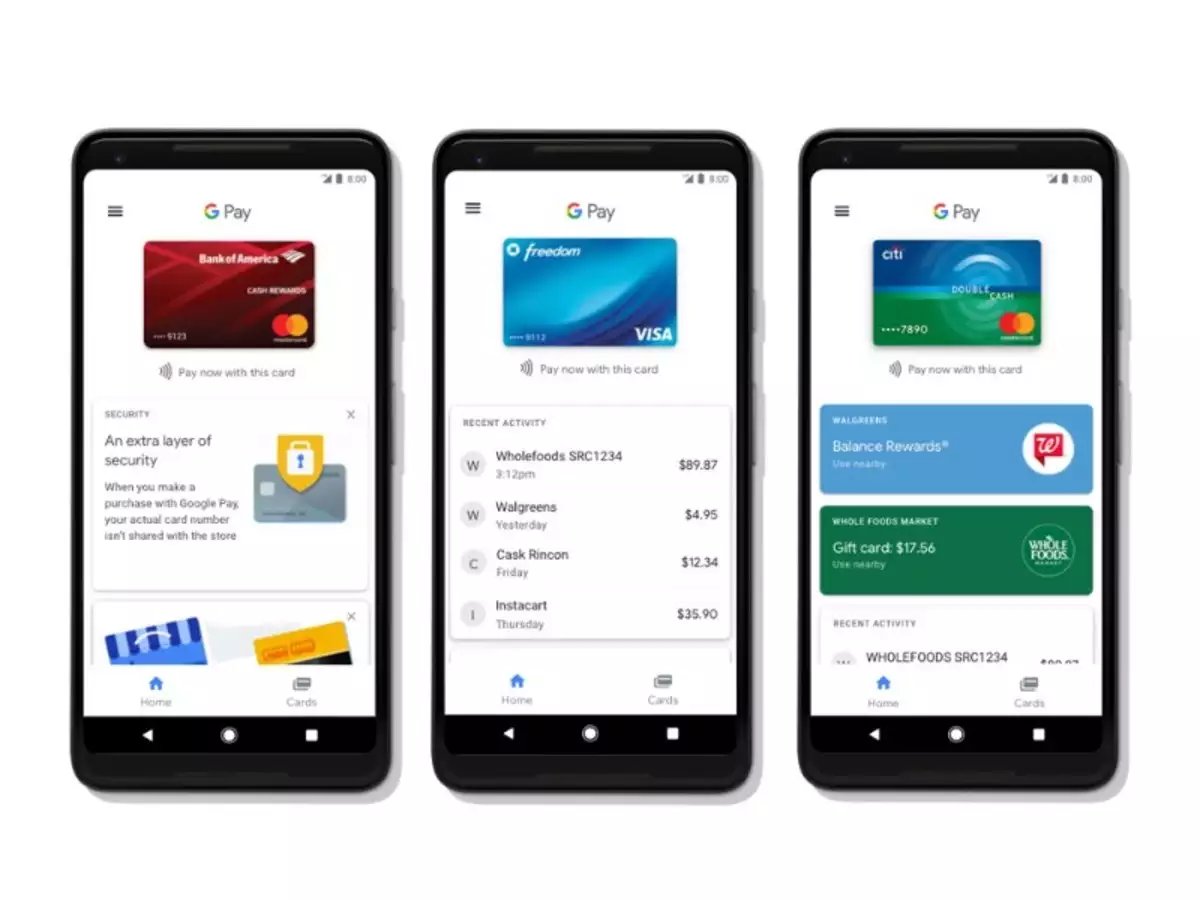
- Add a payment card to Google Pay on your Android device.
- Wake your phone by pressing the power or home button.
- Confirm the payment when prompted.
The MTA's OMNY page says to add a payment card to the digital wallet, then tap the device at an OMNY reader.
What to expect when you tap at an OMNY reader
When you tap successfully, you will see a green check mark on the reader display and hear a sound notification. Tap only once to avoid duplicate charges.
Frequently Asked Questions
Can I still use a MetroCard with the OMNY system?
Yes, MetroCards are still operational while the MTA phases them out. You can use either payment method, but OMNY with a digital wallet eliminates the need to carry a physical card.
Are there extra fees for using Apple Pay or Google Pay with OMNY?
No, there are no additional fees from the MTA for using Apple Pay or Google Pay. The fare charges are the same as when using a MetroCard, though you should check with your mobile wallet provider and your mobile carriers and plans for any data or transaction fees they may apply.
How do I manage multiple digital wallets on one device?
If you have both Apple Pay and Google Pay on the same device, make sure to select the desired wallet before tapping the OMNY reader. Your device will prompt you to choose which wallet to use for the transaction. The OMNY system allows users to manage multiple cards on a single device.
Does OMNY work with smartwatches and wearables?
Yes, OMNY lets riders tap a wearable such as an Apple Watch after adding a payment card to the digital wallet on that device. The same tap-and-go process applies at OMNY readers.
Can I check my balance or transaction history with OMNY?
The OMNY system offers features such as balance checking and transaction history through the digital wallet associated with your payment account, allowing you to monitor your transit spending. Some credit cards linked to Apple Pay or Google Pay may offer reward points or cashback for transit transactions.
Related reading: How To Enable NFC On IPhone 11, How To Set Up Apple Pay On IPhone 12, and How To Set Up Omny On IPhone.