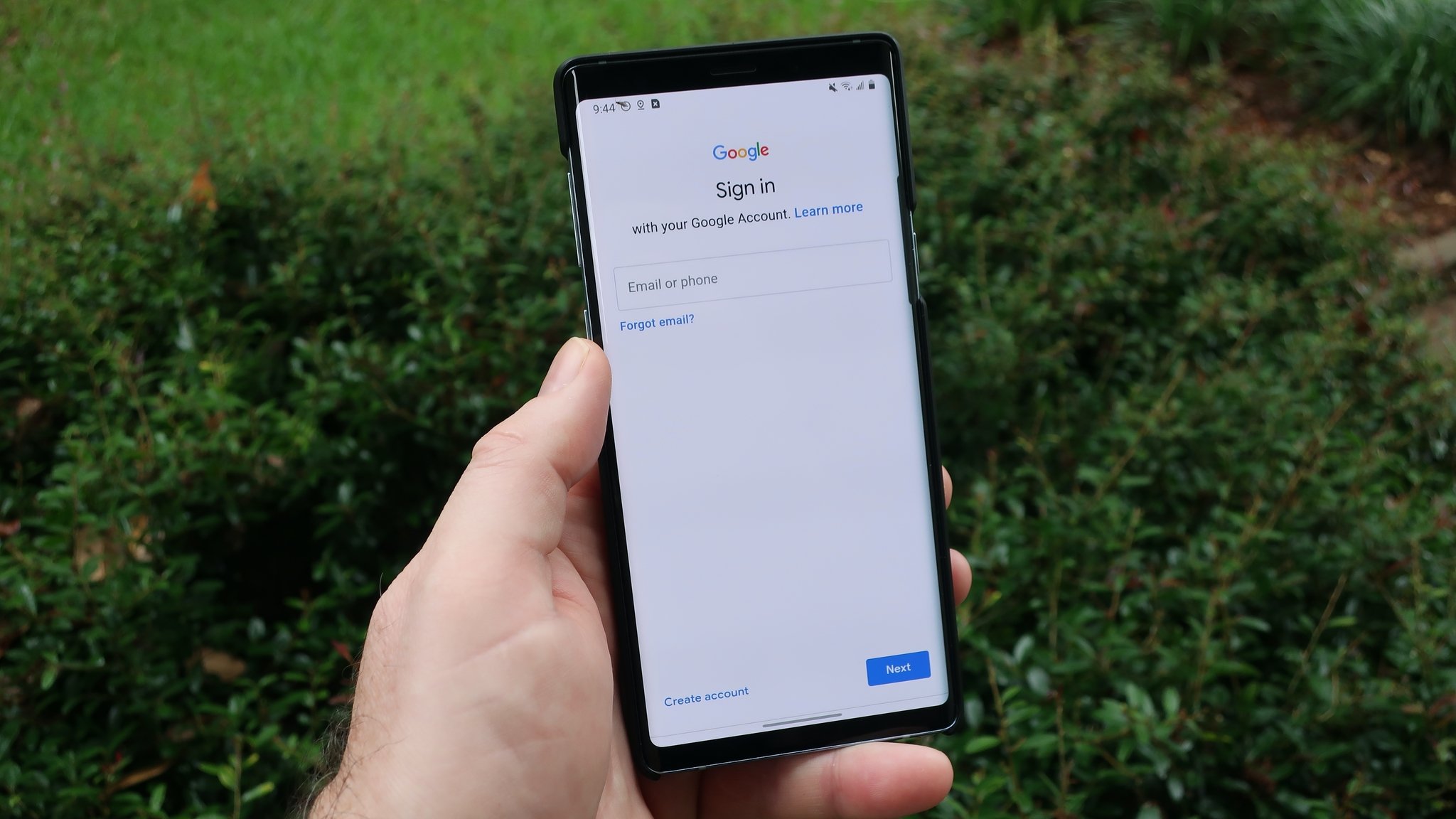
You can change phone number on Google account at any time by opening your Google Account settings and editing the number under Personal info. The same core path works on iPhone, Android, and desktop, with a separate option for changing a recovery phone if that number is used for sign-in or account recovery.
How to change the phone number on your Google Account
Google keeps your contact and security details in one place, so updating your number is a matter of navigating to the right section. Whether you have a new SIM, a new device, or you simply want to keep your recovery options current, the steps below cover every device Google documents. The main path is Google Account > Personal info > Phone, and the recovery-phone path is under Security or Security & sign-in.
Change your number on an iPhone or iPad
On an iPhone or iPad, Google documents changing your number through the Gmail app. This is the fastest route if you already have Gmail installed and signed in.
- Open the Gmail app.
- Tap your profile picture or initial at the top right.
- Tap Manage your Google Account.
- Tap Personal info.
- Tap Phone.
- Next to your number, select Edit phone number or Edit, then Update number.
- Follow the instructions on screen.
If your number is used for sign-in or recovery, Google routes you through a separate flow: Manage your Google Account > Security & sign-in > Recovery phone, then tap Edit next to the number. This is the documented path for changing phone number on Google account when the old number is tied to account security.
Change your number on an Android device
On Android, Google documents the same Personal info path, but you start from the device Settings app rather than a Google app. This keeps the process consistent across manufacturers.
- Open the device’s Settings app.
- Tap Google.
- Tap Manage your Google Account.
- Tap Personal info.
- Tap Phone.
- Next to your number, tap Edit.
- Tap Update number.
- Enter the new number and follow the on-screen steps.
This matters when you are updating phone number on apps and accounts that rely on SMS verification for sign-in.
Change your number in a desktop browser
On a computer, the process is identical to mobile but uses a browser. Google documents this as the most direct route if you prefer a larger screen or if the app option is missing on your device.
- Go to myaccount.google.com or your Google Account page.
- Click Personal info.
- Click Phone.
- Next to your number, select Edit and then Update number.
The desktop flow covers both the main phone and the recovery phone, though the recovery phone appears under Security or Security & sign-in rather than Personal info. If you are removing phone numbers from accounts you no longer use, the same Personal info page lets you delete the old entry after adding the new one.
Troubleshooting common issues
If you do not see the phone option in the Gmail app or the Android Settings app, Google says you can go to myaccount.google.com instead. This is the documented fallback for any device, and it works whether you are on iPhone, Android, or a desktop browser.
When the number is used for sign-in or recovery, Google routes changes through Recovery phone under Security or Security & sign-in. This is not the same as the Personal info path, and using the wrong one can cause a verification loop. If you are changing your phone number because you lost access to the old one, start with the recovery-phone flow rather than the general phone edit.
Google also has rules for which numbers you can use. The number must belong only to you, must not be used on another Google Account to sign in, and must not be used to connect with others on Google services like Photos. A shared or previously registered number will be rejected during verification.
If you cannot complete the change yourself, Google directs you back to the account help pages and the sign-in-required recovery-phone flow rather than offering a direct contact button or phone number.
If the verification code doesn't arrive via SMS, you can try requesting it again. If verification fails, try restarting your device, as this can sometimes resolve temporary network issues. If you're unable to update your phone number, try clearing your browser cache and cookies, or using a different browser or device. If the old number is still associated with specific Google services after updating, try signing out of your Google account and signing back in to refresh the settings. You can contact Google Support through various channels, including phone support, live chat, or email.
Frequently Asked Questions
Can I change my phone number without access to the old one?
Yes, but only through the recovery-phone flow under Security or Security & sign-in. Google uses that path to verify your identity through other recovery options like a recovery email or security questions before letting you update the number.
Will changing my phone number affect other Google services?
No, changing the number on your Google Account does not automatically update it in services like Gmail or Google Drive. You may need to manually update your number in each service’s settings if that service uses it for notifications or verification.
Is there a limit to how often I can change my phone number?
However, frequent changes may trigger additional verification steps to protect your account, so it is best to update only when necessary.