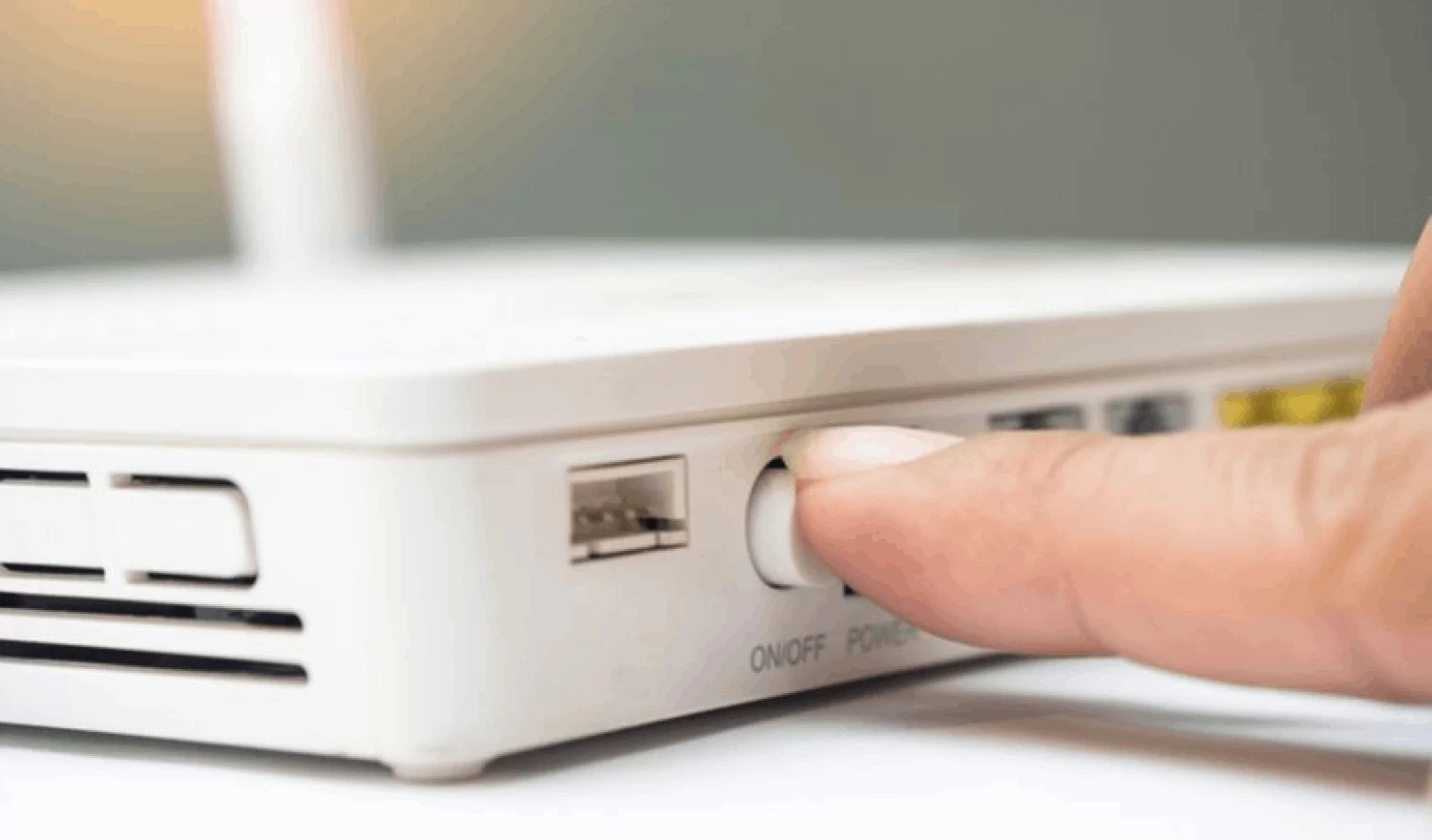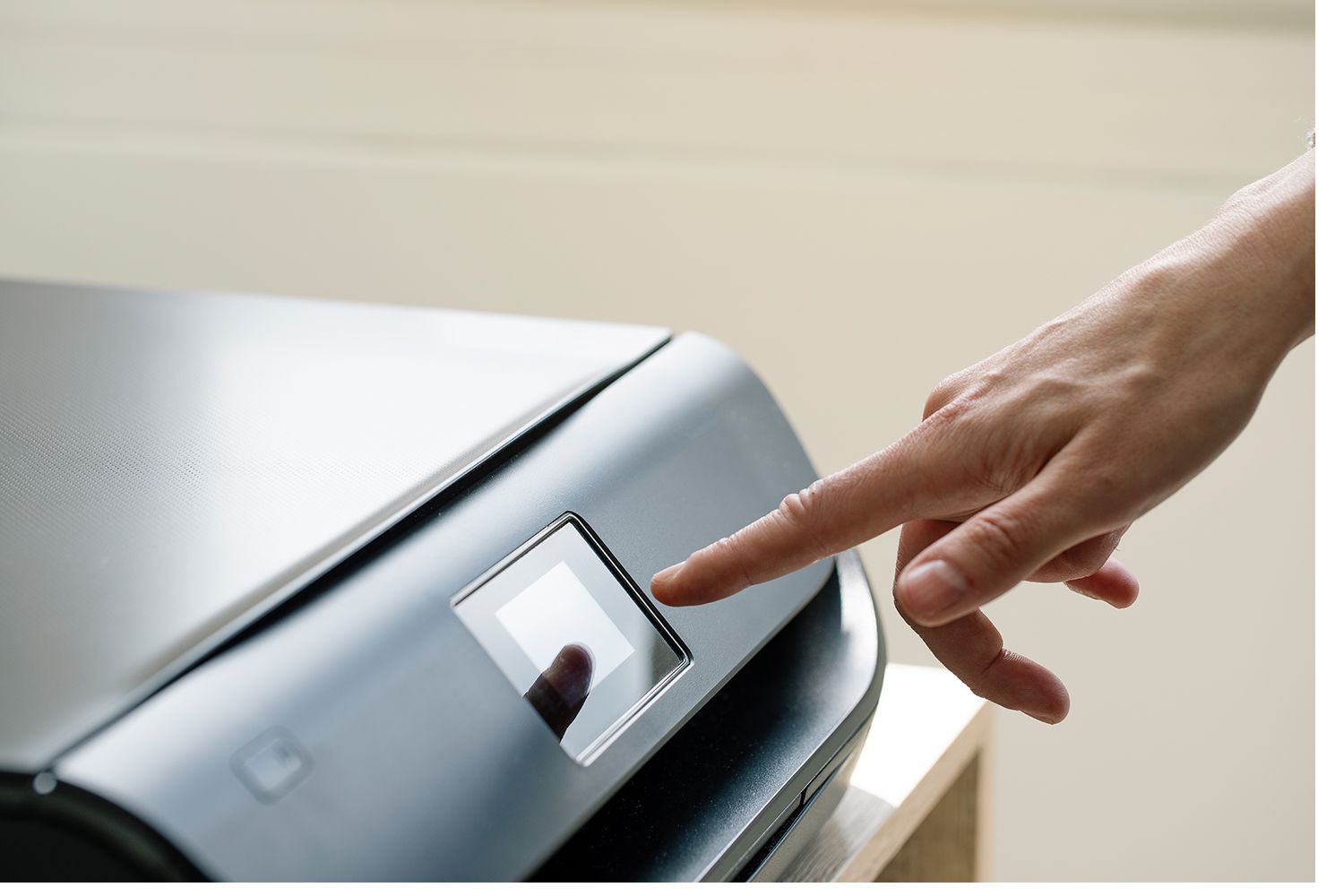
To get your wireless printer back online, start by restarting your printer, computer, and wireless router in that order. This simple power-cycle sequence clears temporary network hiccups and IP conflicts that are the most common cause of an offline printer.
Why your wireless printer is offline and first steps to get it back online
Wireless printers typically go offline due to a brief network disruption, an IP address conflict, or a change in your router's settings. Begin troubleshooting by turning off your printer, computer, and wireless router. Unplug the router's power cable, wait 30 seconds, then plug it back in and let it fully restart. Next, turn on your printer and finally your computer. This resets the network handshake between all devices and resolves the majority of offline issues without further steps.
Check the printer's connection and network status
After the restart, verify your printer is powered on with no blinking error lights and is connected to the same Wi-Fi network as your computer. Check the printer's control panel or menu for its network status, if it shows a different network name, reconnect it to the correct one. Ensure the printer is within range of your router, as distance or physical obstructions can weaken the signal.
On your computer, open the printer settings and look for the "Use Printer Offline" option. If it is checked, uncheck it. If this option is grayed out, right-click the printer icon and select "Open As Administrator" to provide administrator credentials, then change the setting.
Clear the print queue and set as default printer
Stuck print jobs can force a printer to show as offline. Open the print queue on your computer, select all pending documents, and cancel them. This clears the backlog and allows the printer to accept new commands. Next, ensure your printer is set as the default device: in Windows, go to Settings > Bluetooth & devices > Printers & scanners, select your printer, and choose "Set as default." On macOS, open System Settings > Printers & Scanners, control-click your printer, and select "Set as default printer."
Restart the print spooler and re-add your printer
If the printer remains offline, restart the Windows Print Spooler service. Press Windows + R, type services.msc, and press Enter. Find "Print Spooler" in the list, right-click it, and select "Restart." This clears communication errors between your computer and printer.
Update or reinstall your printer drivers and firmware
Outdated, corrupted, or incompatible printer drivers are a frequent cause of offline issues. Visit your printer manufacturer's official support website, locate your exact model, and download the latest drivers and firmware. Install the drivers, then update the firmware using the manufacturer's instructions. This ensures your printer can properly communicate with your current operating system and network.
Use your printer manufacturer's diagnostic tool
Most printer brands offer free diagnostic software that can automatically find and fix connection problems. For HP printers, download and run the HP Print and Scan Doctor or use the HP Smart app, both will scan your network, detect the printer, and reconnect it. For Canon printers, if network settings have changed, use the Wi-Fi Connection Assistant on a Windows computer by selecting Start > Canon Utilities > Wi-Fi Connection Assistant, then choosing Diagnose & Repair.
Reset your printer's network settings
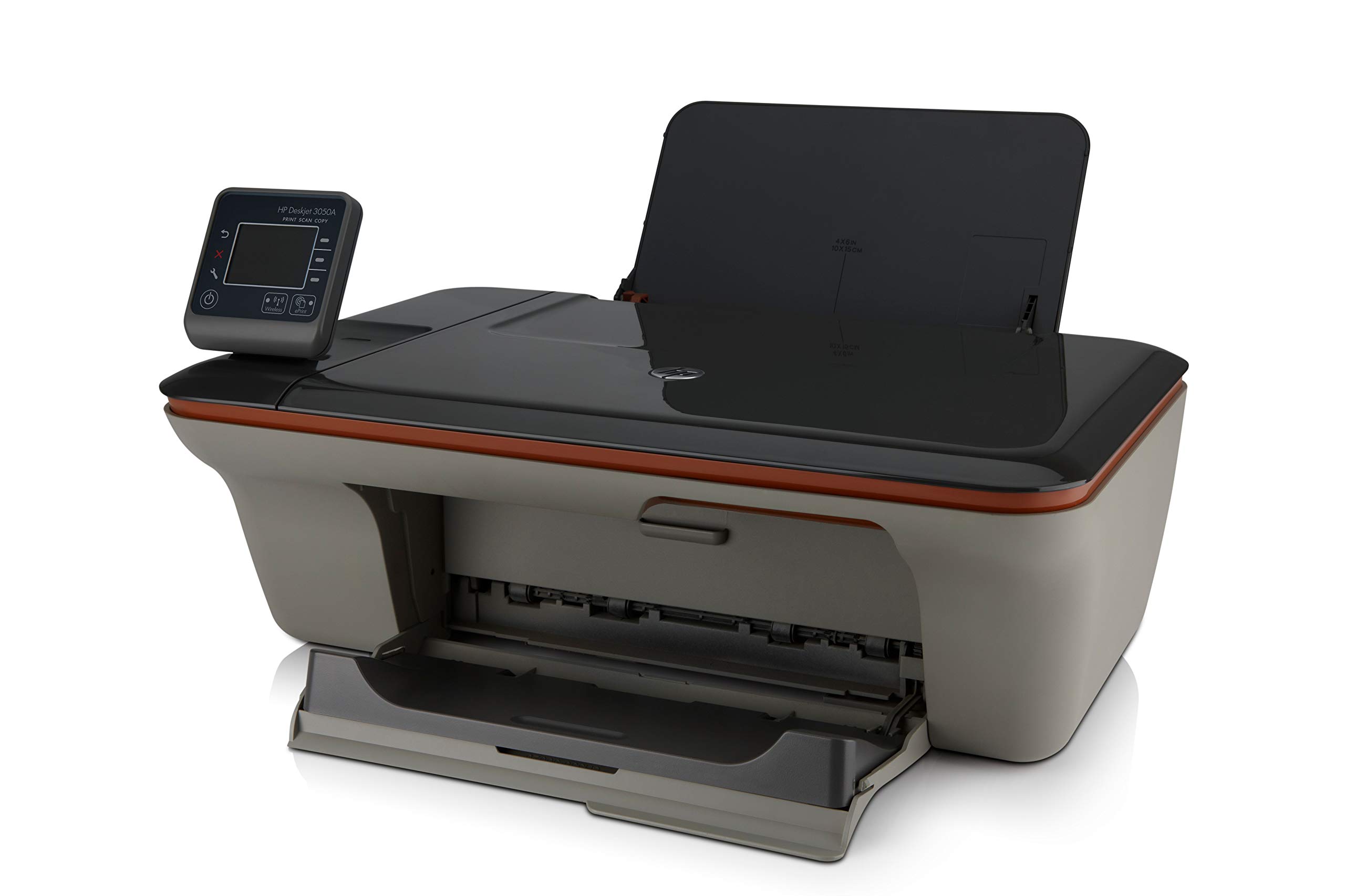
If previous steps fail, resetting the printer's network settings can clear a corrupted configuration. On printers with a touchscreen, navigate to Settings > Network > Restore Network Defaults. To restore network settings on some HP printers without a touchscreen: Press and hold the Wireless and Cancel (X) buttons together for about 5 seconds until the Wireless light starts blinking, which puts the printer into setup mode. After resetting, use the printer's wireless setup wizard or your manufacturer's app to rejoin your Wi-Fi.
Advanced solutions and getting further help
If the printer still shows offline, temporarily disable your firewall or antivirus software to check if it is blocking the printer's connection. As a fallback, connect the printer to your computer or router with an Ethernet cable to bypass wireless issues entirely. If none of these steps work, contact your printer manufacturer's support team with your model number and a description of the troubleshooting you have already performed.
Frequently Asked Questions
Why does my wireless printer keep going offline?
Frequent offline status is usually caused by an unstable Wi-Fi signal, IP address conflicts, or outdated drivers.
What do I do if restarting the printer and router doesn't work?
If a full power cycle fails, remove the printer from your computer's device list and re-add it. Then run your manufacturer's diagnostic tool, such as the HP Print and Scan Doctor or Canon Wi-Fi Connection Assistant, to automatically detect and repair the connection.
How do I check if my printer is on the same Wi-Fi network as my computer?
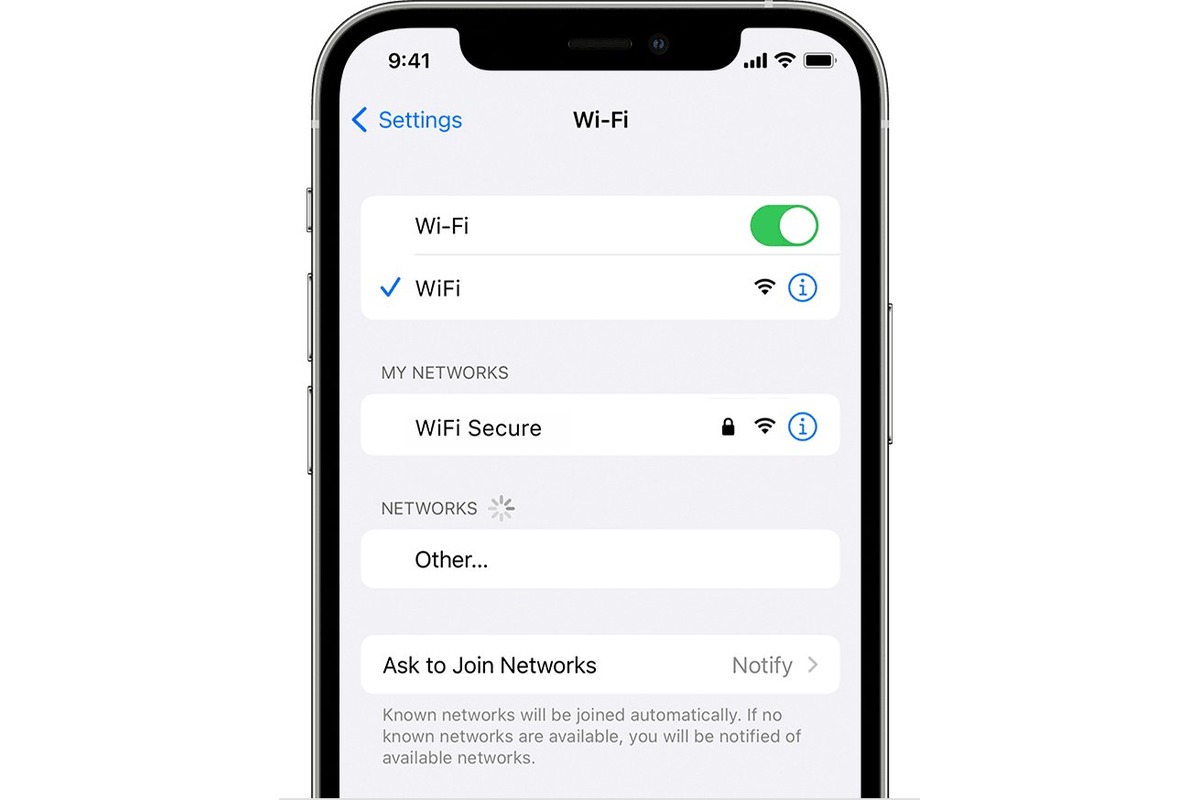
On the printer's control panel, navigate to the network or wireless settings menu to view the connected network name (SSID). On your computer, go to Wi-Fi settings and compare the network name. If they differ, reconnect the printer to the correct network using its wireless setup wizard.
Can a firewall or antivirus cause my printer to go offline?
Yes. Security software can mistakenly block the communication port your printer uses. Temporarily disable the firewall or antivirus, then attempt to print. If the printer comes online, add an exception for your printer's IP address or software in your security program's settings.
Is there a way to prevent my wireless printer from going offline in the future?
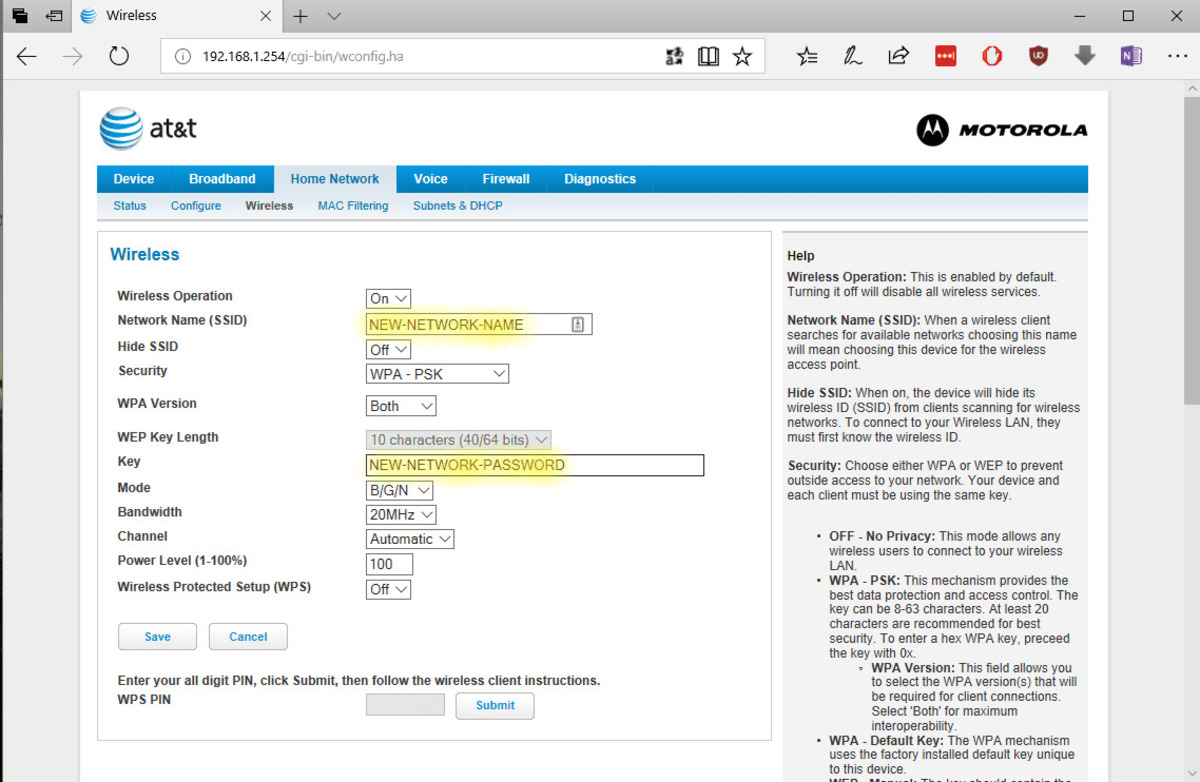
Use a static IP address for your printer in your router's DHCP settings, keep your printer's firmware and drivers updated, and ensure your wireless printer setup and mobile printing are configured correctly. Avoid placing the printer near large metal objects or other electronics that can interfere with the Wi-Fi signal.
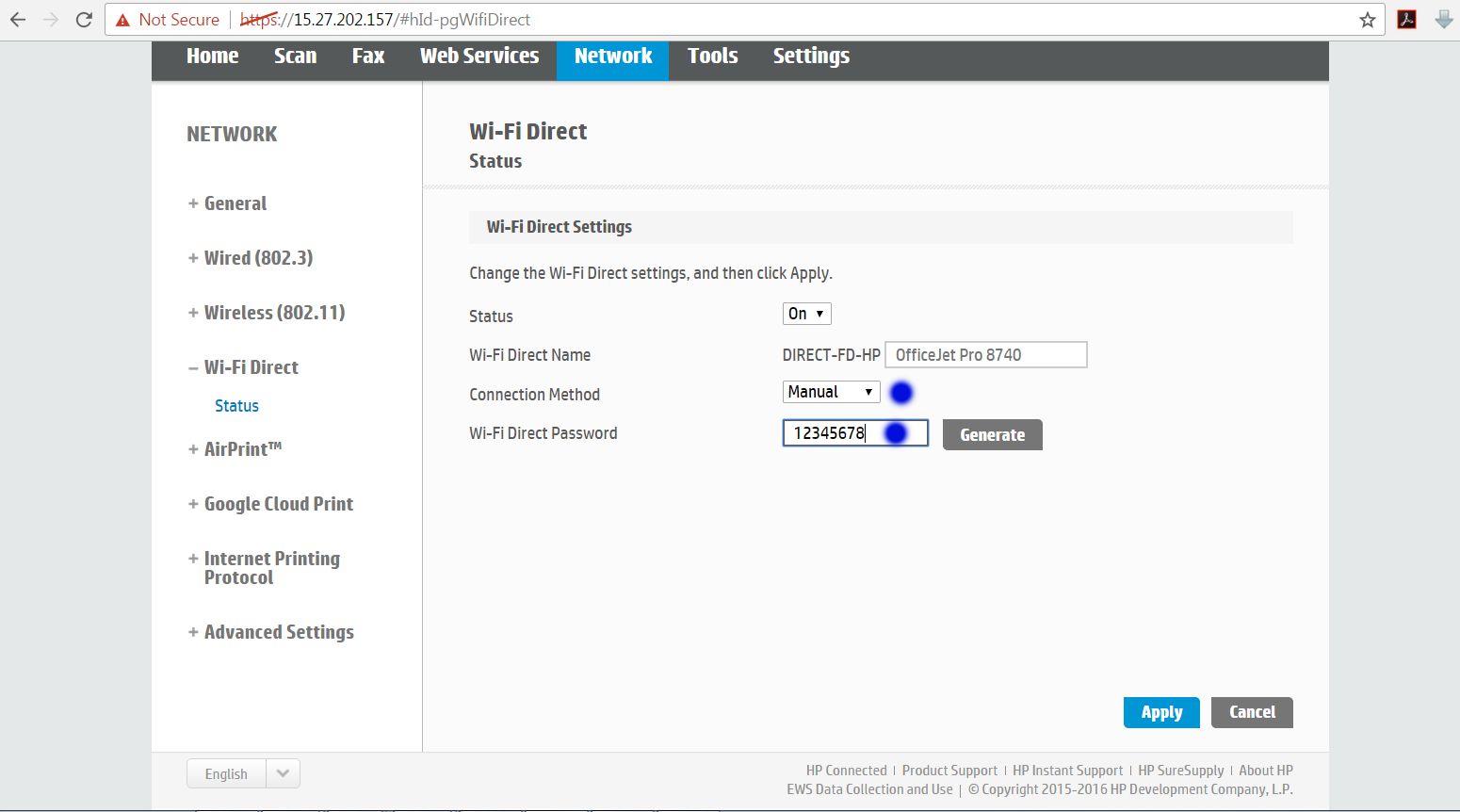
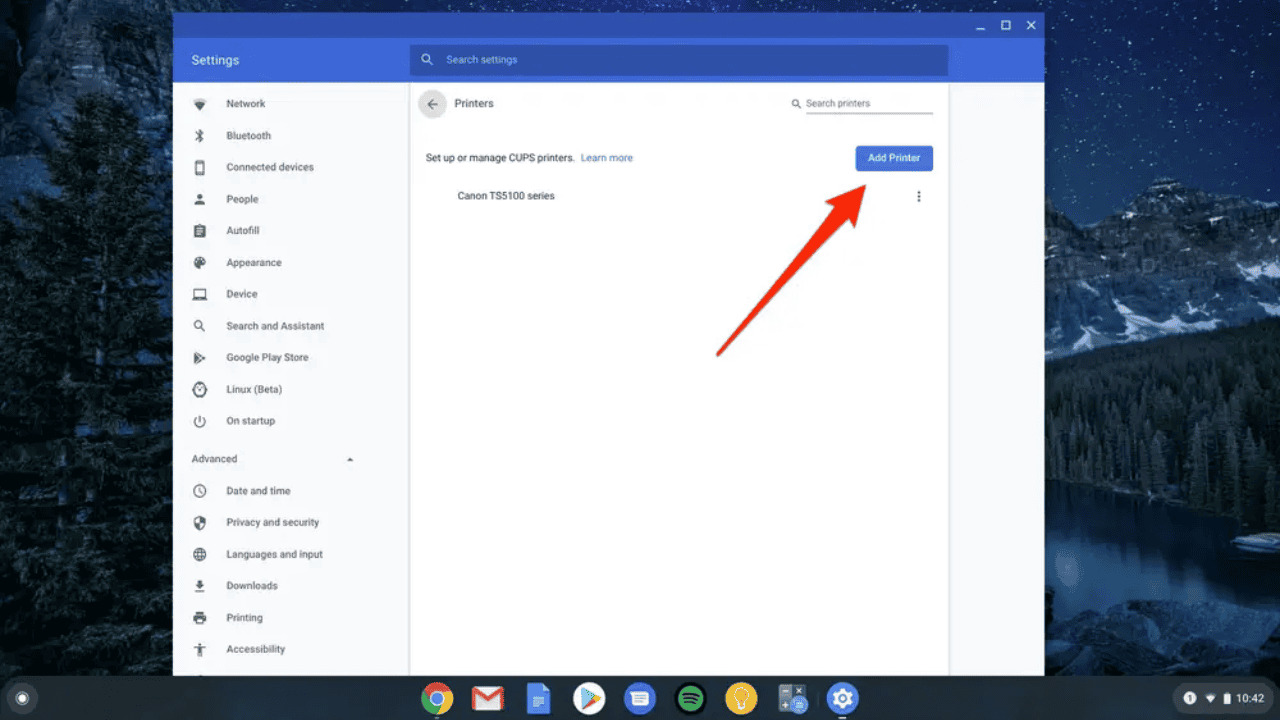
Related reading: How To Restart Wireless Router, How To Change Wi-Fi Password On Wireless Printer, and How To Connect Chromebook To Canon Wireless Printer.