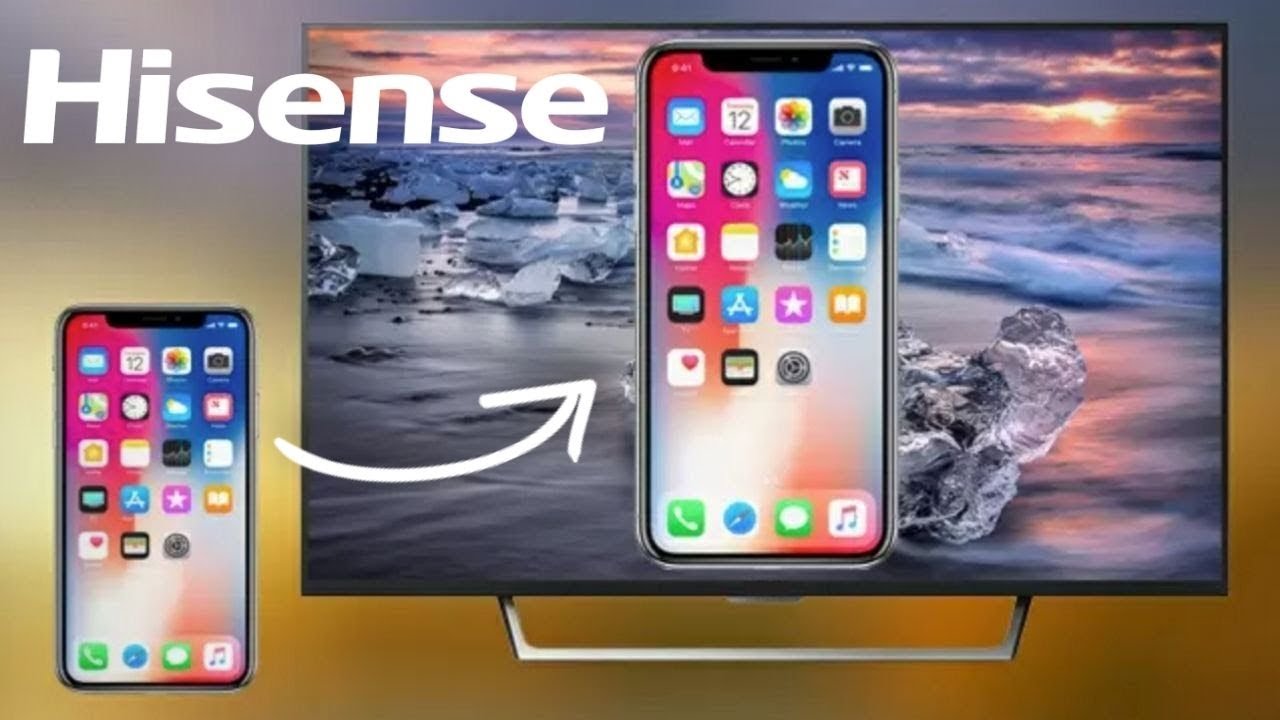
To connect your phone to a Hisense TV, the quickest method is wireless mirroring: use Anyview Cast for most Android phones or AirPlay for iPhones. These built-in features let you share photos, videos, and apps on your TV in seconds.
How to connect your phone to a Hisense TV wirelessly
Wireless mirroring is the most convenient way to connect your phone to a Hisense TV. The two primary methods are Anyview Cast for Android devices and AirPlay for iPhones. Both require your phone and TV to be on the same Wi-Fi network.
Before you begin, check your TV and phone compatibility. Identify your Hisense TV's operating system (Android or Roku) and your phone's operating system (Android or iOS) to determine which wireless methods will work.
You can also use Wi-Fi Direct to establish a direct wireless connection without a separate network. Enable Wi-Fi Direct on both your Hisense TV and your phone, then select the TV from your phone's Wi-Fi Direct device list to connect.
Connect an Android phone with Anyview Cast
Anyview Cast is the built-in screen mirroring feature on Hisense TVs running VIDAA or Android TV. It allows you to mirror your Android phone's screen without extra hardware.
- On your Hisense TV, open the settings menu and enable Anyview Cast. This option is typically found under Network or Screen Mirroring settings.
- On your Android phone, open the quick settings panel by swiping down from the top of the screen.
- Look for the screen mirroring or cast icon (often labeled Smart View, Cast, or Screen Mirroring). Tap it.
- Select your Hisense TV from the list of available devices.
- Your phone's screen will appear on the TV. You can now stream videos, show photos, or use apps on the larger display.
Connect an iPhone with AirPlay
If you have an iPhone, AirPlay provides a seamless way to mirror your screen to a compatible Hisense TV. This method works on newer Hisense models that support Apple AirPlay.
- On your Hisense TV, go to the settings menu and ensure AirPlay is enabled. This setting is usually under Network or General settings.
- Make sure your iPhone and Hisense TV are connected to the same Wi-Fi network.
- On your iPhone, open the Control Center by swiping down from the top-right corner (on iPhones with Face ID) or swiping up from the bottom (on older models).
- Tap the Screen Mirroring icon.
- Your iPhone's screen will appear on the TV, allowing you to share videos, photos, or presentations.
Screen mirroring on a Hisense Roku TV
Hisense Roku TV models use a different screen mirroring protocol than VIDAA or Android TVs. The Roku platform supports screen mirroring from both Android and Windows devices.
- On your Hisense Roku TV, press the Home button on the remote.
- Navigate to Settings > System > Screen Mirroring.
- Select Screen Mirroring Mode and choose Prompt or Always Allow.
- On your Android phone, open the quick settings panel and tap the screen mirroring or cast icon.
- Select your Hisense Roku TV from the list of available devices.
- If prompted, confirm the connection on your TV. Your phone's screen will now appear on the TV.
Use a third-party app if mirroring fails
If built-in options are incompatible or unreliable, third-party screen mirroring applications such as AirDroid Cast or HiRemote can offer alternative methods. These apps can provide screen mirroring capabilities, especially if your TV lacks built-in features or for specific device combinations. MirrorMeister claims compatibility with all Android mobile devices and all Hisense Smart TVs (including Hisense Roku TV and Hisense Android TV).
- Download and install the chosen app on your phone (and on your Hisense TV if an app version is available for the TV's operating system).
- Ensure both your phone and TV are connected to the same Wi-Fi network.
- Launch the app on both devices.
- On your phone, select your Hisense TV from the list of available devices.
- Follow any on-screen instructions to establish the connection. Your phone's screen should now be mirrored on the TV.
When you are casting your phone to a TV, these apps can bridge compatibility gaps. If you need to know how to connect your phone to a TV in general, the same principles apply: same network, compatible app, and device selection. For productivity, Duet display turns your phone into a second screen, though this requires a wired connection and a compatible app.
Frequently Asked Questions
Why won't my Hisense TV appear in the device list?
Ensure both devices are on the same Wi-Fi network. Restart both your phone and TV, then try again. Some Hisense models require you to enable screen mirroring in the TV settings before they become discoverable.
Can I connect my phone to a Hisense TV without Wi-Fi?
Yes, you can use an HDMI cable with a compatible adapter for your phone. This provides a direct wired connection that does not require a network. Connect a Micro HDMI or USB-C to HDMI adapter to your phone, plug the HDMI cable into the adapter and the TV, then set the TV input source to the correct HDMI port.
Do I need the same Wi-Fi network for all methods?
Yes, wireless methods like Anyview Cast, AirPlay, Roku screen mirroring, and third-party apps all require both devices to be on the same Wi-Fi network.
Will screen mirroring work with all Hisense TV models?
Most Hisense Smart TVs support some form of screen mirroring. VIDAA and Android TV models use Anyview Cast, Roku models use Roku screen mirroring, and newer models support AirPlay for iPhones.
Can I connect an iPhone to a Hisense Roku TV?
Yes, if the Hisense Roku TV supports AirPlay. Check your TV's settings under Network or General for AirPlay options. If AirPlay is not available, use a third-party app or a wired connection.
What if my Hisense TV doesn't have the same connectivity options as my phone?
If your phone and TV lack a shared mirroring protocol, use a media streaming device like Chromecast or Apple TV as an alternative. Plug the device into your TV's HDMI port and use its dedicated app to cast your phone's screen.