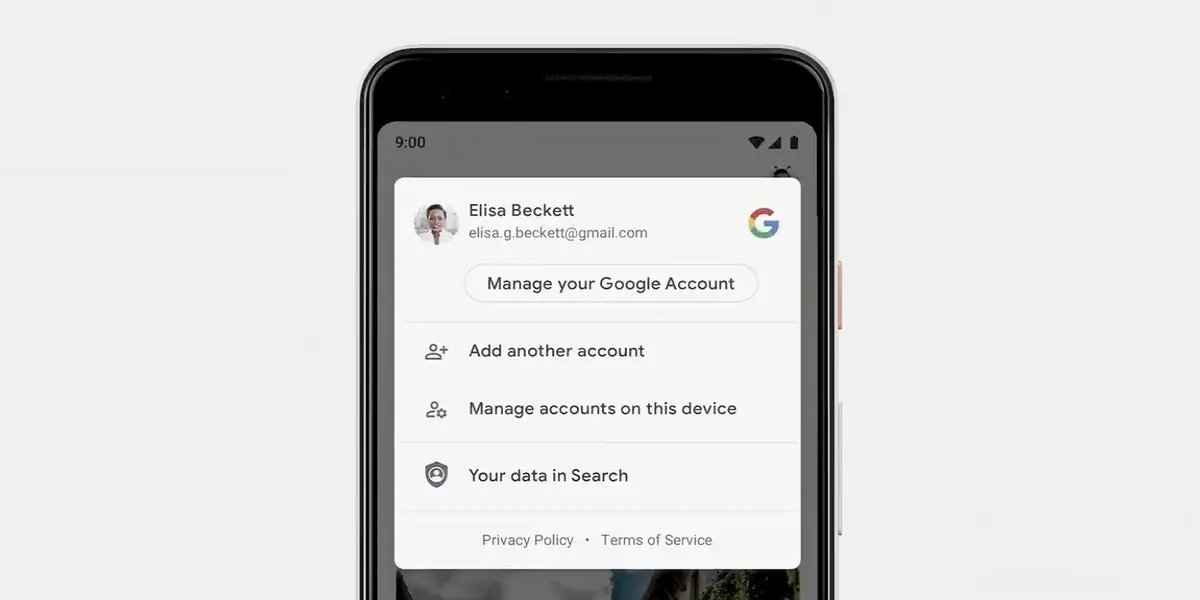
To disconnect Google Photos from your iPhone, you must complete two essential steps: turn off Backup & Sync inside the Google Photos app, and then revoke the app’s photo access in your iPhone’s Privacy settings. This stops Google Photos from automatically backing up and syncing photos from your iPhone, which is the primary reason users want to disconnect, typically to free up storage or switch to iCloud only.
How to disconnect Google Photos from iPhone
Step 1: Turn off Backup & Sync in the Google Photos app
- Open the Google Photos app on your iPhone.
- Tap your profile picture or initial in the upper right corner.
- Select “Photos settings” (or “Google Photos settings”).
- Tap “Backup & sync” (or “Backup”).
- Toggle the “Backup & Sync” switch to off.
This stops any future uploads of new photos and videos from your iPhone to Google Photos. However, the app may still display local images from your camera roll.
Step 2: Revoke photo access in iPhone Privacy settings
- Open your iPhone’s “Settings” app.
- Scroll down and tap “Privacy & Security.”
- Tap “Photos.”
- Find “Google Photos” in the list of apps and tap it.
- Select “None” (or “Selected Photos” for limited access).
This completely prevents Google Photos from accessing or displaying new images from your device. If you prefer to keep the app installed but want it to see only specific pictures, choose “Selected Photos” instead.
What happens after you disconnect
Turning off Backup & Sync and revoking photo access does not delete any photos you have already backed up to Google Photos. Those images remain in your Google account and are accessible from any device. Google Photos offers 15 GB of free storage, which is shared across Google Drive, Gmail, and Photos. Your iCloud settings are unaffected because Google Photos and iCloud Photos operate independently. If you use both services, your photos may appear in multiple places, potentially causing duplicate libraries. If you use both iCloud and Google Photos for backup, your photos may appear in multiple places, potentially causing confusion or duplicate libraries. The Google Photos app may still show local images until you revoke its photo access, which is why both steps are necessary for a full disconnect.
Troubleshooting common issues
Photos still appear in Google Photos after disconnecting
If you only turned off Backup & Sync, the app can still display photos stored locally on your iPhone. Go to your iPhone’s Privacy & Security settings and set Google Photos photo access to “None” to stop this. If photos that were previously backed up still appear, they are stored in your Google account and will remain there unless you delete them from the account itself.
Syncing errors persist
If you see syncing errors or delays, check your internet connection and ensure you have a stable signal. Restart both your iPhone and the Google Photos app. If the problem continues, sign out of your Google account within the app by tapping your profile icon, selecting “Manage accounts on this device,” and choosing “Remove from this device” for your account. Then reinstall the app if needed.
The Backup & Sync toggle won’t turn off
Make sure you have a stable internet connection. Force quit the Google Photos app and try again. To clear cache and data from the Google Photos app, go to iPhone Settings > General > iPhone Storage, find Google Photos, and tap 'Delete App' to remove the app and its associated data.
Frequently Asked Questions
Will disconnecting Google Photos delete my existing backed-up photos?
No. Disconnecting only stops future syncing. All photos and videos already backed up to your Google account remain there and are accessible from any device with internet access.
Can I reconnect Google Photos to my iPhone later?
Yes. To reconnect, open the Google Photos app, sign back into your Google account, and turn Backup & Sync on again. Syncing will resume from where it left off, and no previously backed-up media will be deleted.
What other cloud services can I use for managing and transferring photos?
If you are transferring and managing photos on phones, alternatives include iCloud, Dropbox, and OneDrive. Each offers similar backup and storage features, so you can choose the one that best fits your needs.
How do I sign out of my Google account entirely from the Google Photos app?
Open the Google Photos app, tap your profile icon, select “Manage accounts on this device,” and choose “Remove from this device” for your account. This signs you out and removes the account from the app.
Related reading: How To Sync IPhone Calendar and How To Change The Name Of Your IPhone.