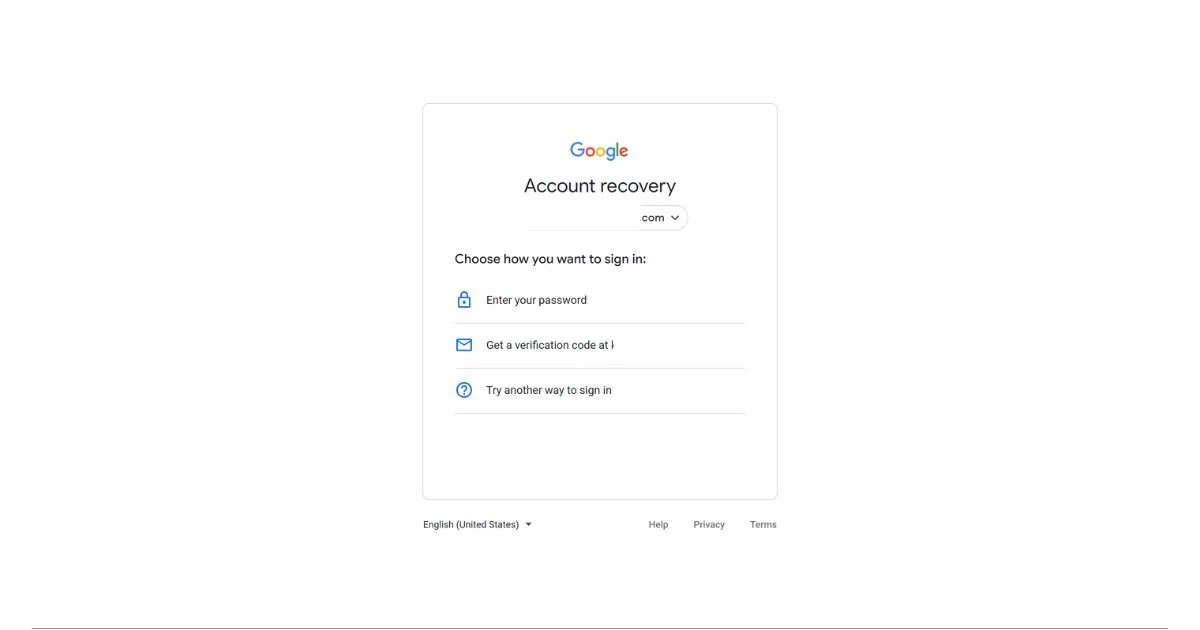
Can you recover a Google account without a phone number or recovery email?
Yes, you can attempt to recover a Google account without a phone number or recovery email, but the only official path Google documents is its automated recovery flow, and that flow typically requires you to know at least one of those details. If you have neither, you are not locked out forever, but your options are limited to answering the prompts Google shows you during that same automated process. The hard truth from Google's own documentation is that there is no separate, manual, or live-support route for personal account recovery that bypasses the phone number and recovery email entirely.
Start with the Google account recovery flow
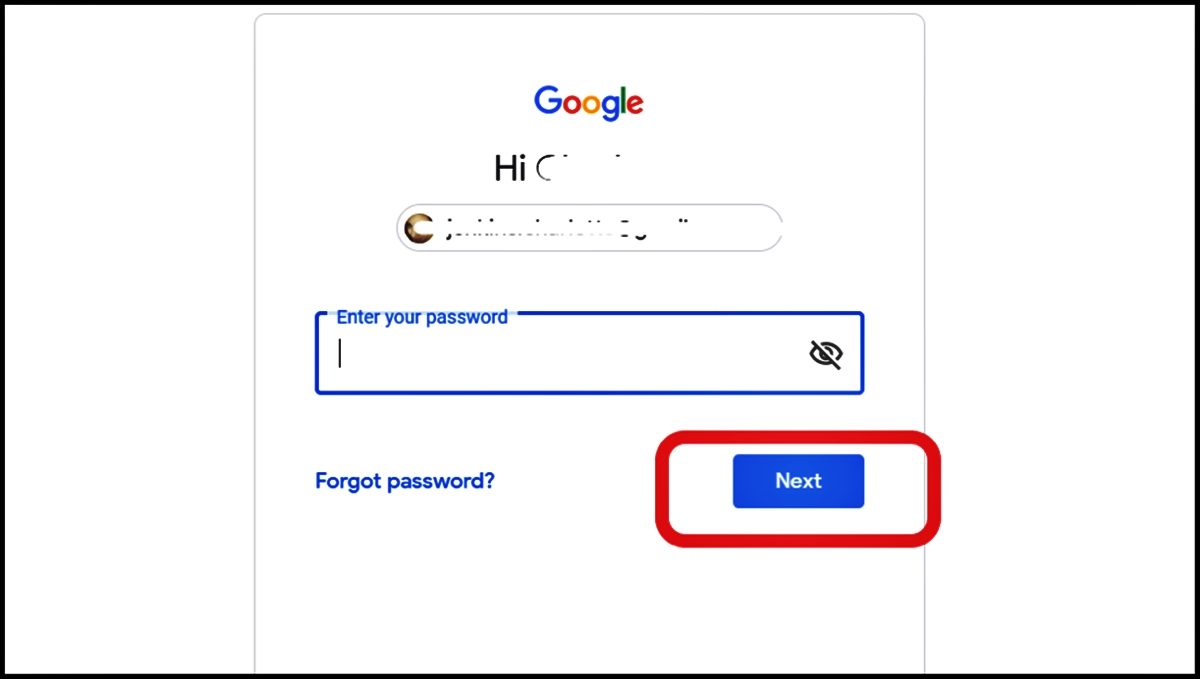
Your first step is always the same: go to the Google Account Recovery page. Enter your Gmail address or username, then click "Forgot password?" or "Next" as prompted. Google will then walk you through a series of screens. Even if you know you don't have the phone number or recovery email, do not close the page. Follow every prompt you are given, and if Google asks for a phone number or recovery email you no longer have, look for a link that says "Try another way." That link is your gateway to every other option Google is willing to offer you.
The recovery flow is designed to verify you are the account owner. It may ask you to enter the last password you remember, even if it's wrong, or to answer questions about when you created the account or who you email most often. Google may ask for details about your recent account activity, contacts in your Gmail address book, calendar events, or any other specific information related to your account. Answer everything as accurately as you can. The more correct information you provide, the more likely Google is to grant you access. If you get stuck, the only documented move is to keep trying the same flow with different answers or wait and try again later, as Google may lock you out temporarily after too many failed attempts. Visit the Google Account Help Center and navigate to the 'Contact Us' section. Choose the option to connect with a support representative via chat, email, or phone.
Use backup 2-Step Verification methods if you set them up
If you had 2-Step Verification enabled before you lost access, your recovery path may not require the phone number or recovery email at all. On the recovery screen, click "Try another way" repeatedly. Google will present you with any second-step options that were previously added to your account. These include backup codes, the Google Authenticator app, a passkey, a physical security key, or a prompt sent to another trusted device where you are already signed in. Any of these can get you back in without touching your lost phone number or recovery email, but only if you set them up before the lockout.
For example, if you have backup codes stored somewhere safe, enter one when prompted. If you use Google Authenticator, open the app and type the six-digit code it generates. If you have a security key, plug it in and tap it when asked. If you see a prompt on another device, like a tablet or a second phone, approve it. Each of these methods bypasses the need for your recovery phone and email, but they only work if you added them to your account while you still had access.
Manage your 2-Step Verification settings for next time
Once you are back in, the first thing you should do is update your recovery options. On an Android device, open Settings, tap Google > Manage your Google Account, then tap Security & sign-in or Security and sign-in. Under How you sign into Google or How you sign in to Google, tap Recovery info to add a new phone number and a new recovery email. Update both fields immediately so you have a valid recovery method going forward.
Next, go to the 2-Step Verification section of your Google Account. There, you can select "Show codes" to view your current backup codes, and then "Get new codes" to generate a fresh set. If you lost a security key, sign in with your password and your other second step, then remove the lost key from your account. Get a new security key, add it to your account, and label it clearly. If you use Google Authenticator, you can also transfer your account to a new phone by scanning the QR code during setup. These steps ensure that the next time you lose a device, you have multiple ways to get back in.
Precautions to avoid future account recovery issues
The most important habit is to keep your recovery information current. Update your phone number and recovery email the moment they change, not when you need them. Enable 2-Step Verification and keep at least two backup methods active, such as backup codes and an authenticator app. Use a strong, unique password that you don't reuse anywhere else, and store it in a password manager. Finally, secure your recovery email itself with its own strong password and 2FA, because if someone takes over that inbox, they can take over your Google account too.
Another precaution is to periodically log into your Google Account and review the devices that are signed in. Remove any device you no longer recognize or use. If you ever lose your phone, act quickly: sign in from a trusted device and remove the lost phone from your account's "Devices" list. This prevents anyone else from using that phone to receive your recovery codes. Also consider adding a passkey or security key as a backup method, since these are more phishing-resistant than SMS codes and cannot be lost the same way a phone number can.
Frequently Asked Questions
What does the Google recovery form actually ask for?
The form asks for your email address, and then it may ask for the last password you remember, even if it's incorrect.
How long does it take to recover a Google account without a phone number or recovery email?
There is no set timeline. Google's automated system reviews your answers, and if it has enough confidence, it may grant access immediately. If not, you may be asked to wait a few hours or even a few days while Google sends a recovery link to an email address you provide during the process. The recovery process can take anywhere from a few hours to a few days. The more accurate your answers, the faster it usually goes.
Can I use a friend's phone number to recover my Google account?
No. The phone number must be one that was previously added to your account as a recovery option. Google will not send a verification code to a number that was never associated with your account, and using someone else's number will not help you pass the automated checks.
What if I never set up a phone number or recovery email at all?
If you never added either, your only option is the automated recovery flow. You will need to answer the questions Google asks, such as the date you created the account or the labels of your Gmail folders. If you cannot answer those, Google will not grant access, and there is no human agent who can override that decision for a free personal account.
Is there any way to speed up the recovery process?
Yes, by providing accurate and consistent answers. Use the same device and network you normally use to access your Google account. Fill in every field you can, and if you remember an old password, enter it even if you think it's wrong. Google uses these details to build a picture of your identity, and any correct data increases your chances of a quick approval.
For the wider topic, see bypassing phone lock screens.
Related reading: How To Recover Yahoo Account Without Mobile Number and How To Get Into Old Snapchat Account Without Email Or Phone.