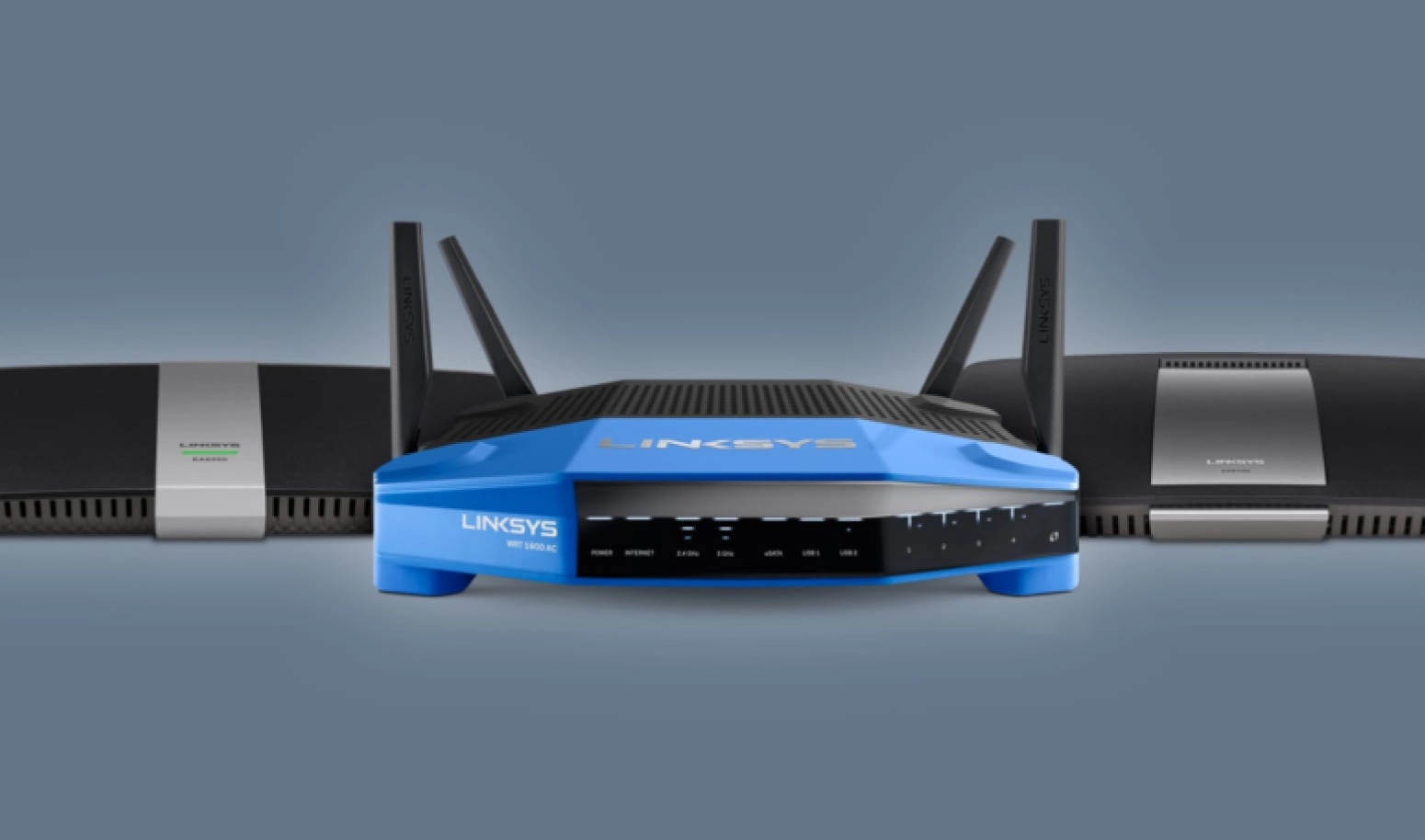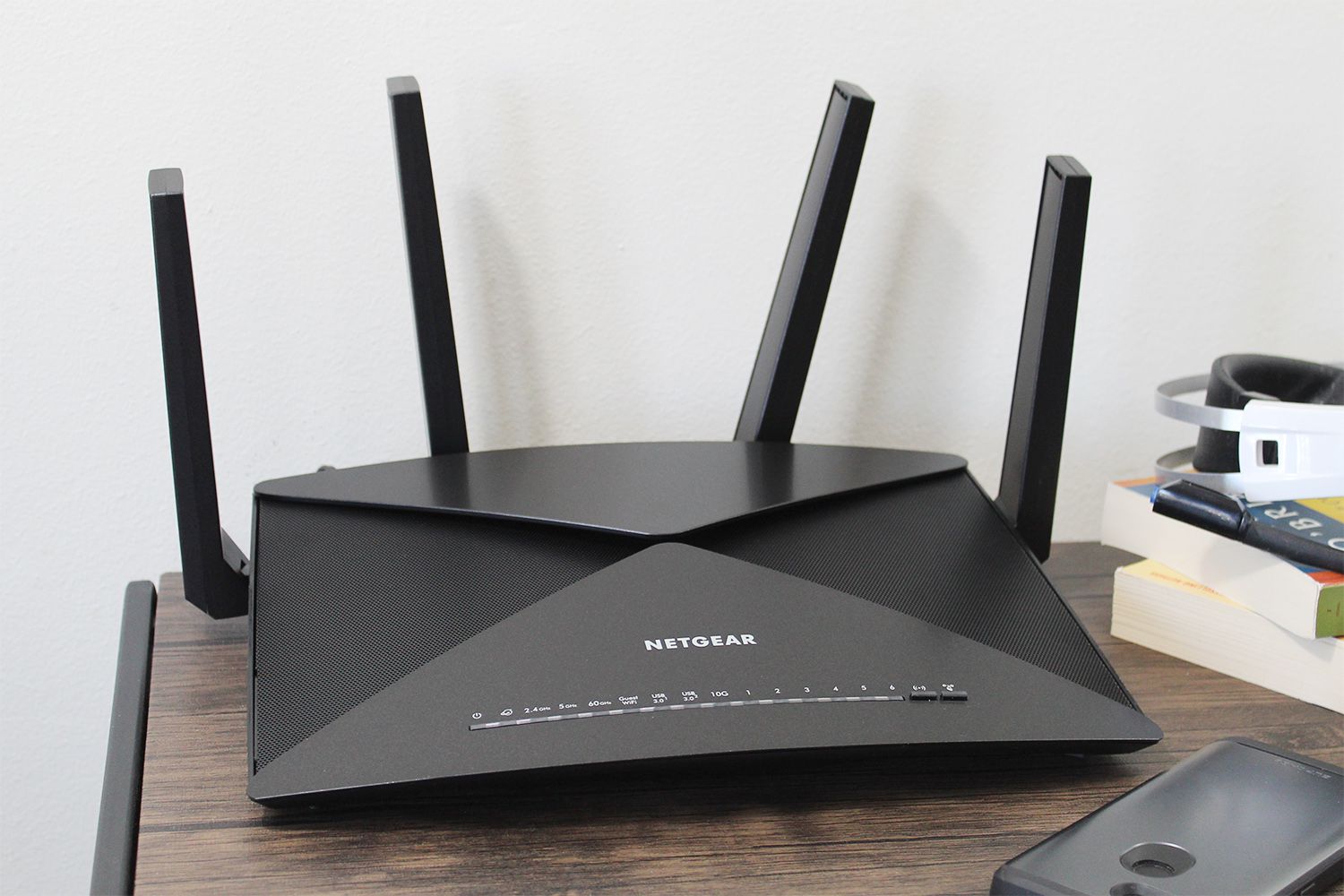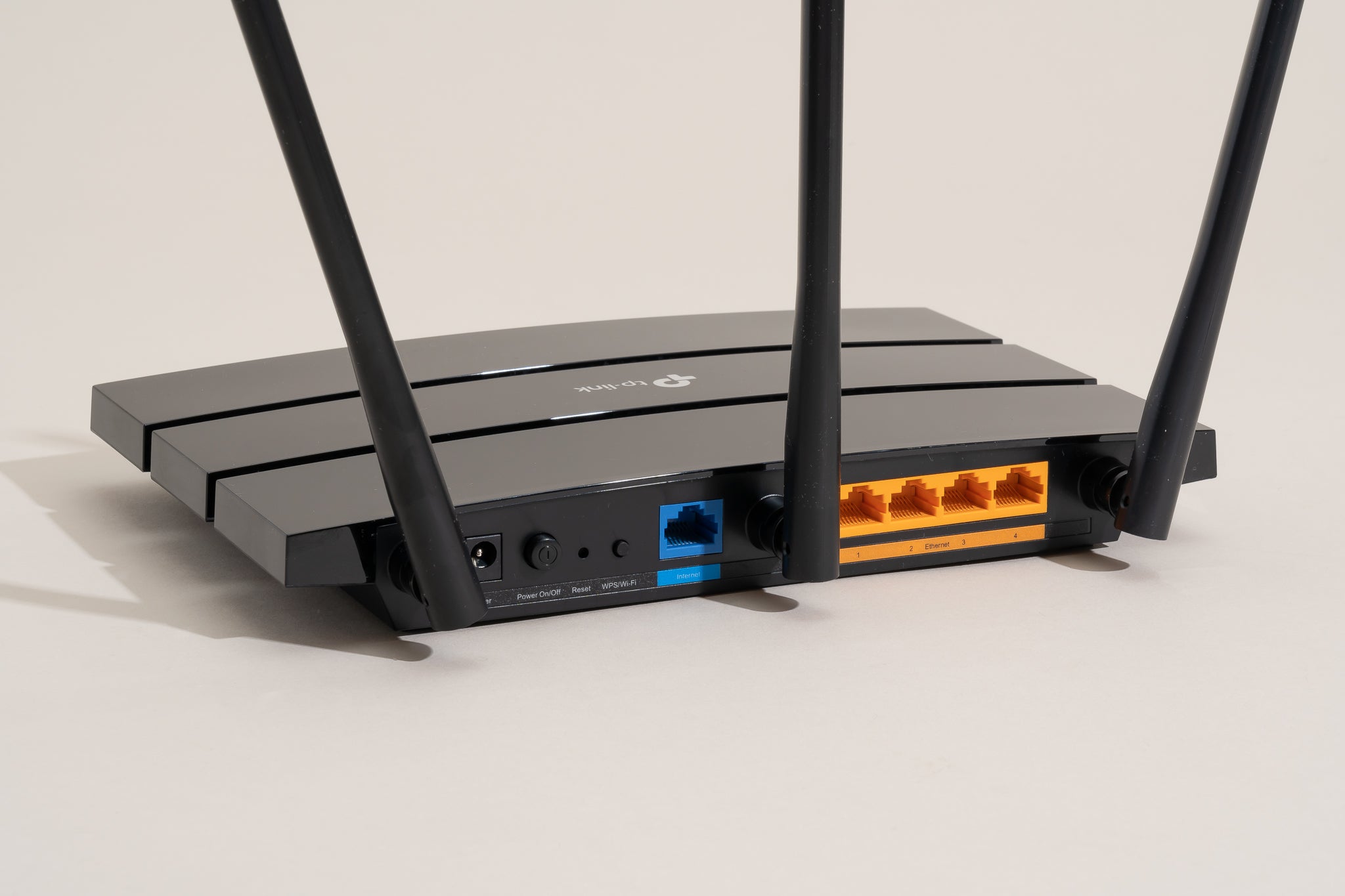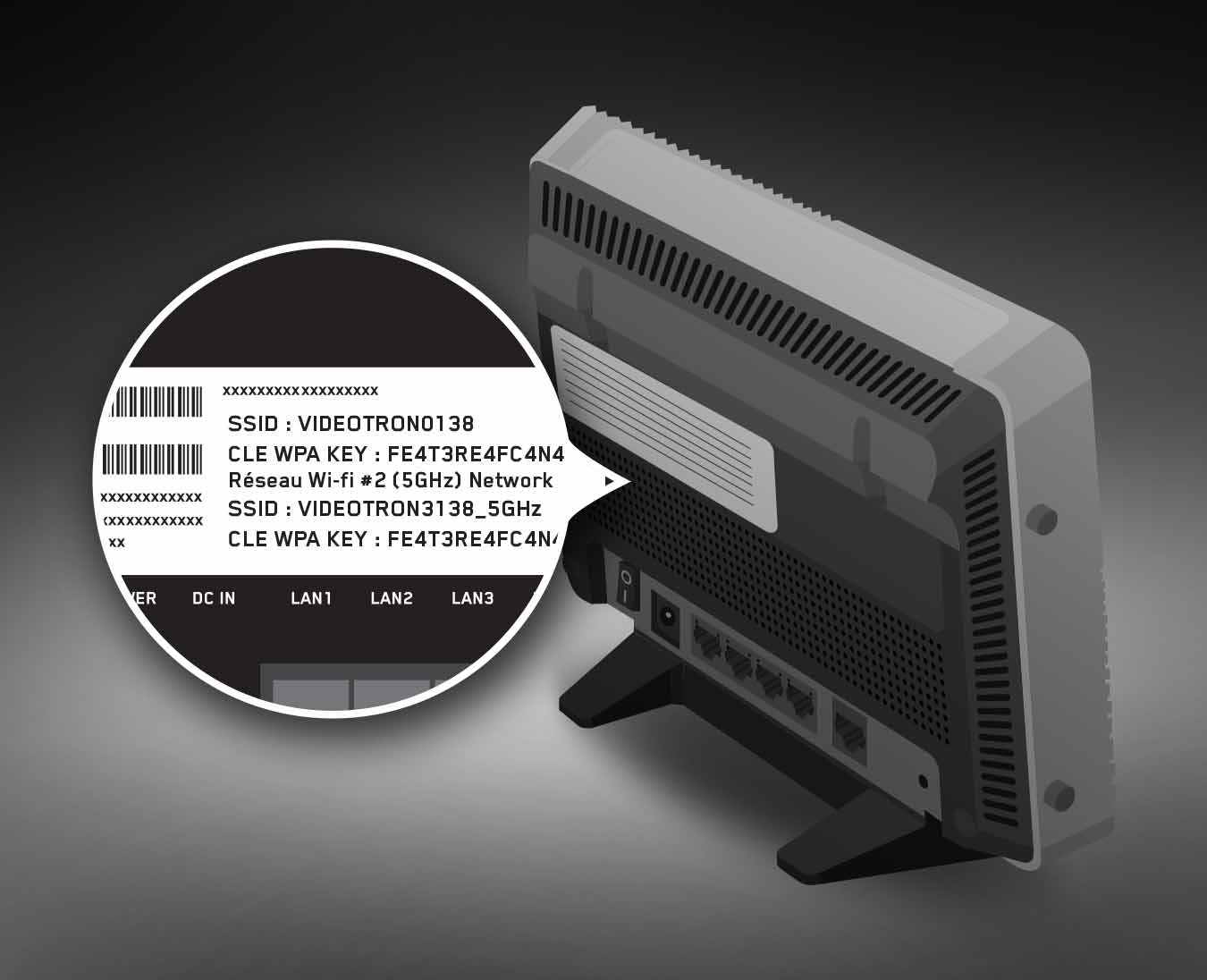
To find wpa key on a wireless router, the quickest method is to physically inspect the back or bottom of the router for a sticker that lists the default network security key or passphrase. If the key has been changed, you can locate it on a device already connected to the network or by logging into the router's administration page.
Find your WPA key on the router label
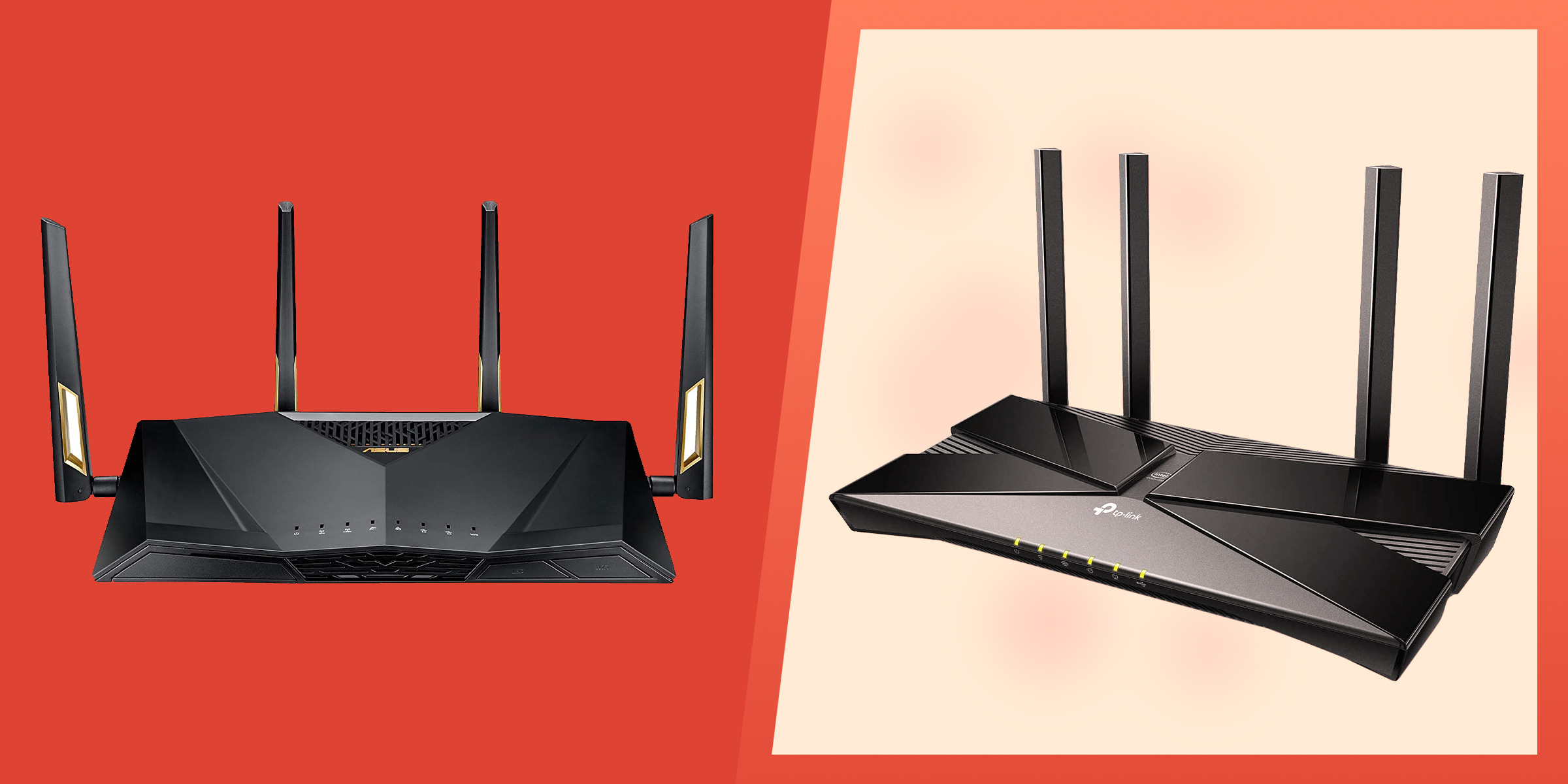
The default WPA key (also called the Wi-Fi password or network security key) is typically printed on a sticker located on the back or bottom of your wireless router. This method works best if you have never changed the router's default settings and still have physical access to the device.
Find your WPA key on a connected Windows PC
If a Windows computer is already connected to the Wi-Fi network, you can retrieve the WPA key from the system settings. This is useful when the default key has been changed and you need to connect a new device.
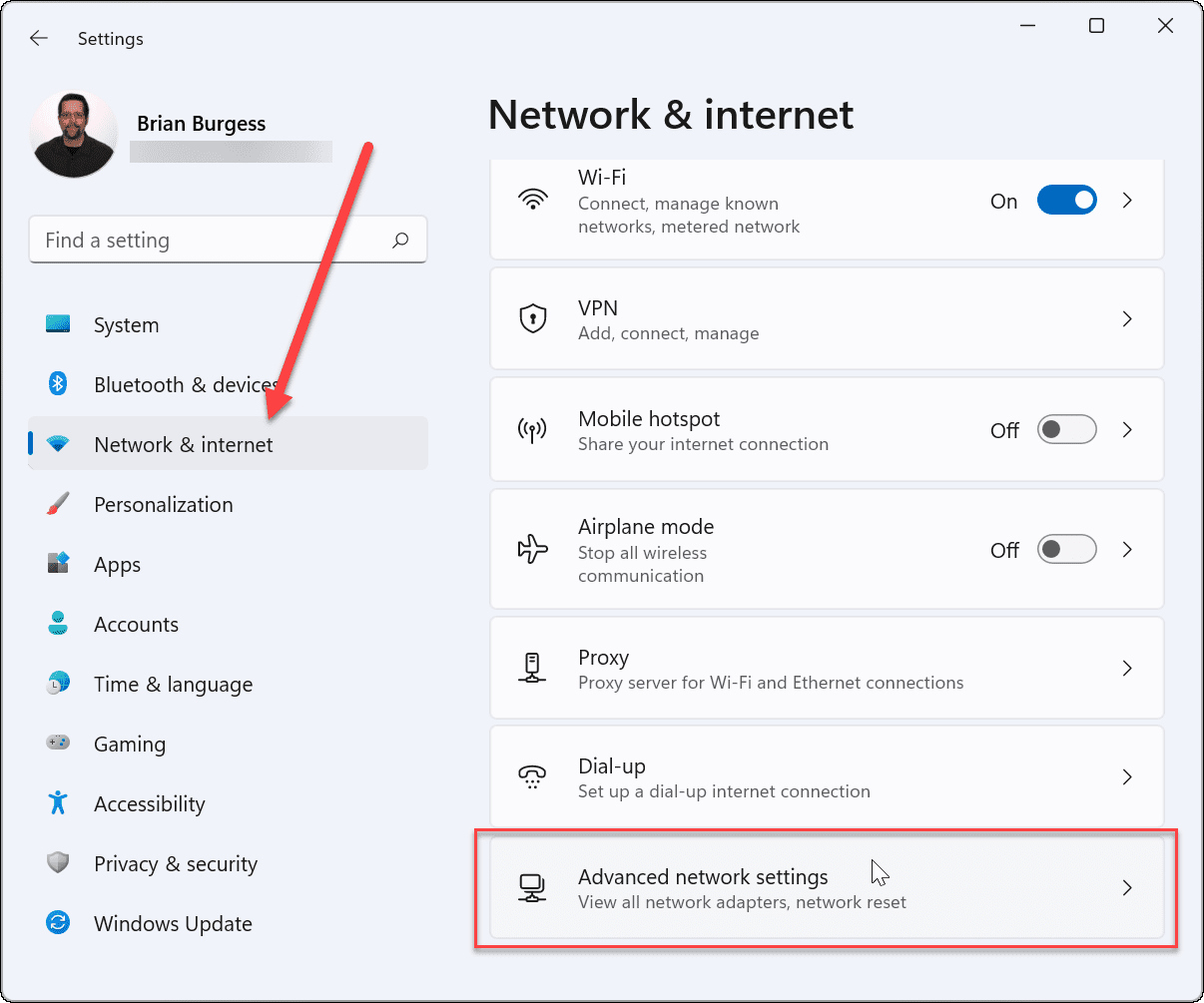
- Open Network & Internet settings.
- Click Wi-Fi, then select your connected network.
- Click Wireless Properties.
- Navigate to the Security tab.
- Check the box labeled "Show characters" to reveal the network security key.
Alternatively, you can use the Command Prompt command 'netsh wlan show profile name=[network profile name] key=clear' to find the WPA key.
Find your WPA key on a connected Mac
On a Mac running macOS 13 or later, you can copy the password for the network you are connected to directly from System Settings. On a Mac, the Wi-Fi interface is typically named 'en0' or 'en1' when using Terminal.
- Open System Settings and click Network in the sidebar.
- Click Wi-Fi, then scroll down and click Advanced.
- Click the More button (or the info icon) next to the network name.
- Choose Copy Password. The password is now on your clipboard and can be pasted wherever needed.
Find your WPA key on a connected Android phone
Android devices that are actively connected to a Wi-Fi network allow you to share the password, which reveals the WPA key.
- Go to Settings, then tap Network and Internet.
- Tap Wi-Fi, then tap the connected network.
- Select Share. You may need to authenticate with a PIN, pattern, or biometric.
- A QR code will appear, and the Wi-Fi password is typically displayed below it.
Find your WPA key on a connected iPhone
- Open Settings and tap Wi-Fi.
- Tap the info icon (i) next to the connected network.
- Tap Password. Authenticate with Face ID, Touch ID, or your device passcode.
- The password will be revealed and can be copied.
Find your WPA key by accessing router settings
This universal method works regardless of whether you have a device already connected. You must be connected to the router's network, either wirelessly or via an Ethernet cable. The router's IP address is typically mentioned on the router itself or can be found in the manual.
- Open a web browser and enter the router's IP address in the address bar. Common default IP addresses include 192.168.1.1, 192.168.0.1, or 10.0.0.1.
- Log in with the router's administrator username and password. Common defaults are "admin" for both, "admin" with "password," or "admin" with a blank password. If you haven't changed the login credentials, the default username and password can usually be found on the router manufacturer's website.
- Navigate to the wireless security section. Look for headings such as "Wireless Settings," "Wireless Security," "Basic > Wireless," or "Setup > Wireless."
- Locate the WPA key. It may be labeled as "WPA-PSK Key," "Pre-Shared Key," "PSK Password," "Wireless Security," or "Wi-Fi Password."
Once you have the key, you can use it to connect any new device to your network. Managing wireless passwords is simpler when you know exactly where to look in the router's interface.
What to do if you still can't find your WPA key
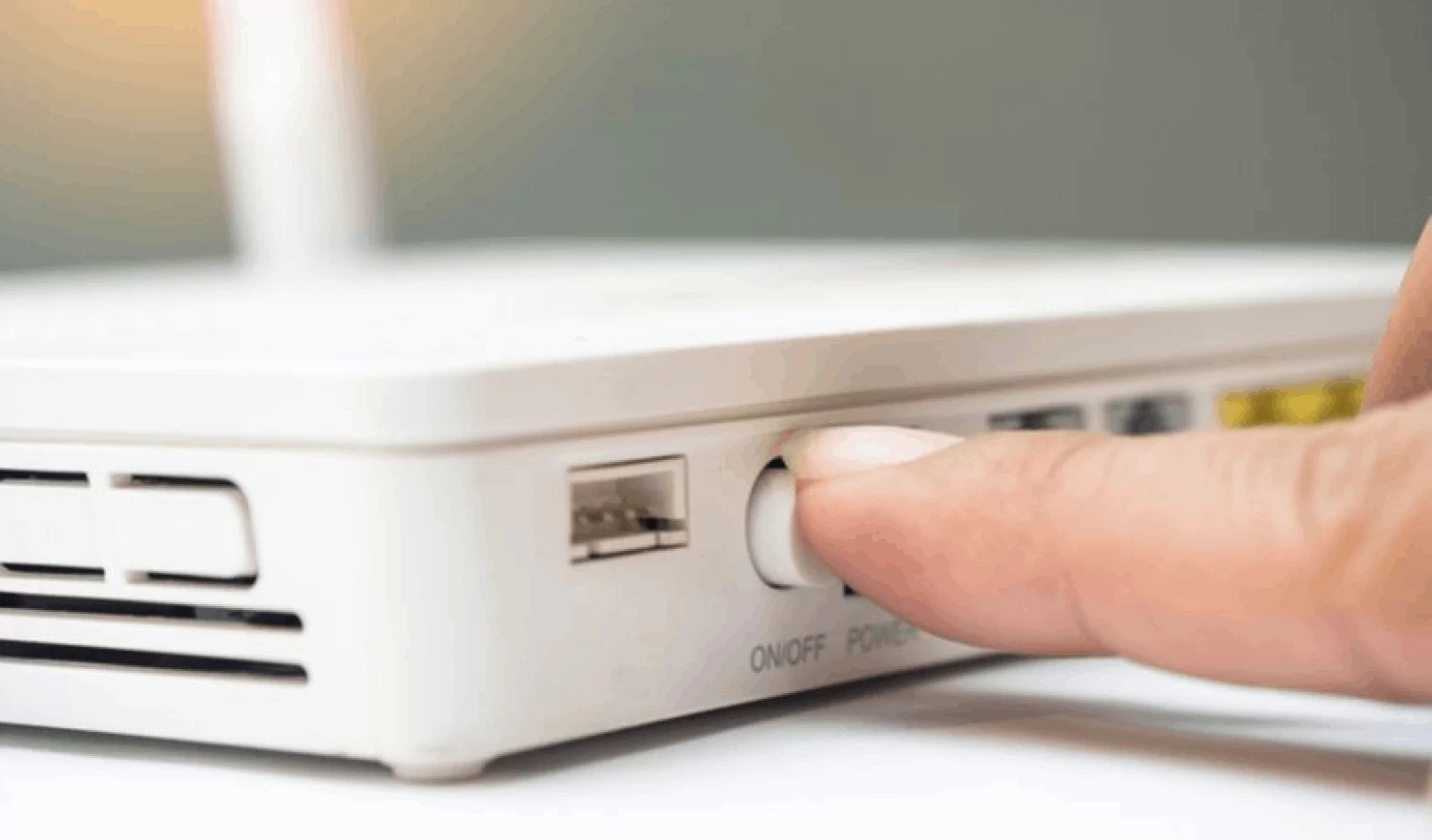
If you cannot locate the WPA key on the router label, on a connected device, or by logging into the router's admin page, the last resort is to perform a factory reset on the router. This restores the router to its original default settings, including the default WPA key and SSID that are printed on the router's label. To reset, press and hold the reset button on the router (usually a small pinhole) for about 10 seconds using a paperclip or similar tool. Be aware that a factory reset will erase any custom settings you have configured, such as a changed network name, custom passwords, or port forwarding rules.
Frequently Asked Questions
What is a WPA key?
A WPA key (Wi-Fi Protected Access key) is a security password used to protect a wireless network. It is a string of characters, typically between 8 and 63 characters long, that devices must provide to join the network.
What is the difference between WPA, WPA2, and WPA3?
WPA is a security protocol, with WPA2 being a stronger and widely adopted standard. WPA3 is the latest and most secure version. Older WEP encryption is considered outdated and less secure.
Can I change my WPA key?
Yes, you can change the WPA key by logging into your router's administration page and navigating to the wireless security settings. It is recommended to use a strong, unique password to maintain network security.
What should I do if I forget my WPA key and cannot access the router settings?
If you cannot find the key on a connected device or by logging into the router, you can perform a factory reset. This will restore the default WPA key printed on the router's label, but it will also erase any custom settings you have made.
Why is my WPA key not working when I try to connect a device?
Ensure you are entering the key exactly as shown, including any capital letters, numbers, or special characters. The WPA key is case-sensitive and should be entered precisely when connecting to a Wi-Fi network. If the key still does not work, the password may have been changed, or the router may be using a different security protocol. Try checking the router's settings or resetting it to factory defaults.
Related reading: How To Find The Wireless Password.