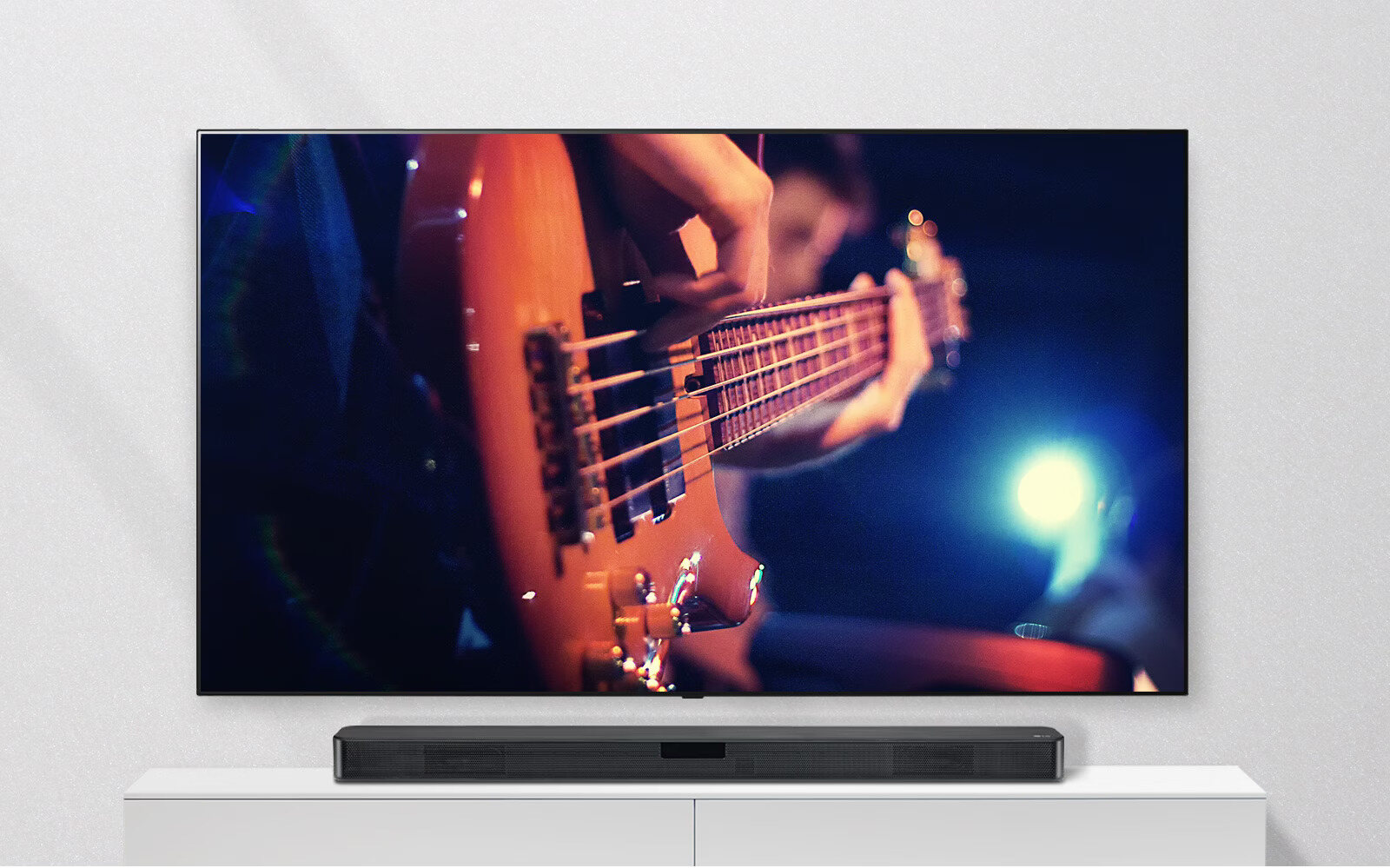
To set up your LG wireless sound bar, connect it to your TV using an HDMI cable plugged into the HDMI ARC ports on both devices, then press the Function button until "OPT/HDMI ARC" appears and select "HDMI ARC" as your TV's audio output. This method delivers the best sound quality and lets you control the sound bar with your TV remote, giving you wireless audio for your TV without extra remotes or complicated wiring.
How to set up your LG wireless sound bar: A quick
How to set up your LG wireless sound bar: A quick, high-level overview of the three main phases: physical connections, wireless pairing, and audio configuration
Setting up your LG wireless sound bar involves three straightforward phases. First, you physically connect the sound bar to your TV using an HDMI or optical cable. Second, you power on the subwoofer and rear speakers, which typically pair automatically. Finally, you configure your TV's audio output and the sound bar's sound modes to match your preferences.
Unboxing and what's in the box
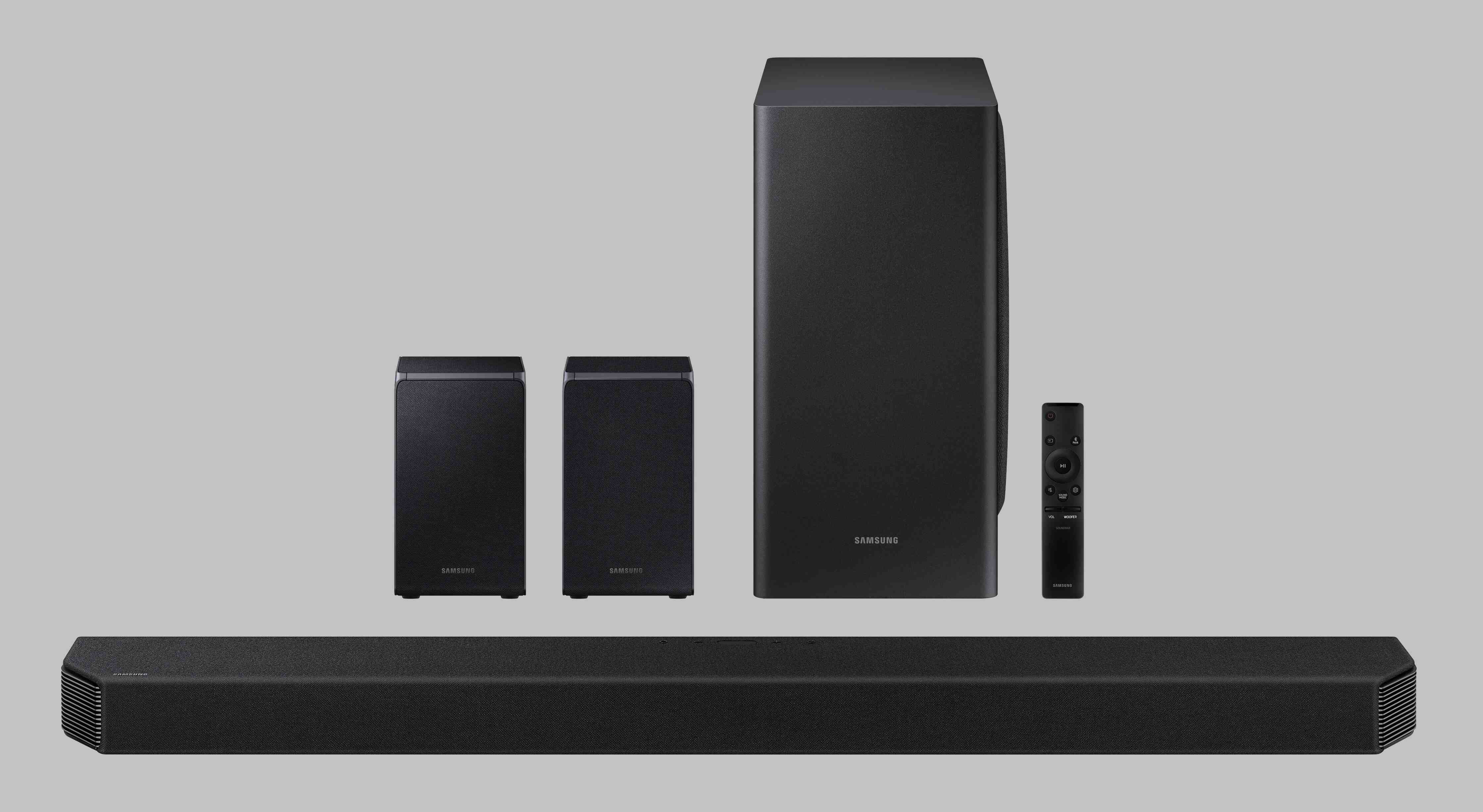
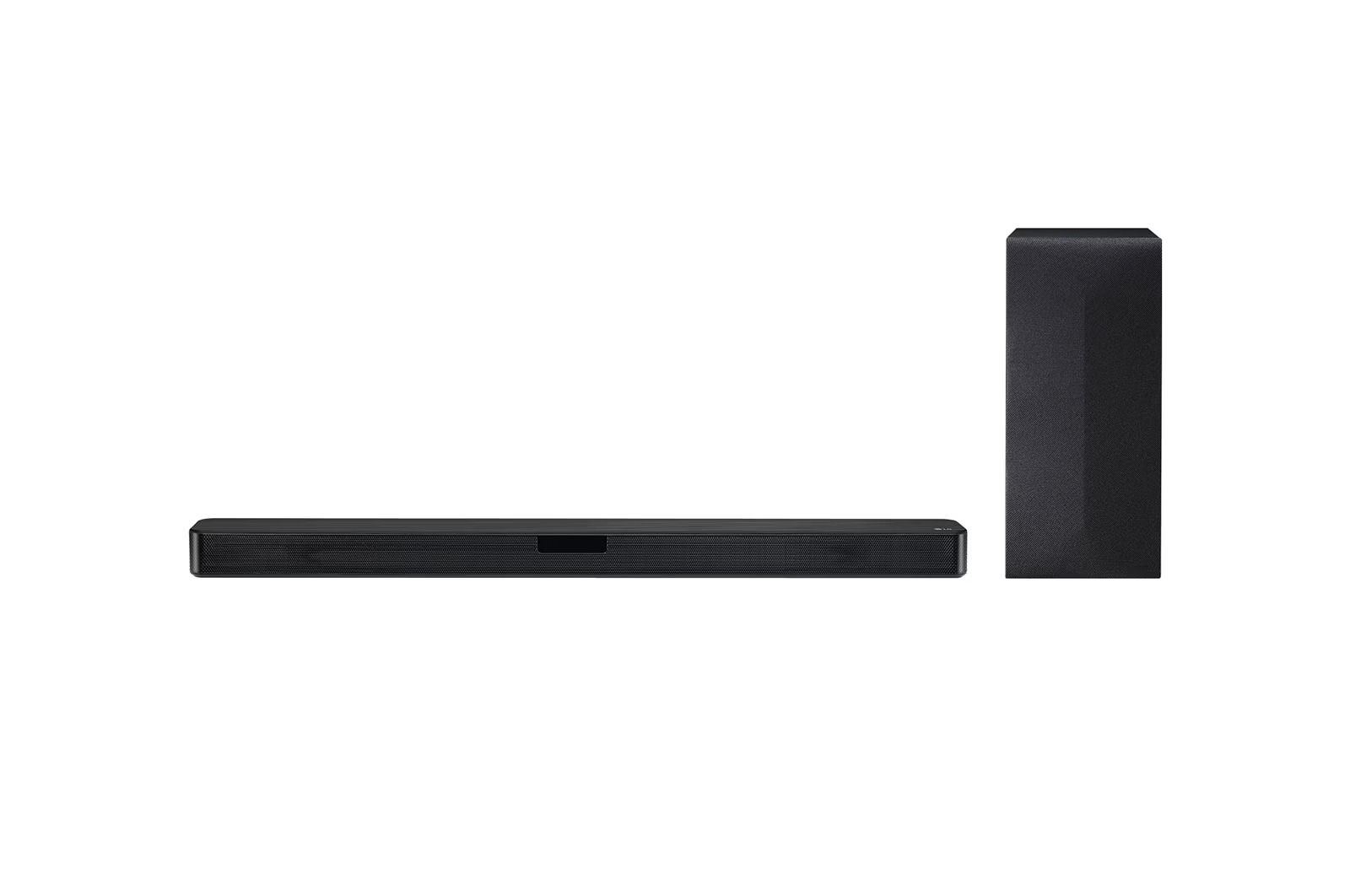
Inside the box, you should find the sound bar, the wireless subwoofer, a remote control with batteries, power cords for the sound bar and subwoofer, an HDMI cable, and optional wall-mounting brackets with screws if your model supports wall mounting. The package may include wall-mounting brackets and screws if you choose to mount the sound bar on your wall. Verify all items are present before starting the setup.
Connecting the sound bar to your TV with HDMI ARC
This is the primary method for the best audio quality and TV remote control integration. Follow these steps:
- Locate the "HDMI Out (TV eARC/ARC)" port on your sound bar and the "HDMI In (ARC)" or "eARC" port on your TV.
- Connect one end of the included HDMI cable to the sound bar's HDMI Out port and the other end to the TV's HDMI In (ARC) port.
- Press the "Function" button on the sound bar repeatedly until "OPT/HDMI ARC" appears on its display.
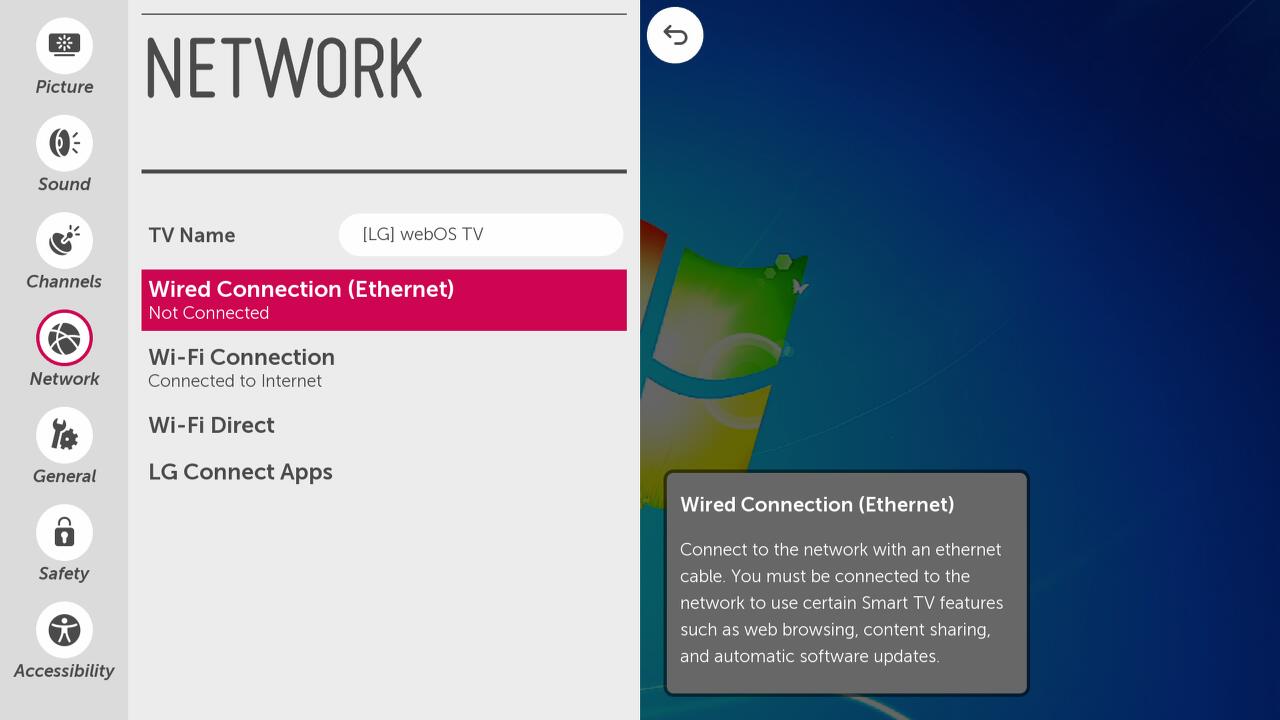
- On your TV, go to the sound settings menu and select "HDMI ARC" or "External Speaker" as the audio output. This enables the Audio Return Channel, sending TV audio to the sound bar.
Alternative connection using an optical cable
If your TV lacks an HDMI ARC port, use an optical cable as a secondary method:
- Connect one end of the optical cable to the TV's "Optical Digital Output" port and the other end to the sound bar's "OPTICAL IN" port.
- In your TV's sound settings, select "Optical" or "External Speaker" as the audio output.
Pairing the wireless subwoofer and rear speakers
LG wireless subwoofers and rear speakers typically pair automatically once all devices are plugged into power and the sound bar is turned on. A green LED indicator on the back of the wireless speaker confirms a proper connection, while a red LED indicates a lost connection or failed pairing. If automatic pairing fails and the LED is red, turn off the sound bar, press the "Pairing" button on the back of the wireless subwoofer or receiver (its LED should blink green), then turn the sound bar back on.
Setting up a Bluetooth connection
To connect a smartphone or TV wirelessly via Bluetooth, press the "F" (Function) button on the sound bar until "BT" or "BT READY" is displayed. Then, enable Bluetooth on your smartphone or TV, navigate to its Bluetooth settings, and select your sound bar from the list of available devices. For TVs, you may need to select "LG Sound Sync Bluetooth" or "Bluetooth Device List" in the sound settings. Some sound bars also support other wireless connectivity options, such as NFC (Near Field Communication) or Chromecast built-in.
Connecting to Wi-Fi with the LG Sound Bar app
For Wi-Fi connectivity and advanced control, install the "LG Sound Bar" app from the Google Play Store or Apple App Store on your smartphone. Ensure both Wi-Fi and Bluetooth are enabled on your phone. Run the app, agree to the terms, select "Connect Product" or similar, and follow the in-app instructions to connect to your sound bar (listed as "LG_Speaker_XXXX"). The LG ThinQ app can also be used to update software and control features on network or Bluetooth-enabled LG Soundbars.
Placing your speakers for the best sound
Position the sound bar centrally below or above your TV at ear level. Place the wireless subwoofer as close to the sound bar as possible, avoiding obstacles and interference from other electronics like Wi-Fi routers or microwaves. For optimal surround sound, place wireless rear speakers behind your seating area at about ear level and evenly spaced.
Configuring audio settings and sound modes
Use the remote control to switch between sound modes like Standard, Music, and Movie to match your content. Some LG Sound Bars feature built-in sound modes specifically designed for different types of content, like Movie or Cinema mode to enhance dialogue and sound effects intensity. Adjust bass and treble levels using the equalizer settings in the sound bar's menu for a personalized audio experience. Some models also offer night mode for reduced loud sounds during late-night viewing and voice enhancement for clearer dialogue.
Troubleshooting common setup problems
If there is no sound, check that the sound bar is set to the correct input source (OPT/HDMI ARC or Optical) and that your TV's audio output matches. If the subwoofer is not pairing and shows a red LED, perform the manual pairing steps using the Pairing button. If Bluetooth cannot find the sound bar, ensure "BT READY" is displayed on the sound bar's screen and that the device you are pairing is in pairing mode within range. If the sound bar is not turning on and a different power outlet doesn't work, there may be a problem with the sound bar itself, and you may need to contact customer support.
Frequently Asked Questions
Is it difficult to set up a LG Wireless Sound Bar?
No, setup is designed to be straightforward, involving simple physical connections and automatic wireless pairing.
Are there any specific requirements for setting up a LG Wireless Sound Bar?
You will need a TV with an available HDMI or optical audio output; check compatibility of TV and sound bar.
Do I need additional speakers or subwoofers for a LG Wireless Sound Bar?
It is a standalone device, but some models allow adding optional wireless surround speakers or a wireless subwoofer.
Can I use my LG sound bar with multiple devices at the same time?
You can connect multiple devices as long as they support the same type of connection, such as HDMI or Bluetooth. You will need to switch the input source on the sound bar depending on which device you want to use.
How do I update the firmware on my LG sound bar?
Use the LG Sound Bar app or the LG ThinQ app to check for and install firmware updates. Alternatively, you can download the update from the LG support website and follow the instructions provided for your specific model.
Can I use the LG sound bar without a TV?
Yes, you can use the sound bar as a standalone audio system. Connect your smartphone or music player via Bluetooth or an auxiliary cable to play music without a TV.
What does the green LED on the subwoofer mean?
A solid green LED on the back of the wireless subwoofer or rear speakers confirms that they are properly connected and paired with the sound bar.
Why is my sound bar not turning on?
Check that the power cord is securely plugged into both the sound bar and a working power outlet. If it still does not turn on, try a different power outlet. If the issue persists, contact LG customer support.
Related reading: How To Make A Wired Speaker Wireless.