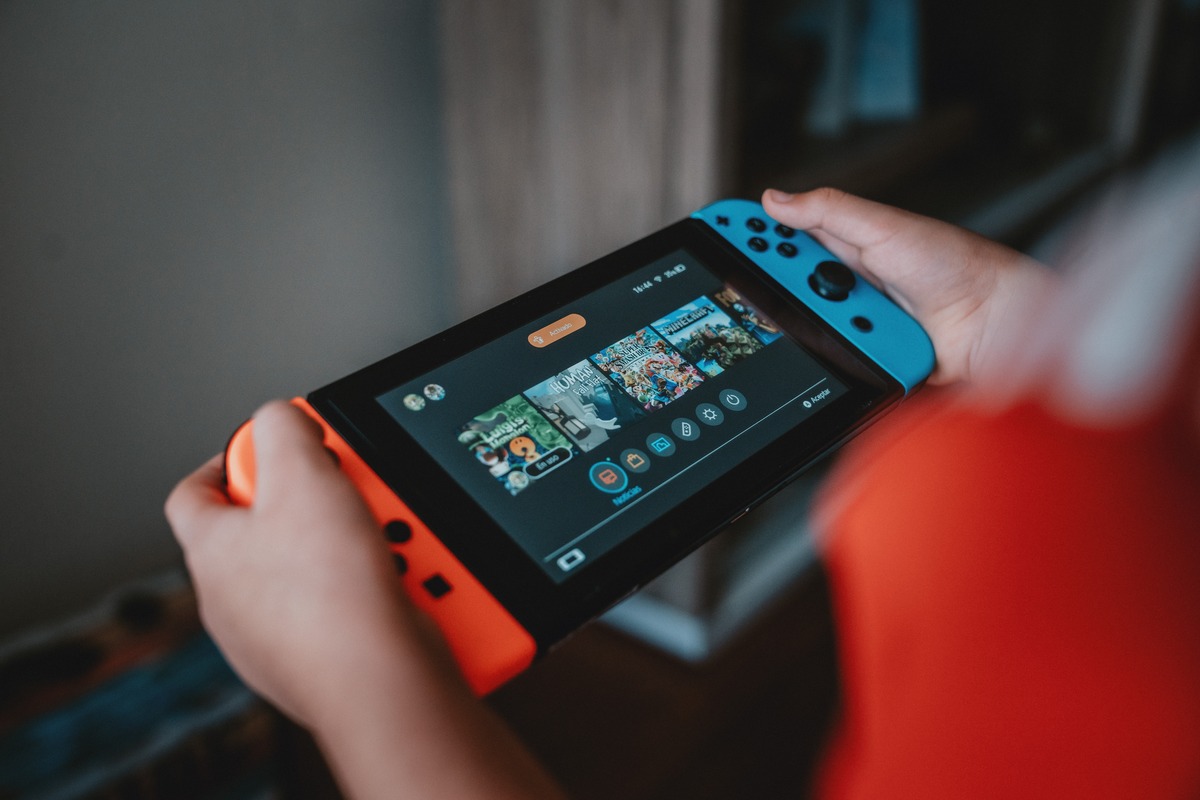
To transfer save data from one Switch to another, you have three primary methods: transferring an entire user profile with all its save data, using the Save Data Cloud backup (requires a Nintendo Switch Online subscription), or transferring save data for individual games locally between two consoles. All methods require a Nintendo Account linked to the user profile on the source console.
Before you transfer save data: prerequisites
Before starting any transfer method, ensure both consoles meet these essential requirements. Both the source (old) and target (new) Nintendo Switch consoles must be charged and connected to an official Nintendo Switch AC Adapter. Both consoles need to be updated to the latest system software. They should be near each other and connected to the same Wi-Fi network. A Nintendo Account must be linked to at least one user profile on your original Nintendo Switch. During the transfer, you will need to sign in with the same Nintendo Account on your new console.
Method 1: Transfer your entire user profile and all save data
This method moves an entire user profile, including all associated save data, from a source console to a target console. It is the most comprehensive option when upgrading to a new system. This method does not require a Nintendo Switch Online subscription.
- On the source console, navigate to System Settings > Users > Transfer Your User Data. Select Next twice, then choose Source Console.
- On the target console, follow the same path: System Settings > Users > Transfer Your User Data. Select Next twice, choose Target Console, and then sign in with the Nintendo Account.
- Follow the on-screen prompts to complete the transfer. All users on your Nintendo Switch will be transferred together if you use the full System Transfer. Some data will be deleted from the source console during the transfer process.
Method 2: Transfer individual game save data locally
This option transfers save data for a single software title between nearby consoles. When you transfer individual game save data, the save data for that specific game is removed from the source console.
- On the source console, hover over the game icon on the HOME Menu, press the Plus button, select Manage Software > Transfer Your Save Data > Send Save Data to Another Console.
- On the target console, follow the same initial steps, then select Receive Save Data.
- The same user profile linked to the same Nintendo Account must be on both consoles.
Method 3: Use Save Data Cloud backup with Nintendo Switch Online
The Save Data Cloud service allows backing up save data online and downloading it to other consoles, but it requires an active paid Nintendo Switch Online subscription. The console must be connected to the internet.
For supported games, save data can be automatically backed up to the cloud when the console is connected to the internet and in Sleep Mode. To manually back up or download save data via Save Data Cloud, select the game icon on the HOME Menu, press the Plus Button, choose Save Data Cloud, select the appropriate user, and then choose Back Up Save Data or Download Save Data.
Settings for automatic Save Data Cloud backup and download can be adjusted for each user and individual software titles under System Settings > Data Management > Save Data Cloud > Settings.
Important notes and game-specific exceptions
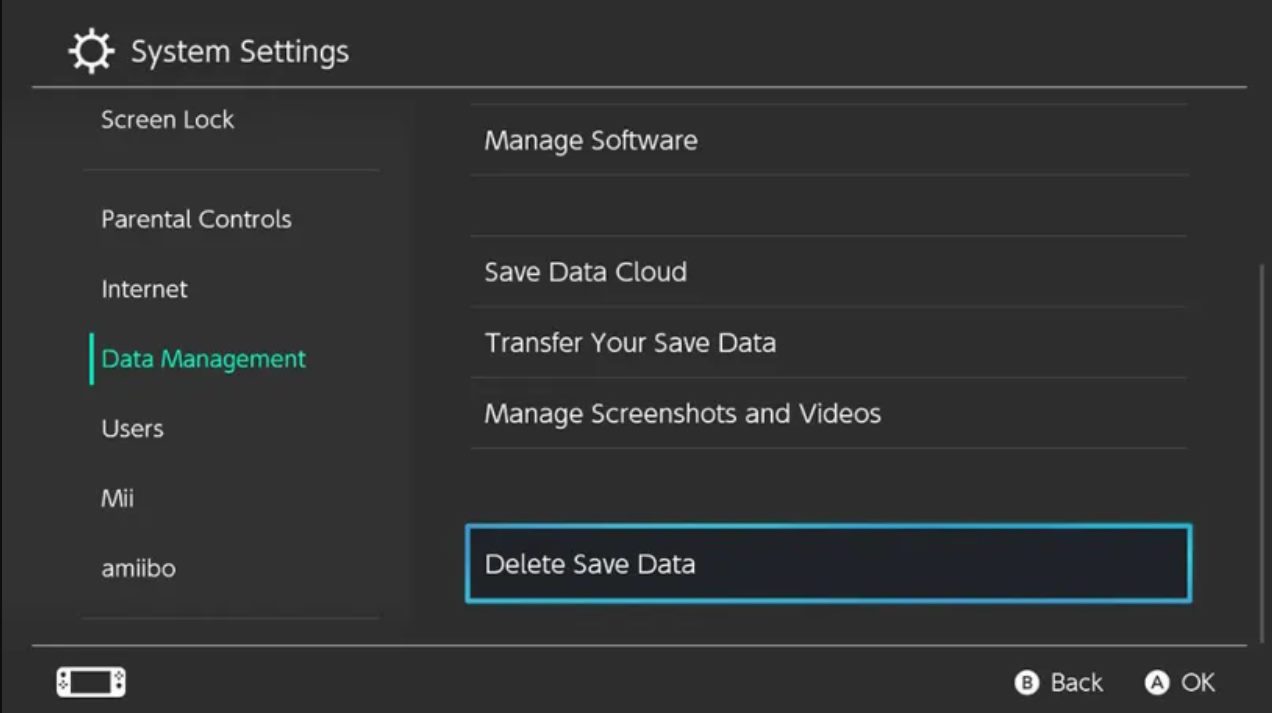
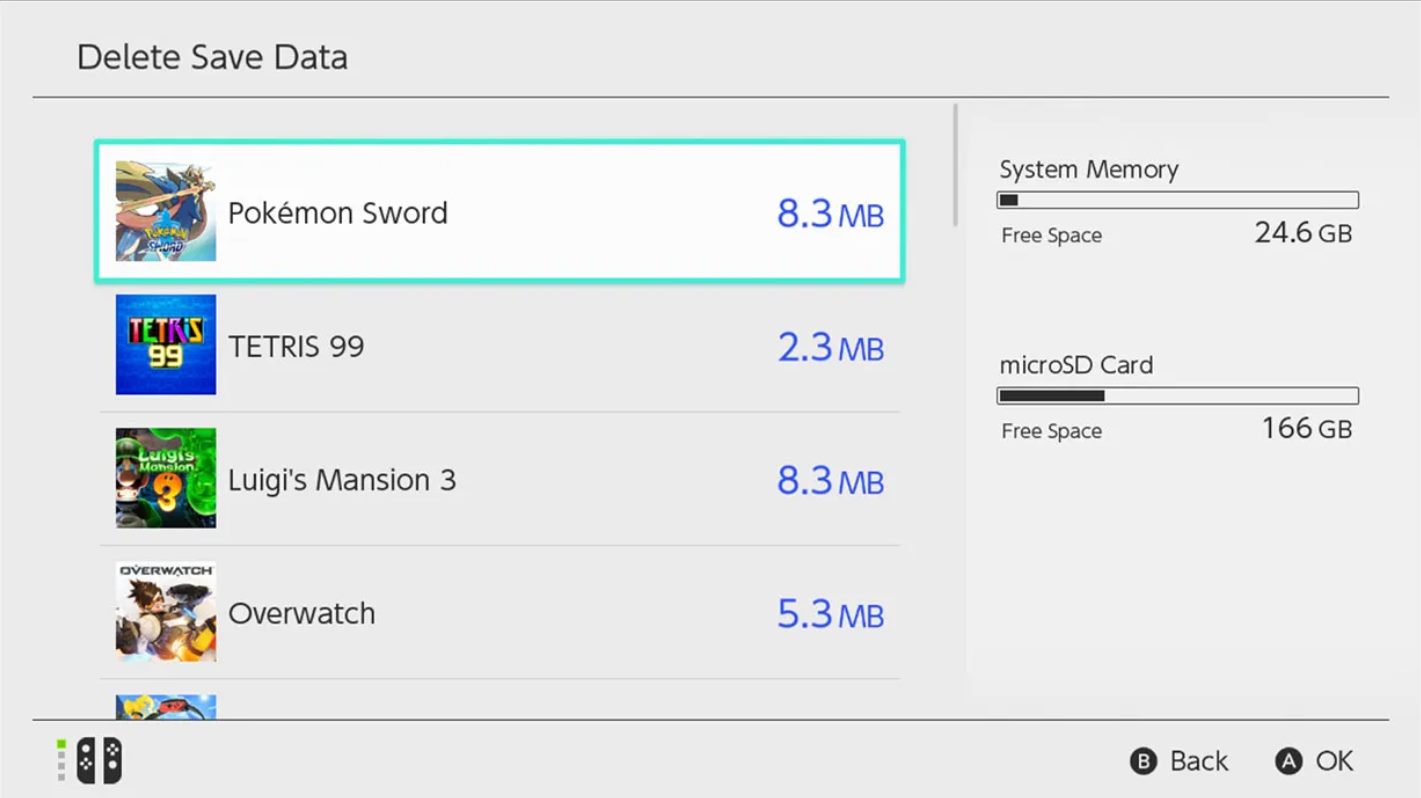
Save data is stored on the Nintendo Switch console's internal memory and is not saved on game cartridges or microSD cards. Save data is tied to the Nintendo Account it was created on and cannot be transferred to a different Nintendo Account. If you need to delete save data from a console, you can do so through System Settings > Data Management > Delete Save Data. This is useful if you need to delete switch save data to free up space or resolve issues. For example, if you need to delete save data Pokemon Scarlet, you would navigate to that game's save data management option and confirm the deletion. Nintendo does not currently allow backing up save data to external storage; it can only be saved to the cloud or transferred to another console.
Some games have specific exceptions. Animal Crossing: New Horizons save data may require the Island Transfer Tool and does not always copy over with the standard transfer. If you need to transfer Animal Crossing data to new switch, use the dedicated Island Transfer Tool available from the Nintendo eShop. Additionally, not all games support Save Data Cloud backup. Examples of games that do not support cloud saves include Splatoon 2, Pokémon Scarlet and Violet, Pokémon Let's Go, Pikachu! and Let's Go, Eevee!, Dark Souls: Remastered, Dead Cells, FIFA 19, and NBA 2K19.
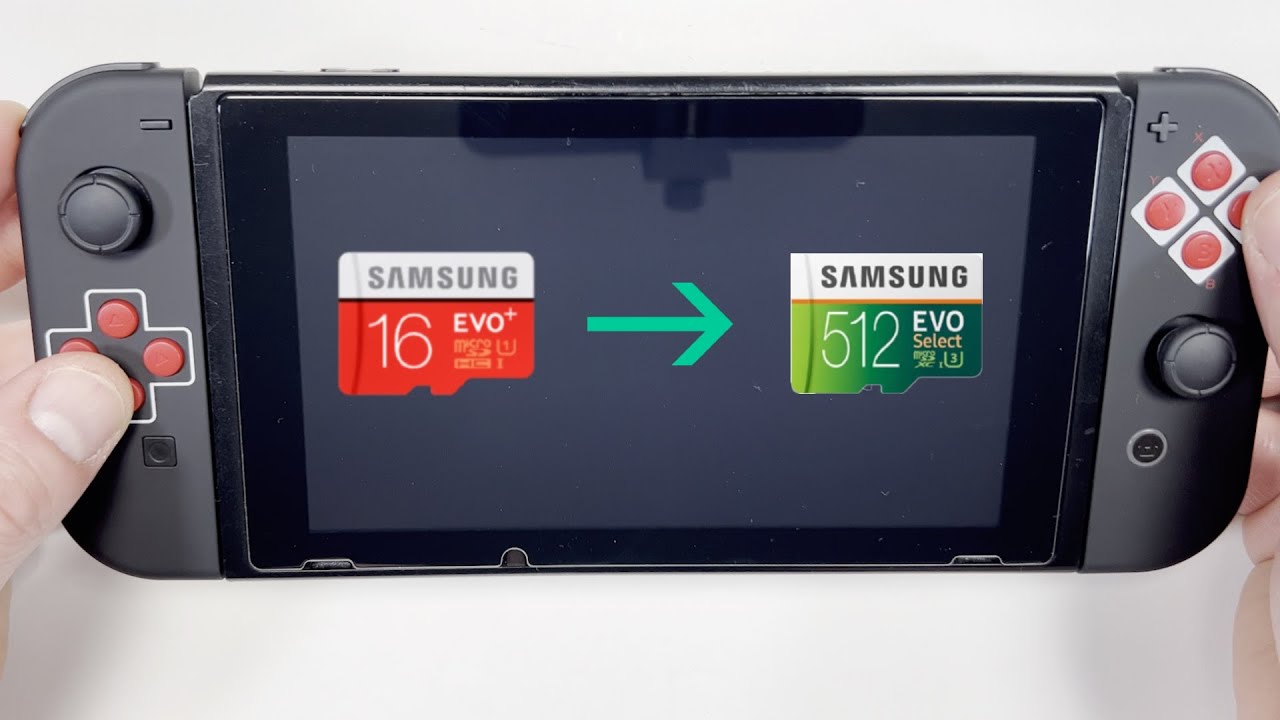
If you want to transfer data from one micro SD card to another Nintendo switch, note that save data is not stored on microSD cards. However, screenshots and videos can be kept by taking the Micro SD Card out of your old console and inserting it into the new one. Game software can be redownloaded from the Nintendo eShop.
Troubleshooting common transfer problems
If consoles are not finding each other during a local transfer, ensure both are on the same Wi-Fi network and are within close proximity. Restart both consoles if the connection fails. For cloud save conflicts when transferring save data between multiple consoles, be careful not to overwrite with the wrong data. Check the date and time of both save data files before downloading. If a cloud save conflict occurs, choose the most recent save data file. Regarding what happens to cloud data after a subscription lapses, cloud saves are kept for six months after your Nintendo Switch Online subscription expires; they will be deleted if you don't reinstate your subscription within that period, though local saves remain on the console.
Frequently Asked Questions
Where is save data stored on the Nintendo Switch?
Save data is stored on the Nintendo Switch console's internal memory. It is not saved on game cartridges or microSD cards. This means you cannot transfer save data by moving a microSD card between consoles.
Can I transfer save data between different Switch models?
Yes, these instructions work for transferring between any two Switch systems, including the regular Switch, Switch OLED model, and Switch Lite. It also applies to transferring from a Nintendo Switch to a Nintendo Switch 2.
Is a Nintendo Switch Online subscription required to transfer save data?
A Nintendo Switch Online subscription is only required for Method 3 (Save Data Cloud backup). Methods 1 and 2 (transferring an entire user profile or individual game save data locally) do not require a subscription.
Can I transfer save data to a different Nintendo Account?
You must use the same account on both consoles.
What happens to my save data if I cancel my Nintendo Switch Online subscription?
Nintendo will retain your cloud saves for six months after the subscription expires. If you do not reinstate your subscription within that period, the cloud data will be deleted. Your local saves on the console remain unaffected.