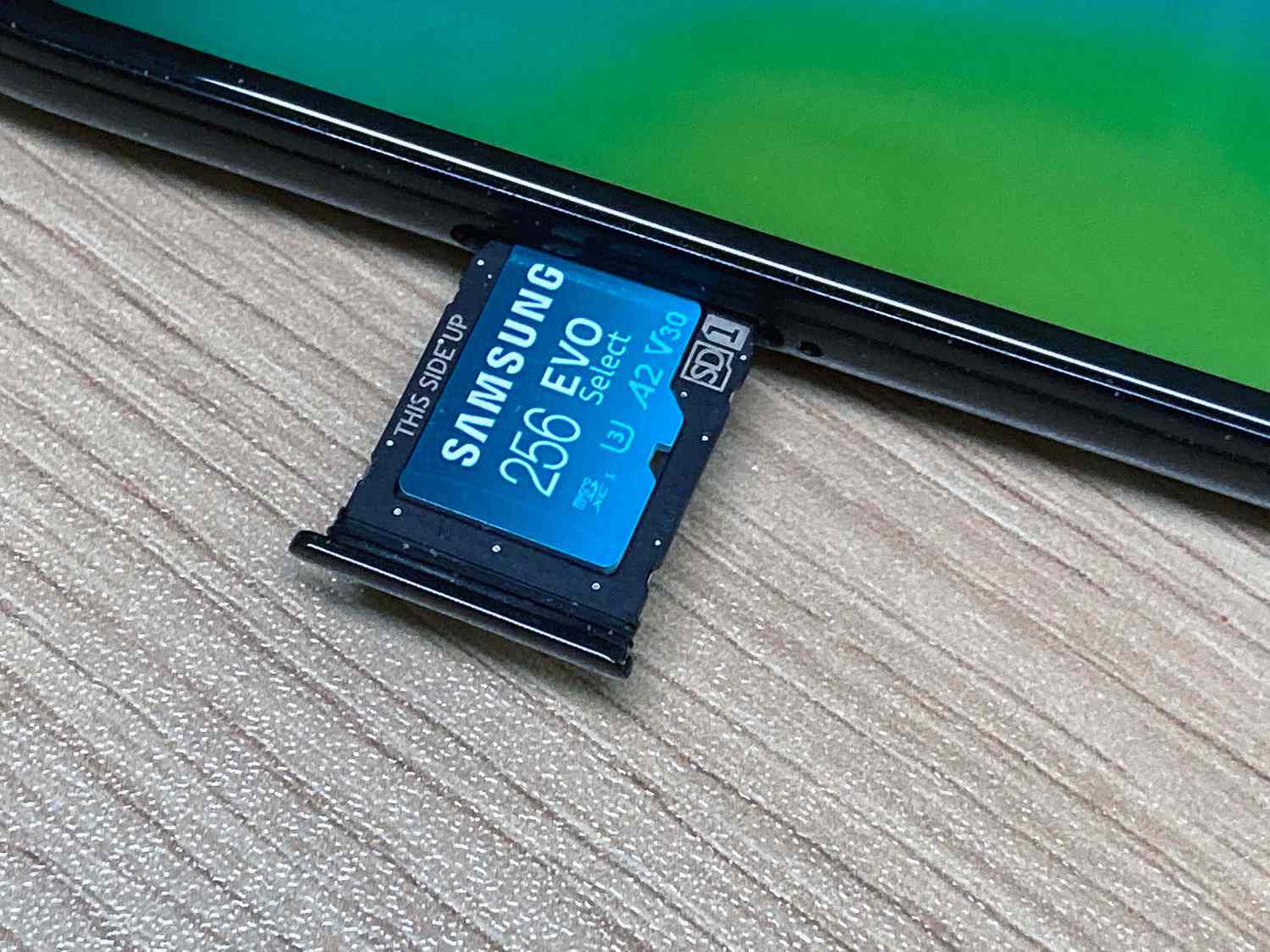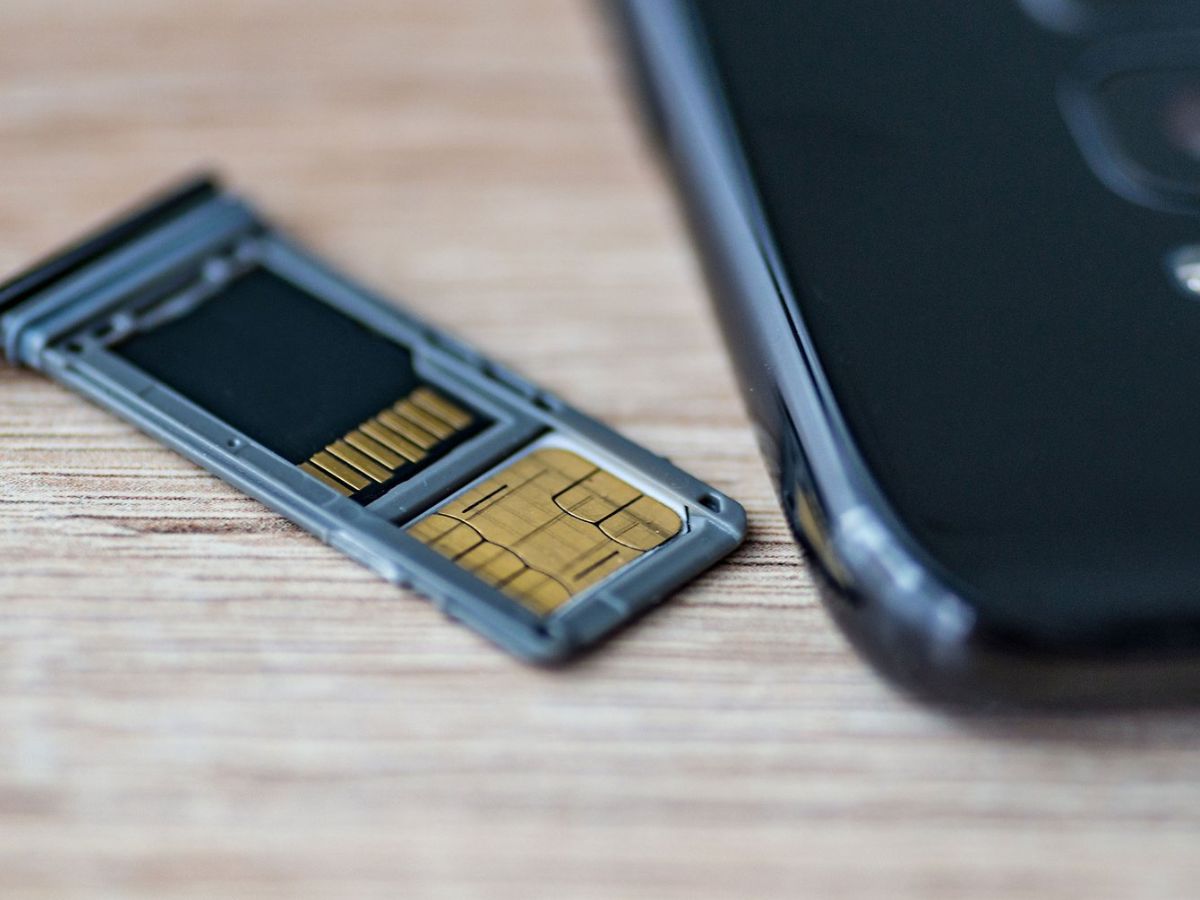
To transfer SD card data from one card to another, you can copy or move files directly on an Android phone using the Files by Google app, or use a computer with a card reader for a universal fallback method. This process lets you upgrade to a larger card or switch devices without losing your photos, videos, or documents.
Transfer SD card data directly on your Android phone
For most users, the fastest way to move or copy files between two SD cards is on the Android device itself. The primary tool is the Files by Google app, which handles phone data and storage management without needing a computer.
- Open Files by Google.
- Under Categories, select a category, then find the file you want to transfer.
- Tap More (the three-dot menu), then tap Move to or Copy to.
- Tap SD card as the destination.
- To place files in a new folder, choose the destination location, tap Add new folder, name it, then tap Move here or Copy here.
You can also work from the Storage devices section: open Files by Google, tap SD card, locate the file, use More > Select for multiple files or More beside a single file, then tap Move to or Copy to. Files by Google also has a Save to SD card setting for incoming files received through peer-to-peer sharing. To turn it on, open Files by Google, tap More > Settings, turn on Save to SD card, and tap Allow when prompted. If internal storage runs out of space during saving, the app prompts you to save incoming files to the SD card with a Save to SD button.
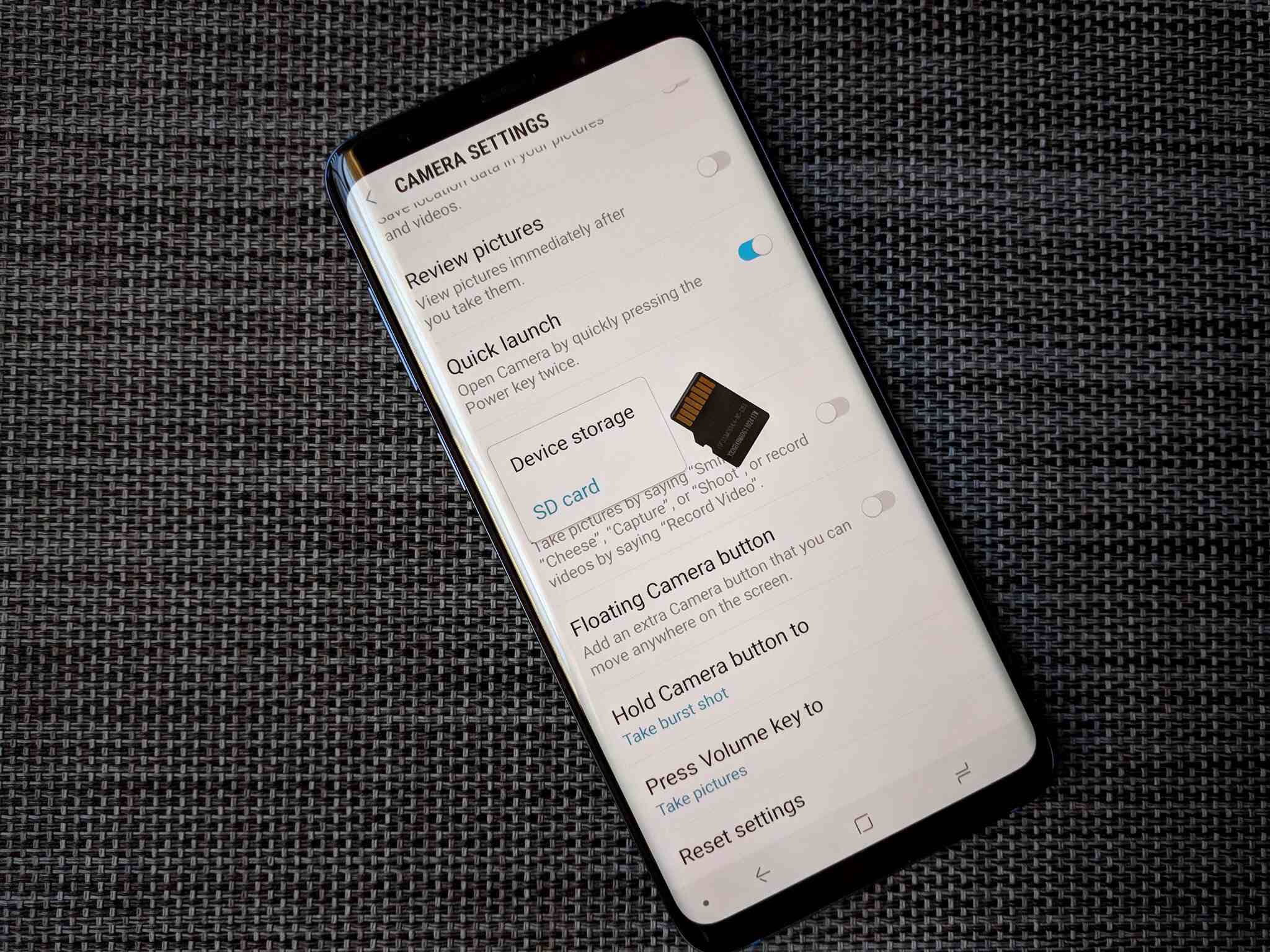
On Samsung devices, use the My Files app: go to Apps > My Files > Device storage > MORE > Edit, select the files, tap MORE > Move > SD memory card, choose a destination, and tap Move to. For copying instead of moving, select Paste here after choosing the destination folder. T-Mobile documents Samsung steps in My Files.
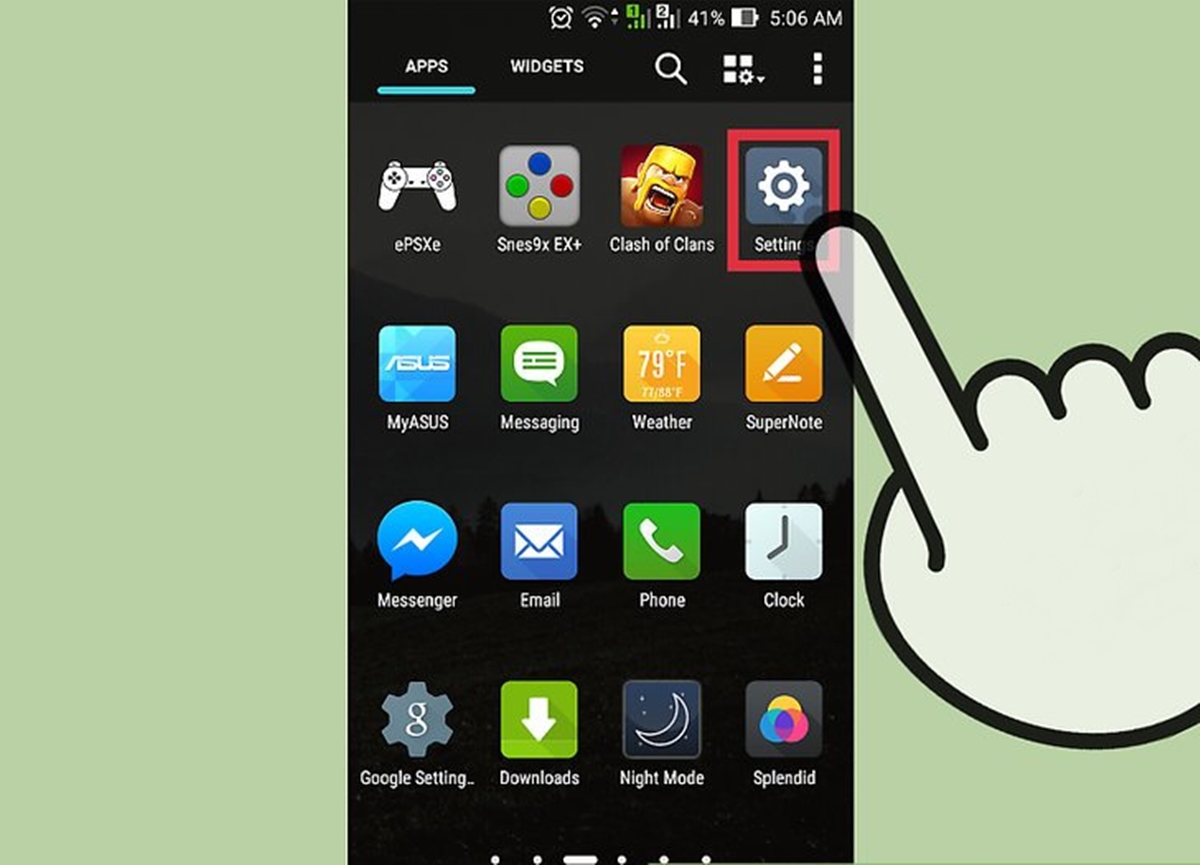
On Sony devices running Android 9, 10, or 11, go to Settings > Storage > Internal shared storage > Files, long-press a file or folder, tap the three-dot menu, choose Move to... or Copy to..., tap the menu icon, select SD Card, choose the destination, and tap MOVE/COPY. Some Sony models also have a separate path: Settings > Storage / Storage & memory > Transfer data to SD card / Transfer data, then choose media types and tap Transfer/TRANSFER.
How to transfer files using a Windows PC or Mac
If your phone does not have a file manager that supports direct card-to-card transfer, or if you prefer working on a computer, use a card reader or adapter to connect both SD cards to your computer. This method works on both Windows and Mac.
- Insert the source SD card into your computer's SD card slot or a card reader connected via USB.
- Open the file explorer (Windows) or Finder (Mac). Locate the source SD card, usually labeled as a removable disk or the card's name.
- Select the files and folders you want to transfer. You can select individual files or press Ctrl+A (Windows) or Command+A (Mac) to select all.
- Right-click the selected items and choose Copy.
- Safely eject the source SD card from your computer.
- Insert the new SD card into the same slot or reader.
- Open the file explorer or Finder again, locate the new SD card, right-click an empty space inside its folder, and choose Paste.
- Wait for the transfer to complete, then safely eject the new SD card.
Sony also documents that you can use a USB cable to connect the device to a computer to transfer and manage files. This is a reliable fallback when you cannot use the phone's file manager directly.
What about transferring SD card data on an iPhone?
The Files app and supported apps can access files on external devices, including SD cards, connected to iPhone, but there is no documented procedure for direct SD-card-to-SD-card transfer on the device. If you need to move data between SD cards using an iPhone, the solution is to use a computer with a card reader, following the Windows PC or Mac method described above.
Frequently Asked Questions
Does transferring data from one SD card to another affect the quality of the files?
No, transferring data between SD cards does not affect file quality. As long as the copy or move process completes without interruption, the files retain their original quality, resolution, and metadata.
Is it possible to transfer data from a micro SD card to a regular SD card?
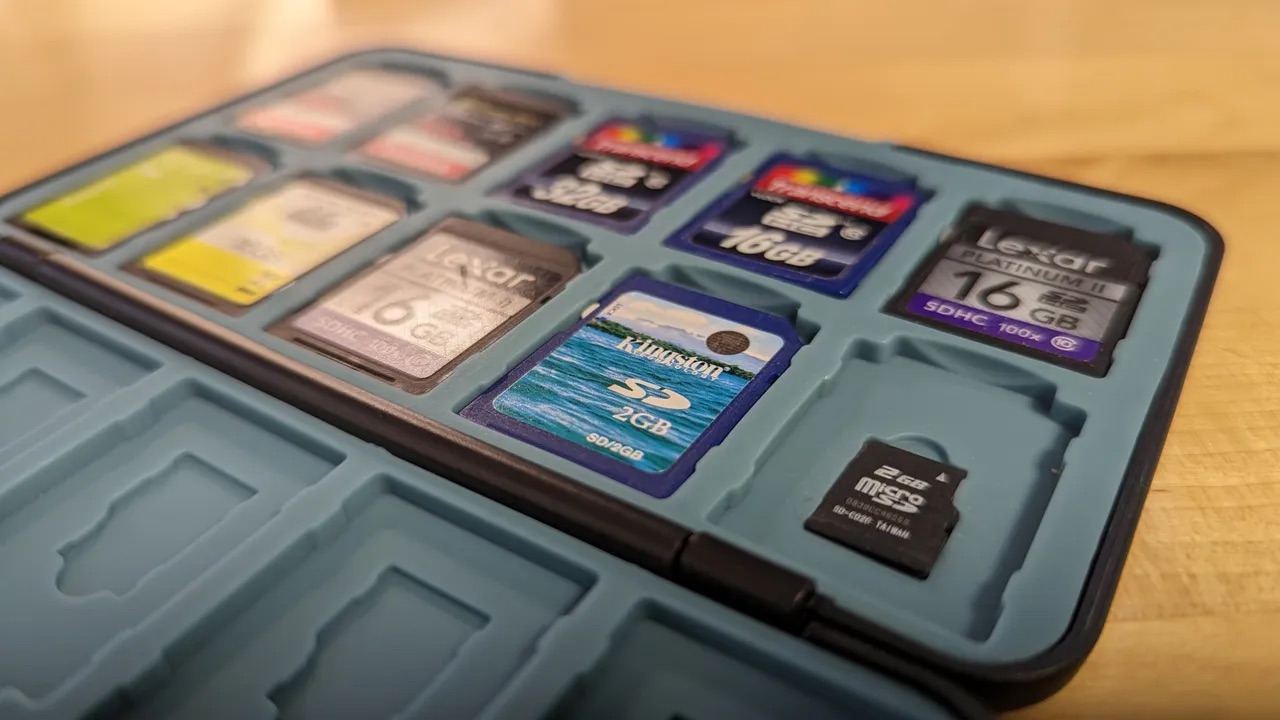
Yes, both micro SD and regular SD cards use the same file system (typically FAT32 or exFAT), so you can copy and paste files between them using a computer or a phone with an adapter. A micro SD card often comes with an adapter that makes it fit into a standard SD card slot.
Do I need any special equipment to transfer data between SD cards?
No special equipment is required beyond what you likely already have. If your computer has an SD card slot, you can insert both cards directly. If not, you need an external SD card reader or a USB adapter. For phone-to-phone transfers, the phone itself and the Files by Google app are sufficient.
Related reading: How To Move Photos To SD Card On Android.