To change notification sound in Discord mobile, you must use your device's system settings on Android, while iOS only allows toggling sound on or off, no custom sound is available. The key thing to understand is that the Discord app itself controls whether a notification is sent, but your phone's operating system controls the actual sound and appearance of that notification.
How to change notification sound in Discord mobile: Android vs iOS
The process for changing your Discord notification sound is completely different depending on whether you use an Android or an iOS device. On Android, you can select any sound your device supports by changing the system notification sound for the Discord app.
How Discord mobile notifications work
Discord's in-app settings decide whether a notification is triggered by an event like a mention or a direct message. Once Discord decides to send that notification, your device's operating system-level settings (for both Android and iOS) take over to control how it appears on your phone, including its sound, banner, and badge icon. This is why you cannot change the notification sound from inside the Discord app itself.
Accessing Discord's in-app notification settings
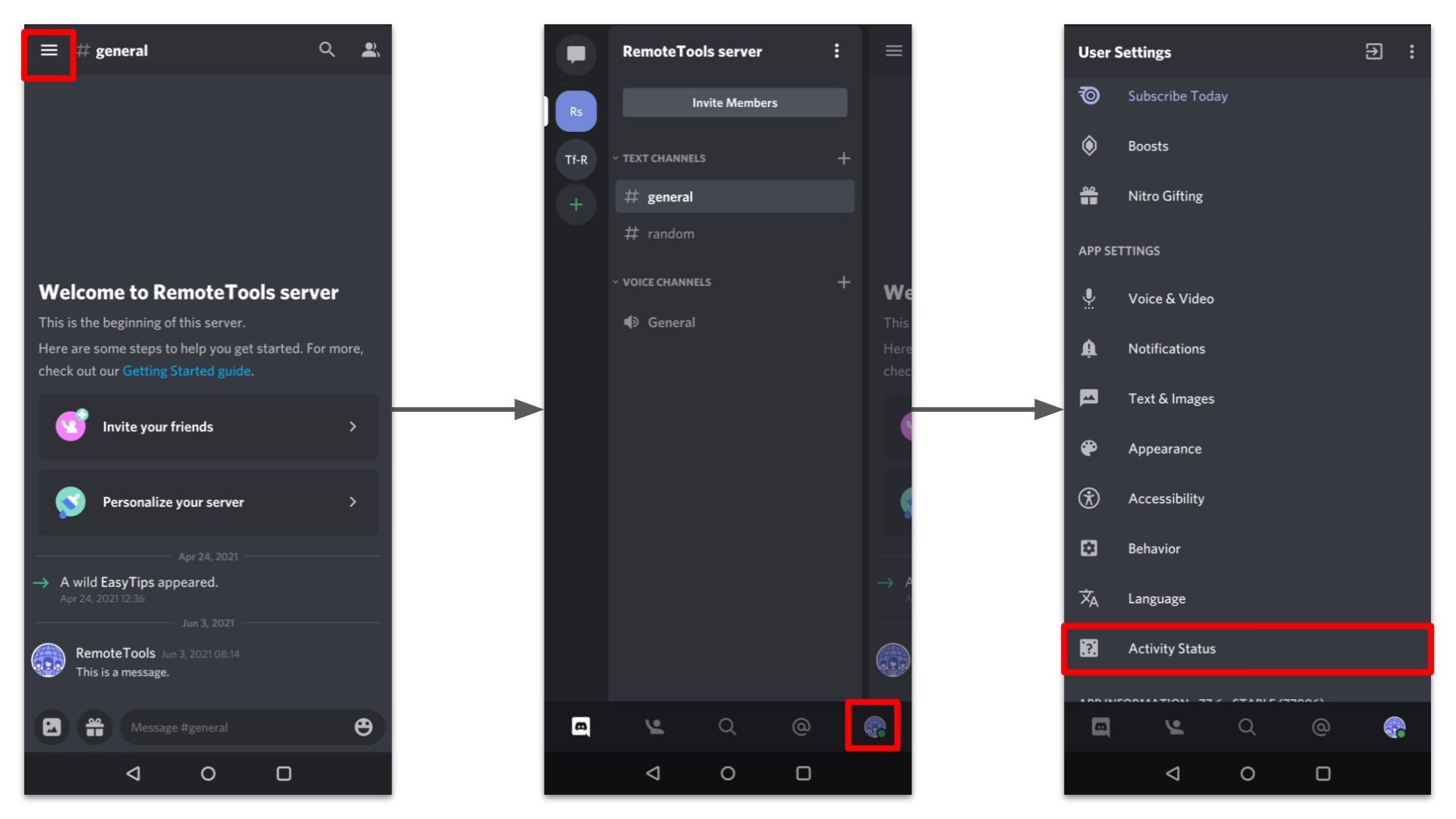
To manage what types of alerts actually trigger a notification, you need to open Discord's in-app notification settings. Tap your profile icon in the bottom-left corner, select the Settings icon, and then choose "Notifications" under App Settings. Alternatively, you can tap the Notifications icon to the right of your profile, then the ellipsis in the top-right corner, and select "Notification Settings."
Changing the notification sound on Android
To change the sound your Android device plays for Discord notifications, follow these steps:
- Open your device's Settings app.
- Navigate to Apps (or Apps & Notifications) and select Discord from your list of applications.
- Tap on "Notifications" to see all notification categories for Discord.
- Select a notification category (such as "Messages" or "Direct Messages") and tap on "Sound."
- Choose a new sound from your device's available tones. You can also access the full system sound picker from here. You can preview notification sounds before making a final selection on Android.
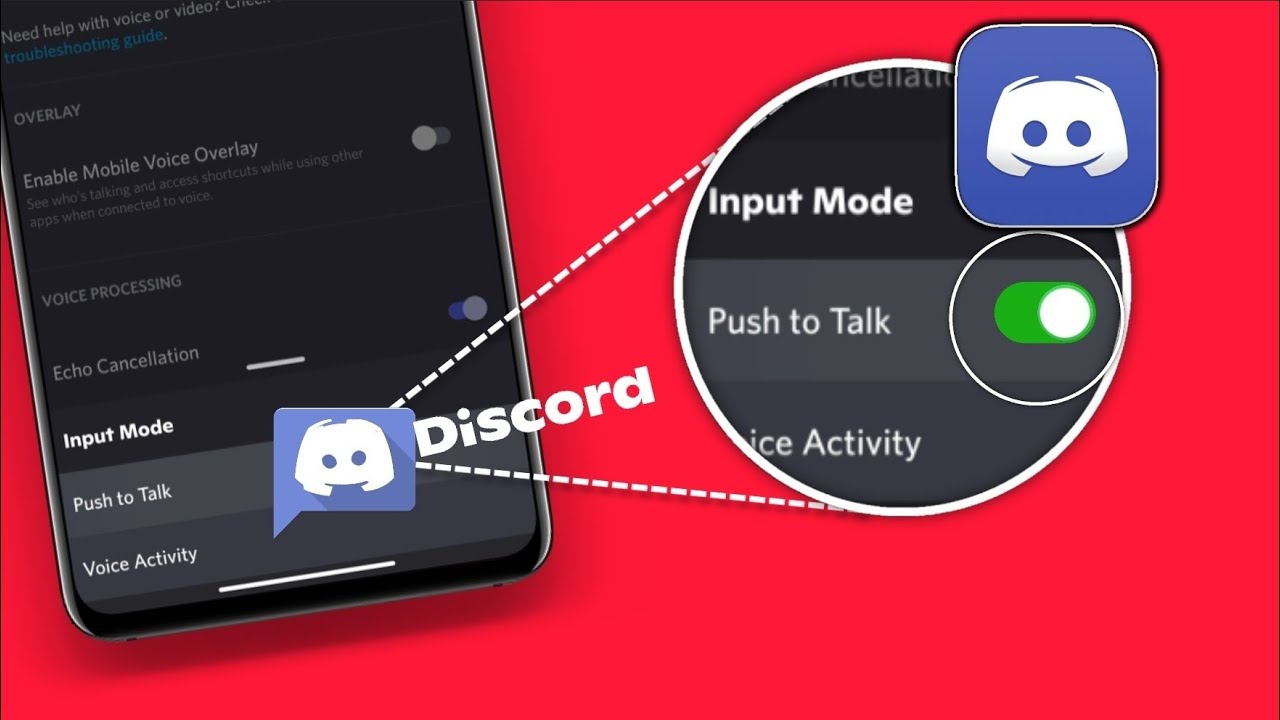
To access your Discord audio and sound settings for in-app sounds like call rings or voice activity, you must go to the app's Voice & Video settings instead.
Managing notification sounds on iOS
On iOS, you cannot select a custom sound for Discord notifications. The only control you have is to turn sound on or off entirely. To do this:
- Tap "Notifications" and then select "Discord" from the list.
- Toggle "Sounds" on or off. When off, notifications arrive silently.
There is no way to assign a different tone or a custom sound for Discord on iOS devices.
Customizing notifications for specific servers and channels
While you cannot change the sound per server on either platform, you can control which servers and channels trigger notifications at all. To set per-server notification preferences, tap the server's name at the top of the channel list and select "Notifications." From here, you can choose to receive all messages, only mentions, or nothing. For channel-specific settings, long-press the desired channel and tap "Notifications Settings" to fine-tune alerts for that channel alone.
Frequently Asked Questions
Why am I not hearing any notification sounds in Discord on my mobile device?
First, check that your device's volume is turned up and that the Discord app has permission to play sounds in your system settings. Also, you will not receive push notifications from Discord while the app is open and in focus on your mobile device, this is normal behavior to avoid duplicates.
Can I set a custom notification sound for specific Discord servers or channels?
No, Discord does not allow assigning different notification sounds to individual servers or channels. You can only control whether a server or channel sends a notification at all through the in-app settings.
Why don't notifications appear while the Discord app is open?
Discord intentionally suppresses push notifications when the app is open and in focus on your mobile device. This prevents redundant alerts since you are already viewing the app. Notifications will resume once you switch to another app or lock your screen.
Can I use a custom sound file for Discord notifications on Android?
Yes, on Android you can select any sound that is available in your device's system sound picker. If you have added custom ringtones or notification sounds to your device's storage, they will appear as options when you change the Discord notification sound in your system settings.
How do I turn off notification sounds for specific events in Discord on mobile?
In Discord's in-app notification settings, you can disable sound for specific event types by adjusting the notification preferences for direct messages, mentions, and server messages. However, this only controls whether the notification is sent, the sound is managed by your device's system settings. To silence all Discord sounds, toggle the "Sounds" option off in your device's notification settings for the Discord app.
Are there different notification sound options available in Discord for mobile devices?
Discord offers a variety of built-in sounds or you can use a custom sound from your device's audio library.
Related reading: How To Change Status In Discord Mobile and How To Change Font Style On Discord Mobile.