Getting your discord mobile audio mic and speakers working
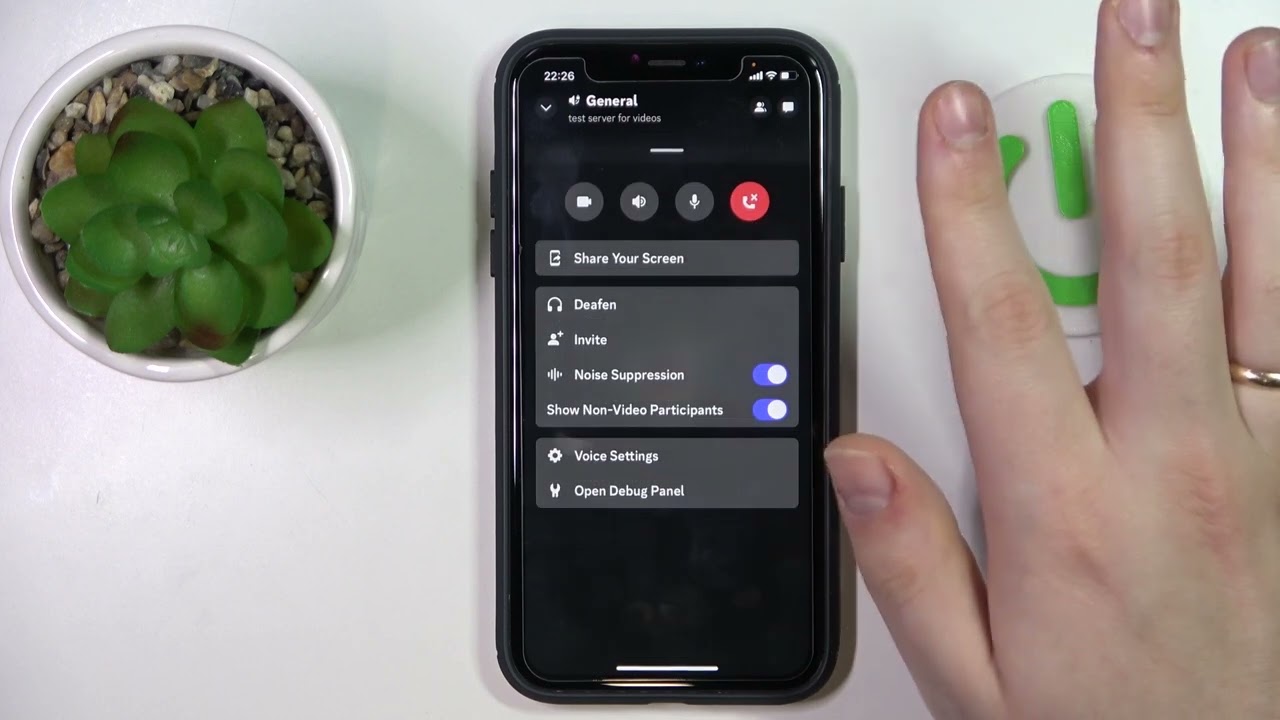
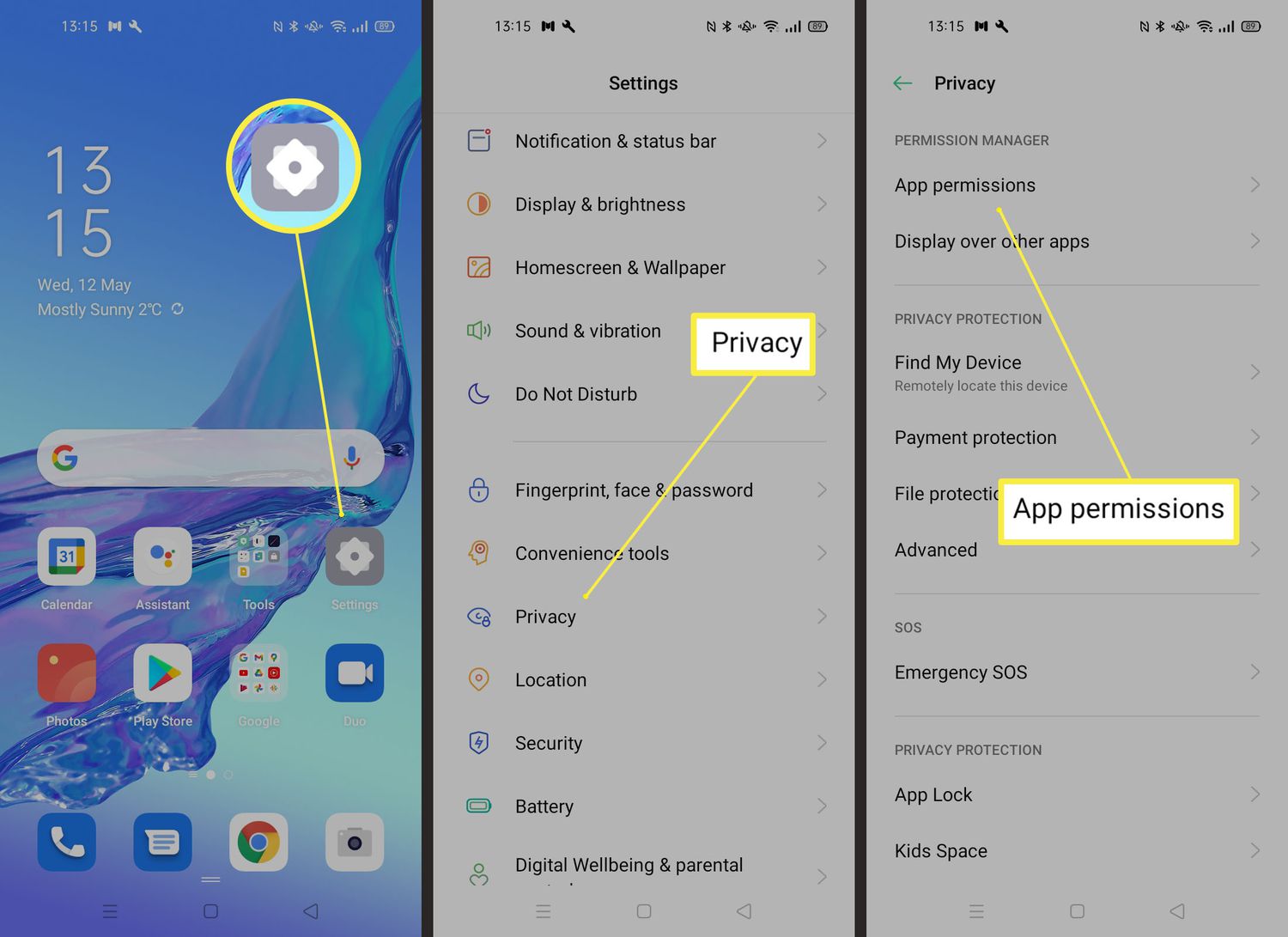
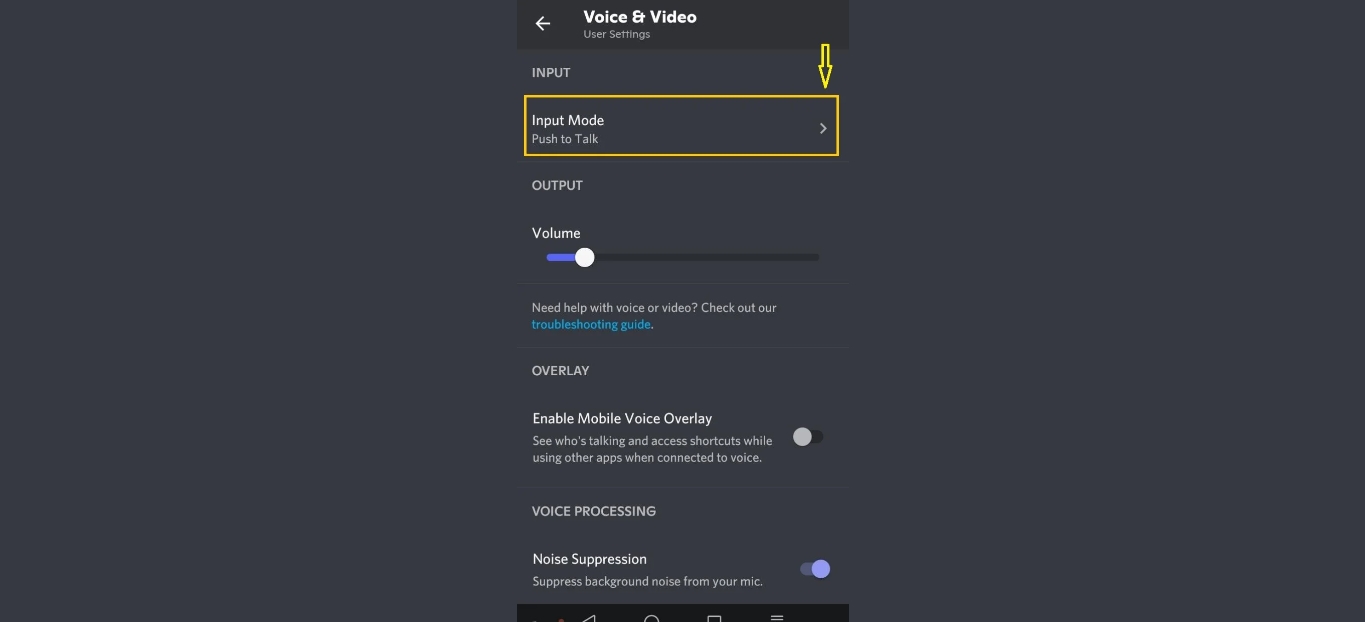
Before you join any call, open User Settings and tap Voice to confirm your microphone and speaker routing, since the app handles Discord mobile audio differently than the computer version. If you need to change audio input on Discord mobile, head into the Voice tab and check that Input Mode is not stuck on Push to Talk unless you intend to hold a button to speak. Discord mobile mic problems can involve permissions, so verify in your phone's system settings that Discord has microphone access before you adjust anything inside the app. When you experience discord mobile audio output issues, the first fix is to return to Voice, adjust the output volume slider, and then raise the volume on the device itself. The mic test inside those same settings gives you a quick way to confirm input is detected without interrupting a live conversation.
Managing call and stream audio
When you need silence during a call, the quickest action is to mute yourself by tapping the microphone button on your handset or clicking it on your computer, and the same button toggles back when you want to speak. That control only affects your own mic. If someone else’s background noise is the problem you can open the voice channel, tap their name on your phone or right-click it on the computer app, and select Mute to quiet them on your end only. The process to mute someone on Discord mobile and PC follows identical logic, though the official help does not describe a server-wide mute for regular members. If you are watching a friend’s screen share and need to mute a stream on Discord mobile, you can control the stream volume by swiping up from the bottom of the screen, so you may not need to rely solely on your device’s media volume until you can unmute stream on Discord mobile through your device’s own volume settings. Many people looking for a way to turn off Discord call sound on mobile are searching for a phone-wide setting that Discord’s voice controls do not provide, as they cover muting your mic or individual participants rather than silencing an entire call from a single switch.
Using soundboard and voice effects
When you want to add atmosphere or a laugh during a voice call, Discord's documentation is inconsistent on whether you can play sounds from the mobile soundboard, but one guide shows a path: join a voice channel, drag up the tab from below, and tap the "🎉 Soundboard" button to access available sounds. Tapping any sound plays it into the channel immediately, though Discord’s own documentation notes that server soundboard management and uploading remain limited to the computer app for now. If you want to use Discord Soundboard on mobile.
For anyone hoping to use a voice changer on Discord mobile, a dedicated article walks through the available workarounds and third-party tools.
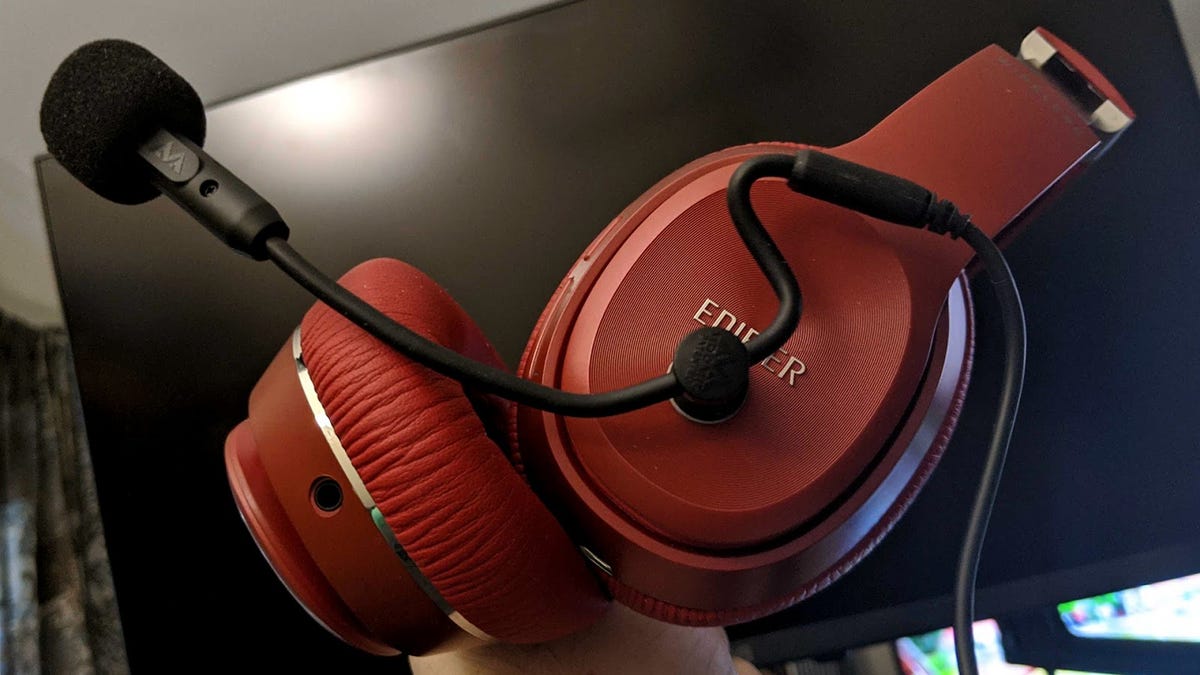
People often find that their audio accessories create unexpected behavior because the handheld app handles audio differently than the computer client. If you want to use Bluetooth headphones on Discord mobile.
Before you troubleshoot further, confirm your phone has not routed your mic to the handset while you are wearing earbuds. The sections that follow walk through a set of closely related setups that share this same audio and permissions context. Each one addresses a specific task you are likely attempting right now, so choose the option that matches what you are trying to do. If you want to use GIFs on Discord mobile, another article shows you how to search for and send animated images directly from the chat input area.
Sending and recording audio
When you want to share what is happening on your screen with sound, you can start a screen record with audio on Discord mobile app by joining a voice call, DM call, group DM call, or server voice channel and using the Screenshare option. The option to share your entire screen may capture system audio as well, so a video or game soundtrack plays for everyone in the call without you holding your phone up to a speaker. If your goal is to send audio files on Discord mobile, you can use Voice Messages to record and send standalone audio clips directly in a chat.
Customizing notification sounds
Discord's audio and sound settings give you fine-grained control over your listening and notification experience. To customize which alerts you hear while on the go, you may want to learn how to change notification sound in Discord mobile, so your device only pings you with the tones you prefer. Adjusting the master volume, input sensitivity, and individual user volumes helps you balance game audio, voice chat, and system sounds without missing important calls or messages. These settings ensure your Discord sessions remain clear, comfortable, and tailored to your environment.
Typing and text formatting
People often run into unexpected behavior from their audio accessories because the phone app handles audio differently than the computer version, and Bluetooth headsets introduce their own quirks.
When your keyboard stops responding in the middle of a conversation, start by force-stopping the app and reopening it, because many discord mobile keyboard input problems stem from a temporary memory conflict between Discord and your phone’s text system rather than a broken setting. Once you can type again, you control exactly how your words land by wrapping the text yourself: for bold on Discord mobile, place two asterisks on both sides of the word or phrase, and the app renders it in a heavier weight as soon as you send the message. If you are sharing a plot twist or a joke that deserves a reveal, discord mobile spoiler tag formatting uses the same manual approach, type two vertical bars before and after the sensitive text to hide it behind a tap-to-show gray box. There is no menu to change font style on Discord mobile, and the same limitation appears when you try to turn off emoticon to emoji on Discord mobile.
Navigating messages and media
Audio accessories often create unexpected behavior because Discord on a phone handles sound differently than on a computer, and Bluetooth headphones introduce their own quirks. The app routes voice and media through separate channels, so your headset might pick up calls while system sounds play through the speaker. Checking the voice output setting inside a voice channel resolves most routing problems.
Bluetooth devices add another layer of complexity. Many headsets switch to a lower-quality codec when the microphone activates, making game audio sound muffled. Turning off the Hands-Free Telephony profile in your operating system’s sound control panel prevents this downgrade, though it disables the headset microphone entirely.
Wired connections avoid Bluetooth compression but a USB headset that works perfectly on a laptop might not draw enough power from a phone’s port, causing intermittent disconnects. Using a powered adapter or switching to a 3.5mm jack solves the power draw issue immediately.
Input sensitivity controls how much sound your microphone picks up before transmitting. Leaving this on automatic works for quiet rooms, but a mechanical keyboard or nearby conversation bleeds through. Switching to manual and lowering the threshold until the green bar only lights when you speak cuts out background noise without extra software.
Echo cancellation, noise suppression, and automatic gain control each affect call quality differently. Noise suppression strips out fans and traffic hum, while echo cancellation prevents your speakers from feeding back into the microphone. Automatic gain control normalizes your volume so you do not suddenly shout or whisper, though it can clip loud moments.
Advanced voice processing sits below these toggles. Krisp noise cancellation runs locally on your device and removes background sounds before they reach the call, at the cost of slightly higher CPU usage. Turning this on makes a coffee shop sound like a quiet office, and it works bidirectionally for both your outgoing and incoming audio.
When you need to locate a specific conversation on your phone, the tools available depend on what you are trying to retrieve. To see the first message on Discord mobile, the jump method that desktop users rely on is not supported in the app. A similar constraint applies when you need to find old messages on Discord mobile; the app does not surface a calendar picker or a before/after date operator in the mobile interface. If you are reporting a message to a server moderator or setting up a bot trigger, you first need to copy message ID on Discord mobile. When you want to remove an entire conversation from your inbox, you can delete chat on Discord mobile, though this clears the history only on your side. For a less permanent step, you can close Discord mobile DMs, which removes it from your view without deleting the message log.
Streamer mode protects your personal information when broadcasting or sharing your screen. Enabling it hides email addresses, connected accounts, and notes from appearing on stream. You can choose to hide invite codes or mute notification sounds so your audience hears only the content you intend to share.
Keybind shortcuts speed up actions that normally require clicking through menus. Push-to-talk, toggle mute, and overlay activation all support custom key combinations. Setting a secondary bind for push-to-mute gives you a quick way to cut your mic during a cough or side conversation without fumbling for the mute button.
Text-to-speech settings control how the app reads messages aloud. Adjusting the speech rate and voice selection makes long announcements comprehensible rather than a robotic blur. Per-channel toggles let you disable TTS in busy servers while keeping it active in smaller group chats where every message matters.
Notification sounds for different events help distinguish a direct message from a server ping without looking at the screen. Custom sound packs replace the default chime with something more noticeable or less intrusive depending on your environment. Disabling sounds for specific message types keeps focus during work hours while still alerting you to urgent pings.
Audio subsystem selection affects how the app communicates with your sound hardware. The standard option works across most setups, while the experimental subsystem can fix crackling or latency on certain sound cards. Switching this requires a restart and sometimes resolves driver conflicts that no other setting touches.
Attenuation lowers other applications’ volume when someone speaks. Setting the reduction percentage and choosing which programs are affected prevents game audio from drowning out callouts during a raid. Excluding a music player from attenuation keeps background tracks steady while voice chat dips only the game.
Multitasking and status
People often notice that their audio accessories create unexpected behavior, and Bluetooth headsets can sometimes route calls through a lower-quality hands-free profile while silencing media playback. When you want to keep up with friends while doing something else on your phone, Discord’s behavior depends heavily on what else is running. You can use Discord on phone and PC at the same time with the same account without being logged out, which is handy for moving between rooms or checking a stream while away from your desk. The exact path to put playing Roblox on Discord mobile as a detected activity is not available. For sharing a quick reaction or joke, open any chat, tap the text box, then tap the emoji icon and switch to the GIF tab to browse and send one instantly. That same picker is also where you make a GIF on Discord mobile by selecting a trending clip or searching for a term, though creating an entirely new animated file from your camera roll requires a separate tool outside the app. Expect audio routing to shift when you join a call while multitasking.
Frequently Asked Questions
How do I stop Discord calls from lowering my game volume on iPhone?
Open User Settings, tap Voice, and disable the attenuation setting that lowers other app volume when someone speaks. Discord does not document a separate iPhone-only toggle for this, so the standard attenuation control applies across devices.
Can I upload custom sounds to a server soundboard from my Android phone?
No, server soundboard management and uploading remain limited to the desktop app. Mobile users can only play existing sounds by joining a voice channel, dragging up the bottom toolbar, and tapping the Soundboard button.
How do I change the Discord notification alert sound on my phone?
Discord's official mobile help says notification sounds are controlled from the app's notification settings, but it does not document a separate in-app flow for changing the specific alert tone on iPhone versus Android. You must adjust this through your phone's system notification settings for the Discord app.